
EZQuest USB-C Slim Gen 2 Hub Adapter 6-in-1
EZQuest USB-C Slim Gen 2 Hub Adapter 6-in-1 Instruction Manual
Model: USB-C Slim Gen 2 Hub Adapter 6-in-1
Aha: EZQuest
Okwu mmalite
The EZQuest USB-C Slim Gen 2 Hub Adapter 6-in-1 is a versatile connectivity solution designed to expand the capabilities of your USB-C enabled devices. This compact hub provides essential ports for video output, high-speed data transfer, and power delivery, enhancing your productivity and connectivity options.
Atụmatụ igodo
- One USB-C 4K 60Hz Video Output: Connect to an external display for crisp 4K resolution at 60Hz.
- Four USB-C Gen 2 10Gbps Ports: Experience ultra-fast data transfer speeds up to 10Gbps. The total shared data bandwidth across these four ports is 10Gbps.
- USB-C Power Delivery 3.0 (100W): Charge your host device with up to 80W pass-through charging, supporting Fast Role Swap (FRS) technology.
- Individual Port Power Output: Each USB-C data port provides 5V/1.5A (7.5W) power output, with a total shared power output of 15W when all ports are used simultaneously.
- Removable 19.6-inch (50 cm) Nylon Braided Cable: Offers flexibility and durability, allowing the hub to lay flat on your desk.
- Ndakọrịta sara mbara: Compatible with all computers, smartphones, and tablets featuring USB-C/Thunderbolt ports and OTG support.
Ihe ngwugwu
Biko hụ na ihe niile dị na ngwugwu:
- EZQuest USB-C Slim Gen 2 Hub Adapter 6-in-1
- Integrated USB-C Host Cable (19.6 inches / 50 cm)
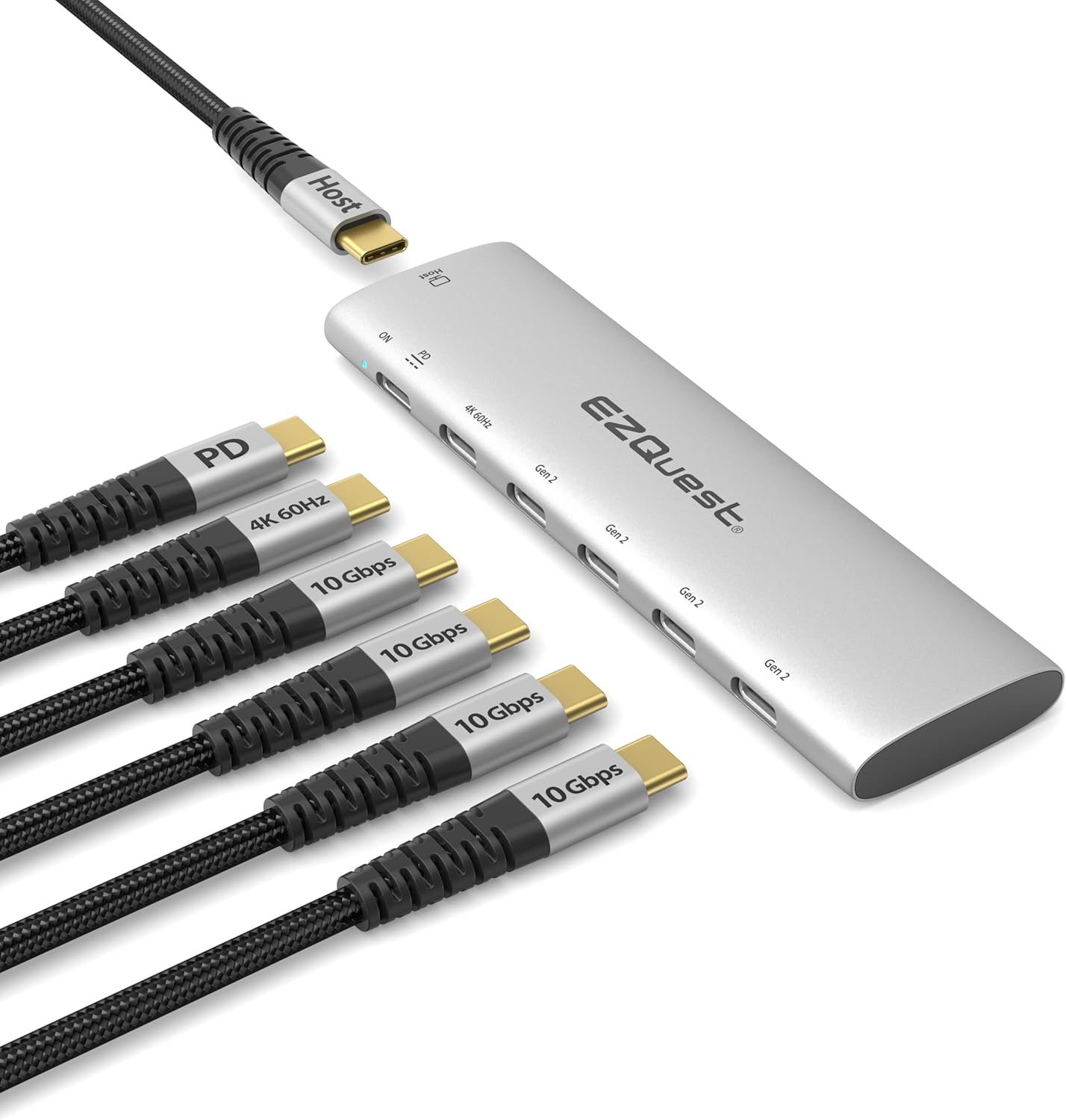
Image: The EZQuest USB-C Slim Gen 2 Hub Adapter 6-in-1, showcasing its compact design and multiple USB-C ports, including one for power delivery and one for 4K 60Hz video output. Various cables are shown connected to illustrate its functionality.
Ntuziaka nhazi
Connect the Hub to Your Host Device:
Plug the integrated USB-C host cable from the EZQuest hub into an available USB-C or Thunderbolt port on your computer, laptop, tablet, or smartphone.

Image: The EZQuest hub connected to a laptop via its USB-C host cable, illustrating the primary connection point.
Ngwa njikọ:
Connect your USB-C devices (e.g., external SSDs, flash drives, or other USB-C accessories) to the four USB-C Gen 2 10Gbps data ports on the hub.

Image: A diagram illustrating the shared data and power capabilities of the hub, showing 10Gbps total shared data and 15W total shared power across the four USB-C data ports, along with the 100W Power Delivery port and 4K 60Hz video output.
Connect External Display (Optional):
If you wish to extend or mirror your display, connect a USB-C to USB-C video cable from your monitor to the dedicated USB-C 4K 60Hz video output port on the hub. Ensure your device's USB-C port supports display output.

Image: A laptop connected to an external monitor through the EZQuest hub, demonstrating the extended display functionality. A note reminds users to ensure their device's USB-C port supports display output.
Connect Power Adapter (Optional for Charging Host Device):
For pass-through charging of your host device, connect your USB-C power adapter to the USB-C Power Delivery 3.0 port on the hub. The hub supports up to 100W input with up to 80W output to the host device.

Image: The EZQuest hub connected to a laptop and an external SSD, with arrows indicating 100W power input to the hub and 80W power output to the laptop, demonstrating power delivery functionality.
Ntuziaka ọrụ
Nyefee data
The four USB-C Gen 2 ports support data transfer speeds up to 10Gbps. When transferring large files, ensure your connected devices also support USB 3.2 Gen 2 for optimal performance. The total shared data bandwidth across these ports is 10Gbps.

Image: A person using a laptop with the EZQuest hub connected, illustrating high-speed file transfer to an external SSD. The image highlights 10Gbps USB 3.2 Gen 2 speed compared to 5Gbps USB 3.0.
Mmepụta vidiyo
The dedicated USB-C 4K 60Hz video output port allows you to connect an external display. This port supports resolutions up to 4K (3840x2160) at a refresh rate of 60Hz. For best results, use a high-quality USB-C to USB-C video cable and ensure your display supports 4K 60Hz via USB-C.
Nnyefe ike
The USB-C Power Delivery 3.0 port enables pass-through charging for your host device. Connect your original USB-C power adapter to this port. The hub can accept up to 100W input and deliver up to 80W to your connected laptop or device. This port also features Fast Role Swap (FRS) technology, which helps prevent data loss during power fluctuations.
Ndakọrịta
The EZQuest USB-C Slim Gen 2 Hub Adapter is broadly compatible with devices featuring a USB-C or Thunderbolt port that supports data, video, and power delivery functionalities.
- Computers with USB-C/Thunderbolt ports (e.g., MacBook Pro/Air, Windows PCs, Chromebooks).
- USB-C smartphones and tablets with OTG (On-The-Go) support (e.g., iPad Pro, Samsung Galaxy, Google Pixel).
Ihe ndetu dị mkpa: For video output functionality, your device's USB-C port must support DisplayPort Alternate Mode (Alt Mode).

Image: The EZQuest hub connected to an iPad, a smartphone, and a tablet, demonstrating its compatibility with various USB-C enabled mobile devices that support OTG.
Nkọwapụta
| Njirimara | Nkọwa |
|---|---|
| Aha Nlereanya | USB-C Slim Gen 2 Hub Adapter 6-in-1 |
| Mmepụta vidiyo | 1 x USB-C 4K 60Hz |
| ọdụ ụgbọ mmiri data | 4 x USB-C Gen 2 (10Gbps, shared total) |
| Data Port Power Output | 5V/1.5A (7.5W) per port, 15W total shared |
| Port nnyefe ike | 1 x USB-C PD 3.0 (100W input, 80W output) |
| Ogologo eriri USB | 19.6 inches (50 cm) removable nylon braided |
| Agba | Ọlaọcha |
| Ibu Ibu | 4.2 ounces |
| Akụkụ | 8.82 x 4.02 x 1.46 inch (Ngwugwu) |
| Ngwaọrụ Akụrụngwa | USB Ụdị C |
Nchọpụta nsogbu
- Enweghị mmepụta vidiyo:
- Ensure your host device's USB-C port supports DisplayPort Alternate Mode (Alt Mode).
- Verify the USB-C to USB-C video cable is functioning correctly and is connected to the correct port on the hub and monitor.
- Check display settings on your host device to ensure the external monitor is detected and configured correctly (e.g., extended or mirrored).
- Ọsọ mbufe data dị nwayọ:
- Ensure both the host device and the connected peripheral support USB 3.2 Gen 2 (10Gbps).
- Note that the 10Gbps data bandwidth is shared across all four USB-C data ports. Simultaneous high-bandwidth transfers may reduce individual port speeds.
- Try connecting the peripheral directly to the host device to isolate if the issue is with the hub or the peripheral.
- Host Device Not Charging / Slow Charging:
- Ensure your power adapter is connected to the dedicated USB-C PD port on the hub.
- Verify your power adapter provides sufficient wattage (e.g., 60W or 100W) for your host device and the hub's pass-through charging capabilities.
- The hub provides up to 80W output to the host device. If your device requires more, it may charge slower or not at all.
- Hub Not Recognized:
- Ensure the integrated USB-C host cable is fully inserted into your device's USB-C/Thunderbolt port.
- Try connecting the hub to a different USB-C/Thunderbolt port on your device.
- Malitegharịa ekwentị gị na ngwaọrụ.
Nlekọta na nlekọta
- Keep the hub away from liquids, extreme temperatures, and direct sunlight.
- Clean the hub with a soft, dry cloth. Do not use abrasive cleaners or solvents.
- Avoid dropping or subjecting the hub to strong impacts.
- Chekwaa oghere ahụ n'ebe dị jụụ, kpọrọ nkụ mgbe ọ naghị eji ya.
Akwụkwọ ikike na nkwado
EZQuest products are designed for reliability and performance. For warranty information and technical support, please visit the official EZQuest websaịtị ma ọ bụ kpọtụrụ ndị ahịa ha ọrụ.
Ị nwere ike ịchọta ozi ndị ọzọ na nkwado na EZQuest Amazon Store.
Ask a question about this manual
Ask about setup, troubleshooting, compatibility, parts, safety, or missing instructions. Manuals+ will review the question and use this page’s manual context to help answer it.