
1. Okwu mmalite
This manual provides detailed instructions for the OMOTON Magnetic Keyboard Case, Model KC011. This accessory is designed to enhance the functionality of your iPad Pro 13-inch (M4) 2024, offering a keyboard, multi-touch trackpad, and protective case. Please read this manual thoroughly before use to ensure proper operation and maintenance.
2. Ihe ngwugwu
Chọpụta na ihe niile edepụtara n'okpuru dị na ngwugwu gị:
- OMOTON Magnetic Keyboard Case
- Eriri Nchaji USB-C (1 mita)
- Akwụkwọ ntuziaka
3. Ndakọrịta
This keyboard case is specifically designed for the Apple iPad Pro 13-inch (M4) 2024 model. It is compatible with iPad models A2925, A2926, and A3007.

Foto 3.1: iPad Pro 13-inch (M4) 2024 compatibility. This image illustrates the 13-inch screen size and lists the compatible iPad model numbers (A2925, A2926, A3007) found on the back of the device.
To confirm your iPad model number:
- Gaa na Ntọala na iPad gị.
- Họrọ Izugbe, mgbe ahụ Ihe gbasara, and look for Aha Nlereanya.
- Alternatively, locate the model number printed on the back of your iPad.
4. Nhazi
4.1 Attaching the iPad
The keyboard case features strong magnets for secure attachment of your iPad. Align your iPad with the magnetic panel on the case until it snaps into place.

Foto 4.1: Magnetic attachment. This image demonstrates how the iPad magnetically connects to the keyboard case, highlighting the strong magnetic attraction for secure placement.
4.2 Njikọ Bluetooth
Follow these steps to pair your keyboard case with your iPad via Bluetooth:
- Ensure the keyboard is charged (refer to Section 5.4 for charging instructions).
- Turn on the keyboard by pressing the power button. The Bluetooth indicator light will flash.
- Na iPad gị, gaa na Ntọala > Bluetooth.
- Gbanye Bluetooth. iPad gị ga-achọ ngwaọrụ dị.
- Select "OMOTON Keyboard" (or similar name) from the list of devices.
- If prompted, enter the pairing code displayed on your iPad and press Banye na ahụigodo.
- Once paired, the Bluetooth indicator light on the keyboard will turn off, and your iPad will show the keyboard as "Connected."
5. Ọrụ
5.1 Ọrụ ahụigodo
The keyboard features a standard QWERTY layout with additional function keys and backlighting.
- Ìhè azụ: The keyboard offers 12 backlight modes and 4 brightness levels. Use the dedicated backlight key (often represented by a light bulb icon) to cycle through modes and adjust brightness. This feature provides visibility in low-light conditions.
- Igodo mgbasa ozi: A row of 14 function keys provides quick access to iPadOS features such as screen brightness adjustment, volume control, media playback, and more.
- Scissor Structure Keys: The 1-millimeter keystroke scissor structure is designed for a quiet and responsive typing experience.
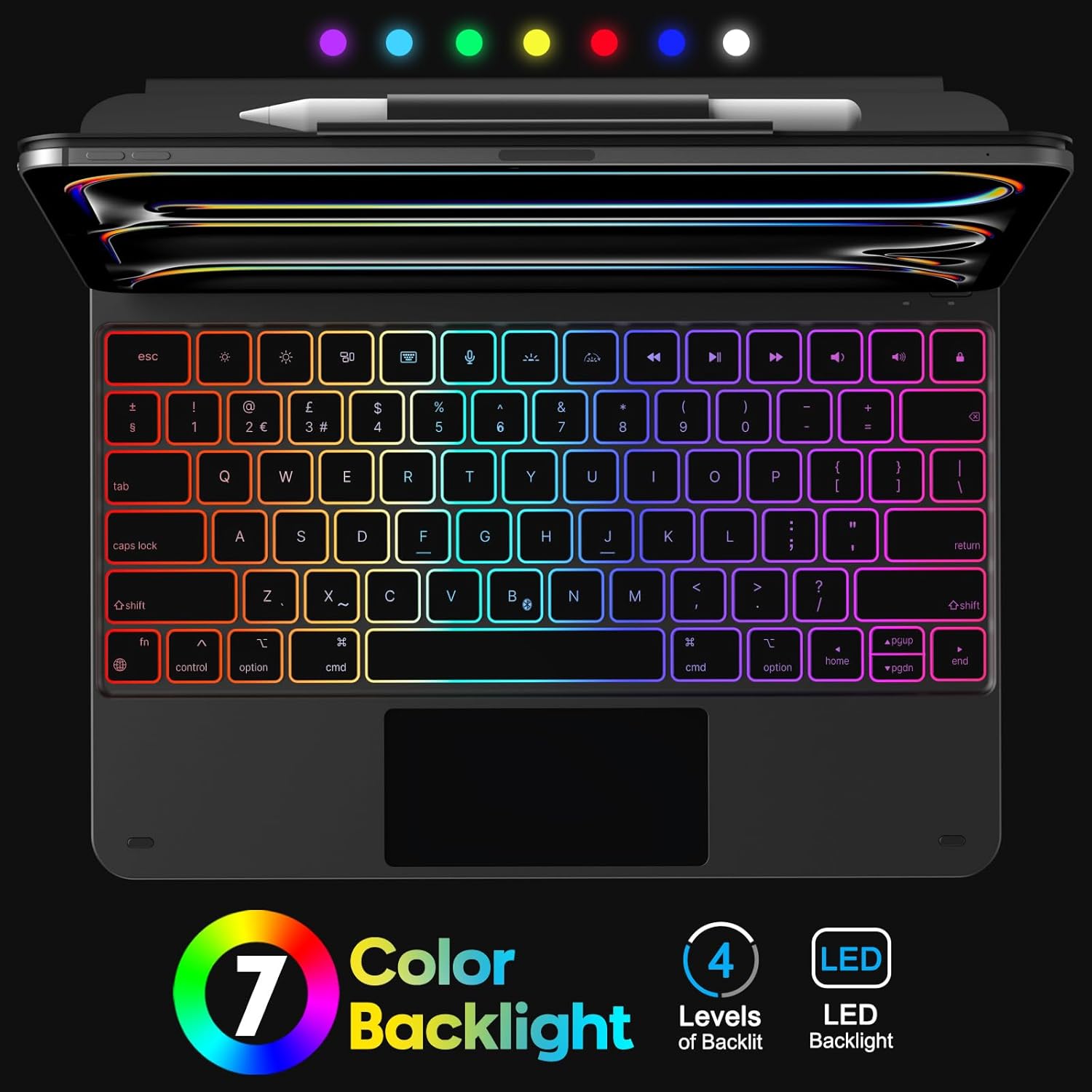
Foto 5.1: Keyboard Backlight. This image displays the keyboard with its customizable 7-color backlight options and indicates the 4 available brightness levels, enhancing typing visibility.

Foto 5.2: Key Mechanism. A close-up view of a keyboard key, illustrating the internal scissor-switch mechanism designed for comfortable and quiet typing.
5.2 Trackpad Usage
The integrated multi-touch trackpad supports various iPadOS gestures for navigation and interaction.
- Otu mkpịsị aka: Tap to click, drag to move cursor.
- Mkpịsị aka abụọ: Scroll up/down/left/right, pinch to zoom.
- Mkpịsị aka atọ: Swipe up to go to the Home screen, swipe up and hold to view app switcher, swipe left/right to switch between open apps.
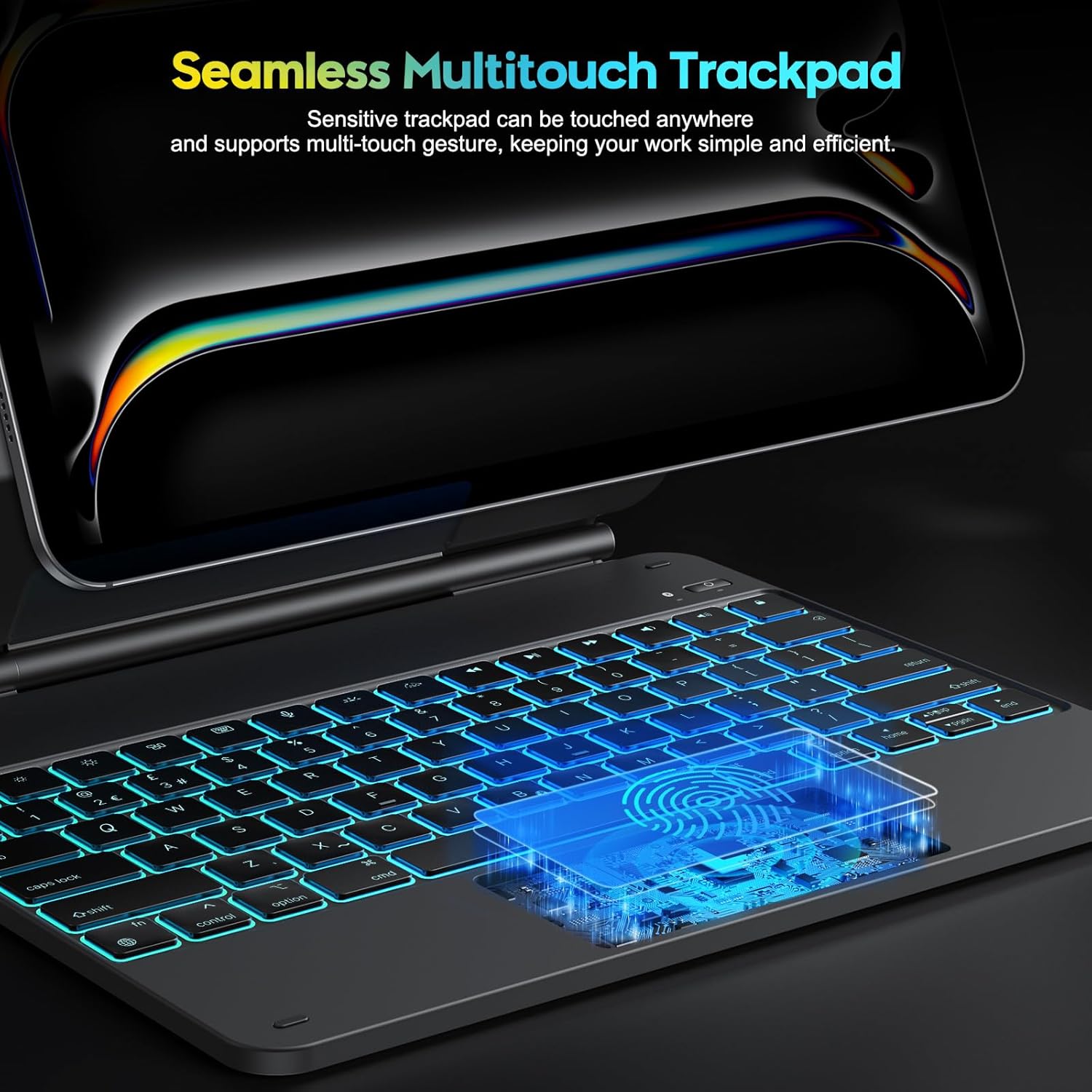
Foto 5.3: Multi-Touch Trackpad. This image highlights the sensitive multi-touch trackpad, indicating its capability to register various gestures for efficient iPadOS interaction.
5.3 Idozi nkwụsi ike
The floating stand design allows for flexible viewing angles. Gently adjust the iPad's position on the magnetic stand to achieve your desired angle.

Foto 5.4: Floating Stand Design. This image illustrates the adjustable floating stand, demonstrating how the iPad's viewing angle can be smoothly set to various positions, up to 120 degrees.
5.4 Ịchaji ahụigodo
The keyboard case is equipped with a built-in rechargeable battery. Use the provided USB-C cable to charge the device.
- Connect the USB-C end of the cable to the charging port on the keyboard.
- Jikọọ nsọtụ nke ọzọ nke eriri na ihe nkwụnye ọkụ USB (anaghị etinye ya) ma ọ bụ ọdụ ụgbọ USB nke kọmputa.
- Ọkụ na-egosi nchaji ga-enwu n'oge ịchaji wee gbanyụọ mgbe chajịrị ya.
- A full charge takes approximately 3 hours. The battery provides up to 260 hours of use without backlight and 9 hours with backlight.

Foto 5.5: Charging and Battery Life. This image highlights the Type-C charging port on the keyboard and provides information on battery life, including 3 hours fast charging, 800mAh lithium battery, and over 1000 hours standby time.
6. Nlekọta
To ensure the longevity and optimal performance of your keyboard case, follow these maintenance guidelines:
- Keep the device away from liquids and extreme temperatures.
- Clean the keyboard and trackpad surfaces with a soft, dry, lint-free cloth. Avoid abrasive cleaners.
- Do not attempt to disassemble the keyboard case, as this may void the warranty and cause damage.
- Store the keyboard case in a clean, dry environment when not in use.
7. Nchọpụta nsogbu
If you encounter issues with your keyboard case, refer to the following common solutions:
- Ahụigodo anaghị ejikọta: Ensure Bluetooth is enabled on your iPad and the keyboard is powered on and charged. Try re-pairing the keyboard (Section 4.2).
- Igodo anaghị aza: Check if the keyboard is charged. Restart both the keyboard and your iPad.
- Trackpad not working: Ensure the keyboard is connected via Bluetooth. Check iPadOS settings for trackpad functionality. Restart the keyboard and iPad.
- Ìhè azụ anaghị arụ ọrụ: Ensure the keyboard is charged. Press the backlight key to cycle through modes and brightness levels.
- Lag in keyboard response: Ensure the keyboard is fully charged. Minimize interference from other Bluetooth devices.
If the problem persists after trying these steps, please contact OMOTON customer support.
8. Nkọwapụta
| Njirimara | Nkọwapụta |
|---|---|
| Ụdị | OMOTON |
| Aha Nlereanya | KC011 |
| Ngwa dakọtara | iPad Pro 13-inch (M4) 2024 (Models A2925, A2926, A3007) |
| Teknụzụ Njikọta | Bluetooth |
| Nhazi ahụigodo | QWERTY (UK-Layout) |
| Ọnụọgụ igodo | 78 |
| Atụmatụ pụrụ iche | Backlit (12 modes, 4 brightness levels), Hotkeys, Media Keys, Portable, Rechargeable, Multi-Touch Trackpad, Floating Stand Design |
| Ike batrị | 800mAh lithium-ion |
| Battery Life (No Backlight) | Ruo awa iri abụọ |
| Battery Life (With Backlight) | Ruo awa iri abụọ |
| Nchaji ọdụ ụgbọ mmiri | USB-C |
| Agba | Nwa |
9. Akwụkwọ ikike na nkwado
OMOTON products are designed for reliability and performance. For warranty information or technical support, please refer to the contact details provided with your purchase or visit the official OMOTON websaịtị. Biko dowe ihe akaebe nke ịzụrụ ihe maka akwụkwọ ikike.