
Okwu mmalite
Thank you for choosing the TECKNET TK-MS317 Bluetooth Wireless Mouse. This manual provides detailed instructions for setting up, operating, and maintaining your mouse to ensure optimal performance. Please read this manual thoroughly before use and retain it for future reference.
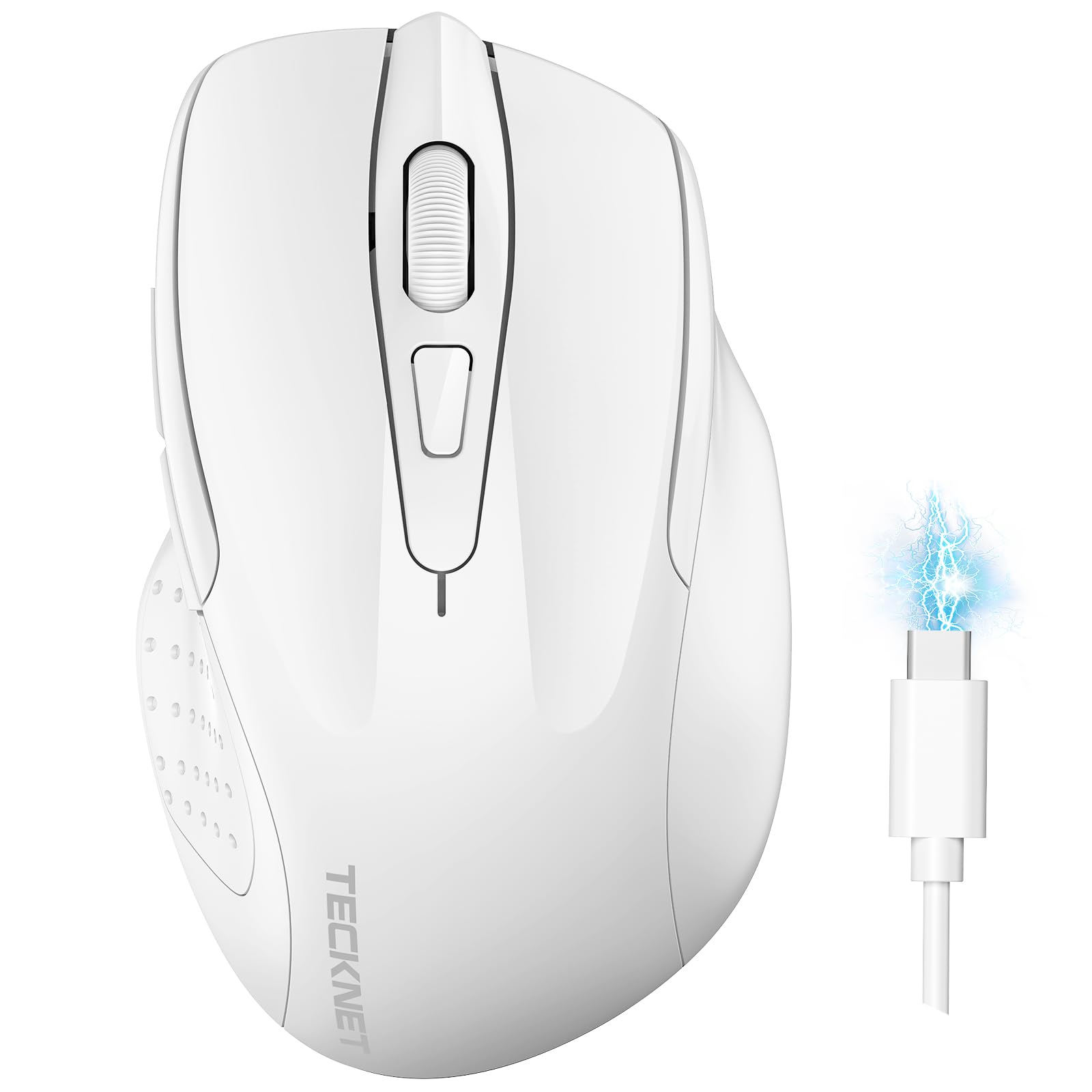
Image: The TECKNET TK-MS317 Bluetooth Wireless Mouse, showcasing its ergonomic design and sleek white finish.
Njirimara ngwaahịa
- Triple Connection Modes: Supports Bluetooth 5.0, Bluetooth 3.0, and 2.4GHz wireless connectivity, allowing seamless switching between up to two devices.
- DPI nwere ike imeghari: Six adjustable DPI levels (800/1200/1600/2400/3200/4800) for precise control and adaptability to various tasks.
- Batrị enwere ike ịchaji: Equipped with a 700 mAh rechargeable battery, providing extended usage on a single charge. Can be used while charging via USB-C.
- Pịa nkịtị: Designed for quiet operation, reducing click noise by 90% for a focused work environment.
- Nhazi Ergonomic: Contoured shape fits comfortably in the palm, reducing hand fatigue during prolonged use.
- Nchekwa ike: Features a key-wake function and automatic sleep mode to conserve battery life.
- Ndakọrịta Universal: Compatible with Windows 11/10/8/7/XP/Vista, Mac OS, Linux, Android, and iOS (BT 5.0 for iOS 10.4+).

Image: Illustration highlighting the silent click feature of the mouse, showing a quiet work environment.

Image: Diagram illustrating the ergonomic curvature of the TECKNET TK-MS317 mouse, designed for comfortable hand fit.
Ntuziaka nhazi
1. Ịchaji òké
Before first use, or when the battery is low, connect the mouse to a power source using the provided USB-C cable. The charging indicator light will illuminate. A full charge typically takes about two hours and can last for 1 to 2 months of intensive use.

Image: The TECKNET TK-MS317 mouse connected via a USB-C cable for charging, highlighting its 700mAh battery capacity.
2. Ijikọ site na 2.4GHz Wireless
- Locate the USB 2.4G receiver, usually stored in a compartment on the underside of the mouse.
- Tinye eriri USB n'ọdụ ụgbọ mmiri USB-A dị na kọmputa gị.
- Switch the mode selector on the bottom of the mouse to the "2.4G" position.
- The mouse should automatically connect to your computer. If not, try moving the mouse or restarting your computer.
3. Ijikọ site na Bluetooth (BT5.0 / BT3.0)
- Switch the mode selector on the bottom of the mouse to either "BT5.0" or "BT3.0" position.
- Press and hold the Bluetooth pairing button (usually located near the mode switch) for 3-5 seconds until the indicator light starts flashing, indicating pairing mode.
- On your device (computer, laptop, tablet, smartphone), go to Bluetooth settings.
- Chọọ maka new devices. You should see "TECKNET Mouse" or a similar name appear in the list.
- Select the mouse to pair. Once connected, the indicator light on the mouse will stop flashing.
- To switch between paired Bluetooth devices or to the 2.4G mode, simply use the mode selector switch on the bottom of the mouse.

Image: Diagram showing the three connection modes (2.4G, Bluetooth 5.0, Bluetooth 3.0) of the TECKNET TK-MS317 mouse, connecting to a laptop and a tablet.
Ntuziaka ọrụ
1. DPI mmezi
The mouse features a DPI button, typically located behind the scroll wheel. Press this button to cycle through the six available DPI settings: 800, 1200, 1600, 2400, 3200, and 4800. Select the DPI that best suits your task and preference for cursor speed and precision.

Image: Visual representation of the TECKNET TK-MS317 mouse highlighting its 6 levels of adjustable DPI, up to 4800 DPI.
2. Mgbanwe ọnọdụ
Use the physical switch on the underside of the mouse to select your desired connection mode: 2.4G, BT5.0, or BT3.0. This allows you to quickly switch between different devices without re-pairing.
3. Ọnọdụ nchekwa ike
The mouse will automatically enter sleep mode after a period of inactivity to conserve battery. To wake the mouse, simply move it or click any button.
Nlekọta
1. Nhicha
Iji hichaa òké gị, jiri ákwà dị nro ma kpọọ nkụ. Maka unyi siri ike, jiri obere d hichaa òké gị.amp cloth with mild soap can be used, ensuring no liquid enters the mouse. Avoid using harsh chemicals or abrasive materials.
2. Nlekọta batrị
- Zere ịchaji batrị ugboro ugboro.
- Debe òké ahụ n'ebe dị jụụ ma kpọọ nkụ mgbe a naghị eji ya ruo ogologo oge.
- Jiri naanị eriri USB-C enyere ma ọ bụ ihe dabara adaba maka ịchaji.
Nchọpụta nsogbu
- Òké anaghị aza:
- Gbaa mbọ hụ na ebubo òké ahụ.
- Check if the mode switch is set correctly (2.4G, BT5.0, or BT3.0).
- For 2.4G mode, ensure the USB receiver is securely plugged in.
- For Bluetooth mode, ensure Bluetooth is enabled on your device and the mouse is paired. Try re-pairing if necessary.
- Try connecting the mouse to a different USB port or device to rule out port/device issues.
- Njikọ na-adịte aka:
- Move the mouse closer to the receiver/device.
- Zere iji òké ahụ n'elu ihe ndị e ji ígwè rụọ, nke nwere ike igbochi akara ikuku.
- Ensure there are no other strong wireless interference sources nearby.
- Mmegharị ihe nrụaka adịghị mma:
- Hichaa ihe mmetụta anya dị n'okpuru òké ahụ.
- Gbalịa iji òké ahụ n'elu elu dị iche ma ọ bụ pad òké.
- Gbanwee ntọala DPI ka ọ bụrụ uru dị ala.
Nkọwapụta
| Nọmba nlereanya | TK-MS317 |
| Ụdị | Teknụzụ |
| Ụdị njikọ | Igwe Ikuku 2.4GHz, Bluetooth 5.0, Bluetooth 3.0 |
| Ọkwa DPI | 800, 1200, 1600, 2400, 3200, 4800 |
| Ọnụọgụ bọtịnụ | 6 |
| Ụdị batrị | Built-in 700 mAh Rechargeable Lithium Battery |
| Nchaji ọdụ ụgbọ mmiri | USB-C |
| Ibu | 150 grams |
| Ndakọrịta | Windows 11/10/8/7/XP/Vista, Mac OS, Linux, Android, iOS (10.4+ for BT 5.0) |
Akwụkwọ ikike na nkwado
TECKNET offers a 36-month warranty for registered users of this product. If you encounter any issues with your TECKNET TK-MS317 Bluetooth Wireless Mouse, please do not hesitate to contact our professional customer service team for assistance.
Maka nkwupụta akwụkwọ ikike ma ọ bụ nkwado teknụzụ, biko gaa na TECKNET gọọmentị websaịtị ma ọ bụ rụtụ aka na ozi kọntaktị enyere na nkwakọ ngwaahịa gị.