
ZIUMIER Z30
Akwụkwọ ntuziaka onye ọrụ isi isi egwuregwu ZIUMIER
Model: Z30 | Brand: ZIUMIER
Okwu mmalite
Thank you for choosing the ZIUMIER Gaming Headset with Detachable Cat Ears. This headset is designed to provide an immersive audio experience for gaming, movies, and music across multiple platforms. It features 50mm drivers for superior sound, a noise-canceling microphone for clear communication, and a comfortable, lightweight design for extended use. The detachable cat ears add a unique aesthetic.
This manual provides detailed instructions on setting up, operating, maintaining, and troubleshooting your ZIUMIER Z30 Gaming Headset. Please read it carefully before use.
Kedu ihe dị na Igbe ahụ
- 1 x ZIUMIER Gaming Headset (Pink)
- 1 x 1-to-2 MIC/Audio Cable Splitter
- 2 x Removable Cat Ears
- 1 x Akwụkwọ ntuziaka onye ọrụ
Ntuziaka nhazi
1. Attaching the Detachable Cat Ears
The ZIUMIER Z30 headset comes with two removable cat ears. To attach them, gently slide the base of each cat ear onto the top of the headband, positioning them symmetrically. Ensure they are securely fitted into the grooves on the headband.

Image: The ZIUMIER Z30 Gaming Headset with its detachable cat ears displayed separately, illustrating how they can be added or removed from the headband.
2. Ijikọ ekweisi
The Z30 headset connects via a 3.5mm audio jack. It is compatible with a wide range of devices including PC, PS4, PS5, Xbox One, Xbox Series S, Xbox Series X, Laptop, Mac, Tablet, and Phone.
- For devices with a single 3.5mm audio jack (combined audio/mic): Plug the headset's 3.5mm jack directly into your device's audio port.
- For PCs with separate audio and microphone jacks: Use the included 1-to-2 MIC/Audio Cable Splitter. Connect the headset's 3.5mm jack to the splitter, then plug the green connector of the splitter into your PC's audio output jack and the pink connector into your PC's microphone input jack.
- For Xbox One Controller (Model 1537): An additional adapter (not included) may be required to use this headset. Please refer to your Xbox One controller's manual for details on connecting external headsets.

Image: The ZIUMIER Z30 Gaming Headset displayed alongside various gaming consoles and a PC setup, demonstrating its multi-device compatibility.

Foto: nkọwa zuru ezu view of the ZIUMIER Z30 Gaming Headset's inline control unit, showing the volume roller, microphone mute switch, and the 3.5mm audio jack and USB connector.
The headset also features an integrated USB connector. This USB connection is solely for powering the LED lights on the earcups and is not required for audio or microphone functionality. Plug the USB connector into an available USB port on your device or a USB power adapter to activate the LED lighting.
Ntuziaka ọrụ
1. Na-agbanwe olu
The headset features an inline control unit on the cable. Use the volume roller on this unit to adjust the audio output level. Roll it up to increase volume and down to decrease volume.
2. Iji igwe okwu
The Z30 headset is equipped with a noise-canceling microphone. The microphone arm is flexible and can be rotated up to 120 degrees to position it optimally for clear voice capture.
- Mechie igwe okwu: Locate the microphone mute switch on the inline control unit. Slide the switch to the "on" position to enable the microphone and to the "off" position to mute it.
- Ndokwa: For best performance, position the microphone approximately 1-2 inches from your mouth.

Image: A close-up of the ZIUMIER Z30 Gaming Headset's microphone, highlighting its 120-degree rotation capability and the noise cancellation feature for clear communication.
3. Ọkụ ọkụ ọkụ
The LED lights on the earcups will illuminate automatically when the USB connector is plugged into a powered USB port. There is no separate switch for the LED lighting; it is powered directly by the USB connection.
Nlekọta
Proper maintenance ensures the longevity and optimal performance of your ZIUMIER Gaming Headset.
- Nhicha: Use a soft, dry cloth to wipe down the headset, including the earcups and headband. For the breathable protein memory foam ear pads, a slightly damp cloth can be used, but ensure they are completely dry before next use. Avoid using harsh chemicals or abrasive cleaners.
- Nchekwa: Store the headset in a cool, dry place away from direct sunlight and extreme temperatures. Avoid tangling the cable by coiling it neatly when not in use.
- Ijikwa: Do not pull on the cable to disconnect the headset. Always grasp the plug firmly. Avoid dropping the headset or subjecting it to strong impacts.
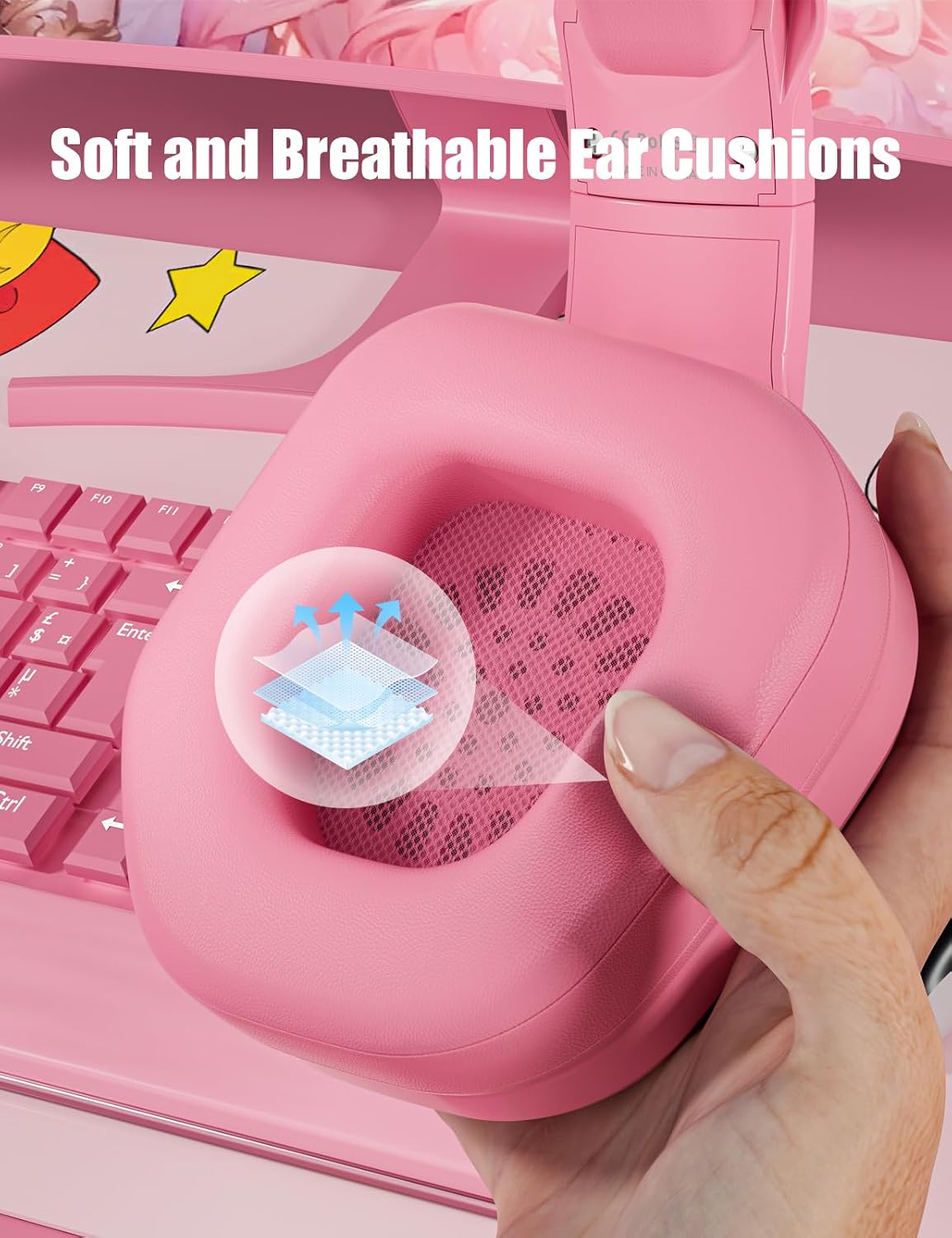
Foto: nkọwa zuru ezu view of the ZIUMIER Z30 Gaming Headset's ear cushions, emphasizing their soft, breathable material for comfort during extended use.
Nchọpụta nsogbu
If you encounter issues with your ZIUMIER Gaming Headset, please refer to the following common solutions:
| Nsogbu | Ihe kpatara/ Ngwọta nwere ike ime |
|---|---|
| Enweghị ụda sitere na ekweisi |
|
| Igwe okwu anaghị arụ ọrụ |
|
| Ọkụ LED anaghị enwu |
|
| Ogo ụda adịghị mma ma ọ bụ gbagọrọ agbagọ |
|
Nkọwapụta
Below are the technical specifications for the ZIUMIER Z30 Gaming Headset:
| Njirimara | Nkọwa |
|---|---|
| Aha Nlereanya | Z30 Cat Ears Gaming Headset |
| Teknụzụ Njikọta | Ekwenyere |
| Jack ekweisi | 3.5mm ọkpụrụkpụ |
| Ụdị ọkwọ ụgbọ ala ọdịyo | Ọkwọ ụgbọala dị ike |
| Nha ọkwọ ụgbọ ala ọdịyo | 50 millimeters |
| Nzaghachi ugboro ugboro | 20 Hz - 20,000 Hz |
| Mgbochi | 32 Ohm |
| Mmetụta | 42 dB |
| Njikwa mkpọtụ | Nkagbu mkpọtụ mkpọtụ |
| Microphone Rotation | ogo 120 |
| Ụdị njikwa | Button Control, Remote (Inline) |
| Njirimara USB | Tangle efu |
| Ntinye ntị | N'elu Ntị |
| Ihe onwunwe | Acrylonitrile Butadiene Styrene (ABS) |
| Agba | Pink |
| Ibu Ibu | 1.1 pound (ihe dị ka 0.5 n'arọ) |
| Akụkụ ngwugwu | 8.35 x 7.87 x 4.45 sentimita asatọ |
| Ngwa dakọtara | Nintendo Switch, PC, Mac, PlayStation 5, PlayStation 4, Xbox One, Xbox Series S, Xbox Series X |

Foto: Ihe gbawara view diagram illustrating the advanced 50mm sound drivers within the ZIUMIER Z30 Gaming Headset, designed for immersive audio performance.
Akwụkwọ ikike na nkwado
For information regarding warranty coverage and customer support for your ZIUMIER Gaming Headset, please refer to the warranty card included with your product or visit the official ZIUMIER website. You may also contact the seller directly through your purchase platform for assistance.
For additional resources and product information, you can visit the ZIUMIER Store on Amazon.
Ask a question about this manual
Ask about setup, troubleshooting, compatibility, parts, safety, or missing instructions. Manuals+ will review the question and use this page’s manual context to help answer it.