1. Okwu mmalite
This manual provides detailed instructions for setting up, operating, and maintaining your MOFII Wireless Keyboard and Mouse Combo (Model 693). This 2.4G wireless set offers a full-size keyboard with 104 round keys and a silent mouse, designed for compatibility with various operating systems and devices.
2. Ihe ngwugwu
- 1 x Ahụigodo ikuku
- 1 x Igwe ikuku ikuku
- 2x AA Batteries (included)
- 1 x USB Nano nnata
- 1x Akwụkwọ ntuziaka onye ọrụ

3. Nhazi
3.1. Ntinye batrị
- Locate the battery compartments on the underside of both the keyboard and the mouse.
- Mepee mkpuchi batrị.
- Insert one AA battery into the keyboard and one AA battery into the mouse, ensuring correct polarity (+/-).
- Mechie mkpuchi batrị nke ọma.

3.2. Njikọ eriri USB
- The USB nano receiver is stored inside the mouse's battery compartment. Gently remove it.
- Plug the USB nano receiver into an available USB port on your computer, laptop, or compatible device.
- The keyboard and mouse will automatically connect to your device. No additional software installation is required.

3.3. Ndakọrịta
The MOFII Wireless Keyboard and Mouse Combo is compatible with Windows 2000 / ME / XP / 7 / 8 / 10, VISTA, Mac OS, Chrome-book, PC, Laptop, and other computing devices. For devices without a standard USB-A port (e.g., some tablets), a USB adapter (not included) may be required.

4. Ntuziaka ọrụ
4.1. Isi ojiji
Once the USB receiver is connected and batteries are installed, the keyboard and mouse are ready for immediate use. The keyboard features retro floating round keycaps designed for comfortable typing. The mouse offers smooth and precise cursor control with multiple 1600 DPI levels.
4.2. Multimedia Hotkey
The keyboard includes 13 multimedia hotkeys for enhanced efficiency. These keys are typically accessed by pressing the Fn key in combination with the corresponding F-key (F1-F12).
- Fn+F1: Ihe ọkpụkpọ mgbasa ozi
- Fn+F2: Gwuo/kwụsịtụ
- Fn+F3: Egwu gara aga
- Fn+F4: Track na-esote
- Fn+F5: Elu elu
- Fn+F6: Mpịakọta ọnụ
- Fn+F7: Ogbi
- Fn+F8: Ụlọ
- Fn+F9: ọchụchọ
- Fn+F10: Ibe edokwubara
- Fn+F11: Ozi
- Fn+F12: Mkpọchi ahụigodo
- Fn + ESC: Kọmputa m

4.3. Ụdị ụra akpaaka
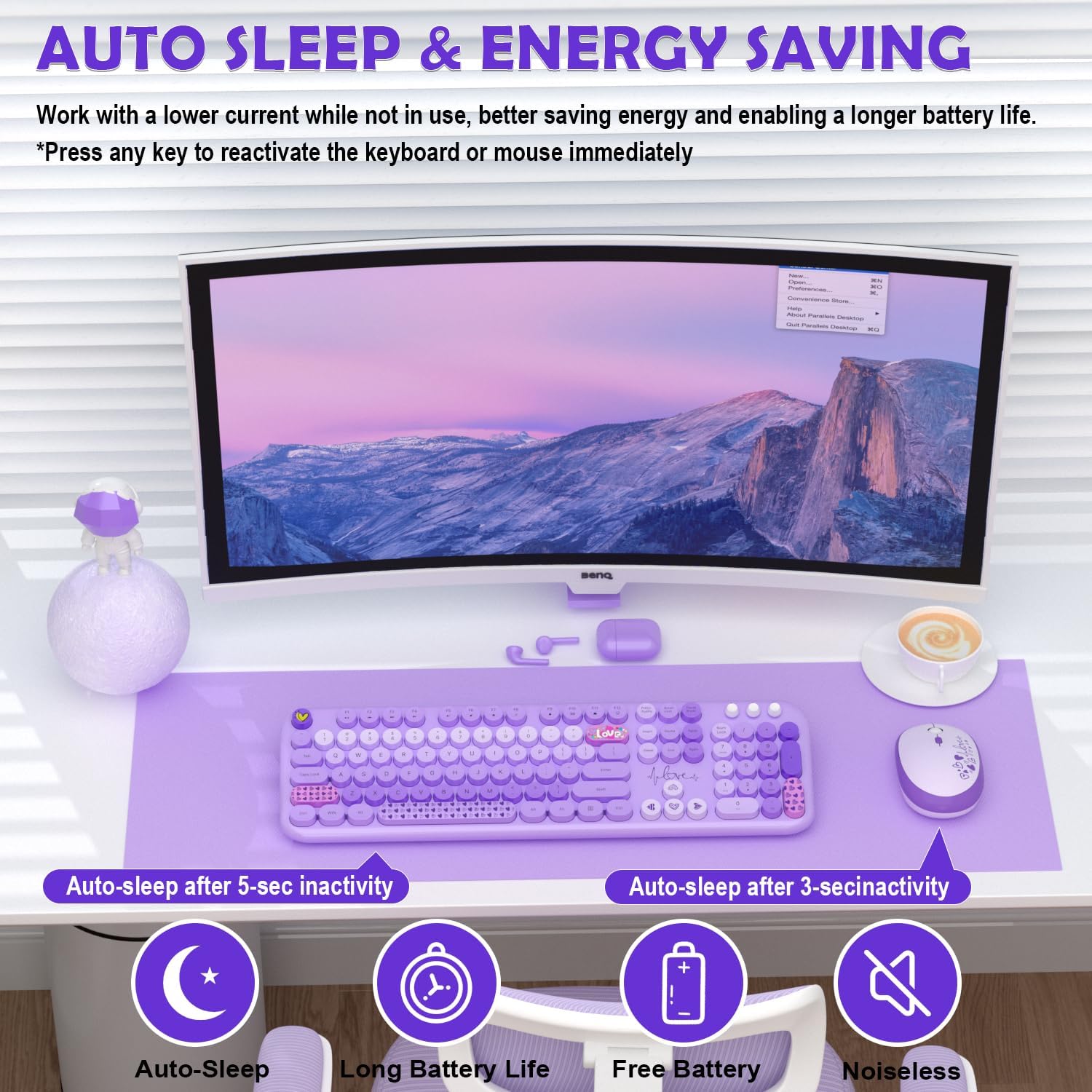
Both the keyboard and mouse feature an auto sleep mode to conserve battery life. After 30 minutes of inactivity, the devices will enter sleep mode. To wake them up, simply press any key on the keyboard or click any button on the mouse.
5. Nlekọta
5.1. Nhicha
To clean the keyboard and mouse, use a soft, dry cloth. For stubborn dirt, a slightly damp cloth with mild soap can be used, ensuring no liquid enters the device. The round keycaps are removable for deeper cleaning if necessary.

5.2. Ngbanwe batrị
When the battery indicator light on the keyboard (if applicable) or mouse begins to flash, it's time to replace the batteries. Follow the battery installation steps (Section 3.1) to replace the AA batteries in both devices.
6. Nchọpụta nsogbu
- Enweghị njikọ: Ensure the USB nano receiver is securely plugged into a working USB port. Check that batteries are correctly installed in both the keyboard and mouse. Try plugging the receiver into a different USB port.
- Njikọ Lag ma ọ bụ Nkwụsị: Move the keyboard and mouse closer to the USB receiver. Avoid placing the receiver near other wireless devices or large metal objects that might cause interference.
- Igodo anaghị aza: Check battery levels. If the devices are in auto sleep mode, press any key/button to wake them up.
- Ihe Ntugharị Òké Na-awụlikwa elu ma ọ bụ na-ezighi ezi: Ensure the mouse is used on a clean, non-reflective surface. Adjust DPI settings if available (check mouse for a dedicated DPI button).
7. Nkọwapụta
| Njirimara | Nkọwa |
|---|---|
| Akụkụ ngwaahịa | 13 x 2 x 1 sentimita asatọ |
| Ibu Ibu | 1.98 pound |
| Nọmba Nlereanya ihe | 693 |
| Batrị achọrọ | 2 AA batteries (1 for keyboard, 1 for mouse - included) |
| Teknụzụ Njikọta | Ikuku USB 2.4G |
| Atụmatụ pụrụ iche | Ergonomic, Lightweight, Round Keycaps, Silent Mouse, Auto Sleep Mode, 13 Multimedia Hotkeys |
| Ngwa dakọtara | Laptop, Personal Computer, Projector, Tablet (Windows, Mac OS, Chrome OS, Linux) |
8. Akwụkwọ ikike na nkwado
MOFII offers a 1-Year Warranty and a 30-day Free Return Policy for this product. For customer support, please contact MOFII directly via email or through their official store.
- Email: support_mofii@163.com
- Nkwado n'ịntanetị: Gaa leta MOFII Store on Amazon and click "Ask a question" to contact support.

9. Official Product Videos
9.1. Wireless Keyboard/Mouse Great Design, Easy Setup (Review)
Vidiyo: A zuru ezu review ihe ngosiasing the design and easy setup process of the MOFII Wireless Keyboard and Mouse Combo. This video highlights the plug-and-play functionality and overall user experience.
9.2. Plug and Play Experience From An iMac User
Video: An iMac user demonstrates the plug-and-play experience of the MOFII Wireless Keyboard and Mouse, emphasizing its ease of use and compatibility with Apple devices.


