
1. Okwu mmalite na gafereview
Thank you for choosing the SENGBIRCH Keyboard Case for your Lenovo Tab P12 12.7" tablet. This product combines a protective case with a detachable Bluetooth keyboard, enhancing your tablet's functionality for typing, work, and entertainment. This manual provides detailed instructions for setup, operation, maintenance, and troubleshooting to ensure optimal use of your new accessory.
Akụkụ ndị bụ isi:
- Detachable Bluetooth 5.0 keyboard for stable and fast connection.
- Durable protective case with precise cutouts.
- Enwere ike idozi viewing angle maka ntụsara ahụ.
- Integrated stylus holder.
- Batrị enwere ike ịchaji na-adịte aka.
ndakọrịta: This keyboard case is specifically designed for the Lenovo Tab P12 12.7" (2023) model TB370FU. Please verify your tablet's model number before use to ensure proper fit and functionality.

Image 1.1: Compatibility guide for the keyboard case. Ensure your tablet is the Lenovo Tab P12 12.7" (TB370FU).
2. Nhazi ntuziaka
2.1 Ịchaji ahụigodo
Before first use, fully charge the keyboard. Connect the provided USB-C charging cable to the keyboard's charging port and a USB power adapter (not included). The charging indicator light will illuminate during charging and turn off when fully charged.
- Oge Nchaji: Ihe dịka awa 2-3.
- Continuous Use: Up to 48 hours.
- Standby Time: Over 2 months.

Image 2.1: Keyboard charging port (Type-C) and battery indicators.
2.2 Inserting the Tablet into the Case
- Gently align your Lenovo Tab P12 12.7" tablet with the case's frame.
- Press the tablet firmly into the soft inner shell, ensuring all edges are securely seated and cutouts align with ports and buttons.
2.3 Pairing the Bluetooth Keyboard
- Turn on the keyboard by sliding the 'ON/OFF' switch to the 'ON' position. The power indicator light will briefly illuminate.
- Press the 'Connect' button on the keyboard. The Bluetooth indicator light will start blinking, indicating it is in pairing mode.
- On your Lenovo Tab P12, go to Ntọala > Bluetooth.
- Turn on Bluetooth and search for available devices.
- Select "Bluetooth Keyboard" (or a similar name) from the list of devices.
- Follow any on-screen prompts to complete the pairing process. The Bluetooth indicator light on the keyboard will stop blinking once successfully paired.
3. Ntuziaka ọrụ
3.1 Attaching and Detaching the Keyboard
The keyboard is magnetically attached to the case. To attach, simply place the keyboard onto the designated area within the case. To detach, gently pull the keyboard away from the magnetic surface.

Image 3.1: The keyboard can be magnetically detached from the case.
3.2 Na-emezigharị Viewna akụkụ
The case features an adjustable stand that supports three different viewing angles (130°, 125°, 120°). Simply fold the case cover to create a stable triangular stand and adjust it to your preferred angle for typing, viewing, or drawing.

Image 3.2: Adjustable stand angles for versatile use.
3.3 Ọrụ ahụigodo
- Ngbanwe Sistemu arụ ọrụ: The keyboard supports different operating systems. Use Fn + Q for iOS, Fn + W for Android, and Fn + E maka Windows.
- Ndozi ọkụ azụ: Pịa Fn + Light Bulb icon to cycle through 3 backlight brightness levels. Press Fn + RGB icon to change between 7 backlight colors.
- Special Characters: Jiri ihe Fn key in combination with other keys to access special characters, such as the Euro symbol (€) or accent marks (ñ).
- Ụdị ụra akpaka: To conserve battery, the keyboard will automatically enter sleep mode after approximately 8 minutes of inactivity. Press any key to wake it up.
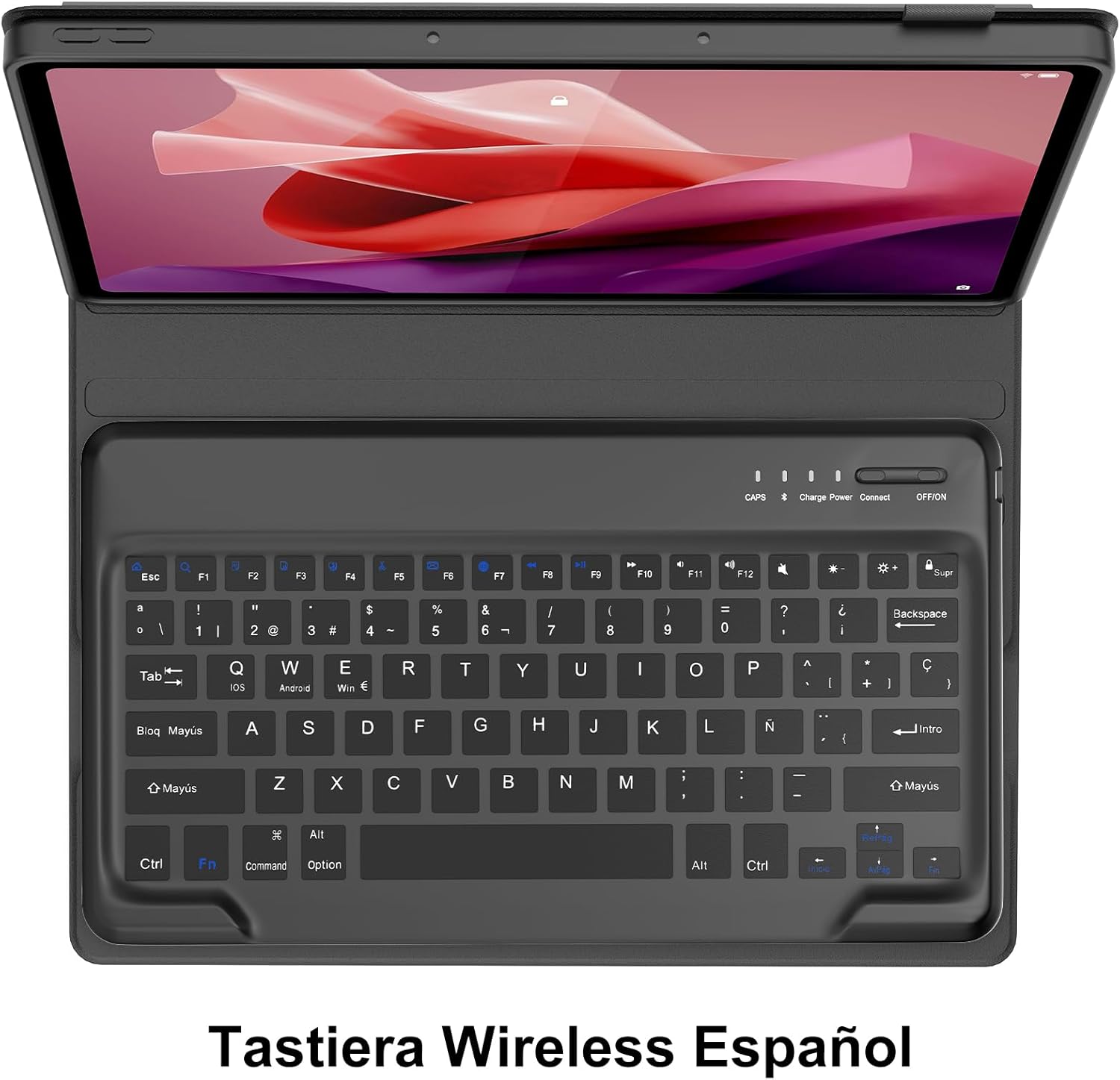
Image 3.3: Keyboard layout with function key combinations for various settings.
3.4 Stylus Holder
The case includes a dedicated slot for your stylus, ensuring it is securely stored and easily accessible.

Image 3.4: Integrated stylus holder for convenience.
4. Nlekọta
4.1 Cleaning the Case and Keyboard
- Jiri ihe dị nro hichaa mpụta nke akpa ahụ, damp akwa . Zere kemịkalụ siri ike ma ọ bụ ihe nhicha abrasive.
- For the keyboard, use a soft, dry cloth or a can of compressed air to remove dust and debris from between the keys.
- Hụ na agbanyụrụla ahụigodo ahụ tupu ị hichaa ya.
4.2 Nlekọta batrị
- Recharge the keyboard when the low battery indicator appears or when performance degrades.
- Zere ịchaji batrị ugboro ugboro ka ọ gbatịa ndụ ya.
- If storing the keyboard for an extended period, charge it to about 50% and store in a cool, dry place.
5. Nchọpụta nsogbu
If you encounter issues with your SENGBIRCH Keyboard Case, please refer to the following troubleshooting steps:
5.1 Keyboard Not Connecting/Frequent Disconnections
- Lelee batrị: Ensure the keyboard is sufficiently charged. Low battery can cause connection issues.
- Re-pair Keyboard: Delete the "Bluetooth Keyboard" from your tablet's Bluetooth device list and repeat the pairing steps (Section 2.3).
- Malitegharịa ngwaọrụ: Turn off and on both your tablet and the keyboard.
- Ntinye aka: Wepụ na ngwaọrụ ikuku ndị ọzọ nwere ike ịkpata ndabichi.
5.2 Keys Not Responding or Sticky Keys
- Lelee batrị: Ensure the keyboard has enough power.
- Clean Keyboard: Dust or debris under the keys can cause them to stick. Refer to Section 4.1 for cleaning instructions.
- Restart Keyboard: Gbanyụọ ahụigodo ahụ wee gbanye ọzọ.
5.3 Tablet Not Fitting Correctly
- Nyochaa Ụdị: Double-check that your tablet is indeed the Lenovo Tab P12 12.7" (2023) model TB370FU. This case is not compatible with other models.
- Ntinye kwesịrị ekwesị: Ensure the tablet is aligned correctly and gently pressed into all corners of the soft inner shell.
6. Nkọwapụta
| Ụdị | SENGBIRCH |
| Compatible Tablet Model | Lenovo Tab P12 12.7" (2023) TB370FU |
| Teknụzụ Njikọta | Bluetooth 5.0 |
| Nhazi ahụigodo | Spanish (QWERTY) |
| Ụdị batrị | Lithium Polymer na -akwụghachi ụgwọ |
| Oge Nchaji | 2-3 awa |
| Oge eji na-aga n'ihu | Ruo awa iri abụọ |
| Oge Njikere | Ihe karịrị ọnwa iri na abụọ |
| Ihe onwunwe | Plastic (keyboard), Faux Leather (case exterior) |
| Agba | Nwa |
| Akụkụ (Ngwugwu) | 31.2 x 25.1 x 4.1 cm |
| Ibu (ngwaahịa) | 970 g |
7. Akwụkwọ ikike na nkwado
SENGBIRCH products are designed for reliability and performance. For any questions, technical support, or warranty claims, please contact SENGBIRCH customer service through the retailer where you purchased the product or visit the official SENGBIRCH websaịtị maka ozi kọntaktị.
Biko dowe ihe akaebe nke ịzụrụ ihe maka ebumnuche ikike.