
LAMA A2696/A2757/A2777/A3354/A3355/A3356
LAMA Magnetic Keyboard Case User Manual
For iPad 10th Generation (2022) and iPad 11th Generation (2025)
Okwu mmalite
This manual provides detailed instructions for the LAMA Magnetic Keyboard Case, designed to enhance the functionality of your compatible iPad. It covers setup, operation, maintenance, and troubleshooting to ensure optimal performance and user experience.

Image: The LAMA Magnetic Keyboard Case with an iPad attached, showcasing the keyboard and trackpad in use.
Ndakọrịta
The LAMA Magnetic Keyboard Case is compatible with the following iPad models:
- iPad 10th Generation 10.9-inch (2022): Model Numbers A2696, A2757, A2777
- iPad (A16) 11th Generation 11-inch (2025): Model Numbers A3354, A3355, A3356
To verify your iPad model, check the "Axxxx" logo on the rear of your iPad or navigate to Ntọala > Ozuruọnụ > Ihe gbasara and tap the "Mxxxx" part number to reveal the "Axxxx" model number.

Image: Visual representation of compatible iPad models and their corresponding model numbers.
Ihe ngwugwu
- LAMA Magnetic Keyboard Case
- USB-C eriri USB
- Akwụkwọ ntuziaka (akwụkwọ a)
Ntuziaka nhazi
1. Ịtinye iPad gị
- Align your iPad with the magnetic back panel of the case.
- The iPad will magnetically snap into place, ensuring a secure connection.
- Ensure the camera cutout and ports align correctly with the case openings.
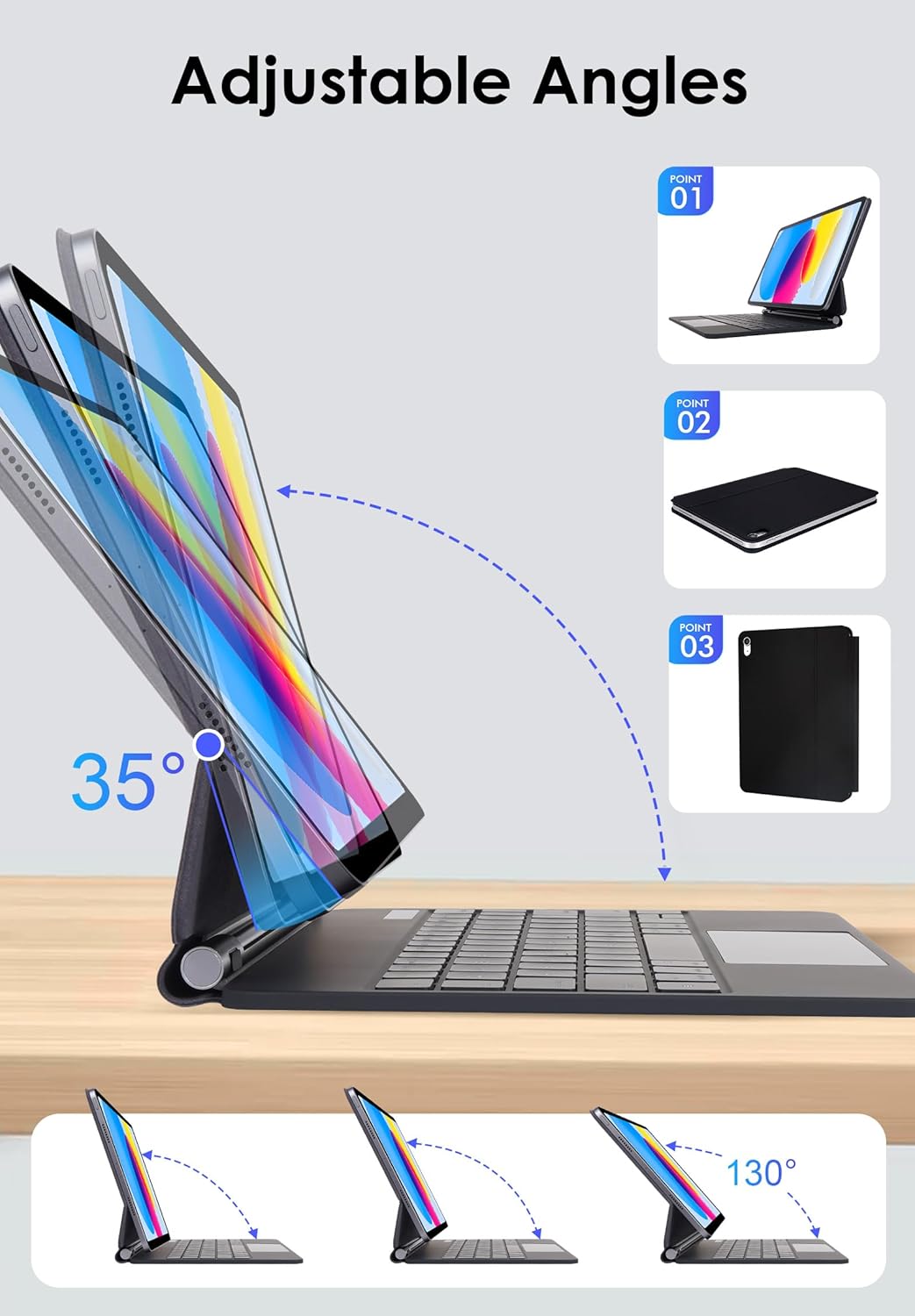
Image: The keyboard case demonstrating its adjustable angles and how the iPad attaches magnetically.
2. Ịchaji ahụigodo
- Locate the USB-C charging port on the side of the keyboard.
- Connect the provided USB-C cable to the keyboard and a power source (e.g., USB wall adapter, computer USB port).
- Ọkụ ihe ngosi chaja ga-enwu. Achaji zuru oke na-ewekarị awa 2-3.
- The keyboard has a long standby time of up to 150 days and a working time of 80 hours on a single charge.
3. Njikọ Bluetooth
- Turn on the keyboard by sliding the power switch. The Bluetooth indicator light will flash.
- Na iPad gị, gaa na Ntọala > Bluetooth.
- Gbaa mbọ hụ na agbanyere Bluetooth.
- Select "LAMA Keyboard" (or similar name) from the list of available devices.
- Follow any on-screen prompts to complete the pairing process. The Bluetooth indicator light on the keyboard will stop flashing once successfully paired.
Video: This video demonstrates the magnetic attachment of the iPad to the keyboard case, followed by typing and trackpad usage, illustrating the setup and basic operation.
Ntuziaka ọrụ
Ọrụ ahụigodo
- Njikwa ọkụ azụ: Pịa Fn + akara ngosi ọkụ to cycle through 7 backlight colors. Press Fn + sun icon to adjust the 3 levels of brightness.
- Igodo ụzọ mkpirisi: The keyboard includes dedicated iOS multimedia and standard layout shortcut keys. Refer to the keyboard layout for specific functions (e.g., volume control, media playback, home screen).

Image: The keyboard displaying its 7-color backlight feature with brightness adjustment options.
Multi-Touch Trackpad Gestures
The integrated multi-touch trackpad supports various gestures for enhanced navigation:
- Otu mkpịsị aka aka: Click/Select.
- Mpịakọta mkpịsị aka abụọ: Scroll up/down or left/right.
- Two Finger Pinch: Zoom in/out.
- Mpịakọta mkpịsị aka atọ: Open the App Switcher.
- Mkpịsị aka atọ kpọdaa ala: Return to Home Screen.
- Na-emezi Mmetụta: Gaa na iPad Settings > General > Trackpad & Mouse > Tracking Speed.

Image: A user's hands demonstrating multi-touch gestures on the trackpad of the LAMA keyboard case.
Nkwụrụ ngbanwe
The floating cantilever stand allows for flexible viewing angles from 0-180°. Adjust the iPad to your preferred angle for typing, drawing, viewing, or reading.
Auto Sleep/Wake Function
The keyboard case features an auto sleep/wake function. Opening the case will wake your iPad, and closing it will put your iPad to sleep, conserving battery life. The iPad will automatically disconnect from the keyboard after 10 minutes of inactivity; press any key to re-establish the connection.
Nlekọta
- Nhicha: Jiri nwayọọ, damp cloth to clean the exterior of the case and keyboard. Avoid harsh chemicals or abrasive materials.
- Nchekwa: When not in use, keep the keyboard case closed to protect your iPad and conserve keyboard battery. Store in a cool, dry place.
- Ịchaji: Charge the keyboard regularly, even if not used frequently, to maintain battery health.
Nchọpụta nsogbu
Keyboard Not Connecting via Bluetooth
- Hụ na etinyere ahụigodo ahụ ma chajị ya nke ọma.
- Turn off and then turn on Bluetooth on your iPad.
- Forget the device ("LAMA Keyboard") in your iPad's Bluetooth settings and attempt to re-pair.
- Malitegharịa ma iPad gị na keyboard gị.
Trackpad Not Responding
- Hụ na ejiri Bluetooth jikọọ ahụigodo ahụ.
- Check iPad settings for trackpad functionality: Settings > General > Trackpad & Mouse.
- Clean the trackpad surface to remove any debris.
Keys Not Working
- Verify the keyboard is charged and connected.
- Hụ na e tinyeghị ihe ndị mba ọzọ n'okpuru igodo.
- If specific keys are unresponsive, contact customer support.
Nkọwapụta
| Ụdị | LAMA |
| Nọmba nlereanya | A2696/A2757/A2777 (iPad 10th Gen), A3354/A3355/A3356 (iPad 11th Gen) |
| Njikọta | Ikuku (Bluetooth) |
| Ahụigodo azụ azụ | 7 Colors, 3 Brightness Levels (RGB) |
| Atụmatụ pụrụ iche | Multi-Touch Trackpad, Floating Cantilever Stand, Auto Sleep/Wake, Foldable |
| Ụdị batrị | Lithium polymer (gụnyere) |
| Oge ọrụ | Ruo awa iri abụọ |
| Oge Njikere | Ruo ụbọchị 150 |
| Oge Nchaji | 2-3 awa |
| Akụkụ ngwaahịa | 9.84 x 7.56 x 4.33 sentimita asatọ |
| Ibu Ibu | 1.5 pound |
Akwụkwọ ikike na nkwado
LAMA products are designed for quality and reliability. For warranty information or technical support, please refer to the contact details provided with your purchase or visit the official LAMA websaịtị. Debe akwụkwọ nnata ịzụrụ maka akwụkwọ ikike.
Maka enyemaka ọzọ, ị nwere ike ịga na LAMA Store on Amazon.
Ask a question about this manual
Ask about setup, troubleshooting, compatibility, parts, safety, or missing instructions. Manuals+ will review the question and use this page’s manual context to help answer it.