
ASMAX ASMAXF1DP01
Ntuziaka Onye Ọrụ Ekweisi Bluetooth ASMAX F1 Ọgba tum tum
Model: ASMAX F1
1. Okwu mmalite
The ASMAX F1 Motorcycle Bluetooth Headset is an advanced communication system designed for motorcyclists. It features Bluetooth 5.3 technology, supporting up to 10 riders with a communication range of up to 1.8km. The F1 offers dual intercom modes (Free and Group Mesh), voice control, superior sound quality with ENC noise reduction, and an IP67 waterproof rating. Its magnetic mounting system and fast-charging capabilities ensure convenience and reliability for all your rides.
2. Ozi nchekwa
- Na-ebute nchekwa okporo ụzọ ụzọ mgbe niile. Ejila ngwaọrụ arụ ọrụ n'ụzọ ga-adọpụ uche gị n'ịnya ụgbọ ala.
- Ensure the headset is securely mounted to your helmet before riding.
- Adjust volume levels to ensure you can still hear ambient traffic sounds.
- Do not attempt to disassemble or modify the device, as this may void the warranty and pose safety risks.
- Debe ngwaọrụ ahụ pụọ na oke okpomọkụ yana ìhè anyanwụ kpọmkwem.
- Charge the device using only the provided cable and a compatible power source.
3. Ihe ngwugwu
Chọpụta na ihe niile dị na ngwugwu gị:
- ASMAX F1 Bluetooth Headset Unit(s)
- Speaker and Microphone Kit(s)
- Magnetic Mounting Base(s)
- eriri USB chaja
- Akwụkwọ ntuziaka onye ọrụ
- Mounting Accessories (e.g., adhesive pads, clips)

Image: ASMAX F1 Headset and included accessories.
4. Ngwaahịa gafereview
4.1 Akụkụ
The ASMAX F1 unit features a sleek design with an illuminated cross-shaped indicator. It is designed for easy attachment to most motorcycle helmets.

Image: ASMAX F1 Bluetooth Headset units.
4.2 Njikwa na egosi
The ASMAX F1 is equipped with intuitive controls and indicators for ease of use while riding.
- Bọtịnụ Intercom: Initiates and manages intercom connections.
- Mpịakọta +/- bọtịnụ: Na-edozi olu ọdịyo.
- Bọtịnụ ọrụ: Multi-purpose button for various operations.
- Ihe ngosi LED: Displays device status (e.g., power, pairing, charging).
- Njikwa olu: Activates functions using voice commands (e.g., "Hi Max").

Image: ASMAX F1 controls and helmet compatibility.
5. Nhazi
5.1 Installation on Helmet
The ASMAX F1 features a magnetic mounting system for easy and secure attachment to your helmet.
- Choose a suitable location on the side of your helmet, typically on the left side, ensuring it does not obstruct your vision or helmet functionality.
- Clean the helmet surface thoroughly where the mounting base will be attached.
- Attach the magnetic mounting base to the helmet using the provided adhesive pad or clamp. Ensure it is firmly secured.
- Insert the speakers into the helmet's ear pockets. Ensure they are positioned directly over your ears for optimal sound.
- Route the microphone boom or wired microphone to a position near your mouth, ensuring clear voice pickup and minimal wind noise.
- Connect the speaker and microphone cables to the ASMAX F1 unit.
- Attach the ASMAX F1 unit to the magnetic mounting base. The strong magnet will secure it in place.
5.2 Nchaji izizi
Before first use, fully charge the ASMAX F1 unit. The 1250mAh battery supports fast charging.
- Connect the provided USB charging cable to the ASMAX F1 unit's charging port.
- Jikọọ nsọtụ nke ọzọ nke eriri ahụ na ihe nkwụnye ike USB (anaghị etinye ya) ma ọ bụ ọdụ USB kọmputa.
- The LED indicator will show charging status. Once fully charged, the indicator will change (refer to specific LED behavior in the full manual).
- Enwere ike ịgba ụgwọ ngwaọrụ mgbe a na-eji ya.
6. Ntuziaka ọrụ
6.1 Gbanyụọ ma ọ bụ gbanyụọ
- Ike Na: Press and hold the Function Button for approximately 3 seconds until the LED indicator lights up and you hear a voice prompt.
- Gbanyụọ: Press and hold the Function Button for approximately 3 seconds until the LED indicator turns off and you hear a voice prompt.
6.2 Bluetooth Pairing with Mobile Device
The ASMAX F1 uses Bluetooth 5.3 for stable connections.
- With the ASMAX F1 powered off, press and hold the Function Button for approximately 5-7 seconds until the LED indicator flashes rapidly (usually blue/red alternating), indicating pairing mode.
- Na ekwentị mkpanaaka gị, mee ka Bluetooth rụọ ọrụ ma chọọ ngwaọrụ ọhụrụ.
- Select "ASMAX F1" from the list of available devices.
- Once paired, the LED indicator will change (e.g., slow blue flashes) and you will hear a confirmation tone.

Image: Universal pairing capability of ASMAX F1.
6.3 Intercom Modes
The ASMAX F1 supports various intercom modes for group communication.
- Ụdị efu: For spontaneous connections within range. Up to 10 riders can join instantly.
- Group Mode (MESH Communication): For private conversations with a team of up to 10 riders. Supports 1-on-1 chats within the group.
- CloudTalk Mode: (Requires app update) Supports cross-brand cloud intercom for up to 50 people, anywhere with a mobile network.

Image: ASMAX F1 10-Rider Mesh Group Intercom.
6.4 Njikwa olu
Activate voice commands by saying "Hi Max" followed by your command. This allows for hands-free operation.
- "Hi Max, Music On"
- "Hi Max, Next Track"
- "Hi Max, Volume Up/Down"
- "Hi Max, Answer The Phone"
- "Hi Max, End Intercom"
- "Hi Max, Phone Pairing"
- "Hi Max, Group Mesh"
- "Hi Max, Free Mode"

Image: ASMAX F1 Voice Control feature.
6.5 Audio Multitasking
The ASMAX F1 allows for simultaneous audio streams, such as listening to music while receiving navigation instructions or participating in an intercom conversation.

Image: ASMAX F1 Audio Multitasking.
7. Nlekọta
- Nhicha: Jiri nwayọ hichaa otu ahụ, damp akwa . Ejila kemịkalụ siri ike ma ọ bụ ihe mkpocha abrasive.
- Nchekwa: Chekwaa ngwaọrụ ahụ n'ebe dị jụụ, kpọrọ nkụ mgbe ọ naghị eji ya.
- Nlekọta batrị: Maka ndụ batrị kacha mma, zere ịchaji batrị ugboro ugboro. Na-akwụ ụgwọ mgbe niile.
- Nguzogide mmiri: The ASMAX F1 is IP67 waterproof. While it can withstand rain and splashes, avoid prolonged submersion.

Image: ASMAX F1 IP67 Waterproof feature.
8. Nchọpụta nsogbu
| Nsogbu | Ihe nwere ike ime | Ngwọta |
|---|---|---|
| Ngwaọrụ anaghị agbanwu ọkụ. | Batrị dị ala. | Chajie ngwaọrụ ahụ nke ọma. |
| Enweghị ike ijikọ na ekwentị. | Device not in pairing mode; Bluetooth off on phone. | Ensure device is in pairing mode (flashing LED). Turn on phone's Bluetooth. Forget previous pairings on phone. |
| Intercom connection issues. | Out of range; interference; incorrect mode. | Ensure units are within range. Check for obstacles. Verify correct intercom mode (Free/Group). |
| Poor audio quality / Noise. | Microphone position; speaker placement; high speed. | Adjust microphone closer to mouth. Ensure speakers are aligned with ears. ENC noise reduction works best with visor closed at high speeds. |
| Iwu olu anaghị aza. | Microphone issue; noisy environment; incorrect command. | Ensure microphone is clear. Speak clearly. Try again in a quieter environment. Refer to voice command list. |
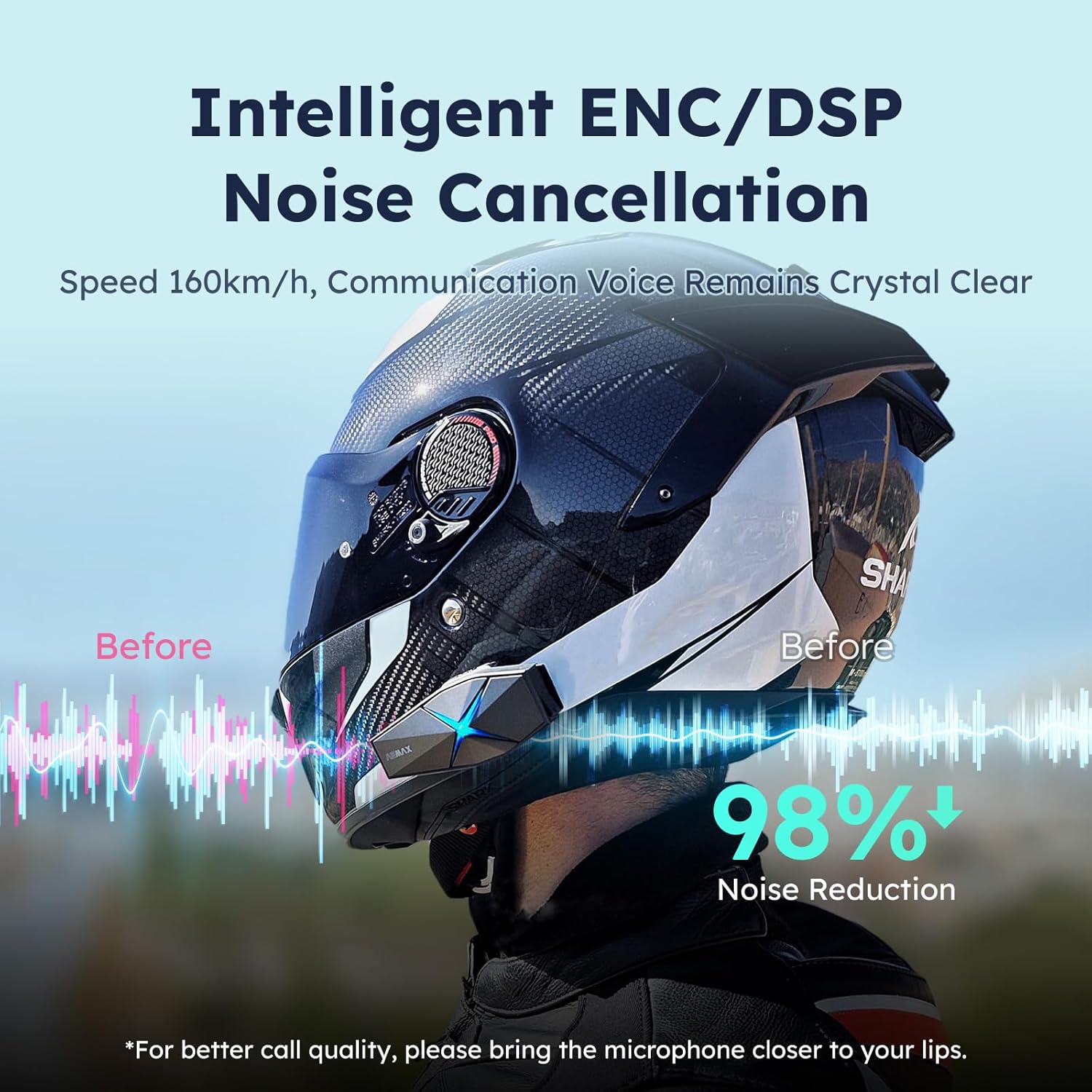
Image: ASMAX F1 Noise Cancellation technology.
9. Nkọwapụta
| Njirimara | Nkọwa |
|---|---|
| Aha Nlereanya | ASMAX F1 (F1 DP) |
| Ụdị Bluetooth | 5.3 |
| Intercom Range | Up to 1.8 km (10 riders) |
| Ike batrị | 1250mAh |
| Ịchaji | Fast Charging, USB |
| Ngosi nke enweghị mmiri | IP67 |
| Njikwa mkpọtụ | Active Noise Cancellation (ENC/DSP) |
| Njikwa olu | "Hi Max" commands |
| Njirimara ọdịyo | Audio Multitasking, Superior Sound Quality |
| Akụkụ | Approx. 86mm x 36mm x 23.6mm (unit) |
| Ibu | Approx. 50g (unit) |
| Ntinye ntị | Na Ntị |
| Mgbochi | 32 Ohm |
| Mmetụta | 105 dB |
| Nzaghachi ugboro ugboro | 20 Hz (opekempe) |

Image: ASMAX F1 Dual-Chip Octa-Core technology.
10. Akwụkwọ ikike na nkwado
ASMAX products come with a standard manufacturer's warranty. For specific warranty terms and conditions, please refer to the warranty card included in your product packaging or visit the official ASMAX websaịtị.
For technical support, troubleshooting assistance, or any inquiries regarding your ASMAX F1 headset, please contact ASMAX customer service through their official channels. Contact information can typically be found on the ASMAX websaịtị ma ọ bụ na nkwakọ ngwaahịa.
Regularly check the ASMAX website or app for firmware updates to ensure optimal performance and access to new features, such as CloudTalk Mode.
Ask a question about this manual
Ask about setup, troubleshooting, compatibility, parts, safety, or missing instructions. Manuals+ will review the question and use this page’s manual context to help answer it.