
1. Ngwaahịa gafereview
The iiyama Prolite XUB2495WSU-B7 is a 24.1-inch monitor featuring a 3-sided borderless IPS panel with a 16:10 aspect ratio and a native resolution of 1920 x 1200. Designed for professional use, it offers accurate and consistent color reproduction with wide viewing angles. The monitor includes a height-adjustable stand with swivel and pivot functions for enhanced ergonomic flexibility. Integrated speakers and a USB hub (3x USB 3.2, 1x USB-C 15W) provide additional convenience.
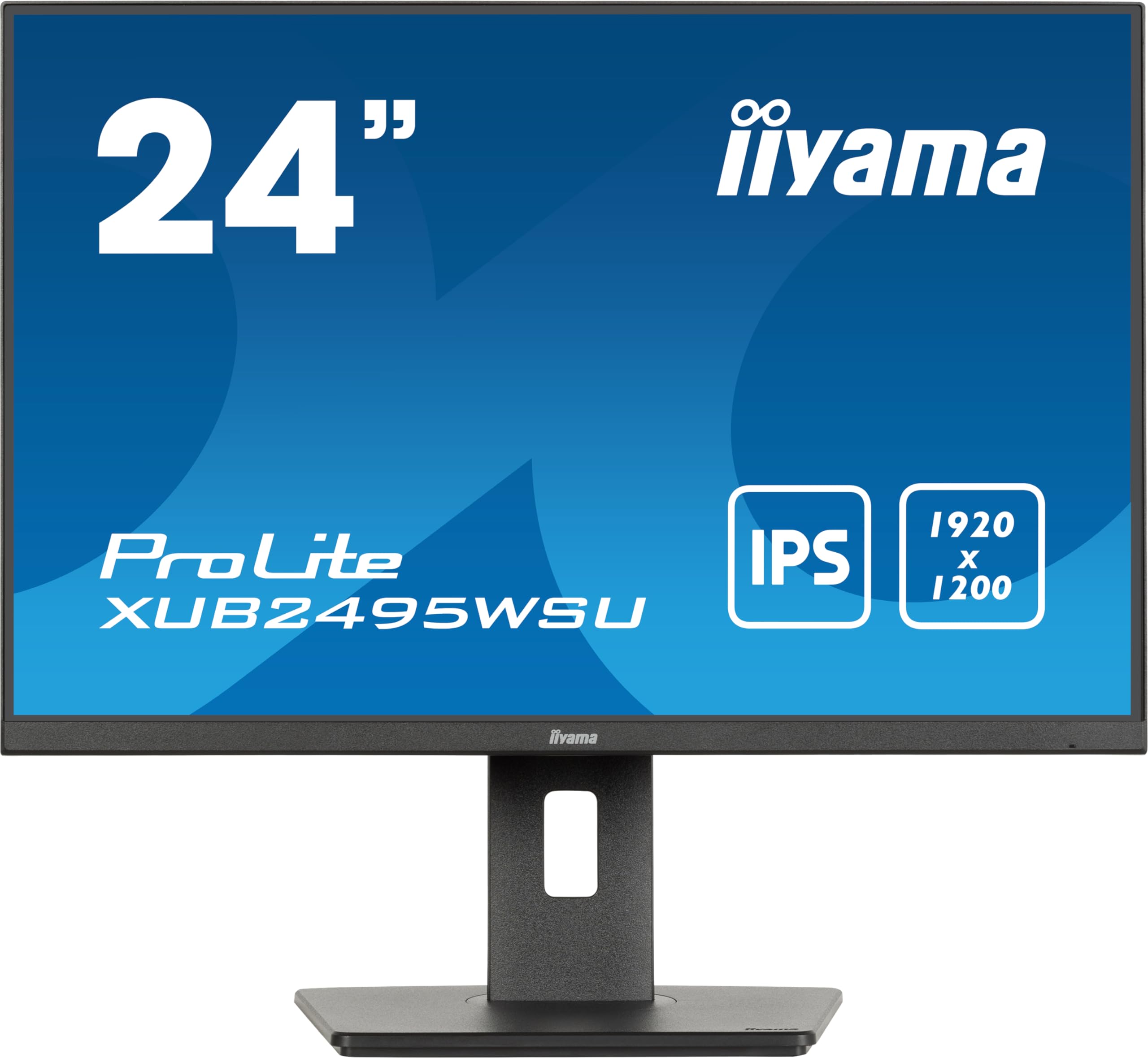
Foto 1: N'ihu view of the iiyama Prolite XUB2495WSU-B7 monitor.
2. Kedu ihe dị na Igbe ahụ
Please check that all the following items are included in your monitor package:
- iiyama Prolite XUB2495WSU-B7 Monitor
- Igwe ọkụ ọkụ
- USB DisplayPort
- USB Upstream Cable
- Quick Start Guide (may be a separate document)
- Safety Guide (may be a separate document)

Figure 2: Included cables for the monitor.
3. Mbido Mbido
3.1 Ịchịkọta Stand
- Jiri nlezianya wepụ ihe nleba anya ma guzobe ihe ndị dị na nkwakọ ngwaahịa ahụ.
- Attach the stand base to the stand column, securing it with the provided screw.
- Align the stand assembly with the mounting holes on the back of the monitor panel.
- Secure the stand to the monitor panel. Ensure it clicks into place or is fastened securely.

Ọgụgụ 3: N'azụ view of the monitor with the stand.
3.2 Njikọ eriri
Tupu ijikọ, hụ na elele anya na kọmputa gị agbanyụrụla.
- Njikọ ike: Connect the power cable to the monitor's AC input and then to a power outlet.
- Njikọ vidiyo: Connect either an HDMI cable or a DisplayPort cable from your computer's video output to the corresponding input on the monitor.
- USB Upstream Connection: To enable the monitor's USB hub, connect the USB upstream cable from your computer's USB port to the USB upstream port on the monitor.
- USB Downstream (Hub) Connection: You can connect USB devices (e.g., keyboard, mouse, USB drives) to the USB downstream ports on the monitor.

Figure 4: Monitor rear ports.

Figure 5: Connection diagram for the monitor.
4. Na-arụ ọrụ nlekota oru gị
4.1 Gbanyụọ ma ọ bụ gbanyụọ
Press the power button, usually located on the bottom right or rear of the monitor, to turn the monitor on or off. The power indicator light will illuminate when the monitor is on.
4.2 Nhagharị NchNhr Ngosipụta N'ihuenyo (OSD)
The monitor features a joystick control for navigating the On-Screen Display (OSD) menu. This control is typically located on the rear or bottom edge of the monitor.
- Pịa: Enter the OSD menu or confirm a selection.
- Move Up/Down: Gaa na nhọrọ menu.
- Move Left/Right: Hazie ụkpụrụ ma ọ bụ bugharịa n'etiti obere menu.
4.3 Ịgbanwe Ntọala Ngosipụta
Access the OSD menu to adjust various display settings:
- Ntọala foto: Adjust Brightness, Contrast, Sharpness, and Gamma.
- Ntọala agba: Select color temperature, sRGB mode, or i-Style Colour presets.
- Họrọ ntinye: Jiri aka gbanwee n'etiti ntinye HDMI na DisplayPort.
- Ntọala ọdịyo: Adjust volume for the integrated speakers or connected headphones.
- Ntọala OSD: Hazie asụsụ OSD, nghọta, na njedebe oge.
4.4 Mgbanwe Ergonomic
Ihe nguzo ihuenyo na-enye ohere maka mgbanwe dị iche iche iji mee ka ọrụ gị ka mma. viewnkasi obi:
- Ndozi elu: Raise or lower the monitor to eye level. The stand offers 150mm of height adjustment.
- Swivel: Tụgharịa ihe nlele ahụ n'akụkụ aka ekpe ma ọ bụ aka nri.
- Gbaa: Hazie akụkụ kwụ ọtọ nke ihuenyo ahụ (n'ihu ma ọ bụ azụ).
- Pivot: Rotate the screen 90 degrees to switch between landscape and portrait orientation.
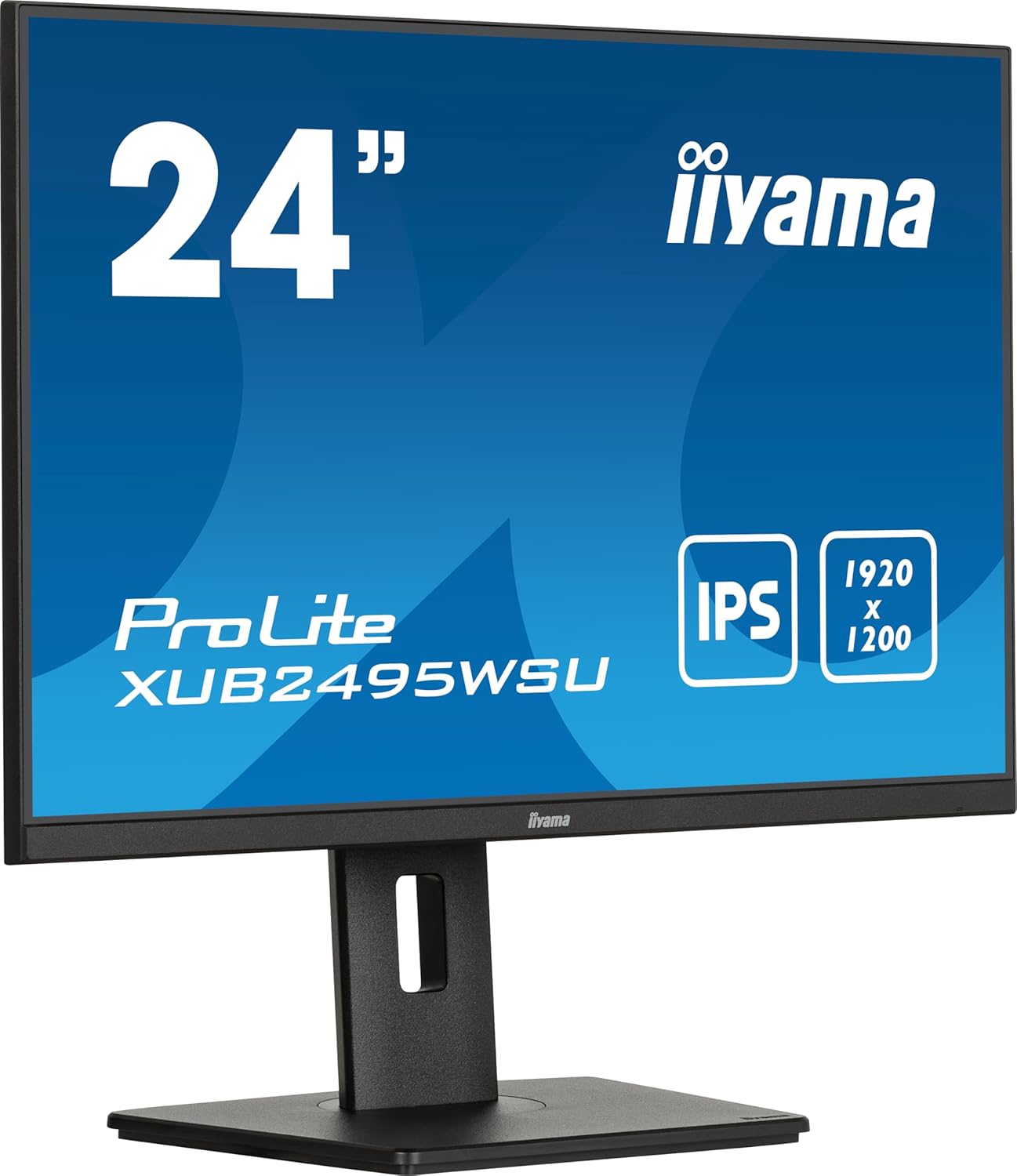
Figure 6: Monitor in landscape mode.

Figure 7: Monitor in portrait mode (pivot function).

Figure 8: Monitor side view (neutral tilt).

Figure 9: Monitor side view (tilted backward).
4.5 Using the USB Hub
Once the USB upstream cable is connected to your computer, the USB downstream ports on the monitor become active. You can use these ports to connect peripherals such as keyboards, mice, webcams, or USB storage devices. The USB-C port also provides 15W power delivery for compatible devices.
5. Nlekọta na nlekọta
Iji hụ na ogologo ndụ na arụmọrụ kacha mma nke nleba anya gị, soro ntuziaka mmezi ndị a:
- Na-ehicha ihuenyo: Jiri nwayọ hichaa ihuenyo ahụ site na iji akwa dị nro na-enweghị lint. Maka akara isi ike, dampen the cloth slightly with water or a specialized screen cleaner. Avoid using harsh chemicals, alcohol, or abrasive materials.
- Na-ehicha Casing: Jiri akwa dị nro dị nro hichaa ihe nleba anya casing.
- Igwe ikuku: Gbaa mbọ hụ na egbochighị oghere ikuku na ihe nleba anya ka ọ ghara ikpo oke ọkụ.
- Gbanyụọ: Gbanyụọ onye nleba anya mgbe niile wee wepụ ya na oghere ọkụ tupu ihicha ma ọ bụ ọ bụrụ na a gaghị eji ya mee ihe ruo ogologo oge.
- Zere ìhè anyanwụ kpọmkwem: Do not expose the monitor to direct sunlight or excessive heat.
6. Ịchọpụta nsogbu nkịtị
If you encounter problems with your monitor, refer to the following table for potential solutions:
| Nsogbu | Ihe nwere ike ime | Ngwọta |
|---|---|---|
| Enweghị onyonyo na ihuenyo | Akwụsịla eriri ọkụ Video cable disconnected ahọpụtara isi mmalite ntinye ezighi ezi | Lelee njikọ eriri ọkụ Ensure video cable is securely connected to both monitor and computer Select the correct input source via the OSD menu |
| Onyonyo na-agbagọ ma ọ bụ agbagọ | Mkpebi na-ezighi ezi Video cable issue | Set display resolution to 1920 x 1200 Try a different video cable |
| Enweghị ụda sitere na ndị ọkà okwu | Olu dị ala Audio cable not connected (if applicable) Incorrect audio output selected on computer | Adjust monitor volume via OSD Ensure audio is routed to the monitor on your computer's sound settings |
| Ọdụ ụgbọ mmiri USB anaghị arụ ọrụ | USB upstream cable not connected | Connect the USB upstream cable from the monitor to your computer |
If the problem persists after trying these solutions, please contact iiyama customer support.
7. Nka na ụzụ nkọwa
| Njirimara | Nkọwapụta |
|---|---|
| Nọmba nlereanya | XUB2495WSU-B7 |
| Nha ihuenyo | 24.1 inch (nha ihuenyo kwụ ọtọ nke sentimita iri abụọ na anọ) |
| Ụdị panel | IPS |
| Mkpebi | 1920 x 1200 (WUXGA) |
| Akụkụ akụkụ | 16:10 |
| Oge nzaghachi | 4ms (GtG) |
| Icha ọkụ | 300 cd/m² |
| Ọnụọgụ ọdịiche | 1000:1 (Ọtụtụ) |
| Ntinye vidiyo | HDMI, DisplayPort |
| USB Hub | 3x USB 3.2, 1x USB-C (15W Power Delivery) |
| Ndị na-ekwu okwu | Ejikọtara |
| Ergonomics | Height Adjustable (150mm), Swivel, Tilt, Pivot |
| Oriri ike | 15 kWh/1000h (Energy Class D) |
| Akụkụ ngwaahịa (WxHxD) | 8.23 x 20.98 x 14.61 sentimita asatọ (nwere ihe nkwụnye) |
| Ibu Ibu | 11.22 pound |
7.1 Energy Information

Figure 10: Energy Label for XUB2495WSU-B7.
Maka ozi ndị ọzọ gbasara ike, biko gaa na Ebe nchekwa data EPREL.
8. Akwụkwọ ikike na nkwado ndị ahịa
Information regarding the product warranty and customer support services is typically provided in a separate warranty card included with your purchase or can be found on the official iiyama website. Please refer to these resources for details on warranty coverage, service procedures, and contact information for technical assistance.


