
1. Okwu mmalite
The Hoco UA28 USB Bluetooth Adapter is designed to provide Bluetooth connectivity to your computer or laptop. This compact device allows you to connect various Bluetooth-enabled peripherals such as headphones, speakers, keyboards, mice, and gamepads wirelessly. It supports Bluetooth v5.1 and is backward compatible with older Bluetooth versions.
Key features include Plug and Play technology for easy installation, support for multiple simultaneous device connections, and automatic reconnection to previously paired devices.
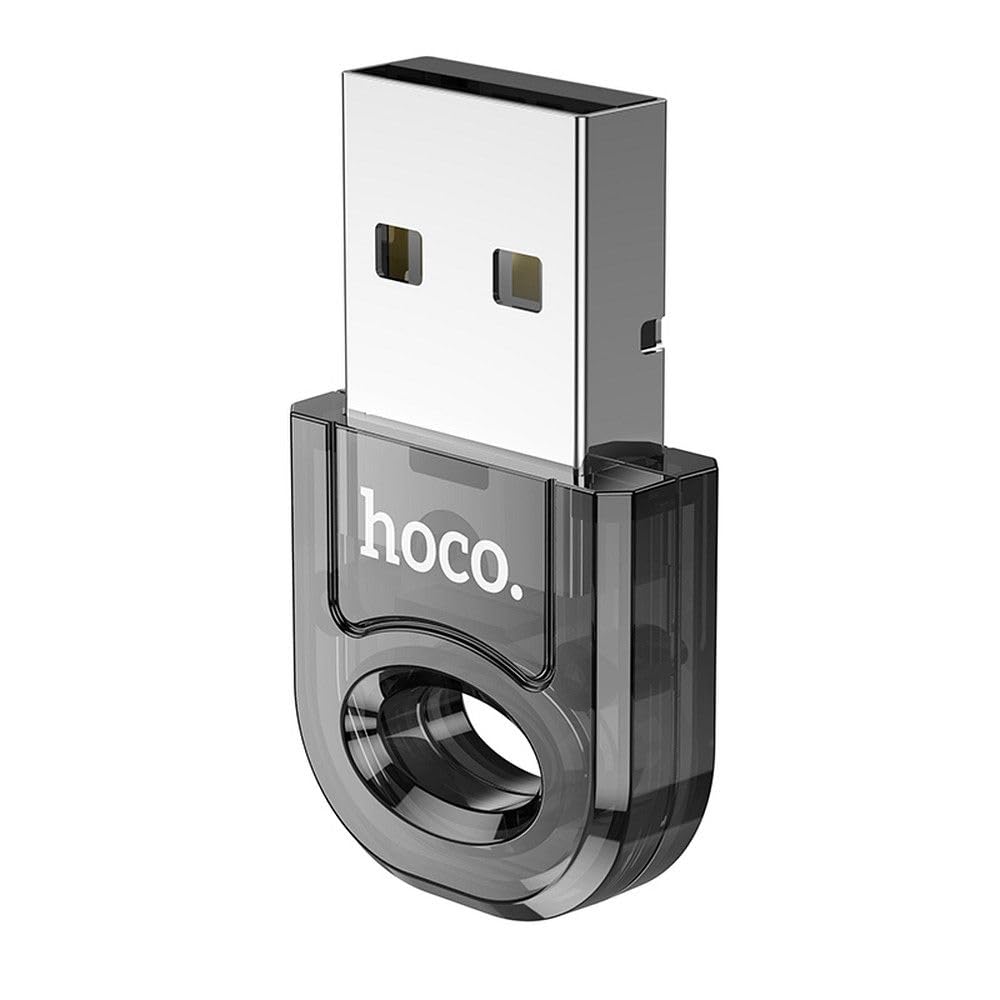
Image 1: The Hoco UA28 USB Bluetooth Adapter, a compact device for adding Bluetooth functionality to computers.
2. Ntọala na nwụnye
The Hoco UA28 USB Bluetooth Adapter is designed for straightforward installation using Plug and Play technology. Follow these steps to set up your adapter:
- Tinye ihe nkwụnye ahụ: Plug the Hoco UA28 USB Bluetooth Adapter into an available USB-A port on your desktop computer or laptop.
- Nchọpụta akpaaka: For most modern operating systems (Windows 8 and above, macOS, Linux), the system will automatically detect and install the necessary drivers. No manual driver installation is typically required.
- Windows 7 Driver Installation: If you are using Windows 7, driver installation may be necessary. Please refer to the troubleshooting section or the product packaging for driver download instructions. You can also visit the official Hoco websaịtị maka nkwado.

Image 2: The Hoco UA28 USB Bluetooth Adapter plugged into a laptop's USB port, ready for use.
3. Ntuziaka ọrụ
Once the Hoco UA28 adapter is installed, you can begin connecting your Bluetooth devices:
- Kwado Bluetooth: Ensure Bluetooth is enabled on your computer. This is usually found in your operating system's settings or control panel.
- Mmakọ Mmakọ: Put your Bluetooth device (e.g., headphones, speaker, mouse) into pairing mode. Refer to your device's manual for specific instructions on how to do this.
- Chọọ maka Ngwaọrụ: On your computer, search for new Bluetooth devices. The Hoco UA28 adapter will facilitate this search.
- Họrọ wee jikọọ: Select your device from the list of available Bluetooth devices and follow any on-screen prompts to complete the pairing process.
- Nkwado akụrụngwa ọtụtụ: The adapter can connect to multiple Bluetooth devices simultaneously.
- Njikọta akpaaka: The adapter remembers previously connected devices and will automatically attempt to reconnect to them when they are within range and Bluetooth is enabled.
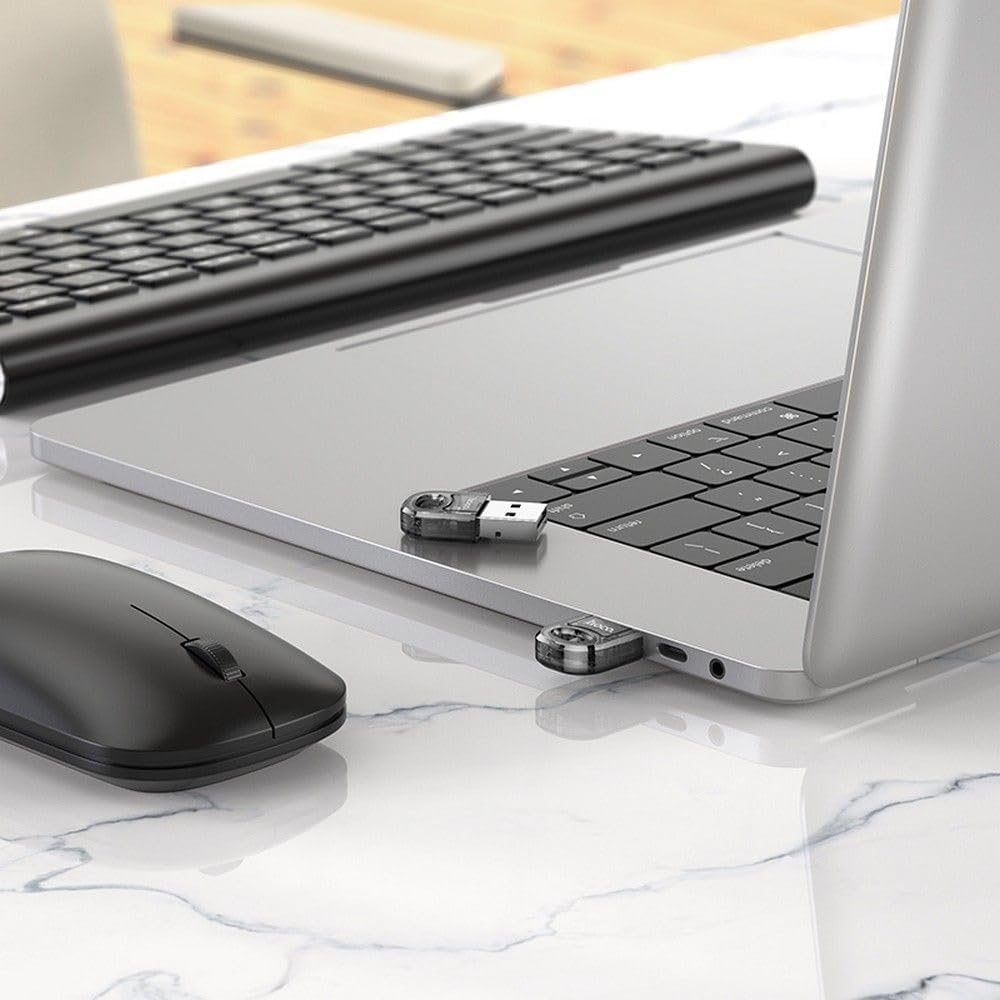
Image 3: The Hoco UA28 USB Bluetooth Adapter enabling wireless connectivity for a mouse and keyboard with a laptop.
4. Nkọwapụta
Below are the technical specifications for the Hoco UA28 USB Bluetooth Adapter:
| Njirimara | Nkọwa |
|---|---|
| Ụdị | Hoco |
| Nọmba nlereanya | UA28 |
| Interface | USB-A |
| Ụdị Bluetooth | v5.1 (backward compatible) |
| Oke | 10-20 mita |
| Ihe onwunwe | Ihe sịntetik |
| Ngwa dakọtara | Desktop, Laptọọpụ |
| Ọnụego mbufe data | 3 Mbps |
| Ọnụọgụ nke ihe | 1 |
| Nọmba akụkụ | 6942007618335 |
| ASIN | B0CYYF2LBH |
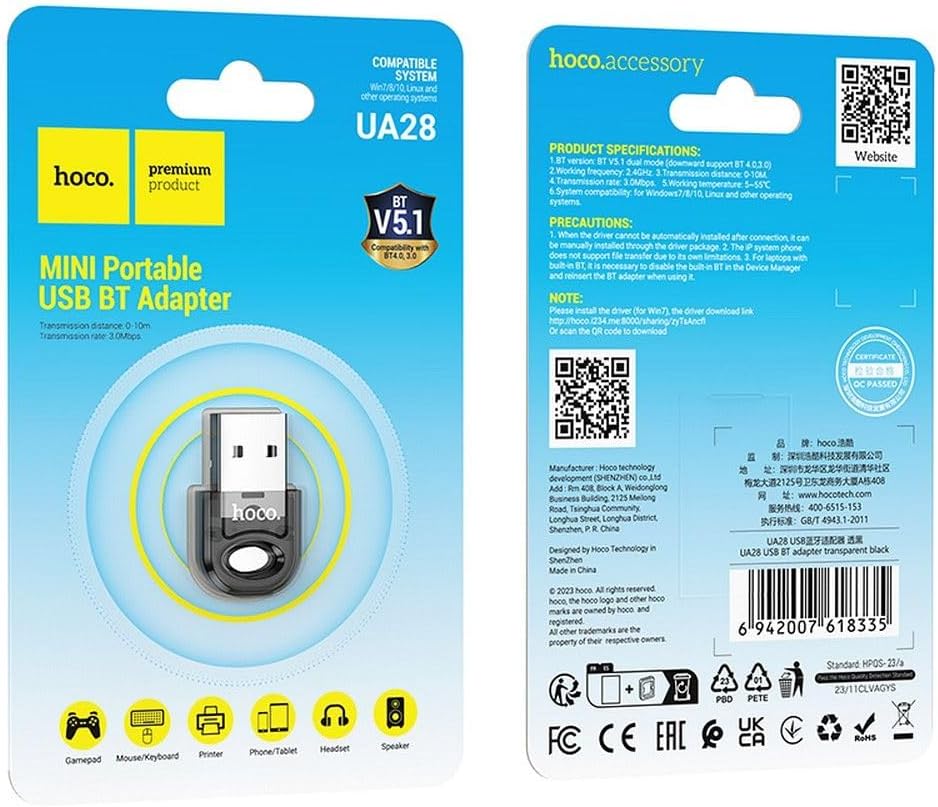
Image 4: Product packaging displaying detailed specifications and compatibility information for the Hoco UA28 adapter.
5. Nchọpụta nsogbu
If you encounter issues with your Hoco UA28 USB Bluetooth Adapter, consider the following troubleshooting steps:
- No Bluetooth Devices Found:
- Gbaa mbọ hụ na etinyere nkwụnye ahụ na ọdụ ụgbọ USB.
- Verify that Bluetooth is enabled in your computer's settings.
- Make sure the device you are trying to connect is in pairing mode and within the 10-20 meter range.
- Driver Issues (Windows 7):
- For Windows 7, manual driver installation is required. You can download the driver from the official Hoco website or use the provided link: http://hoco.i234.me:8000/sharing/zyTsAncfl. Alternatively, scan the QR code found on the product packaging.
- Interference with Built-in Bluetooth (Laptops):
- If your laptop has a built-in Bluetooth 4.0 module, it is recommended to disable the built-in Bluetooth in your computer's Device Manager before using the Hoco UA28 adapter. Reinsert the UA28 adapter after disabling the internal Bluetooth.
- File Transfer Limitations:
- Note that IP system phones may not support file transfer via Bluetooth due to their inherent limitations. This is not a defect of the Hoco UA28 adapter.
6. Nlekọta
To ensure the longevity and optimal performance of your Hoco UA28 USB Bluetooth Adapter, follow these simple maintenance guidelines:
- Debe Ọcha: Jiri akwa dị nro hichaa ihe nkwụnye ọkụ mgbe niile iji wepụ uzuzu na irighiri ihe. Zere iji ihe nhicha mmiri mmiri.
- Na-echekwa nke ọma: Mgbe ejighị ya, chekwaa ihe nkwụnye ọkụ n'ebe dị jụụ, kpọrọ nkụ pụọ na ìhè anyanwụ kpọmkwem na oke okpomọkụ.
- Jiri Nlekọta Aka: Avoid dropping the adapter or subjecting it to strong impacts, which could damage internal components.
- Zere mmiri mmiri: Ewepụla ihe nkwụnye ọkụ na mmiri ma ọ bụ oke iru mmiri.
7. Akwụkwọ ikike na nkwado
The Hoco UA28 USB Bluetooth Adapter comes with a Hoco Standard Warranty. For detailed information regarding warranty terms and conditions, please refer to the warranty card included with your product or visit the official Hoco websaịtị.
For further assistance, technical support, or to access additional resources, please visit the official Hoco websaịtị: