
1. Okwu mmalite
Thank you for choosing the PRT H11 Bluetooth Label Maker. This compact and versatile device is designed for efficient label printing in various settings, including home, office, and personal organization. With its portable design, USB rechargeability, and compatibility with both iOS and Android devices, the H11 offers a convenient solution for all your labeling needs. This manual provides detailed instructions on setup, operation, maintenance, and troubleshooting to ensure optimal performance and longevity of your label maker.
2. Ngwaahịa gafereview
The PRT H11 is a thermal label printer that connects wirelessly via Bluetooth to your smartphone or tablet. It features a sleek, portable design and utilizes self-adhesive label rolls for quick and easy application.

Figure 2.1: The PRT H11 Label Maker, showing its compact design, a roll of labels, and the accompanying mobile application interface.
2.1 Atụmatụ
- Enwere ike ibugharị: Dị fechaa na kọmpat maka ibu dị mfe.
- Njikọ Bluetooth: Seamless wireless connection to iOS and Android devices.
- USB enwere ike ịchaji: Convenient charging via a standard USB port.
- Mbipụta okpomọkụ: No ink or toner required, reducing running costs.
- Dedicated Mobile App: Offers extensive customization options for labels.
- Cutter arụnyere n'ime ya: For clean and precise label cutting.
2.2 Design and Portability
The H11 label maker is designed for ultimate portability, weighing approximately 0.17 kg and measuring 7.8 x 4.2 x 9.9 cm. Its compact size allows it to fit easily into bags or drawers, making it ideal for on-the-go labeling tasks. The device boasts a 203 DPI print resolution, ensuring clear and sharp labels, and a printing speed of 50mm/s for efficient output.

Figure 2.2: The PRT H11 Label Maker's specifications highlighting its lightweight and compact design, improved DPI, and printing speed.
2.3 Core Features
The PRT H11 offers a range of features designed for user convenience and efficiency. It is 'linkless' in the sense of not requiring a physical data cable for printing, relying solely on wireless Bluetooth connectivity. The 'one-click' operation simplifies the printing process, and the integrated cutter ensures neat label separation.

Figure 2.3: Key features of the PRT H11, including its wireless operation, simplified one-click printing, and integrated label cutter.
2.4 App Capabilities
The dedicated mobile application for the PRT H11 provides extensive customization options. Users can access over 130 fonts, 100+ templates, and 850+ symbols to create unique and functional labels. The app also supports the generation of QR codes and barcodes, expanding the utility of the label maker for various applications.
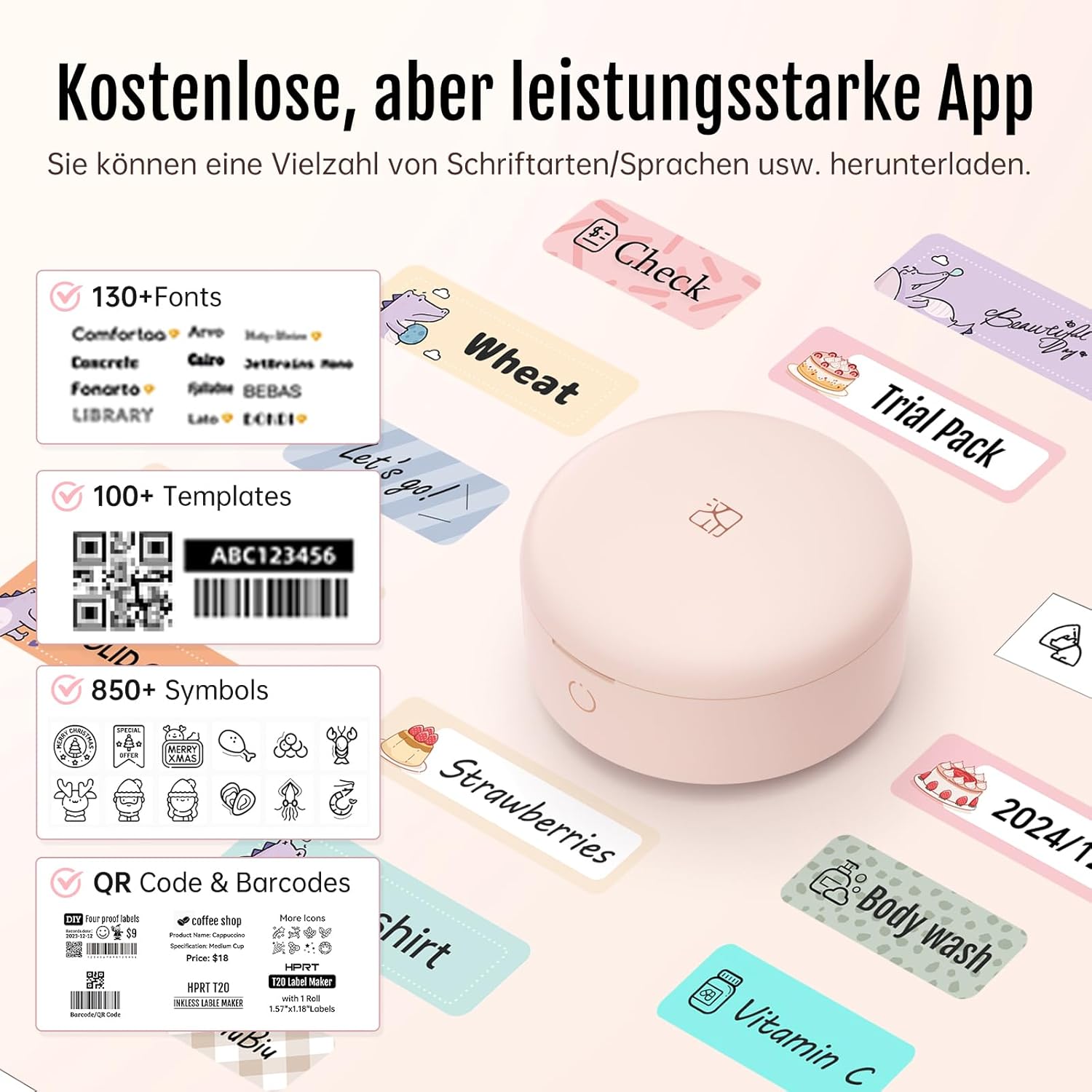
Figure 2.4: The PRT H11 mobile application interface, showcasing its rich library of fonts, templates, symbols, and support for QR codes and barcodes.
3. Ntuziaka Nhazi
3.1 Ịchaji ngwaọrụ
Before first use, fully charge the PRT H11 label maker using the provided USB cable. Connect the cable to the charging port on the device and a standard USB power adapter (not included) or a computer USB port. The indicator light will show charging status and turn off when fully charged.
3.2 Ngwa nwụnye
Download the 'HerePrint' app from your device's app store (Apple App Store for iOS or Google Play Store for Android). Chọọ maka "HerePrint" and install the application.
3.3 Njikọ Bluetooth
To connect your PRT H11 to your mobile device:
- Open Bluetooth: Gbaa mbọ hụ na agbanyere Bluetooth na ama ma ọ bụ mbadamba gị.
- Kwenye njikọ: Open the 'HerePrint' app. The app will guide you to connect to the label maker. Select the PRT H11 from the list of available devices.
- Malite Iji: Ozugbo ejikọtara ya, ngwa ahụ ga-egosi na ngwa nbipute ahụ dị njikere maka ojiji.
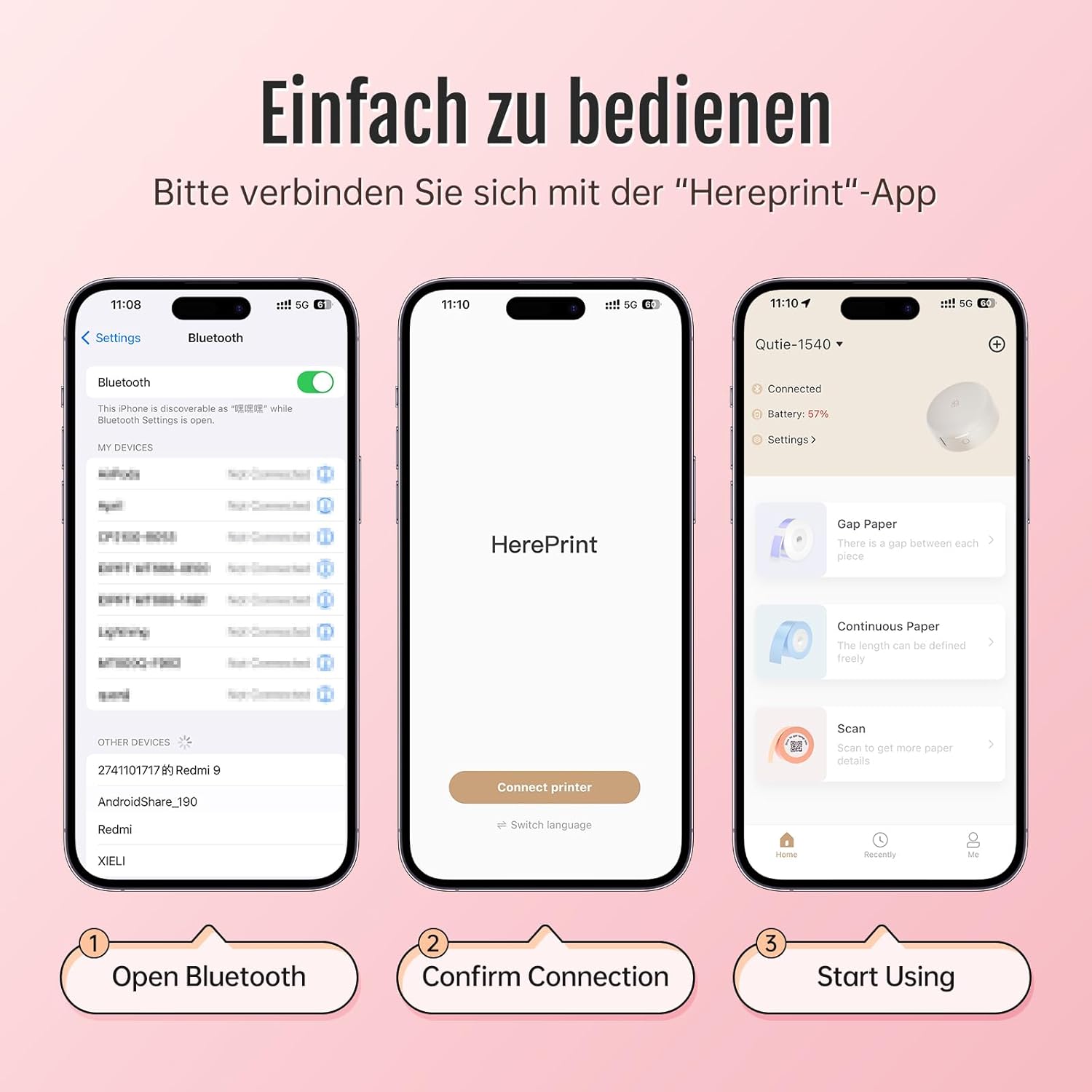
Figure 3.1: Step-by-step guide for connecting the PRT H11 label maker to your mobile device via Bluetooth using the 'HerePrint' app.
3.4 Ndekọ Ibugo
Open the label compartment cover. Insert the label roll with the printing surface facing upwards, ensuring the leading edge of the label paper is aligned with the printer's output slot. Close the cover securely.
4. Ntuziaka ọrụ
4.1 Creating Labels in the App
The 'HerePrint' app is your primary interface for designing labels. Within the app, you can:
- Tinye ederede: Type in your desired text.
- Select Fonts and Styles: Choose from a wide range of fonts, adjust size, bold, italic, and alignment.
- Add Icons and Symbols: Incorporate various symbols and icons for visual clarity.
- Use Templates: Utilize pre-designed templates for common labeling tasks.
- Insert Images: Add simple images or logos.
- Generate QR/Barcodes: Create scannable codes for inventory or information.
4.2 Mbipụta Aha
Once your label design is complete in the app, tap the 'Print' button. The app will send the data to the PRT H11, and the label will be printed. Use the built-in cutter to neatly separate the printed label from the roll.
4.3 Practical Applications
The PRT H11 is versatile for various labeling needs:
- Nhazi Ụlọ: Labeling storage bins, spice jars, files, and personal items.
- Ojiji ụlọ ọrụ: Organizing documents, cables, and office supplies.
- Retail/Small Business: Pricing, product identification, and inventory management.
- Cosmetics and Personal Care: Labeling homemade products or organizing beauty items.

Ọgụgụ 4.1: Ọpụample of PRT H11 labels used for organizing cosmetic products, demonstrating clarity and versatility.
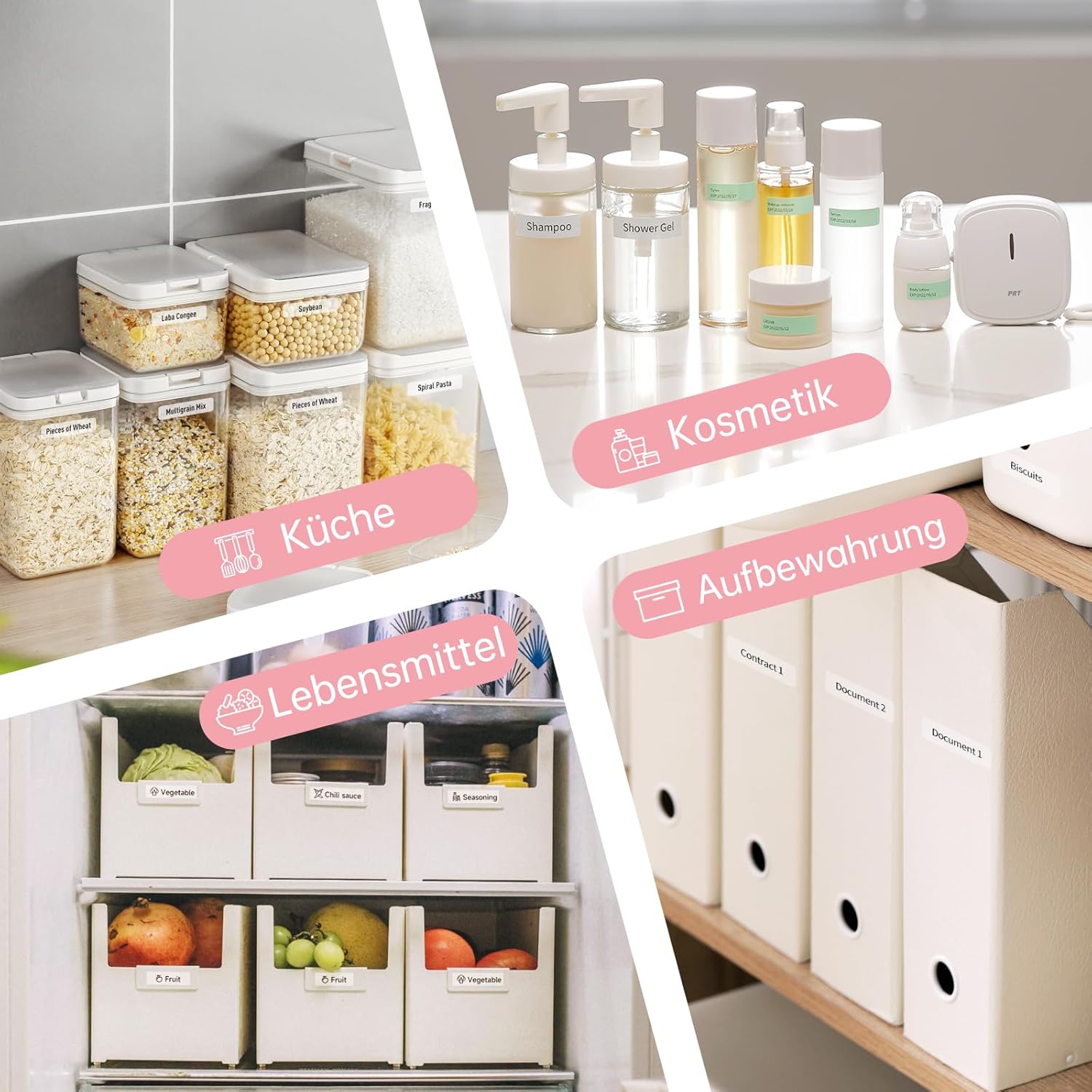
Figure 4.2: Diverse applications of the PRT H11 label maker, including kitchen organization, food labeling, and document storage.
5. Nlekọta
To ensure the longevity and optimal performance of your PRT H11 label maker, follow these maintenance guidelines:
- Na-ehicha isi mbipụta: Periodically clean the thermal print head with a soft, lint-free cloth lightly dampened with isopropyl alcohol. Ensure the device is turned off and disconnected from power before cleaning. Allow it to dry completely before use.
- Na-ehicha Mpụga: Wipe the exterior of the device with a soft, dry cloth. Avoid using abrasive cleaners or solvents.
- Nchekwa: Debe ihe e ji emepụta akara ahụ n'ebe dị jụụ ma kpọọ nkụ, ebe anwụ na-anaghị anwụ kpọmkwem na oke okpomọkụ dị oke njọ.
- Nlekọta mpịakọta aha: Store label rolls in their original packaging to protect them from dust and moisture.
6. Nchọpụta nsogbu
If you encounter issues with your PRT H11 label maker, refer to the following common problems and solutions:
- Enweghị Ike/Ngwaọrụ Anaghị agbanyụ:
- Ensure the device is fully charged. Connect it to a USB power source and check if the charging indicator light is on.
- Pịa ma jide bọtịnụ ike maka sekọnd ole na ole.
- Enweghị ike ijikọ site na Bluetooth:
- Gbaa mbọ hụ na agbanyere Bluetooth na ngwaọrụ mkpanaka gị.
- Ensure the label maker is turned on and within range (typically 10 meters).
- Restart both the label maker and your mobile device.
- Forget the device in your phone's Bluetooth settings and try pairing again through the 'HerePrint' app.
- Poor Print Quality/Faint Printing:
- Check if the label roll is inserted correctly with the printing surface facing up.
- Clean the thermal print head as described in the Maintenance section.
- Ensure you are using genuine PRT label rolls.
- The label roll might be running out or expired. Replace with a new roll.
- Labels Not Feeding/Paper Jam:
- Open the label compartment and ensure the label roll is properly seated and not tangled.
- Remove any jammed paper carefully.
- Ensure the label roll is not too wide or too narrow for the device.
- App Crashing/Not Responding:
- Gbaa mbọ hụ na emelitere ngwa gị ka ọ bụrụ ụdị kachasị ọhụrụ.
- Clear the app's cache or reinstall the app.
- Hụ na sistemụ arụmọrụ nke ngwaọrụ mkpanaka gị dị ọhụrụ.
7. Nkọwapụta
| Njirimara | Nkọwapụta |
|---|---|
| Ụdị | PRT |
| Nọmba nlereanya | H11 |
| Teknụzụ Njikọta | Bluetooth, USB |
| Teknụzụ obibi akwụkwọ | Thermal |
| Mmepụta ngwa nbipute | Monochrome |
| Max Monochrome Print Speed | 30 mm / s |
| Akụkụ ngwaahịa | 8P x 8l x 2.9H centimeters (approx. 7.8 x 4.2 x 9.9 cm) |
| Ibu | 0.17 n'arọ |
| Ndakọrịta sistemụ arụmọrụ | iOS, Android |
| Atụmatụ pụrụ iche | Enwere ike ibugharị |
| Agba | Pink |
| Ụdị mgbasa ozi | Akara aha |
8. Akwụkwọ ikike na nkwado
For warranty information and customer support, please refer to the documentation provided with your purchase or contact the retailer where the PRT H11 label maker was acquired. Specific details regarding spare parts availability and software update guarantees are not available in this manual. For further assistance, please reach out to PRT customer service channels.