
1. Okwu mmalite
This manual provides detailed instructions for the proper use and maintenance of your OSALO Scientific Calculator, model OS-82ES PLUS II. This calculator is designed for secondary school students and professionals, offering 252 functions, a 2-line display, and dual solar and battery power for reliable operation. Please read this manual thoroughly to ensure optimal performance and longevity of your device.

Figure 1: OSALO Scientific Calculator OS-82ES PLUS II. This image shows the calculator from an angled perspective, highlighting its black body, white keys, and the solar panel at the top. The display shows a complex mathematical integral.
2. Ngwaahịa gafereview
Familiarize yourself with the various components and keys of your OSALO Scientific Calculator.

Figure 2: Key components of the OSALO Scientific Calculator. This diagram labels the solar panel, extra large display, control keys, SHIFT key, Mode key, Power on button, Function keys, Delete key, and Last answer key.
- Ogwe anyanwụ: Provides power in well-lit environments.
- Ngosipụta buru ibu: 2-line LCD for clear viewing of equations and results.
- Igodo njikwa: Navigation and directional input.
- Igodo SHIFT: Accesses secondary functions printed above keys in yellow.
- ALPHA Key: Accesses alphabetic characters and variables printed above keys in red.
- Igodo ọnọdụ: Changes calculation modes (e.g., COMP, STAT, TABLE).
- NA bọtịnụ: Powers on the calculator.
- Igodo ọrụ: Perform various mathematical and scientific operations.
- DEL (Delete) Key: Deletes the last entered character.
- AC (All Clear) Key: Clears all calculations and memory (except independent memory).
- ANS (Answer) Key: Recalls the result of the previous calculation.
3. Nhazi
3.1. Power Supply and Battery Installation
The OSALO Scientific Calculator is powered by both solar energy and an LR44 button cell battery. The battery is included and pre-installed.
- Ensure the calculator is turned off.
- Locate the battery compartment on the back of the calculator.
- Jiri obere screwdriver mepee mkpuchi nke ebe batrị ahụ.
- If replacing, remove the old LR44 battery.
- Insert a new LR44 battery with the positive (+) side facing up.
- Dochie mkpuchi nke batrị batrị ma jiri nkedo chekwaa ya.
Note: The solar panel provides supplementary power and extends battery life, but a functional battery is required for consistent operation, especially in low-light conditions.
3.2. Ike izizi
Pịa ON button to turn on the calculator. The display will show "0" or the last calculated result.
3.3. Turning Off the Calculator
To turn off the calculator, press SHIFT mgbe ahụ AC (OFF). The calculator will also automatically power off after a period of inactivity to conserve battery life.
4. Ntuziaka ọrụ
4.1. Basic Calculations
Enter numbers and operators as you would write them. Press = to get the result.
- Mgbakwunye: 1 + 2 =
- Mwepụ: 5 - 3 =
- Mmụba: 4 × 6 =
- Nkewa: 10 ÷ 2 =
4.2. 2-Line Display and Natural Input/Output
The calculator features a 2-line LCD display, allowing you to view both the input expression and the result simultaneously. It supports natural input and output, displaying fractions, roots, and other expressions as they appear in textbooks.
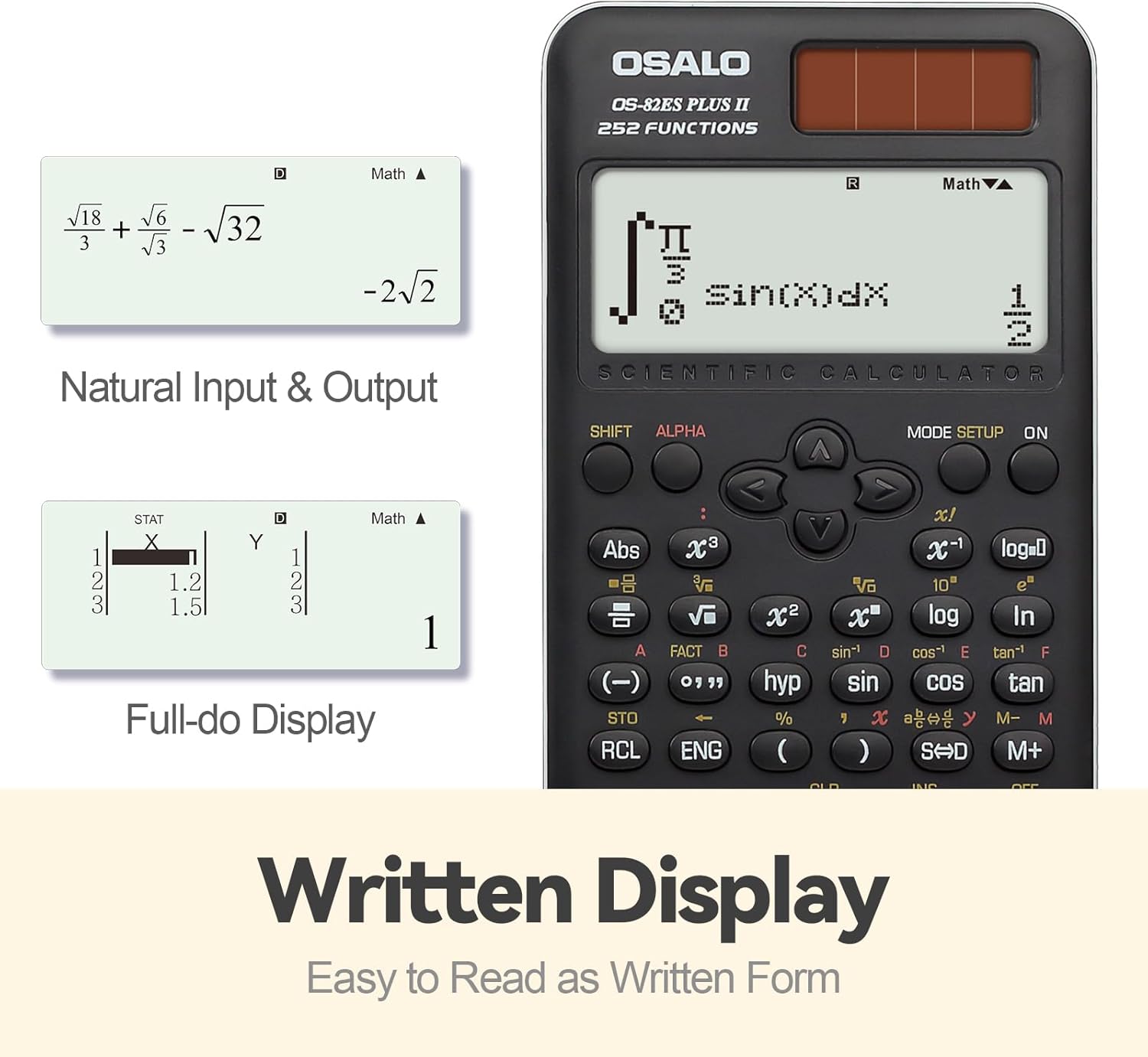
Ọgụgụ 3: Ọpụamples of Natural Input & Output and Full-do Display. The image shows how complex fractions and roots are displayed in a natural, written form, and how statistical data can be viewed in a full-dot matrix display.
4.3. Using Scientific Functions (252 Functions)
The calculator provides 252 functions, including trigonometric, logarithmic, exponential, power, root, fraction, permutation, combination, and statistical calculations.
- Ọrụ nke abụọ: Pịa SHIFT followed by the desired key to access the yellow-printed function above it.
- Alpha Functions: Pịa ALPHA followed by the desired key to access the red-printed character or variable above it.
- Ọrụ Trigonometric: Jiri mmehie, cos, tan keys. Inverse functions are accessed via SHIFT.
- Logarithmic Functions: Jiri ndekọ (isi 10) na ln (natural logarithm) keys.
- Mpekere: Jiri ihe ab/c key to input and convert fractions.
- Ọnụọgụ: Pịa MODE and select STAT mode. Refer to the calculator's on-screen menu for specific statistical calculations (e.g., standard deviation, linear regression).
- Ọrụ ebe nchekwa: Jiri STO (Ụlọ Ahịa) na RCL (Recall) keys to store and retrieve values from independent memory.
4.4. Brightness Adjustment Function
The calculator features a brightness adjustment function to optimize display visibility and reduce visual fatigue.

Figure 4: Brightness Adjustment Function. This image illustrates the difference between a 'Dark' display setting (to relieve visual fatigue) and a 'Bright' setting (for clear and intuitive viewing), demonstrating the calculator's adjustable screen brightness.
To adjust brightness, navigate through the MODE settings or use specific key combinations as indicated in the on-screen menu.
5. Atụmatụ igodo
The OSALO Scientific Calculator OS-82ES PLUS II is equipped with several features designed to enhance usability and functionality for academic and professional use.

Nyocha 5: N'eluview of 252 Functions. This image highlights key capabilities such as Multi-replay function, Combination and Permutation, Statistics (STAT-data editor, Standard deviation, Regression analysis), Fraction Calculation, 9 variable memories, and the inclusion of a slide-on hard case.
- Ọrụ 252: Comprehensive set of mathematical, statistical, and scientific functions.
- 2-Line Large Display: Clear and simultaneous display of input and results, supporting natural textbook display.
- Sensitive Keys: Premium induction buttons provide quick and accurate response to input.
- Hard Sliding Cover: Ergonomically designed cover protects the calculator from damage and provides a comfortable grip.
- Dual Power (Solar & Battery): Ensures reliable operation in various lighting conditions.
- Multi-replay Function: Allows for quick review and editing of previous calculations.
- STAT-data Editor: Facilitates statistical calculations including standard deviation and regression analysis.
- 9 Variable Memories: Store and recall up to 9 different values for complex calculations.
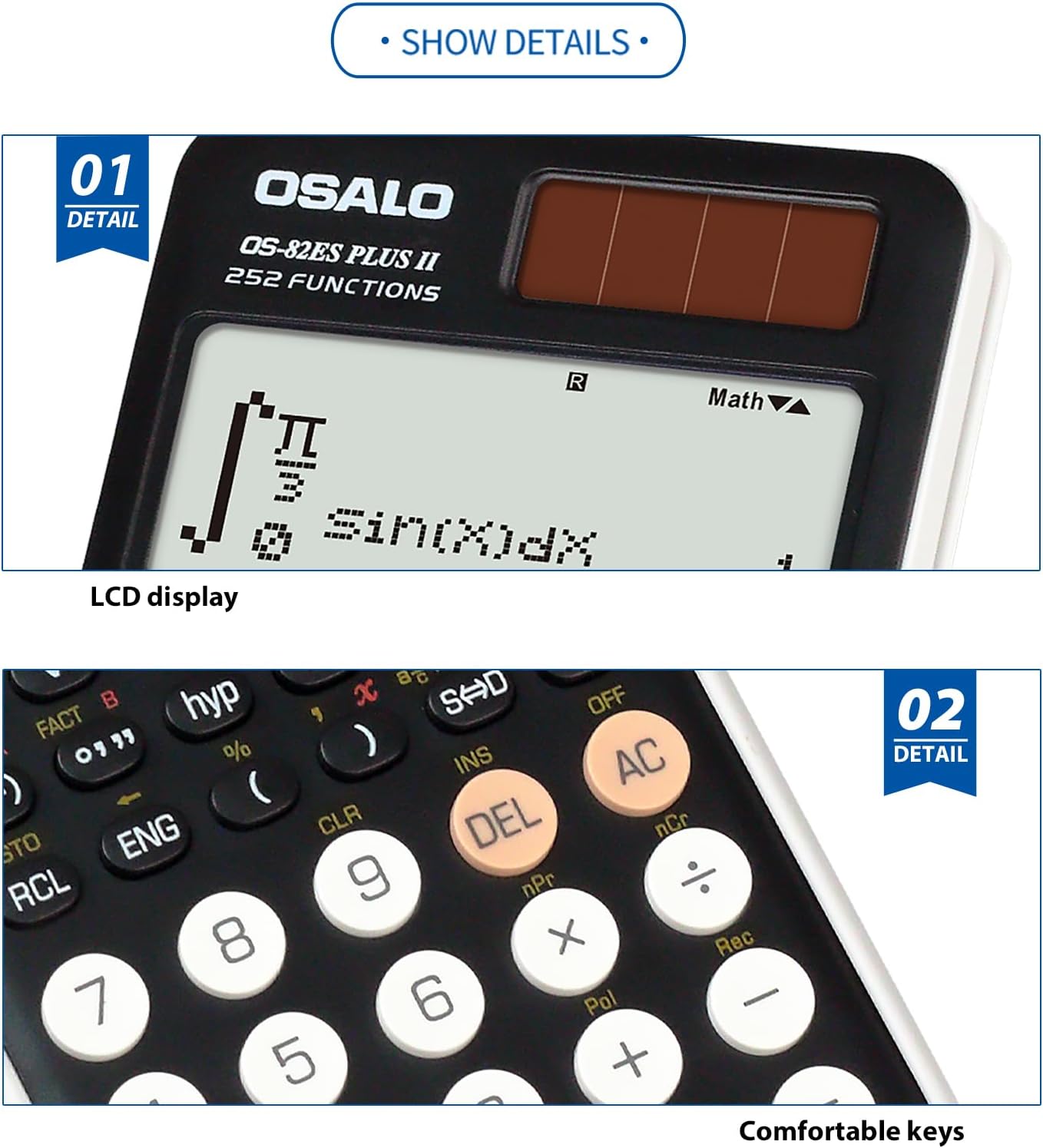
Figure 6: Detail of LCD Display and Comfortable Keys. This image provides a close-up view of the calculator's clear LCD display and the tactile, responsive keys, emphasizing user comfort and readability.
6. Nlekọta
6.1. Nhicha
- Wipe the calculator's exterior with a soft, dry cloth.
- Maka unyi isi ike, ntakịrị dampen akwa na mmiri na ihe dị nro, wee hichaa nkụ ozugbo.
- Do not use strong solvents, abrasive cleaners, or spray cleaners directly onto the calculator.
6.2. Nchekwa
- Store the calculator in a cool, dry place, away from direct sunlight and extreme temperatures.
- Always use the provided hard sliding cover to protect the display and keys when not in use.
- Avoid placing heavy objects on the calculator.
6.3. Ngbanwe batrị
When the display becomes dim or calculations are erratic, it may be time to replace the LR44 battery. Follow the instructions in Section 3.1. "Power Supply and Battery Installation". Dispose of used batteries according to local regulations.
7. Nchọpụta nsogbu
| Nsogbu | Ihe nwere ike ime | Ngwọta |
|---|---|---|
| Igwe mgbako anaghị agba. | Low or dead battery; insufficient light for solar power. | Replace the LR44 battery. Ensure adequate lighting for solar panel. |
| Ngosipụta adịchaghị ma ọ bụ oghere. | Low battery; poor lighting; brightness setting too low. | Replace battery. Move to a brighter area. Adjust display brightness (refer to Section 4.4). |
| Nsonaazụ ngụkọ na-ezighi ezi. | Incorrect mode setting; syntax error; incorrect input. | Check the current mode (e.g., DEG/RAD, COMP/STAT). Review input for errors. Press AC to clear and restart. |
| Igodo anaghị anabata ozi. | Calculator frozen; physical obstruction. | Try turning the calculator off and on again. Check for debris under keys. |
| "Math ERROR" or "Syntax ERROR" displayed. | Mathematical impossibility (e.g., division by zero); incorrect expression format. | Review your input for mathematical errors or incorrect syntax. Press AC ikpochapụ njehie. |
8. Nkọwapụta

Figure 7: Calculator Dimensions and Weight. This image provides a side and front view of the calculator, indicating its approximate thickness (0.79 inches / 20mm), height (6.46 inches / 164mm), width (3.15 inches / 80mm), and net weight (4.9oz / 140g). Note that official specifications may vary slightly.
| Njirimara | Nkọwa |
|---|---|
| Nlereanya | OS-82ES PLUS II |
| Ụdị | OSALO |
| Ọrụ | 252 |
| Ụdị ngosi | 2-line LCD, Natural Textbook Display |
| Ngosipụta ihuenyo nha | 6 sentimita asatọ |
| Isi Iyi Ike | Solar & Battery Supply (LR44 x 1, included) |
| Ụdị ihe | Plastic |
| Akụkụ ngwaahịa | 16.4 x 8 x 0.1 cm (6.46 x 3.15 x 0.04 inch) |
| Ibu Ibu | 190 g (ihe dị ka 6.7 oz) |
| Gụnyere batrị enwere ike ịchaji | Mba |
9. Akwụkwọ ikike na nkwado
For specific warranty information, please refer to the documentation provided at the time of purchase or contact your retailer. OSALO products are designed for reliability and performance.
If you encounter issues not covered in the troubleshooting section, or require further assistance, please contact OSALO customer support through their official websaịtị ma ọ bụ ozi kọntaktị enyere na nkwakọ ngwaahịa gị.