
1. Okwu mmalite
Welcome to the instruction manual for your new Xiaomi Curved Gaming Monitor G34WQi. This guide provides essential information for the safe and optimal setup, operation, and maintenance of your monitor. Please read this manual thoroughly before use to ensure you get the best experience from your device.
The Xiaomi G34WQi features a 34-inch UWQHD (3440x1440) ultrawide curved display with a 1500R curvature, designed to provide an immersive viewing experience. It boasts a high 180Hz refresh rate and a rapid 1ms response time (MPRT) for smooth, fluid gameplay. With FreeSync Premium technology, it minimizes screen tearing and stuttering. The monitor also offers a wide color gamut (95% DCI-P3, 100% sRGB) and a low blue light mode for eye comfort.
2. Nhazi
Ihe ngwugwu 2.1
Before assembly, please verify that all components are present:
- Xiaomi Curved Gaming Monitor G34WQi
- Monitor Stand (Base and Arm)
- Ihe nkwụnye ọkụ na eriri
- USB DisplayPort
- HDMI USB
- Akwụkwọ ntuziaka onye ọrụ
2.2 Ịchịkọta Stand
- Jiri nlezianya tinye ihu ihe nlele ahụ n'elu ebe dị nro ma dị ọcha iji gbochie ọwa.
- Attach the stand arm to the back of the monitor using the provided screws. Ensure it is securely fastened.
- Connect the stand base to the arm and tighten the thumb screw at the bottom of the base.
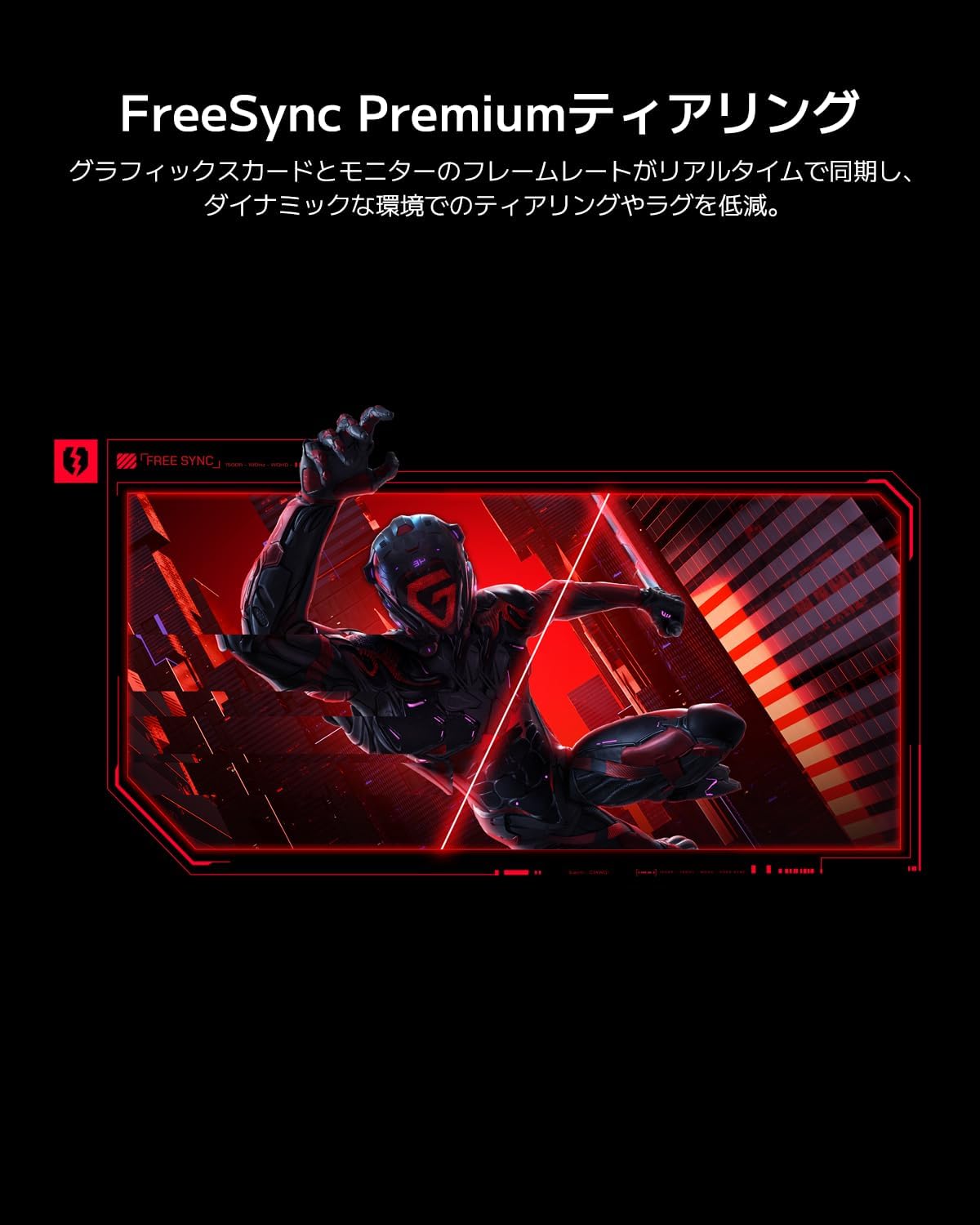
Image: The Xiaomi G34WQi monitor securely mounted on its adjustable stand.
2.3 Njikọ eriri
Connect the necessary cables to the monitor's rear ports:
- Ike Ike: Connect the power adapter to the monitor's power input, then plug the power cable into a wall outlet.
- DisplayPort (Recommended for Gaming): For optimal performance, including 180Hz refresh rate and FreeSync Premium, connect the DisplayPort cable from your computer's graphics card to the monitor's DisplayPort input.
- HDMI: Alternatively, connect an HDMI cable from your computer to one of the monitor's HDMI inputs. Note that HDMI may have limitations on refresh rate at UWQHD resolution compared to DisplayPort.
- Apụọ ọdịyo: If desired, connect external speakers or headphones to the 3.5mm audio output jack.

Foto: N'azụ view of the monitor highlighting the input ports for connectivity.
2.4 Ike mbido
After connecting all cables, press the power button, usually located on the back or bottom of the monitor, to turn it on. The monitor should automatically detect the input signal. If not, you may need to manually select the input source using the OSD menu.
3. Ntuziaka ọrụ
3.1 Gbanyụọ ma ọ bụ gbanyụọ
Press the power button to turn the monitor on or off. A status indicator light will show the monitor's power state.
3.2 Ngosipụta Ngosipụta (OSD) NchNhr
The OSD menu allows you to adjust various monitor settings. It is typically controlled by a joystick or a set of buttons located on the back or bottom of the monitor.
Ntugharị:
- Pịa bọtịnụ joystick/etiti iji mepee menu OSD.
- Move the joystick (up/down/left/right) or use the directional buttons to navigate through menu options.
- Press the joystick/center button again to select an option or confirm a setting.
- Move the joystick left or press a dedicated 'Back' button to exit a sub-menu or the OSD.
3.3 Key Settings
- Icha ọkụ/ọdịiche: Hazie ntọala ndị a ka ọ dabara na nke gị viewgburugburu ebe obibi.
- Ntọala agba: Fine-tune color temperature, gamma, and saturation. The monitor supports 95% DCI-P3 and 100% sRGB for accurate color reproduction.
- Ọnụego ume ọhụrụ: Ensure your refresh rate is set to 180Hz in both the monitor's OSD and your computer's display settings for the smoothest experience.
- Oge nzaghachi: The monitor offers a 1ms MPRT (Moving Picture Response Time). This can often be adjusted in the OSD, sometimes referred to as 'Overdrive' or 'Response Speed'.
- FreeSync adịchaghị: Enable FreeSync Premium in the OSD menu and in your AMD graphics card settings to synchronize the monitor's refresh rate with your GPU's frame rate, eliminating screen tearing and stuttering.

Image: Visual representation of FreeSync Premium preventing screen tearing.
- Ụdị ọkụ na-acha anụnụ anụnụ dị ala: Activate this mode to reduce blue light emissions, which can help reduce eye strain during prolonged use.

Image: The monitor displaying content with low blue light mode enabled for eye protection.
4. Nlekọta
4.1 Na-ehicha ihuenyo ahụ
Iji hichaa ihuenyo ahụ, jiri nwayọọ hichaa ya na akwa dị nro na-enweghị lint. Maka akara ndị isi ike, dị obere dampen akwa na mmiri ma ọ bụ pụrụ iche ihuenyo Cleaner. Efesala mmiri mmiri ozugbo na ihuenyo.
4.2 Cleaning the Monitor Body
Use a soft, dry cloth to wipe the monitor's body. Avoid using abrasive cleaners or solvents, as they can damage the surface.
4.3 Nlekọta n'ozuzu
- Zere itinye ihe ndị dị arọ na igwe nleba anya ma ọ bụ eriri ya.
- Debe ihe nleba anya ka ọ ghara ị nweta ìhè anyanwụ kpọmkwem, ebe okpomọkụ, na oke iru mmiri.
- Gbaa mbọ hụ na ikuku ikuku dị na gburugburu ihe nleba anya iji gbochie ikpo oke ọkụ.
5. Nchọpụta nsogbu
Ọ bụrụ na ịnwee nsogbu na ihe nleba anya gị, rụtụ aka na nsogbu na azịza ndị a na-ahụkarị:
5.1 Enweghị Ike / Enweghị Ngosipụta
- Lelee ma ejikọrọ eriri ọkụ na ma ihe nleba anya na oghere ọkụ.
- Hụ na ihe nkwụnye ọkụ eletrik ahụ na-arụ ọrụ nke ọma.
- Press the power button on the monitor to ensure it is turned on.
5.2 Enweghị akara ngosi
- Ensure the video cable (DisplayPort or HDMI) is securely connected to both the monitor and your computer's graphics card.
- Lelee ma agbanyere kọmputa gị na ọ bụghị na ọnọdụ ụra.
- Use the OSD menu to manually select the correct input source (e.g., DisplayPort 1, HDMI 1).
- Try a different video cable or port on your graphics card/monitor to rule out a faulty connection.
5.3 Flickering or Tearing Screen
- Ensure FreeSync Premium is enabled in both the monitor's OSD and your graphics card settings.
- Verify that your graphics card drivers are up to date.
- Check the video cable. Some users have reported better stability with DisplayPort cables for high resolutions and refresh rates compared to HDMI.
- If using multiple monitors, ensure your system can handle the combined load, as some configurations might cause instability.
5.4 Mkpebi ma ọ bụ Ọkwa Mmelite Na-ezighi Ezi
- Go to your computer's display settings (e.g., Windows Display Settings, NVIDIA Control Panel, AMD Radeon Software) and set the resolution to 3440x1440 and the refresh rate to 180Hz.
- Ensure you are using a DisplayPort cable, as some HDMI versions may not support UWQHD at 180Hz.
5.5 Image Reflection
- The monitor has a non-glare (VA) panel, but reflections can still occur in brightly lit environments. Adjust the monitor's position or room lighting to minimize reflections.
6. Nkọwapụta
| Njirimara | Nkọwapụta |
|---|---|
| Ụdị | Xiaomi |
| Nọmba nlereanya | G34WQi |
| Nha ihuenyo | 34 sentimita asatọ |
| Mkpebi | UWQHD (3440 x 1440 pixels) |
| Akụkụ akụkụ | 21:9 |
| Curvature | 1500R |
| Ụdị panel | VA (Non-glare) |
| Ọnụego ume ọhụrụ | 180 Hz |
| Oge nzaghachi | 1 ms (MPRT) |
| Agba Gamut | 95% DCI-P3, 100% sRGB |
| Njikọta | HDMI, DisplayPort, 3.5mm Audio Out |
| Ike Voltage | 12 volts |
| Akụkụ ngwaahịa (D x W x H) | 99.1 x 18.8 x 46 cm (ihe dị ka) |
| Ibu ngwaahịa | 6.9 n'arọ |
| Ụdị nkwụnye | Wall Mount (VESA dakọtara) |
7. Akwụkwọ ikike Ozi
This Xiaomi Curved Gaming Monitor G34WQi comes with a Akwụkwọ ikike onye nrụpụta afọ 1. Please retain your proof of purchase for warranty claims. For detailed terms and conditions, refer to the warranty card included in your product packaging or visit the official Xiaomi support websaịtị.
8. Nkwado
For further assistance, technical support, or service inquiries, please contact Xiaomi customer service:
- Nkwado ekwentị: 0120-767-378 (Reception hours: 9:00-18:00, excluding year-end and New Year holidays)
- Nkwado email: service.jp@support.mi.com
You can also visit a Xiaomi Service Center for in-person support:
Xiaomi Service Center Akihabara Store
Address: 4-6-7 Kanda Sakumacho, Chiyoda-ku, Tokyo
Business Hours: 10:00-19:00
Closed: Wednesdays
(Last reception is at 18:00)

Image: A collection of Xiaomi products, showcasing the brand's commitment to smart living.


