
1. Okwu mmalite
This manual provides instructions for the proper use and maintenance of the SUNMI V2SE Smart Mobile Terminal. The V2SE is a versatile device designed for various business applications, featuring an integrated 58mm thermal printer, 1D/2D barcode recognition, NFC capabilities, and running on Android 12.0.
Atụmatụ gụnyere:
- Integrated 58mm thermal printer with 80mm/s print speed.
- 1D/2D Barcode recognition for efficient scanning.
- NFC for contactless transactions.
- Android 12.0 operating system with a Quad Core 2.0 GHz CPU.
- 2 GB RAM and 8 GB ROM for smooth operation.
- Connectivity: 4G/3G/2G, 2.4G/5G Wi-Fi, Bluetooth 2.1/3.0/4.2.
- Removable Lithium Ion battery.
2. Ngwa ngwaọrụ
Familiarize yourself with the main components of your SUNMI V2SE terminal.
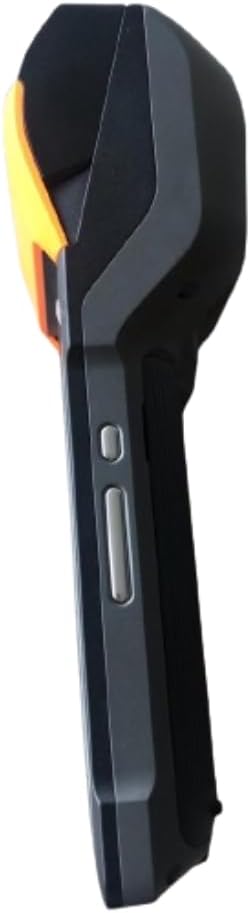
Foto 2.1: Ihu na akụkụ View. This image displays the device's screen, the integrated barcode scanner at the top, and the power and volume buttons located on the side.

Foto 2.2: Akụkụ View. This image shows the side profile of the terminal, including the cover for the SIM card slot and additional buttons.

Foto 2.3: Azu View. This image illustrates the rear of the device, featuring the thermal printer cover, the 0.3 MP camera, and the charging contact points.
Ndepụta akụrụngwa:
- Ngosipụta ihuenyo: Touch-sensitive LCD for user interaction.
- Ihe nyocha Barcode: Integrated 1D/2D scanner for data capture.
- Igwe nbipute thermal: For printing receipts and other documents.
- Bọtịnụ ike: Iji gbanye/gbanyụọ ngwaọrụ ahụ ma ọ bụ teta/ụra.
- Bọtịnụ olu: To adjust audio levels.
- Igwefoto: 0.3 MP front photo sensor.
- Oghere kaadi SIM: Supports 1 Nano SIM.
- Akụkụ batrị: Houses the removable Lithium Ion battery.
- Charging Port/Contacts: Maka ịchaji ngwaọrụ.
3. Mbido Mbido
3.1. Ntinye batrị
- Gbaa mbọ hụ na agbanyụrụ ngwaọrụ ahụ.
- Chọta mkpuchi nke ebe batrị dị n'azụ ngwaọrụ ahụ (lee Foto nke 2.3).
- Remove the cover by sliding or lifting it according to the markings.
- Insert the provided Lithium Ion battery, ensuring the contacts align correctly.
- Dochie mkpuchi nke batrị batrị nke ọma.
3.2. Ntinye kaadi SIM
- Ensure the device is powered off and the battery is installed.
- Locate the SIM card slot cover on the side of the device (refer to Figure 2.2).
- Mepee mkpuchi.
- Insert a Nano SIM card into the designated slot with the gold contacts facing down and the notched corner aligned.
- Close the SIM card slot cover firmly.
3.3. Thermal Paper Loading
- Locate the printer cover release latch, typically on the top or side of the printer compartment (refer to Figure 2.3).
- Mepee mkpuchi ngwa nbipute.
- Insert a 58mm thermal paper roll into the compartment, ensuring the paper feeds from the bottom and the leading edge extends out of the printer slot.
- Close the printer cover firmly until it clicks into place. Ensure there is no slack in the paper roll.
3.4. Nchaji mbụ na ịgbanwuo
- Connect the provided power adapter to the device's charging port.
- Plug the adapter into a power outlet. Allow the device to charge fully before first use.
- To power on, press and hold the Power button (refer to Figure 2.1) until the SUNMI logo appears on the screen.
4. Ntuziaka ọrụ
4.1. Ọnọdụ Ịgbanye/Mgbanyụ na Ụra
- Ike Na: Pịa ma jide bọtịnụ Ike ruo mgbe ngwaọrụ ahụ ga-ama jijiji ma ihuenyo ahụ nwuo.
- Gbanyụọ: Press and hold the Power button until a power menu appears. Select "Power Off" and confirm.
- Ụra/Teta: Pịa obere bọtịnụ Ike iji tinye ngwaọrụ ahụ n'ọnọdụ ụra ma ọ bụ teta ya.
4.2. Using the Thermal Printer
The integrated 58mm thermal printer can be used to print receipts, tickets, and other documents.
- Ensure thermal paper is correctly loaded (refer to Section 3.3).
- Open the application that requires printing (e.g., POS software).
- Initiate the print command within the application. The device will automatically print the content.
- Tear off the printed paper against the serrated edge.
4.3. Barcode Scanning
The V2SE supports 1D and 2D barcode recognition.
- Open an application that requires barcode input.
- Point the scanner window (located at the top of the device, refer to Figure 2.1) at the barcode.
- Press the dedicated scan button (if available) or trigger the scan function within the application.
- Ensure the barcode is within the scanner's field of view and well-lit for optimal performance.
4.4. Ọrụ NFC
The device supports Near Field Communication (NFC) for contactless operations.
- Ensure NFC is enabled in the device settings (Settings > Connected devices > NFC).
- Open an application that utilizes NFC (e.g., payment app, data transfer app).
- Hold the NFC-enabled card or device close to the NFC detection area on your terminal (typically near the top or back of the device).
- Follow the on-screen prompts to complete the transaction or data transfer.
4.5. Njikọ netwọkụ
- Wi-Fi: Go to Settings > Network & internet > Wi-Fi to connect to available wireless networks.
- Data Mkpanaka (4G/3G/2G): Ensure a valid SIM card is installed and mobile data is enabled in Settings > Network & internet > Mobile network.
- Bluetooth: Gaa na Ntọala> Ngwaọrụ ejikọrọ> Bluetooth ka ijikọ na ngwaọrụ Bluetooth ndị ọzọ.
5. Nlekọta
5.1. Na-ehicha ngwaọrụ
- Gbanyụọ ngwaọrụ tupu ihicha.
- Jiri akwa dị nro na-enweghị ntụpọ dampened with water or a mild, non-abrasive cleaner to wipe the exterior.
- For the display, use a screen-specific cleaner and a microfiber cloth.
- Do not use harsh chemicals, solvents, or abrasive materials. Avoid spraying liquids directly onto the device.
5.2. Nlekọta batrị
- Charge the battery regularly, avoiding complete discharge whenever possible.
- Ewepụla batrị na oke okpomọkụ.
- Ọ bụrụ na a gaghị eji ngwaọrụ ahụ ruo ogologo oge, chajie batrị ahụ ruo ihe dịka 50% ma debe ya n'ebe dị jụụ ma kpọọ nkụ.
- Use only the original or approved charger and battery.
5.3. Printer Head Cleaning
Regular cleaning of the printer head can prevent print quality issues.
- Power off the device and open the printer cover.
- Jiri ákwà owu mee obere ihe.ampened with isopropyl alcohol to gently wipe the thermal print head.
- Allow the print head to dry completely before closing the cover and powering on the device.
6. Nchọpụta nsogbu
| Nsogbu | Ihe nwere ike ime | Ngwọta |
|---|---|---|
| Ngwaọrụ anaghị agbanwu ọkụ | Low battery; Faulty battery; Power button issue | Charge the device for at least 30 minutes. Ensure battery is correctly installed. Try a different charger. |
| Igwe nbipute anaghị ebi akwụkwọ | No paper; Paper jammed; Printer head dirty; Application error | Check and load paper. Clear any paper jams. Clean the printer head (Section 5.3). Restart the application or device. |
| Barcode scanner not working | Scanner window obstructed; Barcode damaged; Application error | Ensure scanner window is clean. Try scanning a different barcode. Restart the application or device. |
| Enweghị njikọ Wi-Fi | Wi-Fi off; Incorrect password; Out of range | Enable Wi-Fi in settings. Re-enter password. Move closer to the Wi-Fi router. |
| Enweghị data mkpanaka | SIM card not installed; Mobile data off; No network coverage | Check SIM card installation. Enable mobile data in settings. Check for network coverage in your area. |
7. Nkọwapụta
| Njirimara | Nkọwa |
|---|---|
| Nlereanya | V2SE |
| Sistemụ nrụọrụ | Android 12.0 |
| CPU | Quad Core 2.0 GHz |
| RAM | 2 GB |
| ROM | 8 GB |
| Ngosipụta | LCD, 1920 x 1080 resolution, 16:9 Aspect Ratio |
| Ihe nbipute | 58 mm thermal printer, 80 mm/s print speed |
| Barcode Recognition | 1D / 2D Barcode recognition |
| Igwefoto | 0.3 MP Front Photo Sensor |
| Oghere SIM | 1 Nano SIM (Dual SIM support) |
| Njikọta | 4G/3G/2G Cellular, Wi-Fi (2.4G/5G), Bluetooth 2.1/3.0/4.2, NFC |
| GPS | True, Supports GPS satellite navigation system |
| Batrị | 1 batrị lithium ion (nke a na-ewepụ, gụnyere) |
| Akụkụ | 22 x 9 x 9 cm |
| Ibu | 400 g |
| Onye nrụpụta | SUNMI |
8. Akwụkwọ ikike na nkwado
For warranty information and technical support, please refer to the documentation provided with your purchase or contact your vendor. Keep your proof of purchase for warranty claims.