
1. Okwu mmalite
This manual provides essential information for the safe and efficient use of your Philips 32E1N3100LA monitor. Please read these instructions carefully before operating the device and retain them for future reference.
The Philips 32E1N3100LA is a 32-inch Full HD (1920x1080) monitor featuring a VA panel, 75Hz refresh rate, and 1ms MPRT response time, designed for a clear and smooth visual experience. It includes built-in speakers and supports Adaptive Sync technology.

N'ihu view of the Philips 32E1N3100LA monitor.
2. Ozi nchekwa
Always follow these basic safety precautions when using your monitor:
- Etinyela ihe nlele ahụ n'ime mmiri ma ọ bụ n'ime mmiri.
- Emeghela ihe nlele ahụ casing. Enweghị akụkụ ndị ọrụ ga-arụ ọrụ n'ime.
- Gbaa mbọ hụ na ikuku ikuku dị n'akụkụ ihe nleba anya.
- Jiri naanị ihe nkwụnye ọkụ wetara n'ihe nleba anya.
- Debe ihe nlele ahụ ka ọ ghara ịpụta ìhè kpọmkwem n'anwụ na ebe okpomọkụ na-esi apụta.
- Refer to the official "Safety Information (PDF)" document for comprehensive safety guidelines.
For detailed safety instructions, please consult the official safety document: Ozi nchekwa (PDF)
3. Nhazi
3.1 Nwepu
Jiri nlezianya wepụ ihe niile dị na ngwugwu ahụ. Hụ na ihe niile edepụtara na ndepụta ngwugwu ahụ dị ma ghara imebi emebi.
3.2 Ịchịkọta Stand
- Debe ihu ihe nlele ahụ n'elu ebe dị nro ma dị ọcha iji gbochie ọwa.
- Jiri skru ndị enyere tinye ya jikọọ olu ihe nrụzi ahụ.
- Kpoo ntọala ahụ n'olu ihe e ji eguzobe ya.

N'azụ view of the monitor with the stand assembly.
3.3 Njikọ eriri
Connect the necessary cables to the monitor's rear ports:
- Ike Ike: Jikọọ eriri ọkụ eletrik ahụ na ntinye ike nke ihe nlele ahụ wee jikọọ ya na oghere ọkụ eletrik nke ala.
- Igwe vidiyo: Connect an HDMI cable from your computer's video output to the monitor's HDMI input. Alternatively, use a D-Sub (VGA) cable if your system supports it.

Rear ports of the monitor for power and video connections.
3.4 Njikwa eriri
Utilize the integrated cable management feature on the stand to keep your workspace tidy.
Cable management feature on the monitor stand.
4. Na-arụ ọrụ nlekota oru
4.1 Gbanyụọ ma ọ bụ gbanyụọ
Press the power button, usually located on the back or bottom edge of the monitor, to turn it on or off. The power LED will indicate the monitor's status.
4.2 Ngosipụta Ngosipụta (OSD) NchNhr
The monitor features a micro joystick control, typically located on the rear right side, for navigating the OSD menu. This allows you to adjust various settings.
4.2.1 Ntọala foto
- Icha ọkụ/ọdịiche: Adjust these settings to optimize image visibility.
- Okpomọkụ agba: Select predefined color modes or customize RGB levels.
- Ụdị LowBlue: Reduces harmful blue light emissions for eye comfort during prolonged use.
- Teknụzụ na-adịghị mma: Minimizes screen flickering to reduce eye strain.

LowBlue Mode and Flicker-free technology for eye comfort.
4.2.2 Ntọala ọdịyo
Adjust the volume of the built-in speakers through the OSD menu. An audio output jack is also available for connecting external headphones or speakers.

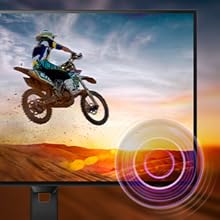
Monitor with built-in speakers.
4.3 Adaptive Sync (FreeSync)
This monitor supports Adaptive Sync technology, which synchronizes the display's refresh rate with your graphics card's frame rate. This helps eliminate screen tearing and stuttering for smoother gameplay and video playback. Ensure your graphics card supports FreeSync and that the feature is enabled in your graphics card settings and the monitor's OSD.

Adaptive Sync technology for smooth visuals.
5. Nlekọta
5.1 Na-ehicha ihuenyo ahụ
Jiri nwayọ hichaa ihuenyo ahụ site na iji akwa dị nro na-enweghị lint. Maka akara ndị isi ike, dị obere dampen the cloth with a screen cleaner specifically designed for monitors. Do not spray cleaner directly onto the screen.
5.2 Ihicha Casing
Jiri ákwà dị nro ma kpọrọ nkụ hichaa ihe nlele ahụasing. Zere iji ihe nhicha ma ọ bụ ihe mgbaze.
5.3 Nlekọta n'ozuzu
- Zere itinye ihe ndị dị arọ na igwe nleba anya ma ọ bụ eriri ya.
- Akwụsịla oghere ikuku.
- Unplug the monitor from the power outlet during lightning storms or when unused for extended periods.
6. Nchọpụta nsogbu
Ọ bụrụ na ịnwee nsogbu na ihe nleba anya gị, rụtụ aka na nsogbu na azịza ndị a na-ahụkarị:
| Nsogbu | Ngwọta enwere ike |
|---|---|
| Enweghị ike | Ensure the power cable is securely connected to the monitor and a working electrical outlet. Check the power adapter. |
| Enweghị onyonyo na ihuenyo | Verify the video cable (HDMI/D-Sub) is correctly connected to both the monitor and your computer. Ensure the correct input source is selected in the OSD menu. |
| Onyonyo na-agbagọ ma ọ bụ agbagọ | Adjust the resolution settings on your computer to match the monitor's native resolution (1920x1080). Check video cable quality and connection. |
| Enweghị ụda sitere na ndị ọkà okwu | Check the volume settings in the OSD menu and on your computer. Ensure the audio source is correctly configured. |
| Adaptive Sync not working | Confirm your graphics card supports FreeSync and that it is enabled in both your graphics card control panel and the monitor's OSD settings. |
7. Nkọwapụta
| Njirimara | Nkọwa |
|---|---|
| Nọmba nlereanya | 32E1N3100LA/00 |
| Nha ihuenyo | 32 sentimita asatọ |
| Ụdị panel | Ogwe VA |
| Mkpebi | FHD 1080p (1920 x 1080) |
| Akụkụ akụkụ | 16:9 |
| Ọnụego ume ọhụrụ | 75 Hz |
| Oge nzaghachi | 1 Millisekọnd (MPRT) |
| Ọnụọgụ ọdịiche | 3000:1 |
| Icha ọkụ | 300 cd/m² |
| Njikọta | 1x HDMI 1.4, 1x D-Sub (VGA) |
| Audio | Built-in Speakers, Audio Out |
| Mmekọrịta na-agbanwe agbanwe | FreeSync |
| Oriri ike | 30.5 Watt |
| Akụkụ (DxWxH) | 25P x 72lx 52H cm |
| Ibu | 7 kilogram |
| Ugwu VESA | Yes (Wall Mount Type) |
8. Akwụkwọ ikike na nkwado
8.1 Ozi akwụkwọ ikike
This Philips monitor comes with a limited warranty. For specific terms, conditions, and duration of your warranty, please refer to the documentation included with your product or visit the official Philips support websaịtị.
8.2 Nkwado ndị ahịa
For technical assistance, troubleshooting beyond this manual, or warranty claims, please contact Philips customer support. You can find contact information and additional resources on the official Philips websaịtị.
Additional detailed instructions are available in the official user manual: Ntuziaka maka ojiji (PDF)