
1. Okwu mmalite
This manual provides essential information for the safe and efficient use of your Google TV 7000 Series 4K Ultra HD LED Television. Please read these instructions thoroughly before operating the device and retain them for future reference.
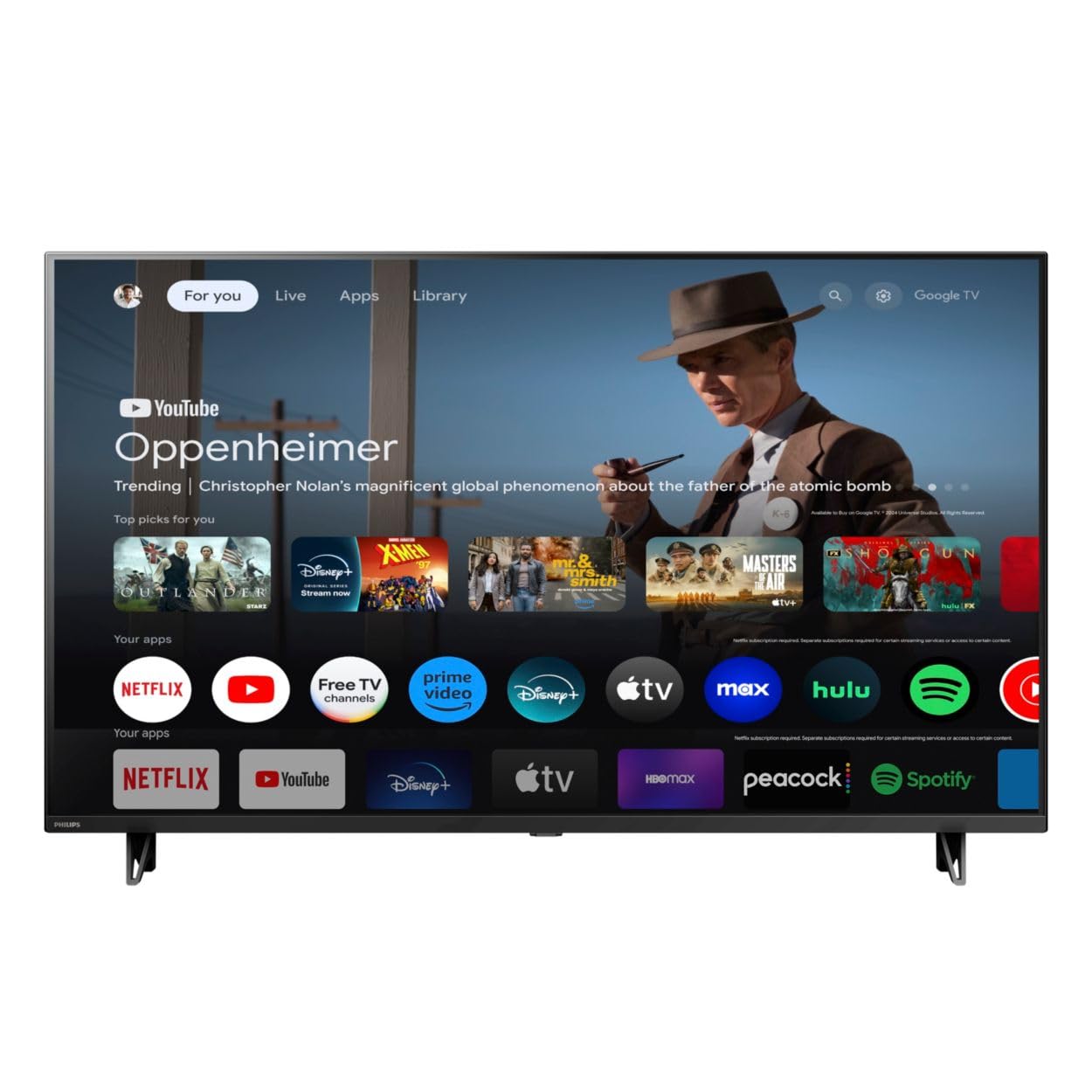
N'ihu view of the Google TV 7000 Series 4K Ultra HD LED Television, showcasing its slim bezel and display.
2. Nhazi
2.1 Unboxing na ngwugwu ọdịnaya
Jiri nlezianya wepụ ihe niile dị na ngwugwu ahụ. Hụ na ihe niile dị na ya:
- Google TV 7000 Series Television
- Njikwa anya
- Batrị maka njikwa anya
- okpokoro okpokoro
- Screws for tabletop stand
- Ntuziaka mmalite ngwa ngwa
- Akwụkwọ ntuziaka (akwụkwọ a)
2.2 Ijikọ ike
Connect the power cord to the TV's power input, then plug the other end into a wall outlet. Ensure the power outlet is easily accessible.
2.3 Ijikọ ngwaọrụ mpụga
Your television supports various connectivity options:
- HDMI: Connect devices like Blu-ray players, game consoles, or set-top boxes to the HDMI ports. This model features Audio Return Channel (HDMI 2).
- USB: Use the USB port for media playback or connecting compatible accessories.
- Ethernet: Maka njikọ ịntanetị kwụsiri ike, jikọọ eriri Ethernet na ọdụ ụgbọ mmiri LAN.
- Ọpụpụ ekweisi: Jikọọ ekweisi maka ige ntị nkeonwe.
- Ọnụ Ọnụ Dijitalụ (Optical): Maka ijikọ na sistemụ ọdịyo mpụga.
- CVBS+Audio L/R In: Maka ijikọ ngwaọrụ analog ochie.
2.4 Ntọala mbụ
Mgbe agbanyere ọkụ mbụ, TV ga-eduzi gị na usoro nhazi mbụ. Nke a gụnyere:
- Nhọrọ asụsụ
- Connecting to a Wi-Fi network or using Ethernet
- Signing in with your Google account to access Google TV features and apps
- Scanning for available channels (ATSC, NTSC)
2.5 Nhọrọ nrịgo
You can place your TV on a tabletop using the included stand or mount it on a wall.
- Ihe Nkwụdo Tebụl: Attach the tabletop stand using the provided screws as per the quick start guide.
- Mgbidi Mgbidi: For wall mounting, use a VESA compatible mount (600 x 400 mm). Consult a professional for wall mounting to ensure safety and proper installation.
3. Ntuziaka ọrụ
3.1 Remote Control Overview
The remote control allows you to navigate the Google TV interface, adjust settings, and control playback. It supports voice control for Google Assistant.
3.2 Ọrụ ndị bụ isi
- Ike: Pịa bọtịnụ ike iji gbanye ma ọ bụ gbanyụọ TV.
- Olu: Jiri bọtịnụ olu ka ịhazie ọkwa ụda.
- Ọwa: Use the channel buttons to switch between TV channels.
- Ntinye: Select the desired input source (HDMI, USB, etc.).
3.3 Google TV Interface Navigation
Use the directional pad and 'OK' button on your remote to navigate the Google TV home screen. The home screen provides access to your installed apps, recommended content, and settings.
3.4 Smart Atụmatụ
- Chromecast arụnyere: Cast content from your compatible mobile devices or computer directly to your TV.
- Ihe nnyemaaka Google arụnyere: Press the Google Assistant button on your remote to use voice commands for searching content, controlling smart home devices, getting information, and more.
- Ngwa gụgharia: Access popular streaming services like Netflix, YouTube, Discovery+, Tubi TV, and Prime Video directly from the Google TV interface.
3.5 Ntọala foto na ụda
Hazie gị viewahụmịhe ige ntị na site na menu ntọala TV:
- Picture Style: Choose from various preset picture modes or customize settings like brightness, contrast, color, and sharpness. Features include Dynamic contrast, Film mode, Blue stretch, and Custom Color management.
- Nkwado HDR: The TV supports HDR10 and HLG for enhanced contrast and color with compatible content.
- Ụdị egwuregwu: Optimize picture settings for gaming to reduce input lag.
- Ụdị ụda: Select sound presets or adjust bass and treble. Features include Dolby Audio and Auto Volume Leveling.
- Akụkụ akụkụ: Adjust the screen aspect ratio (e.g., Automatic, 4:3, Movie Expand, Full).
3.6 Njikọta
Your TV offers various ways to connect to networks and devices:
- Wi-Fi: Connect wirelessly to your home network for internet access.
- Bluetooth: Connect compatible Bluetooth devices such as headphones or game controllers.
- Ethernet: Provides a stable wired internet connection.
4. Nlekọta
4.1 Cleaning the Screen and TV Body
- Kwupuo TV mgbe niile tupu ihicha ya.
- Use a soft, dry, lint-free cloth to gently wipe the screen and TV body.
- Maka akara ndị isi ike, dị obere dampen akwa na mmiri ma ọ bụ pụrụ iche ihuenyo Cleaner. Efela ihe nhicha ozugbo na ihuenyo.
- Zere iji ihe nchacha, waxes, ma ọ bụ ihe mgbaze.
4.2 Mmelite ngwanrọ
Your Google TV may receive automatic software updates to improve performance and add new features. Ensure your TV is connected to the internet to receive these updates. You can also manually check for updates in the settings menu.
4.3 Nlekọta Njikwa Ime Obodo
Replace batteries when the remote control's response becomes sluggish. Do not mix old and new batteries or different types of batteries. Keep the remote control away from moisture and direct sunlight.
5. Nchọpụta nsogbu
If you encounter issues with your television, refer to the following common solutions:
| Nsogbu | Ngwọta enwere ike |
|---|---|
| Enweghị ike | Check if the power cord is securely plugged into both the TV and the wall outlet. Ensure the outlet is functional. |
| Enweghị foto, mana ụda dị | Hụ na ahọpụtara isi iyi ntinye ziri ezi. Lelee njikọ ngwaọrụ mpụga. |
| Enweghị ụda, mana foto dị | Check the volume level and mute status. Ensure external audio systems are properly connected and powered on. |
| Njikwa anya anaghị arụ ọrụ | Dochie batrị. Gbaa mbọ hụ na onweghị ihe mgbochi n'etiti ime ime na ihe mmetụta IR nke TV. |
| Nsogbu njikọ netwọkụ | Restart your router and modem. Reconnect to the Wi-Fi network or check the Ethernet cable connection. |
| Picture quality issues (e.g., pixelation) | Check the signal strength for broadcast channels. For streaming content, ensure a stable internet connection. Adjust picture settings. |
5.1 nrụpụta nrụpụta
If problems persist, a factory reset may resolve them. This will erase all personal settings and installed apps, returning the TV to its original factory state. Consult the on-screen menu for the factory reset option, usually found under System or Device Preferences in Settings.
6. Nkọwapụta
Key technical specifications for the Google TV 7000 Series 4K Ultra HD LED Television:
| Njirimara | Nkọwapụta |
|---|---|
| Nha ihuenyo | 43 sentimita asatọ |
| Ngosipụta teknụzụ | LCD UltraHD Display, LED Backlight |
| Mkpebi | 4K (2160p) |
| Ọnụego ume ọhụrụ | 120 PMR (Picture Motion Rate) |
| Akwadoro usoro HDR | HDR10, HLG |
| Sistemụ nrụọrụ | Android 11 (Google TV) |
| Teknụzụ Njikọta | Bluetooth, Ethernet, USB, Wi-Fi |
| Njirimara ọdịyo | Dolby Audio, Auto Volume Leveling |
| Atụmatụ pụrụ iche | Chromecast Built-in, Google Assistant Built-in, Game Mode, Digital Noise Reduction, MPEG artifact reduction, Dynamic contrast |
| Akụkụ ngwaahịa (D x W x H) | 9.8"D x 37.9"W x 23.9"H |
| Ibu Ibu | 14.99 pound |
| VESA Mount Standard | 600 x 400 mm |
| Onye nrụpụta | Philips |
| Nọmba nlereanya | 43PUL7652/F7 |
| UPC | 609585254893 |
7. Akwụkwọ ikike na nkwado
7.1 Ozi akwụkwọ ikike
This product comes with a Limited Warranty. Please refer to the warranty card included in your package or contact the manufacturer for specific terms and conditions regarding coverage and duration.
7.2 Nkwado ndị ahịa
For technical assistance, troubleshooting beyond this manual, or warranty claims, please contact the manufacturer, Philips, or your retailer. Have your model number (43PUL7652/F7) and serial number ready when contacting support.