
1. Okwu mmalite
Thank you for choosing the PNI Voyager S2600 WiFi 4K Ultra HD Car DVR Camera. This device is designed to record high-quality video footage of your journeys, providing security and evidence in case of incidents. It features 4K Ultra HD recording, Wi-Fi connectivity for smartphone control, parking monitoring, and a G-sensor for automatic incident detection.

Image 1.1: PNI Voyager S2600 Dash Cam installed in a vehicle, showcasing its key features: 4K Ultra HD recording, Wi-Fi connectivity, and Parking Monitoring.
2. Ozi nchekwa
Biko gụọ ma soro ntuziaka nchekwa ndị a iji hụ na arụ ọrụ nke ọma ma gbochie mmebi nke ngwaọrụ ma ọ bụ mmerụ ahụ.
- Etinyela ngwaọrụ ahụ n'ebe okpomọkụ dị oke elu, ìhè anyanwụ kpọmkwem ruo ogologo oge, ma ọ bụ oke iru mmiri.
- Ensure the device is securely mounted and does not obstruct the driver's view ma ọ bụ tinye aka na njikwa ụgbọ ala.
- Use only the provided power cable and accessories. Using unauthorized accessories may damage the device and void the warranty.
- Do not attempt to disassemble or repair the device yourself. Contact authorized service personnel for assistance.
- Keep the lens clean to ensure clear video recording.
- Always format the microSD card regularly to maintain optimal recording performance.
3. Ihe ngwugwu
Chọpụta na ihe niile dị na ngwugwu:
- PNI Voyager S2600 Car DVR Camera
- Power cord with cigarette lighter plug (12V/24V compatible)
- Igwe mkpuchi ikuku
- Akwụkwọ ntuziaka onye ọrụ

Image 3.1: The PNI Voyager S2600 dash cam, its magnetic mount, and the power cable with a cigarette lighter adapter.
4. Ngwaahịa gafereview
Familiarize yourself with the components of your PNI Voyager S2600 dash cam.
4.1. Nhazi ngwaọrụ
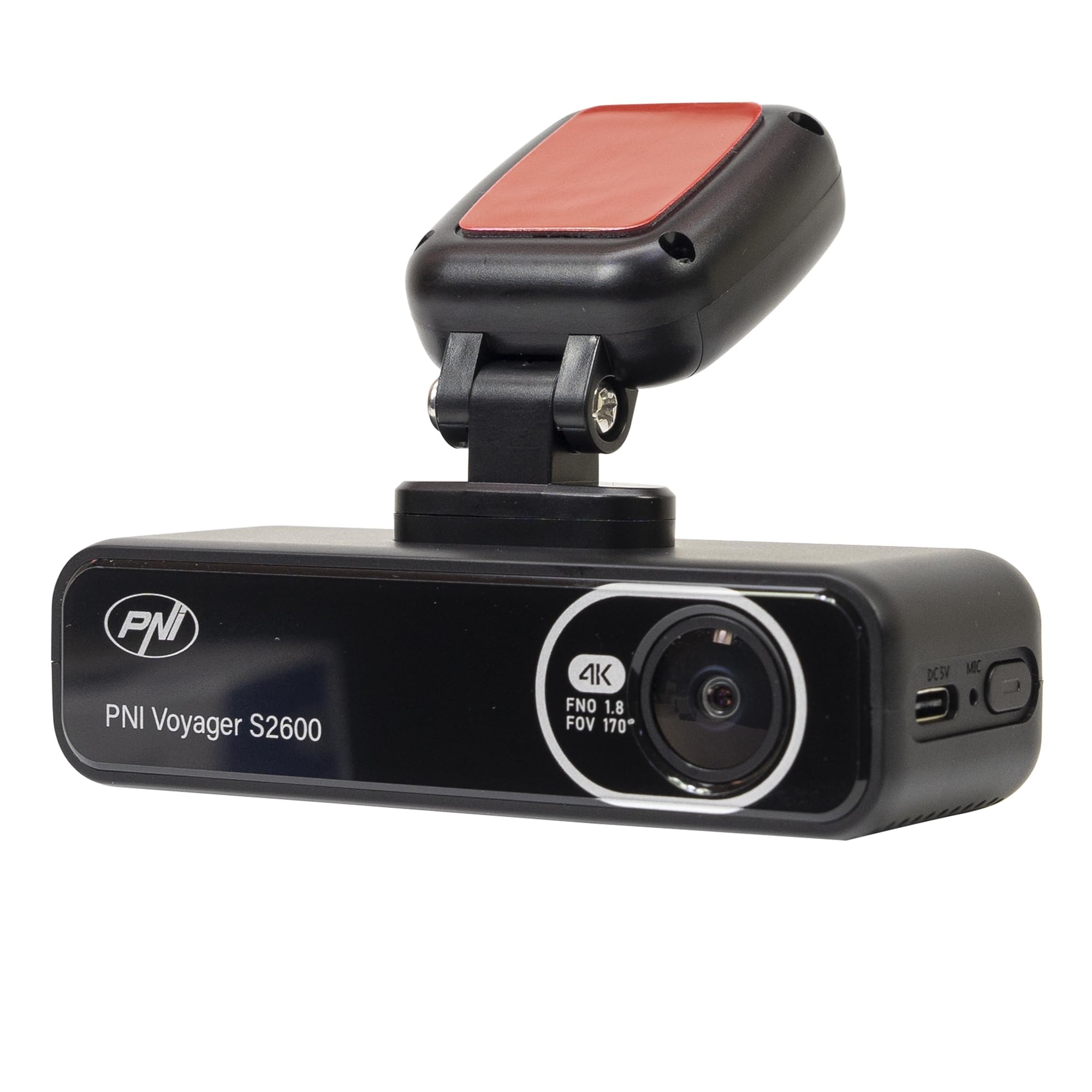
Foto 4.1: N'ihu view of the PNI Voyager S2600, displaying the camera lens with 4K FNO 1.8 FOV 170° markings, the PNI brand logo, and the model name.

Foto 4.2: Zuru ezu view of the side of the dash cam, highlighting the USB-C power input (DC 5V) and the microphone opening.
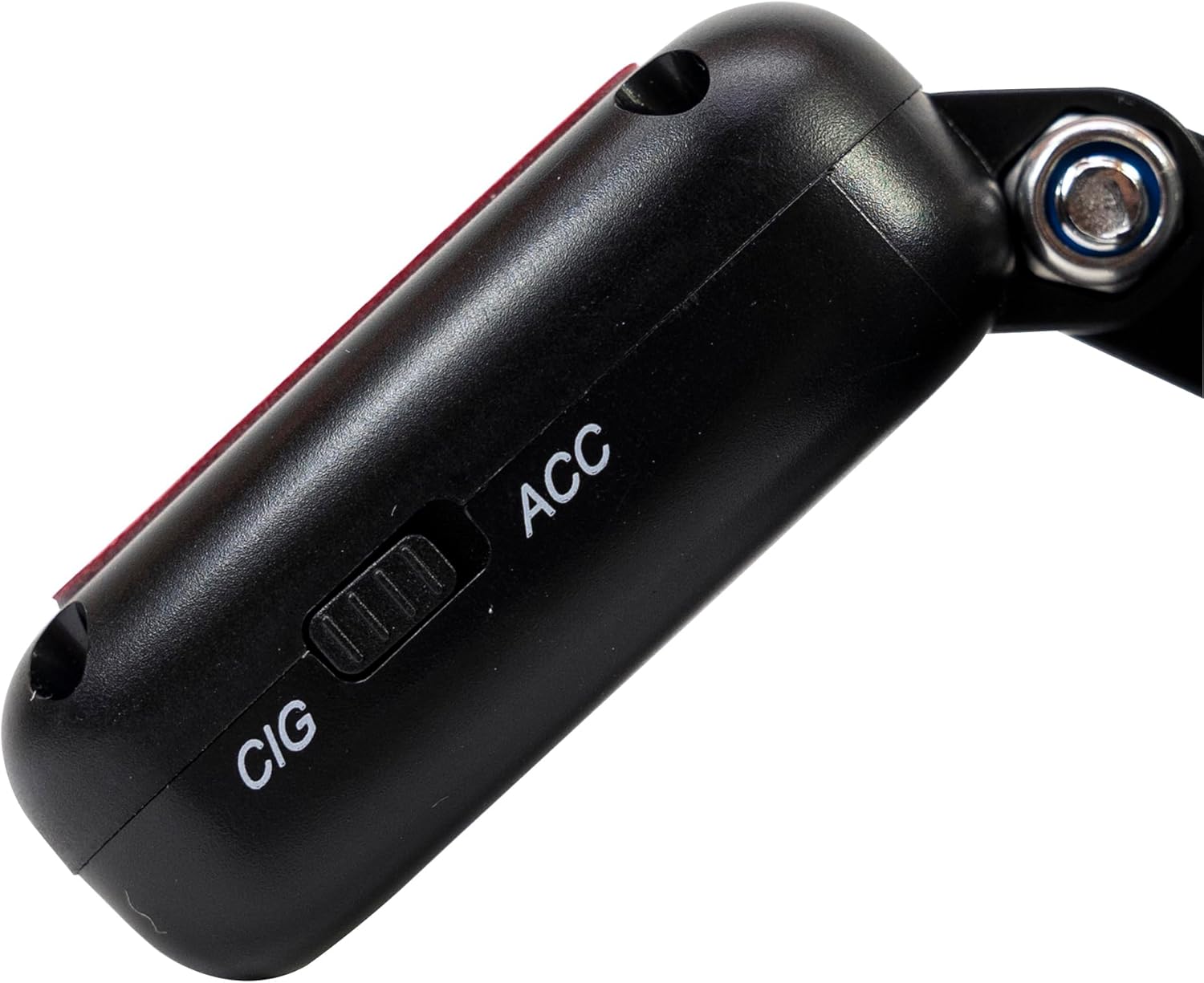
Foto 4.3: Akụkụ view of the magnetic mount, featuring a switch to select between 'CIG' (cigarette lighter power) and 'ACC' (accessory power) modes.
4.2. Atụmatụ igodo
- 4K Ultra HD Video Recording: Captures video at 3840x2160 resolution at 30FPS, or 2560x1440 at 30FPS, and 1920x1080 at 60FPS/30FPS.
- Njikọ Wi-Fi: Connects to your smartphone via the Viidure-Dashcam Viewer app for live view, video download, and settings adjustment.
- Nlebanya ụgbọ ala: Activates the camera to record when vibration or movement is detected while the vehicle is parked.
- G-ihe mmetụta: Automatically locks the current video file in case of a collision to prevent overwriting.
- oghere oghere obosara: 170-ogo viewing angle to capture a broad perspective of the road.
- Ndekọ loop: Na-ehichapụ ihe ndị kacha ochietage mgbe kaadị ebe nchekwa zuru, na-eme ka ndekọ na-aga n'ihu.
- GPS agbakwunyere: Records speed and coordinates, which can be displayed on recorded videos.
5. Nhazi
5.1. MicroSD kaadị ntinye
- Hụ na agbanyụrụ dashcam ahụ.
- Chọta oghere kaadị microSD na ngwaọrụ ahụ.
- Insert a high-speed (Class 10 or higher) microSD card (up to 512GB) into the slot until it clicks into place.
- To remove, gently push the card in until it clicks, then release. The card will eject.
Ihe dị mkpa: Format the microSD card within the app or on a computer before first use and periodically thereafter to ensure stable recording.
5.2. Nwụnye na Njikọ Ike
- Clean the area on your windshield where you intend to mount the dash cam. Ensure it does not obstruct your view.
- Attach the windshield mount to the dash cam. The mount is magnetic for easy attachment.
- Peel off the protective film from the adhesive pad on the mount and firmly press it onto the chosen spot on your windshield for at least 30 seconds.
- Connect the power cable to the USB-C port on the mount.
- Route the power cable neatly along the windshield and dashboard to the vehicle's cigarette lighter socket.
- Plug the cigarette lighter adapter into the vehicle's 12V/24V power outlet.
- Select the appropriate power mode on the mount's switch: 'CIG' for continuous power from the cigarette lighter, or 'ACC' for power only when the vehicle's ignition is on.

Image 5.1: The PNI Voyager S2600 dash cam detached from its magnetic mount, illustrating the contact points for secure attachment.
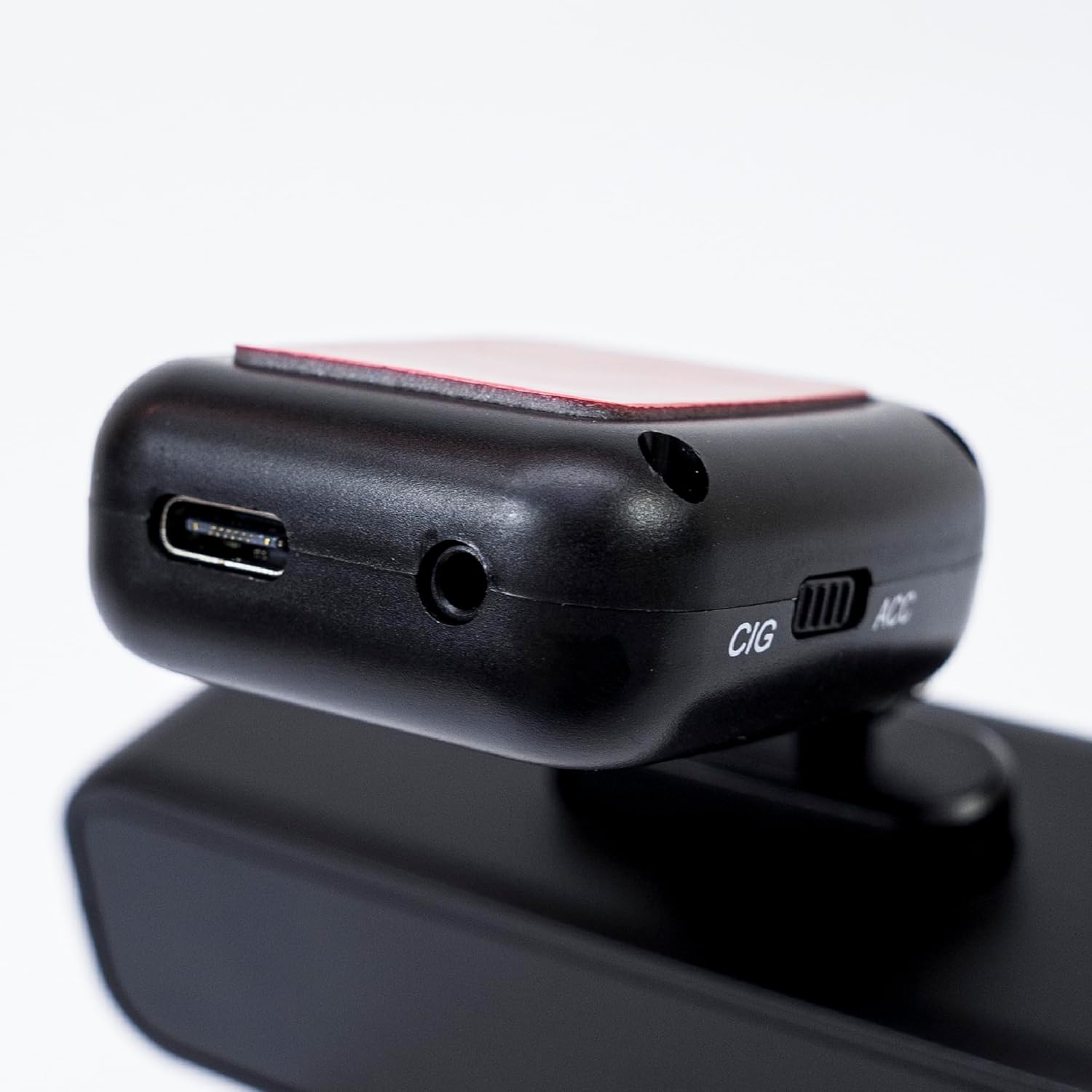
Image 5.2: The top of the dash cam mount, featuring the USB-C port for power input and the CIG/ACC switch for power mode selection.
5.3. Ntinye ngwa na njikọ Wi-Fi
- Budata ya Viidure-Dashcam Viewer ngwa sitere na App Store (iOS) ma ọ bụ Google Play Store (Android).
- Power on the dash cam.
- On your smartphone, go to Wi-Fi settings and connect to the dash cam's Wi-Fi network. The network name (SSID) and password can usually be found in the dash cam's settings (if it has a screen) or in the manual.
- Open the Viidure-Dashcam Viewer app. The app should automatically detect and connect to the dash cam.
- Site na ngwa, ị nwere ike view ndu footage, adjust settings, download recorded videos, and format the microSD card.

Image 5.3: A smartphone showing the Viidure-Dashcam Viewer application, demonstrating the wireless connection and control over the PNI Voyager S2600 dash cam.
6. Ntuziaka ọrụ
6.1. Automatic Recording
Once powered on and with a valid microSD card inserted, the PNI Voyager S2600 will automatically begin loop recording. Video files are saved in segments (e.g., 1, 3, or 5 minutes) to the microSD card.
6.2. G-Sensor (Emergency Recording)
The built-in G-sensor detects sudden impacts or rapid acceleration/deceleration. When triggered, it automatically locks the current video segment, preventing it from being overwritten by loop recording. These emergency files are stored in a separate folder on the microSD card.
6.3. Nleba anya ụgbọ ala
When the vehicle is parked and the dash cam is powered (either continuously via CIG mode or with a hardwire kit), the parking monitor function activates. If the G-sensor detects a collision or motion detection is enabled and detects movement, the dash cam will automatically power on and record a short video segment. This feature helps protect your vehicle when unattended.

Image 6.1: Visual representation of the Parking Monitor feature, showing the dash cam detecting an impact while the car is parked.
6.4. Wi-Fi and App Usage
The Viidure-Dashcam Viewer app allows you to:
- Dị ndụ View: See what the camera is recording in real-time on your smartphone.
- Ihe nkiri vidiyo: Review recorded videos directly from the microSD card.
- Download Videos: Transfer important video files from the dash cam to your smartphone.
- Ndozi ntọala: Configure various dash cam settings, such as video resolution, G-sensor sensitivity, loop recording duration, and parking monitor options.
- Hazie SD Kaadị: Erase all data on the microSD card.
6.5. Ọrụ GPS
The integrated GPS receiver records your vehicle's speed and location data. This information can be overlaid on the video footage during playback via the app or compatible desktop software, providing additional context for your recordings.
7. Nlekọta
7.1. Na-ehicha ngwaọrụ
Use a soft, dry cloth to clean the dash cam body. For the lens, use a specialized lens cleaning cloth to avoid scratches. Do not use chemical cleaners or abrasive materials.
7.2. MicroSD Card Formatting
It is recommended to format the microSD card every 2-4 weeks to prevent data corruption and ensure optimal recording performance. This can be done through the Viidure-Dashcam Viewngwa ngwa.
7.3. Mmelite firmware
Periodically check the PNI website or the Viidure-Dashcam Viewer app for available firmware updates. Firmware updates can improve performance, add new features, or fix bugs. Follow the instructions provided with the update carefully.
8. Nchọpụta nsogbu
If you encounter issues with your PNI Voyager S2600, refer to the following common problems and solutions:
| Nsogbu | Ihe nwere ike ime | Ngwọta |
|---|---|---|
| Igwefoto dash anaghị agbanye. | No power supply; faulty cable; incorrect power mode. | Check power cable connection; ensure cigarette lighter socket is active; verify CIG/ACC switch setting. |
| Nkwụsị ndekọ ma ọ bụ friza. | MicroSD card error; card full; low-speed card. | Format microSD card; replace with a high-speed (Class 10 U3) card; ensure sufficient storage. |
| Wi-Fi connection unstable or fails. | Interference; incorrect password; app issue. | Ensure dash cam Wi-Fi is enabled; re-enter password; restart app and dash cam; try connecting in a different location. |
| Ogo vidiyo na-adịghị mma. | Dirty lens; incorrect resolution setting. | Clean the camera lens; check video resolution settings in the app. |
| Ihe nlele ebe a na-adọba ụgbọala anaghị arụ ọrụ. | Incorrect power mode; feature disabled. | Ensure dash cam is receiving continuous power (CIG mode or hardwire kit); enable parking monitor in app settings. |
If the problem persists, please contact PNI customer support.
9. Nkọwapụta
Detailed technical specifications for the PNI Voyager S2600 Car DVR Camera:
| Njirimara | Nkọwa |
|---|---|
| Nọmba nlereanya | PNI-S2600 |
| Mkpebi vidiyo | 4K (3840x2160@30FPS), 2K (2560x1440@30FPS), FHD (1920x1080@60FPS/30FPS) |
| Ihe mmetụta onyonyo | SONY335 (5MP, 2592x1944px) |
| Viewna n'akuku | 170 ogo |
| Usoro vidiyo | MP4, H.264 |
| Ụdị foto | JPEG |
| Mkpebi foto Max | 8MP (3264x2448) |
| Nchekwa | MicroSD card slot, up to 512GB (Class 10 or higher recommended) |
| Njikọta | Wi-Fi, GPS (integrated) |
| Atụmatụ pụrụ iche | G-Sensor, Parking Monitoring, Motion Detection, Loop Recording |
| Ịnye ọkụ | 5V/2A (via 12V/24V car adapter) |
| Batrị | Super capacitor 1.5 UF |
| Okpomọkụ na-arụ ọrụ | -26°C ~ +80°C |
| Akụkụ (L x W x H) | 105mm x 35mm x 27mm |
| Ibu | 88 grams |
| Ụdị USB | Ụdị C |
10. Akwụkwọ ikike & Nkwado
10.1. Akwụkwọ ikike Ozi
The PNI Voyager S2600 Car DVR Camera comes with a Akwụkwọ ikike nke ọnwa 24 from the date of purchase. This warranty covers manufacturing defects under normal use. It does not cover damage caused by misuse, accidents, unauthorized modifications, or improper installation. Please retain your proof of purchase for warranty claims.
10.2. Nkwado ndị ahịa
For technical assistance, troubleshooting, or warranty inquiries, please contact PNI customer support. You can find more information and support resources on the official PNI websaịtị:
Onye Mmepụta: ONLINESHOP SRL
Address: Olteniei 26A, Piatra Neamt, Neamt, 610206, Romania