
Okwu mmalite
This manual provides instructions for the setup, operation, maintenance, and troubleshooting of your Pisichen 17.3 inch Portable Monitor. This monitor features a 1600x900 HD resolution, 800:1 contrast ratio, 250 cd/m² brightness, 16:9 aspect ratio, and a 60Hz refresh rate, designed to provide an extended display for various devices.
The monitor includes multiple interfaces for broad compatibility and a built-in kickstand for convenience. It supports various display modes for enhanced productivity and entertainment.
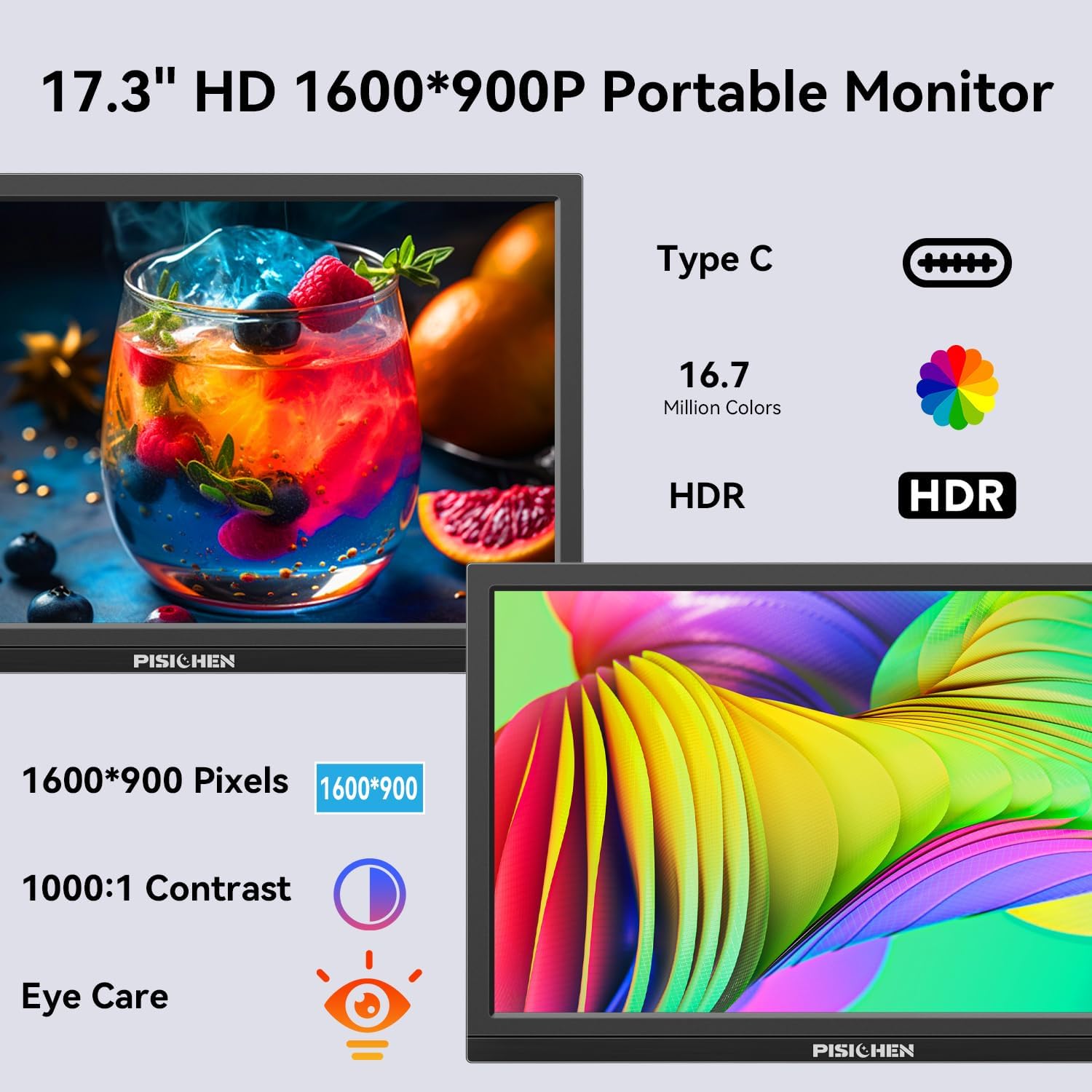
Image: The Pisichen 17.3 inch Portable Monitor highlighting its HD 1600x900 resolution, 1000:1 contrast, and eye care features.
Ihe ngwugwu
Chọpụta na ihe niile dị na ngwugwu:
- 17.3 inch Portable Monitor
- Ada Ada Ike DC
- HDMI ka HDMI USB
- USB-C na eriri USB-C
- Akwụkwọ ntuziaka (akwụkwọ a)

Image: The portable monitor and its accompanying accessories, including cables and power adapter.
Ntuziaka nhazi
1. Ijikọ Ike
Connect the provided DC Power Adapter to the DC Power Port on the monitor and then to a power outlet. Ensure the monitor receives sufficient power for stable operation.
2. Ijikọ na Ngwaọrụ
The monitor supports two primary connection methods:
- Njikọ USB-C: Use the provided USB-C to USB-C cable. Connect one end to the monitor's USB-C 3.1 port (for signal input) and the other end to a compatible USB-C 3.1 (or higher) port on your laptop, PC, or smartphone. This connection can transmit both video and power.
- Njikọ HDMI: Use the provided HDMI to HDMI cable. Connect one end to the monitor's HDMI port and the other end to the HDMI output of your device (laptop, PC, game console). When using HDMI, ensure the monitor is also connected to power via the DC power adapter.

Image: Visual guide for USB-C and HDMI connection methods, showing cable connections and power requirements.
3. Nhazi anụ ahụ
- Ihe mgbakwasị n'ime: The monitor features an integrated, foldable kickstand. Gently unfold it from the back of the monitor to position the screen at a desired viewing angle on a flat surface.
- Nkwalite VESA: For alternative mounting options, the monitor is equipped with standard 75x75mm VESA holes on the back. This allows for mounting to compatible desktop stands or wall mounts (mounting hardware not included).
Ntuziaka ọrụ
1. Monitor Interfaces and Controls
Familiarize yourself with the ports and control buttons located on the side of the monitor:
- Ọdụ ụgbọ mmiri DC: Maka ijikọ nkwụnye ọkụ.
- 3.5mm ọdụ ụgbọ mmiri: Maka ijikọ ekweisi ma ọ bụ igwe okwu mpụga.
- Ọdụ ụgbọ mmiri USB C 3.1: For video signal input and power delivery from compatible devices.
- Ọdụ ụgbọ mmiri USB C 2.0: Primarily for charging phones or connecting OTG devices.
- Ọdụ ụgbọ mmiri HDMI: For video signal input from HDMI-enabled devices.
- Brightness/Up Button: Adjusts screen brightness or navigates up in the OSD menu.
- Menu/OK Button: Opens the On-Screen Display (OSD) menu or confirms selections.
- Volume/Down Button: Adjusts audio volume or navigates down in the OSD menu.
- Ọdụ ụgbọ mmiri OTG: For connecting a keyboard or mouse.

Foto: Zuru ezu view of the monitor's ports and control buttons.
2. Ụdị ngosi
The monitor supports various display modes when connected to a compatible device:
- Ụdị oyiri: Mirrors the content of your primary screen.
- Gbatịkwuo ọnọdụ: Extends your desktop, providing additional screen space.
- Second Screen Mode: Ọ na-eji naanị ihe ngosi dị mfe ibugharị.
These modes can typically be configured through your device's display settings (e.g., Windows Display Settings, macOS System Preferences).

Foto: Example of extending a smartphone's display to the portable monitor via USB-C.
3. Ngosipụta ihuenyo (OSD) NchNhr
Pịa NchNhr/OK button to access the OSD menu. Use the Icha ọkụ/Elu na Olu/ala buttons to navigate through options and adjust settings such as brightness, contrast, color temperature, and input source. Press NchNhr/OK again to confirm selections or exit sub-menus.
4. HDR Mode
The monitor supports HDR (High Dynamic Range) technology for improved color and contrast. This mode can be enabled or disabled through the OSD menu, if supported by your connected device and content.

Image: Visual comparison of SDR and HDR display quality.
5. Low Blue Light Feature
The monitor includes a Low Blue Light feature designed to filter harmful blue light, reducing eye strain during prolonged use. This setting can be adjusted via the OSD menu.

Image: Illustration of the Low Blue Light feature for eye protection.
Nlekọta
1. Na-ehicha ihe nlekota
- Gbanyụọ ma gbanyụọ ihe nlele ahụ mgbe niile tupu ị sachaa ya.
- Jiri akwa dị nro na nke enweghị mmiri ọkụ dampejiri mmiri kpuchie ya ma ọ bụ ihe nchacha ihuenyo na-adịghị mma.
- Afesakwala ihe nhicha ozugbo na ihuenyo. Buru ụzọ tinye ya na akwa ahụ.
- Avoid using harsh chemicals, alcohol, or ammonia-based cleaners, as these can damage the screen surface.
2. Nchekwa
When not in use, store the monitor in a cool, dry place, away from direct sunlight and extreme temperatures. If transporting, use a protective sleeve or case to prevent scratches and damage.
Nchọpụta nsogbu
Ọ bụrụ na ịnwee nsogbu na ihe nleba anya gị, rụtụ aka na nsogbu na azịza ndị a na-ahụkarị:
- No Signal / Black Screen:
- Ensure all cables (power and video) are securely connected to both the monitor and the source device.
- Verify that the source device is powered on and outputting a signal.
- Check the input source setting on the monitor via the OSD menu to ensure it matches your connection (e.g., HDMI, USB-C).
- If using USB-C, confirm your device's USB-C port supports video output (DisplayPort Alternate Mode).
- Screen is Too Dim / Cannot Adjust Brightness:
- Access the OSD menu and navigate to the brightness settings. Ensure the brightness level is increased.
- Some devices may have their own display settings that override or limit monitor brightness. Check your connected device's display settings.
- Ensure the monitor is receiving adequate power. A weak power source can sometimes affect brightness.
- No Audio / Headphone Jack Not Working:
- Lelee ntọala olu na ihe nlele ahụ (site na menu OSD) yana ngwaọrụ ejikọtara gị.
- Ensure headphones or speakers are fully plugged into the 3.5mm audio port.
- Hụ na ihe na-esi na ngwaọrụ gị apụta dị ka ihe nlele a na-ebugharị ebugharị.
- Test with different headphones or speakers to rule out a faulty audio device.
- Image Distortion / Poor Picture Quality:
- Ensure the display resolution on your source device is set to the monitor's native resolution (1600x900).
- Check for damaged or loose video cables. Try a different cable if available.
- Adjust contrast and color settings in the OSD menu.
Nkọwapụta
| Nọmba nlereanya | SLZJ173 |
| Nha ihuenyo | 17.3 sentimita asatọ |
| Mkpebi | 1600x900 HD |
| Akụkụ akụkụ | 16:9 |
| Ọnụọgụ ọdịiche | 800:1 |
| Icha ọkụ | 250 cd/m² |
| Ọnụego ume ọhụrụ | 60Hz |
| Ụdị panel | TN |
| Viewna n'akuku | 170° |
| Agba Gamut | 99% sRGB, 16.7 million colors (8-bit) |
| Njikọta | 1x HDMI, 1x USB-C 3.1 (signal input), 1x USB-C 2.0 (phone charging/OTG), 1x 3.5mm Audio Jack, 1x DC Power Port |
| Ndị na-ekwu okwu arụrụ arụ | Ee |
| Ugwu VESA | 75x75mm |
| Akụkụ ngwaahịa | 0.3 x 12 x 8 sentimita (ihe dị ka) |
| Ibu Ibu | 3.54 pound |
Akwụkwọ ikike na nkwado
For warranty information or technical support, please contact the manufacturer, Pisichen, or the retailer from whom you purchased the product. Please have your model number (SLZJ173) and purchase details ready when contacting support.