
YiBiChin ERF2R36H
YiBiChin ERF2R36H Replacement Remote Control User Manual
For Hisense Smart UHD 4K TVs
1. Okwu mmalite
This manual provides instructions for the YiBiChin ERF2R36H Replacement Remote Control. This remote is designed to be a direct replacement for your original Hisense Smart UHD 4K TV remote, offering immediate functionality without the need for complex programming. It is compatible with a wide range of Hisense Smart UHD 4K TV models, including those that originally used the ERF3A80 remote.
Please note that this remote control operates using infrared technology and does not support voice control functions.
2. Nhazi
2.1 Ntinye batrị
The ERF2R36H remote control requires two AAA batteries (not included) for operation. Follow these steps to install the batteries:
- Chọta mkpuchi mkpuchi batrị n'azụ nke njikwa anya.
- Pịa ala na taabụ ahụ wee mịda mkpuchi ahụ ala iji mepee ngalaba ahụ.
- Tinye batrị AAA abụọ, hụ na njedebe ndị dị mma (+) na nke na-adịghị mma (-) kwekọrọ na akara ndị dị n'ime ngalaba ahụ.
- Weghachite mkpuchi nke batrị batrị n'ime ebe ruo mgbe ọ pịrị na nchekwa.

Image: Back of the remote control with the battery compartment open, illustrating the correct insertion of two AAA batteries.
2.2 Initial Use (No Programming Required)
This remote control is pre-programmed for compatible Hisense Smart UHD 4K TVs. Once batteries are installed, it should function immediately with your television. No additional programming or pairing steps are necessary.
3. Ntuziaka ọrụ
The ERF2R36H remote control features standard television functions and dedicated shortcut keys for popular streaming services.
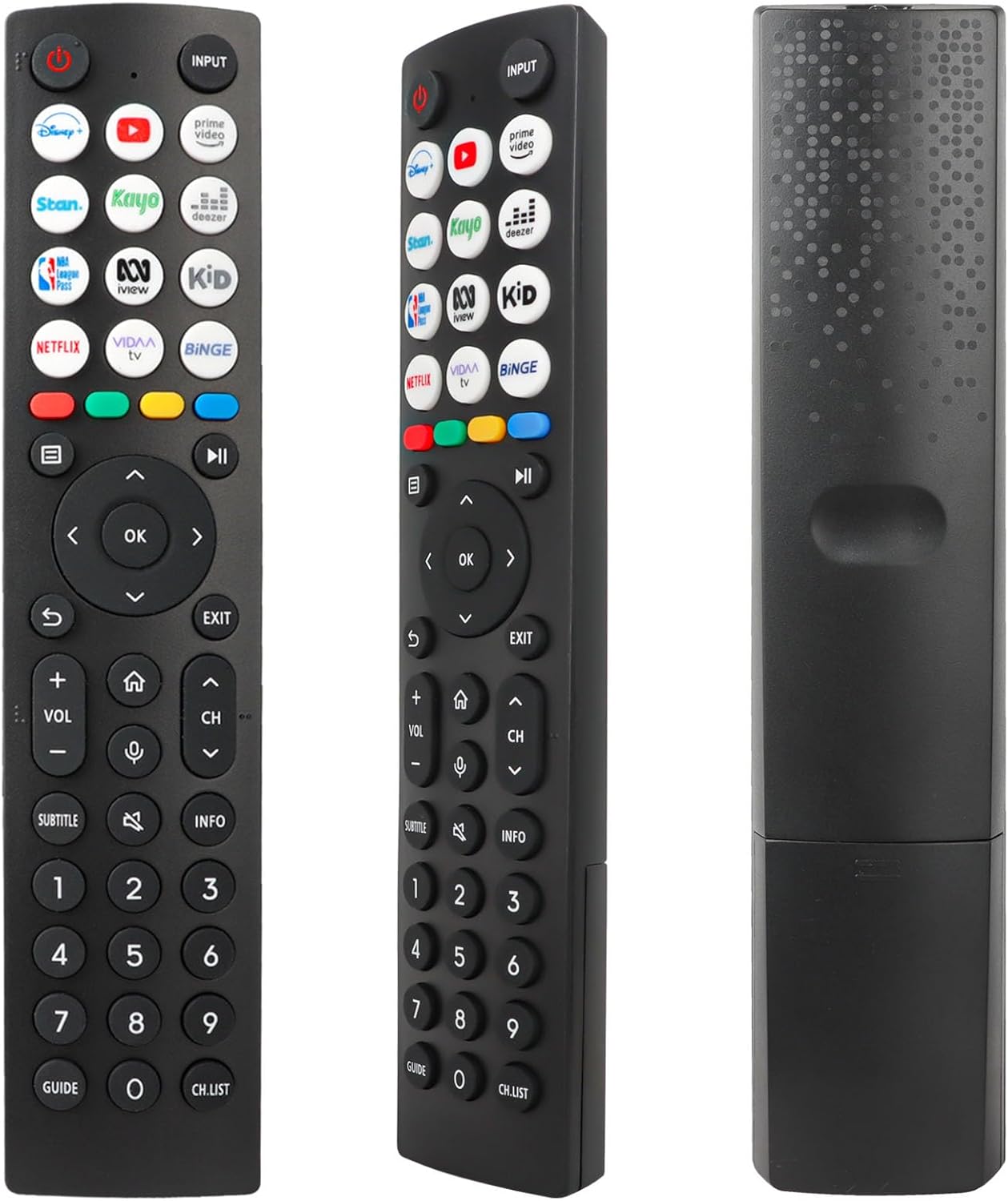
Foto: N'ihu view of the remote control, displaying the layout of all buttons.
3.1 Ọrụ ndị bụ isi
- Ike (Red Circle with Line): Gbanyụọ ma ọ bụ gbanyụọ TV.
- Ntinye: Selects the input source (e.g., HDMI 1, HDMI 2, AV).
- Elu elu/ala (VOL +/-): Na-emezi ụda olu.
- Ọwa Elu/Mbelata (CH +/-): Na-agbanwe ọwa telivishọn.
- Ogbi (Speaker with X): Mebie ma ọ bụ mebie ụda TV.
- Mpempe igodo nsoroụzọ (elu, ala, aka ekpe, aka nri, OK): A na-eji ịnyagharịa menu ma kwado nhọrọ.
- Azu (Akụ Gbagọrọ Agbagọ): Na-alaghachi na ihuenyo gara aga ma ọ bụ menu.
- Ụzọ ọpụpụ: Na-apụ na menu ma ọ bụ ngwa dị ugbu a.
- Ụlọ (Akara ngosi ụlọ): Ọ na-abanye na ihuenyo mbụ nke TV ma ọ bụ smart hub.
- Ozi: Na-egosiputa ozi gbasara mmemme ma ọ bụ ọdịnaya dị ugbu a.
- Ndepụta Okwu: Toggles subtitles on or off.
- Ntuziaka: Mepee ntuziaka mmemme eletrọnịkị.
- CH.LIST: Na-egosiputa ndepụta ọwa.
- Igodo ọnụọgụ (0-9): Tinye nọmba ọwa ozugbo.
3.2 Igodo ụzọ mkpirisi
The remote control includes 12 dedicated shortcut buttons for quick access to popular streaming applications. To use these buttons, ensure the corresponding applications are installed and configured on your Hisense Smart TV.
- Disney+: Launches the Disney+ streaming service.
- YouTube: Na-ebido ngwa YouTube.
- Vidiyo kacha mma: Launches Amazon Prime Video.
- Stan: Launches the Stan streaming service.
- Kayo: Launches the Kayo Sports streaming service.
- Deezer: Launches the Deezer music streaming service.
- NBA: Launches the NBA League Pass application.
- iView: Launches the ABC iView ngwa.
- Nwata: Likely a shortcut to a Kids' content section or app.
- Netflix: Launches the Netflix streaming service.
- VIDAA TV: Launches the VIDAA Smart TV platform interface.
- Binge: Launches the Binge streaming service.
4. Nlekọta
4.1 nnọchi batrị
Replace the batteries when the remote control's response becomes sluggish or stops working. Always replace both AAA batteries at the same time with new ones. Do not mix old and new batteries, or different types of batteries.
4.2 Nhicha
Iji hichaa ihe njikwa remote, jiri ákwà dị nro ma kpọọ nkụ. Maka unyi siri ike, jiri obere d hichaa ya.ampen akwa na mmiri ma ọ bụ dị nwayọọ, na-adịghị abrasive Cleaner. Zere iji kemịkalụ siri ike ma ọ bụ ihe na-emebi emebi, n'ihi na ndị a nwere ike imebi elu nke ime ime ma ọ bụ ihe dị n'ime.
4.3 Nchekwa
Debe ihe njikwa remote n'ebe kpọrọ nkụ, ebe anwụ na-anaghị apụta kpọmkwem ma ọ bụ oke okpomọkụ. Ọ bụrụ na a gaghị eji remote ahụ ruo ogologo oge, ọ dị mma iwepụ batrị ndị ahụ iji gbochie mmiri ịpụpụta.
5. Nchọpụta nsogbu
- Remote anaghị aza:
- Lelee ma etinyere batrị ndị ahụ nke ọma na polarity ziri ezi.
- Dochie batrị ahụ na batrị AAA ọhụrụ.
- Ensure there is a clear line of sight between the remote control and the TV's infrared receiver. Obstructions can block the signal.
- Make sure the remote is pointed directly at the TV.
- Limited operating range:
- This remote has a maximum range of 10 meters. If you are further away, move closer to the TV.
- Weak batteries can reduce the effective range. Replace them if necessary.
- Shortcut keys not working:
- Ensure the corresponding streaming applications are installed and updated on your Hisense Smart TV.
- Verify your TV has an active internet connection.
- No voice control:
- This remote control operates via infrared and does not support voice control functionality. This is a design characteristic, not a malfunction.
6. Nkọwapụta
| Njirimara | Nkọwa |
|---|---|
| Ụdị | YiBiChin |
| Aha Nlereanya | ERF2R36H |
| Teknụzụ Njikọta | Infrared |
| Ngwa dakọtara | Hisense Smart UHD 4K Televisions |
| Njirimara Pụrụ Iche | Enweghị mmemme achọrọ |
| Agba | Nwa |
| Ọnụọgụ bọtịnụ | 12 shortcut buttons plus standard controls |
| Ụdị njikwa | Njikwa Inwe Ahụhụ |
| Oke kacha | 10 mita |
| Achọrọ batrị | Batrị 2 x AAA (anaghị etinye ya) |
7. Nkwado
If you receive an incorrect or damaged remote control, please contact the seller for assistance. They will respond as soon as possible to provide a satisfactory solution.
Biko dowe akwụkwọ ntuziaka a maka ntụnye aka n'ọdịnihu.
Ask a question about this manual
Ask about setup, troubleshooting, compatibility, parts, safety, or missing instructions. Manuals+ will review the question and use this page’s manual context to help answer it.