
1. Okwu mmalite
Thank you for choosing the BINNUNE 2.4GHz Wireless Gaming Headset. This manual provides detailed instructions to help you set up, operate, and maintain your headset for an optimal gaming and audio experience across various platforms including PS5, PS4, PC, Mac, and mobile devices via Bluetooth.
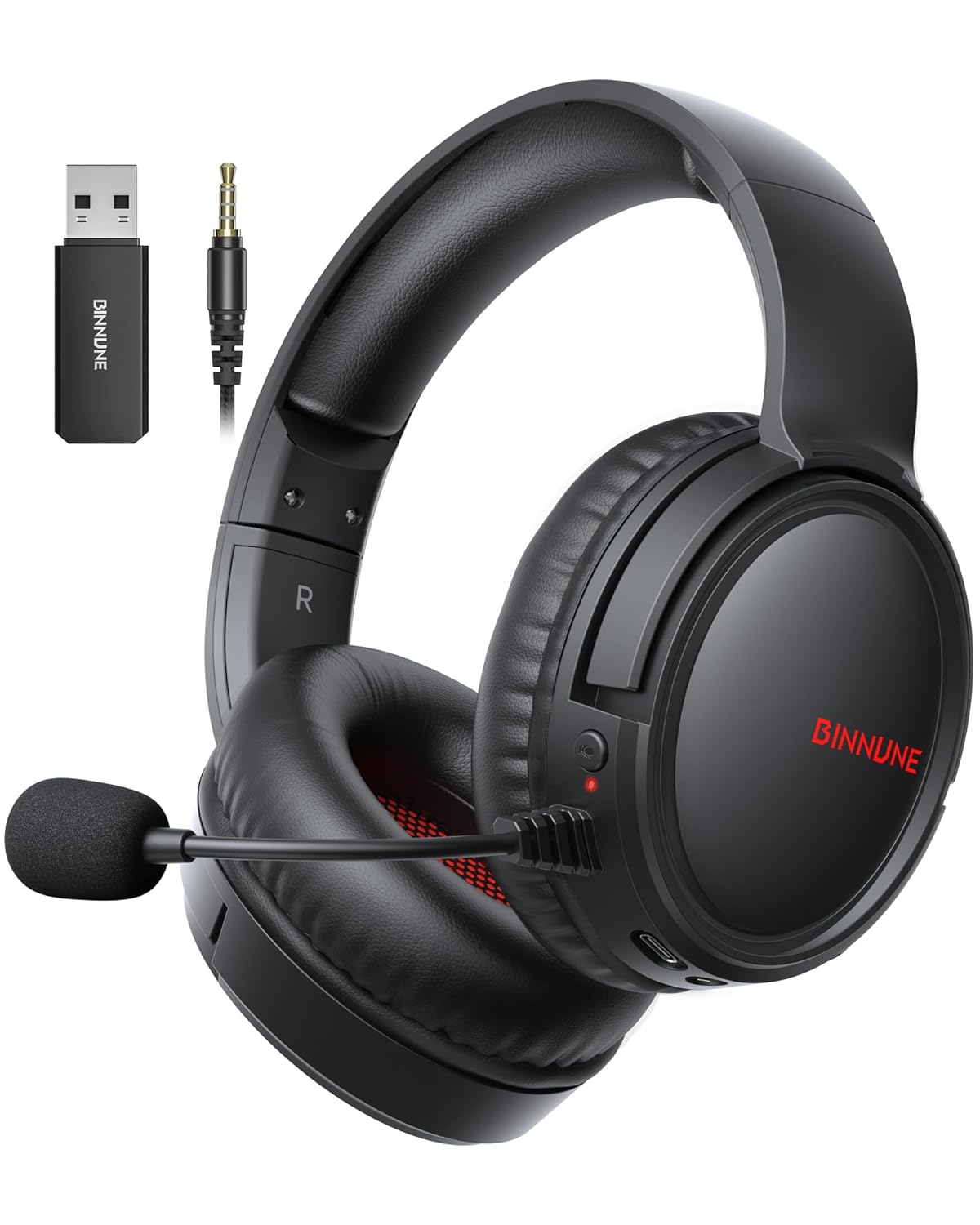
Figure 1: BINNUNE Wireless Gaming Headset (Model BW02-BT) with included accessories.
2. Kedu ihe dị na Igbe ahụ
- BINNUNE Wireless Gaming Headset (BW02-BT)
- 2.4GHz USB Dongle
- 3.5mm Audio USB
- USB-C eriri USB
- Akwụkwọ ntuziaka onye ọrụ

Figure 2: All components included with your BINNUNE Gaming Headset.
3. Ngwaahịa gafereview na njikwa
Familiarize yourself with the headset's controls and ports for seamless operation.
- Igwe okwu: Dual beamforming microphones with rotatable design for clear communication. Features ENC noise-canceling technology.
- Ọdụ USB-C: Maka ịchaji ekweisi.
- Jack Audio: 3.5mm For wired connection to compatible devices.
- Ihe ngosi LED: Displays power status, charging status, and connection mode.
- Bọtịnụ ike: Pịa ma jide ka ịgbanwuo/ gbanyụọ.
- Wheel olu: Na-edozi olu ọdịyo.
- Oghere bọtịnụ: Mebie/na-ewepụ igwe okwu.
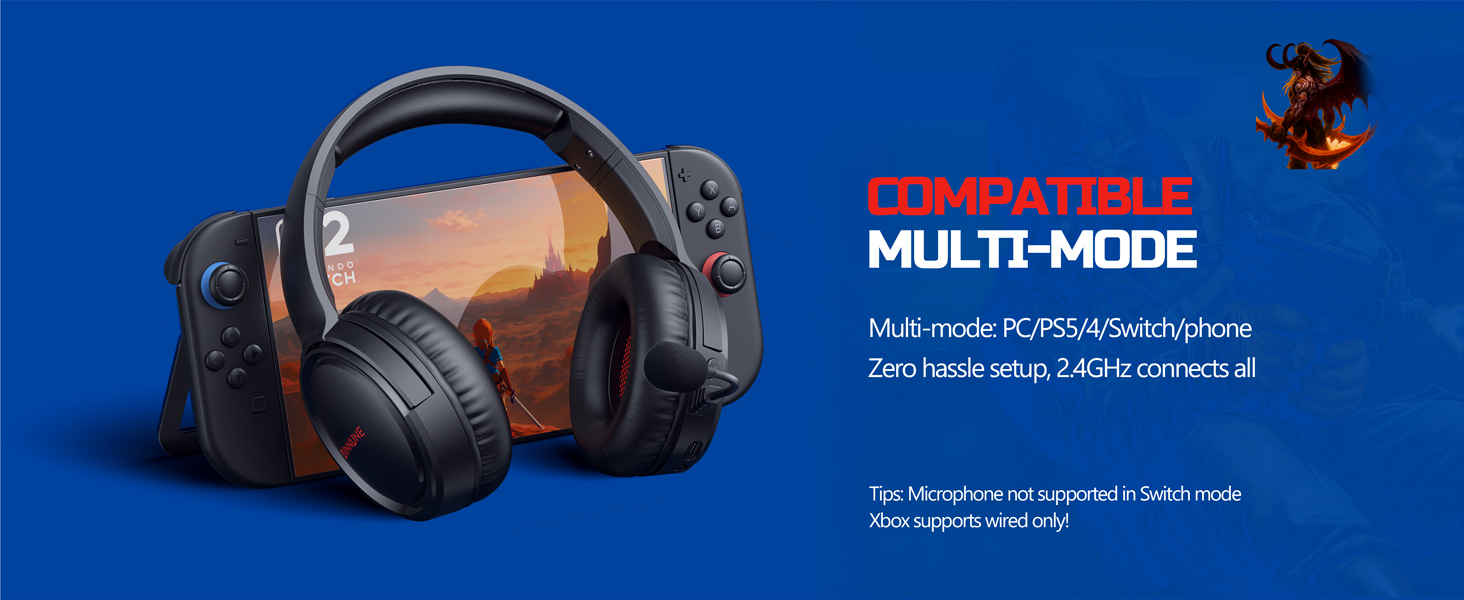
Figure 3: Key controls and ports on the BINNUNE Wireless Gaming Headset.
Vidiyo 1: Ọsọ ọsọview of the BINNUNE Gaming Headset's features and controls.
4. Ntọala na Njikọ
4.1 Nchaji izizi
Before first use, fully charge your headset. Connect the USB-C charging cable to the headset's USB-C port and the other end to a USB power source. The LED indicator will show charging status and turn off when fully charged. A full charge takes approximately 6 hours.

Figure 4: The headset offers up to 40 hours of battery life on a single charge.
4.2 2.4GHz Wireless Connection (USB Dongle)
This mode provides ultra-low latency audio (≤38ms) for gaming on PS5, PS4, PC, and Mac.
- Plug the 2.4GHz USB dongle into an available USB port on your PS5/4, PC, or Mac.
- Power on your BINNUNE headset by pressing and holding the power button.
- The headset will automatically connect to the dongle. The LED indicator will show a stable light when connected.
Mara: The microphone is not available when connected to Nintendo Switch in 2.4GHz mode. Not compatible with XBOX.

Figure 5: The 2.4GHz USB dongle ensures a fast and stable connection.
4.3 Njikọ Bluetooth
Use Bluetooth mode for mobile phones, tablets, iPads, and other smart devices.
- Gbaa mbọ hụ na agbanyere ekweisi.
- Na ngwaọrụ gị, gaa na ntọala Bluetooth wee mee ka Bluetooth rụọ ọrụ.
- Select "BINNUNE BW02-BT" from the list of available devices to pair.
- The LED indicator will flash during pairing and show a stable light once connected.
Mara: Bluetooth mode is not compatible with PS5/4. The microphone is not available when connected to Nintendo Switch in Bluetooth mode.
4.4 Wired Njikọ (3.5mm Audio USB)
For devices that do not support wireless connectivity or when battery is low.
- Connect one end of the 3.5mm audio cable to the headset's 3.5mm audio jack.
- Connect the other end to the 3.5mm audio port on your gaming device (e.g., PS5/4 controller, PC, phone).
Mara: The microphone may not be available on some devices when using the wired connection.

Figure 6: Multiplatform compatibility of the BINNUNE headset across 2.4G, Bluetooth, and Wired modes.
Video 2: Demonstrating the multi-mode connectivity of BINNUNE Gaming Headsets for PS4/PS5/PC.
5. Ntuziaka ọrụ
5.1 Gbanyụọ ma ọ bụ gbanyụọ
Press and hold the Power Button for 3 seconds to turn the headset on or off. The LED indicator will light up or turn off accordingly.
5.2 Njikwa olu
Rotate the Volume Wheel up (+) to increase volume or down (-) to decrease volume.
5.3 Igwe okwu
The headset features a rotatable microphone. Flip the microphone down to use it. Press the Mute Button to toggle microphone mute on or off. The ENC noise-canceling technology helps ensure clear voice transmission.
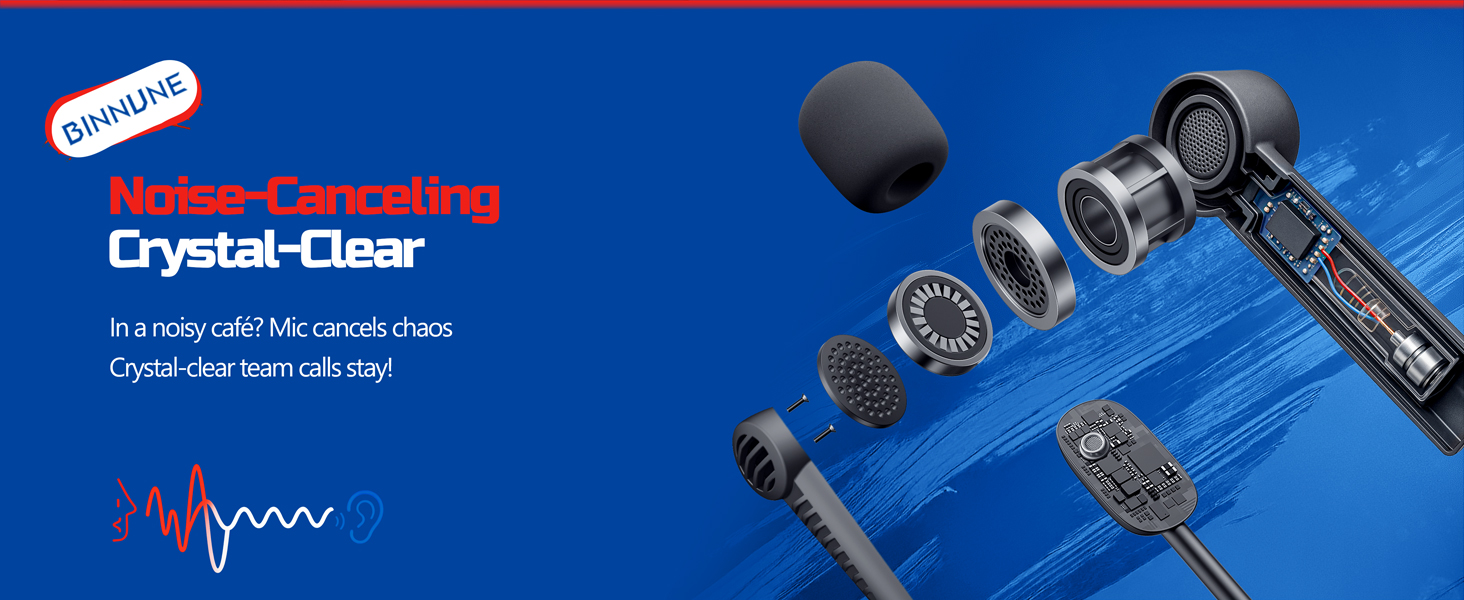
Figure 7: The noise-canceling microphone ensures crystal-clear voice calls by reducing background noise.
5.4 Ịgbanwe n'etiti ụdịdị
The headset supports seamless switching between 2.4GHz and Bluetooth modes. Refer to section 4 for specific connection steps for each mode. The headset prioritizes the 2.4GHz connection when the dongle is active.
6. Nlekọta
- Nhicha: Use a soft, dry cloth to clean the headset. Avoid using abrasive cleaners or solvents.
- Nchekwa: Chekwaa ekweisi n'ebe dị jụụ, kpọrọ nkụ na-adịghị na ìhè anyanwụ kpọmkwem na oke okpomọkụ.
- Nlekọta batrị: Ka ịgbatị ndụ batrị ogologo, zere ịchaji ekweisi ugboro ugboro. Na-ana ya ụgwọ oge niile, ọbụlagodi ma ọ bụrụ na ejighị ya ogologo oge.
7. Nchọpụta nsogbu
| Nsogbu | Ihe nwere ike ime | Ngwọta |
|---|---|---|
| Enweghị ụda sitere na ekweisi. | Headset not powered on, low battery, incorrect connection mode, volume too low. | Ensure headset is on and charged. Check connection mode (2.4GHz/Bluetooth/Wired). Increase volume. |
| Igwe okwu anaghị arụ ọrụ. | Microphone muted, incorrect input device selected on computer/console, compatibility issue in certain modes. | Unmute microphone. Check audio settings on your device to ensure BINNUNE headset is selected as input. Note mode limitations (e.g., Switch, some wired connections). |
| Cannot connect via 2.4GHz dongle. | Dongle not properly inserted, interference, headset too far from dongle. | Ensure dongle is fully inserted. Move closer to the dongle. Try a different USB port. |
| Enweghị ike ijikọ site na Bluetooth. | Headset not in pairing mode, device Bluetooth off, already connected to another device. | Ensure headset is discoverable. Turn Bluetooth on your device. Disconnect from other devices. |
8. Nkọwapụta
| Njirimara | Nkọwa |
|---|---|
| Aha Nlereanya | BW02-BT |
| Teknụzụ Njikọta | Wireless (2.4GHz, Bluetooth 5.3), Wired (3.5mm Jack) |
| Nha ọkwọ ụgbọ ala ọdịyo | 50 mm |
| Nzaghachi ugboro ugboro | 20 Hz - 20,000 Hz |
| Mmetụta | 96 dB |
| Oge Ndabere Ọdịyo (2.4GHz) | 32 Milliseconds (≤38ms advertised) |
| Ndụ batrị | Ruo awa 40 |
| Oge Nchaji | Awa 6 |
| Igwe okwu | Dual Beamforming with ENC Noise-Canceling |
| Ihe onwunwe | Plastic (Headset), Leather (Ear Cushions) |
| Ibu | 13.4 ounces |
| Ngwa dakọtara | Gaming Consoles (PS4, PS5), PC, Mac, Telephones, Laptops, Desktops |
9. Akwụkwọ ikike na nkwado
BINNUNE products are manufactured with high-quality standards. For any product-related inquiries, technical support, or warranty claims, please refer to the official BINNUNE store or contact their customer service directly.
Gaa leta BINNUNE Store on Amazon maka ozi ndị ọzọ na nkwado.