
1. Okwu mmalite
This manual provides detailed instructions for the safe and efficient operation of your Xprinter XP-P323B Portable Thermal Printer. Please read this manual thoroughly before using the device to ensure proper functionality and to prevent damage. The XP-P323B is designed for printing receipts and labels, offering portability and high-speed capabilities for various business needs.
2. Ozi nchekwa
- Ekwela ka igwe nbipute ahụ banye na mmiri ma ọ bụ oke mmiri.
- Avoid dropping the printer or subjecting it to strong impacts.
- Jiri naanị ihe nkwụnye ike na ihe mgbakwunye akọwapụtara.
- Keep the printer away from heat sources and direct sunlight.
- Do not attempt to disassemble or repair the printer yourself. Contact qualified service personnel.
- Gbaa mbọ hụ na ikuku ikuku dị mma mgbe ị na-arụ ọrụ.
3. Ihe ngwugwu
Chọpụta na ihe niile dị na ngwugwu:
- Xprinter XP-P323B Portable Thermal Printer
- Power Adapter (not explicitly listed but standard)
- USB Cable (not explicitly listed but standard)
- Sample Thermal Paper Roll (not explicitly listed but standard)
- Akwụkwọ ntuziaka (akwụkwọ a)
4. Ngwaahịa gafereview
The Xprinter XP-P323B is a compact and efficient thermal printer designed for various printing tasks. It supports NV logo download and picture printing (BMP format), along with concentration adjustment for print quality.
4.1. Printer Components

Foto 1: N'ihu view of the Xprinter XP-P323B Portable Thermal Printer, showing the power button, display, and a sample label being printed.
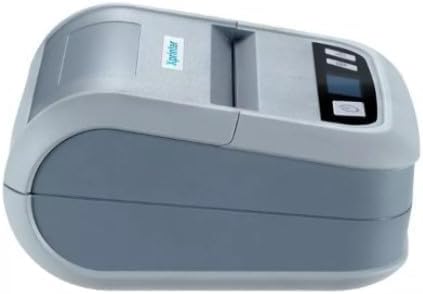
Foto 2: Akụkụ view of the Xprinter XP-P323B, highlighting its compact design and the Xprinter logo.
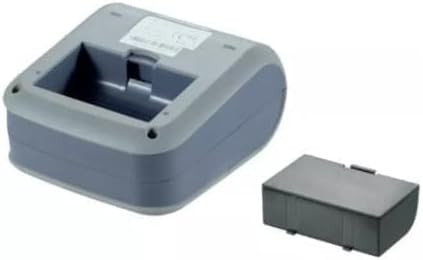
Foto 3: N'okpuru view of the Xprinter XP-P323B, showing the base and the removable battery compartment.
5. Nhazi
5.1. Ịchaji batrị
- Connect the power adapter to the printer's charging port.
- Tinye nkwụnye ọkụ n'ime oghere mgbidi.
- The charging indicator light will illuminate. Allow the printer to charge fully before first use.
5.2. Loading Thermal Paper/Labels
- Open the paper compartment cover by gently pushing the release latch.
- Insert the thermal paper roll with the printing surface facing the print head. Ensure the roll is seated correctly.
- Pull a small amount of paper out past the print head.
- Close the paper compartment cover firmly until it clicks into place.
5.3. Ijikọ na Ngwaọrụ
The XP-P323B supports USB and Bluetooth connectivity.
5.3.1. Njikọ USB
- Jikọọ ngwa nbipute na kọmputa gị site na iji eriri USB enyere.
- Install the necessary printer drivers (available from the Xprinter website or included software).
5.3.2. Bluetooth Connection (for Smartphones/iOS)
- Gbaa mbọ hụ na agbanyere ngwa nbipute.
- On your smartphone or iOS device, go to Bluetooth settings and enable Bluetooth.
- Chọọ maka available devices and select 'XP-P323B' (or similar name).
- Enter the pairing PIN if prompted (refer to printer documentation for default PIN, often '0000' or '1234').
- Ozugbo ejikọtara ọnụ, ị nwere ike iji ngwa obibi akwụkwọ dakọtara iji zipu ọrụ mbipụta.
6. Na-arụ ọrụ na ngwa nbipute
6.1. Mbipụta Isi
- Hụ na ejikọrọ ngwa nbipute ahụ na ngwaọrụ gị ma nwee akwụkwọ dị n'ime ya.
- Open the document or image you wish to print on your connected device.
- Select the print option within your application.
- Choose 'XP-P323B' as the printer.
- Adjust print settings as needed (e.g., paper size, print quality).
- Bido ọrụ mbipụta.
6.2. NV Logo and Picture Printing
The printer supports downloading and printing NV (Non-Volatile) logos and BMP format pictures. This functionality typically requires specific software or commands. Refer to the advanced programming guide or software documentation for detailed instructions on how to upload and print custom logos or images.
6.3. Adjusting Print Concentration
Print concentration can be adjusted to optimize print quality. This setting is usually accessible through the printer driver software on a computer or within the settings of a compatible mobile printing application. Consult your software's help section for specific steps.
7. Nlekọta
7.1. Na-ehicha ihe nbipute
- Mputa: Jiri nwayọ hichaa mpụta nke ngwa nbipute, damp akwa . Ejila kemịkalụ siri ike ma ọ bụ ihe mkpocha abrasive.
- Isi Bipụta: The thermal print head should be cleaned periodically to ensure optimal print quality. Use a cotton swab lightly dampened with isopropyl alcohol. Gently wipe the print head surface. Allow it to dry completely before closing the cover and resuming operation.
- Ụzọ akwụkwọ: Wepu uzuzu akwụkwọ ọ bụla ma ọ bụ irighiri ihe n'ụzọ akwụkwọ ahụ site na iji ahịhịa dị nro ma ọ bụ ikuku abịakọrọ.
7.2. Nchekwa
When not in use for extended periods, store the printer in a cool, dry place, away from direct sunlight and extreme temperatures. Remove the paper roll if storing for a very long time to prevent dust accumulation.
8. Nchọpụta nsogbu
| Nsogbu | Ihe nwere ike ime | Ngwọta |
|---|---|---|
| Printer does not power on | Low battery; Power adapter not connected; Faulty power adapter | Charge the battery; Ensure power adapter is securely connected; Try a different power outlet or adapter |
| Enweghị mmepụta mbipụta | No paper; Paper loaded incorrectly; Printer not connected; Driver issue | Load paper correctly; Re-establish connection; Reinstall printer drivers |
| Ọdịmma ebipụta na-adịghị mma | Dirty print head; Low print concentration; Low battery | Clean the print head; Adjust print concentration in software; Charge the battery |
| Njikọ Bluetooth ada ada | Bluetooth off on device; Incorrect pairing PIN; Printer out of range | Enable Bluetooth; Re-enter correct PIN; Move device closer to printer |
9. Nkọwapụta
| Ụdị | Xprinter |
| Nọmba nlereanya | XP-P323B |
| Akụkụ ihe (D x W x H) | 15D x 7W x 10H centimita |
| Teknụzụ Njikọta | USB |
| Teknụzụ ngwa nbipute | Thermal |
| Atụmatụ pụrụ iche | Enwere ike ibugharị |
| Agba | Agba ntụ |
| Ngwa dakọtara | Smartphones |
| Ụdị njikwa | iOS |
| Ogo mgbasa ozi kacha | 4 x6 inch |
| Mgbasa ozi bipute | Akara aha |
| Nha akwụkwọ | 4 x6 inch |
| Mmepụta ngwa nbipute | Monochrome |
| Maximum Print Speed (Black and White) | 40 mm/s (estimated from context) |
| Ibu Ibu | 300 grams |
10. Akwụkwọ ikike na nkwado
For warranty information and technical support, please refer to the warranty card included with your product or visit the official Xprinter websaịtị. Debe nnata nzụta gị dị ka ihe akaebe nke ịzụrụ maka nkwupụta ikike.