
1. Okwu mmalite
This manual provides detailed instructions for the installation, operation, and maintenance of your Xprinter XP-370B Thermal Barcode Sticker Printer. Please read this manual thoroughly before using the printer to ensure proper functionality and to prevent damage.
2. Ozi nchekwa
- Jikọọ ngwa nbipute mgbe ọ bụla na oghere ọkụ n'ala.
- Do not expose the printer to water or high humidity.
- Zere itinye igwe nbipute ahụ n'ebe anwụ na-acha kpọmkwem ma ọ bụ nso ebe okpomọkụ dị.
- Use only Xprinter approved accessories and power adapters.
- Debe ngwa nbipute na ụmụaka.
- Do not attempt to disassemble or repair the printer yourself. Contact qualified service personnel for assistance.
3. Ihe ngwugwu
Chọpụta na ihe niile dị na ngwugwu:
- Xprinter XP-370B Thermal Barcode Sticker Printer
- Ihe nkwụnye ọkụ
- eriri USB
- Ntuziaka mmalite ngwa ngwa (ọ bụrụ na etinyere ya)
4. Ngwaahịa gafereview
The Xprinter XP-370B is a compact and efficient thermal printer designed for barcode and sticker printing. It features high-speed printing capabilities and supports various connectivity options.

Foto nke 4.1: N'ihu-aka nri view of the Xprinter XP-370B Thermal Barcode Sticker Printer.

Foto 4.2: Akụkụ view illustrating the power button and top cover key for accessing the media compartment.
5. Nhazi
5.1 Mwepu na ntinye
- Jiri nlezianya wepụ ihe nbipute na nkwakọ ngwaahịa ya.
- Debe igwe nbipute ahụ n'elu ebe kwụsiri ike, dị larịị, nke nwere ikuku zuru oke.
- Ensure there is enough space around the printer for cable connections and media loading.
5.2 Ijikọ ngwa nbipute
- Connect the power adapter to the printer's power port and then plug it into a power outlet.
- Connect the printer to your computer using the provided USB cable. The printer also supports Serial, Ethernet, and Bluetooth connectivity options depending on the model.
- Turn on the printer using the power button located on the side (refer to Figure 4.2).
5.3 Loading Print Media
- Press the top cover key (refer to Figure 4.2) to open the printer's top cover.
- Place the roll of thermal labels into the media compartment. The maximum label diameter supported is 100mm.
- Adjust the paper guide to fit the width of your labels securely.
- Pull a small length of labels past the print head.
- Mechie mkpuchi elu ruo mgbe ọ pịnyere aka n'ebe ọ dị.
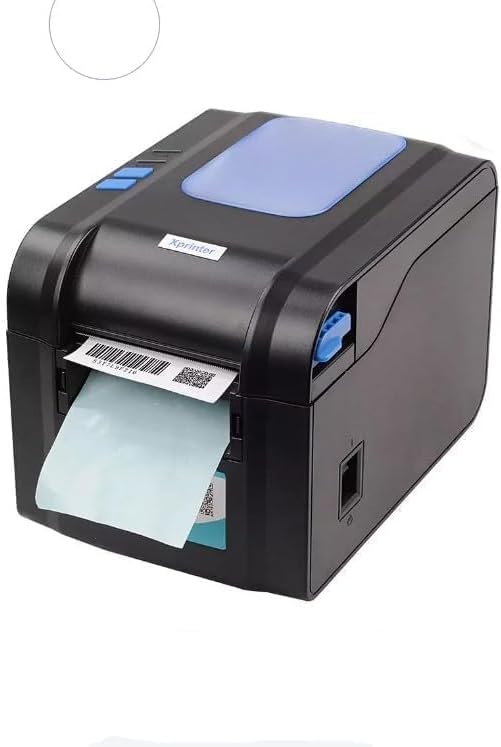
Figure 5.3: The printer demonstrating a label being fed out after printing.
5.4 Nwụnye ọkwọ ụgbọala
- For Windows systems, insert the driver CD (if provided) or download the latest drivers from the official Xprinter websaịtị. Soro ntuziaka na ihuenyo maka nwụnye.
- For Android and iOS devices, download the appropriate printing application from your device's app store.
6. Ntuziaka ọrụ
6.1 Mbipụta bụ isi
- Hụ na igwe nbipute ahụ agbanyere ma jikọọ na ngwaọrụ gị.
- Open the document or application from which you wish to print.
- Select the Xprinter XP-370B from your list of available printers.
- Adjust print settings such as label size, orientation, and density as needed.
- Initiate the print command. The printer will begin printing at speeds up to 152mm/s.
7. Nlekọta
7.1 Na-ehicha ngwa nbipute
- Gbanyụọ ma kwụpụ ihe nbipute ahụ tupu ị hichaa ya.
- Jiri akwa dị nro na-enweghị akwa dampened with isopropyl alcohol to gently clean the print head.
- Jiri ákwà dị nro ma kpọọ nkụ hichaa mpụta nke igwe nbipute ahụ.
- Ejila ihe nchacha abrasive ma ọ bụ ihe mgbaze.
8. Nchọpụta nsogbu
- Printer not responding: Check power connection, USB/Serial/Ethernet/Bluetooth connection, and ensure drivers are correctly installed.
- Ọdịmma mbipụta na-adịghị mma: Clean the print head, ensure correct media type is used, and check print density settings.
- Mpempe akwụkwọ: Open the top cover, carefully remove any jammed labels, and re-load the media correctly.
- Akara ndị anaghị enye nri: Ensure labels are loaded correctly and the paper guide is adjusted properly. Check for any obstructions.
9. Nkọwapụta
| Njirimara | Nkọwapụta |
|---|---|
| Ụdị | Xprinter |
| Nọmba nlereanya | XP-370B |
| Teknụzụ ngwa nbipute | Thermal |
| Teknụzụ Njikọta | USB, Serial, Bluetooth, Ethernet (options vary) |
| Ọsọ mbipụta kacha | Ihe ruru 152 mm / s |
| Ogo mgbasa ozi kacha | 4 x6 inch |
| Maximum Label Diameter | 100 mm |
| Mgbasa ozi bipute | Akara aha |
| Mmepụta ngwa nbipute | Monochrome |
| Akụkụ ihe (D x W x H) | 15D x 7W x 10H centimita |
| Ibu Ibu | 300 g |
| Sistemu eji arụ ọrụ akwadoro | Windows, Android, iOS |
10. Akwụkwọ ikike na nkwado
For warranty information and technical support, please refer to the documentation provided with your purchase or visit the official Xprinter websaịtị. Debe nnata nzụta gị dị ka ihe akaebe nke ịzụrụ maka nkwupụta ikike.