
1. Okwu mmalite
This manual provides detailed instructions for the installation, operation, and maintenance of your NUCOUN VCP-8370 Thermal Receipt Printer. Please read this manual thoroughly before using the printer to ensure proper function and longevity.

Image: The NUCOUN VCP-8370 Thermal Receipt Printer, a compact device designed for efficient receipt printing.
2. Akụrụngwa Ngwaahịa
- Ndakọrịta sara mbara: Supports ESC/POS commands and is compatible with Windows (2003/XP/7/8/10/11), Mac, and Linux operating systems, as well as OPOS. Note: Does not support Wi-Fi, Bluetooth, Square, or PayPal systems.
- Mbipụta Ọsọ Ọsọ: Achieves print speeds up to 220 mm/s. Utilizes thermal printing technology, eliminating the need for ink cartridges or ribbons, which reduces operating costs.
- Mmepụta dị oke mma: Features a high-definition print head with a resolution of 203 DPI, ensuring clear print quality with low operational noise.
- Automatic Cutter: Equipped with an auto-cutter designed for continuous use up to 1 million cuts, preventing manual tearing and label damage.
- Multi-function Interfaces: Includes USB, LAN (Ethernet), and RJ11 cash drawer interfaces (suitable for DC 24V/2.5A cash drawers).
- Cost-Effective Design: Simple, elegant, dustproof, and waterproof button design. Features a sound and light alarm system to prevent missed receipts.
- Nwụnye na-echekwa oghere: Two keyhole slots are provided for wall mounting, optimizing counter space.
- Ngwa dịgasị iche iche: Suitable for various environments including supermarkets, restaurants, medical facilities, banking, and government services.
3. Ihe ngwugwu
Mgbe ịmepechara ngwugwu ahụ, biko chọpụta na agụnyere ihe niile ndị a:
- Ihe nbipute nnata NUCOUN VCP-8370
- Ụdọ ọkụ
- USB data USB
- Akwụkwọ ntuziaka
- Thermal Paper Roll (initial roll)

Image: The printer and its included accessories: power cord, USB data cable, and instruction manual.
4. Ngwaahịa gafereview
Familiarize yourself with the various components and interfaces of the VCP-8370 printer:

Image: Labeled diagram of the printer's front and rear panels, highlighting buttons and connection ports.
- Mgbanwe bọtịnụ: Gbanyụọ/ gbanyụọ ngwa nbipute.
- Ìhè ihe ngosi: Displays printer status (e.g., power on, error, printing).
- Bọtịnụ ndepụta: Manually feeds paper.
- Cover Open Button: Releases the top cover for paper loading.
- Ọdụ ụgbọ mmiri USB: Connects the printer to a computer via USB cable.
- Ọdụ ụgbọ mmiri LAN: Connects the printer to a network via Ethernet cable.
- CASH Port (RJ11): Connects to a compatible cash drawer (DC 24V/2.5A).
- Ike Port: Na-ejikọta ihe nkwụnye ọkụ.
5. Nhazi ntuziaka
5.1. Paper Roll Installation
- Press the "Cover Open Button" to open the printer's top cover.
- Insert the 80mm thermal paper roll into the paper compartment, ensuring the paper feeds out from the top and the leading edge is straight.
- Were obere mpempe akwụkwọ gafere n'obe ahụ.
- Mechie mkpuchi elu ahụ nke ọma ruo mgbe ọ pịnyere aka n'ebe ọ dị.

Foto: Zuru ezu view of the paper compartment, illustrating the correct placement for an 80mm thermal paper roll.
5.2. Ijikọ ngwa nbipute
- Njikọ ike: Connect the power adapter to the printer's power port and then plug it into a power outlet.
- Njikọ USB: For direct connection to a computer, use the provided USB data cable to connect the printer's USB port to an available USB port on your computer.
- LAN (Ethernet) Connection: For network printing, connect an Ethernet cable from the printer's LAN port to your network router or switch.
- Njikọ Drawer ego: If using a cash drawer, connect its RJ11 cable to the printer's CASH port. Ensure the cash drawer is compatible with DC 24V/2.5A.
5.3. Nwụnye ọkwọ ụgbọala
To use the printer with your computer, you must install the appropriate drivers. Drivers are available for Windows, Mac, and Linux operating systems.
- Visit the official NUCOUN websaịtị (dịka ọmụmaatụ, www.nucoun.com) and navigate to the "Support" or "Downloads" section.
- Locate and download the driver package specific to the VCP-8370 model and your operating system.
- Follow the on-screen instructions to complete the driver installation. A successful installation will allow your computer to recognize the printer.
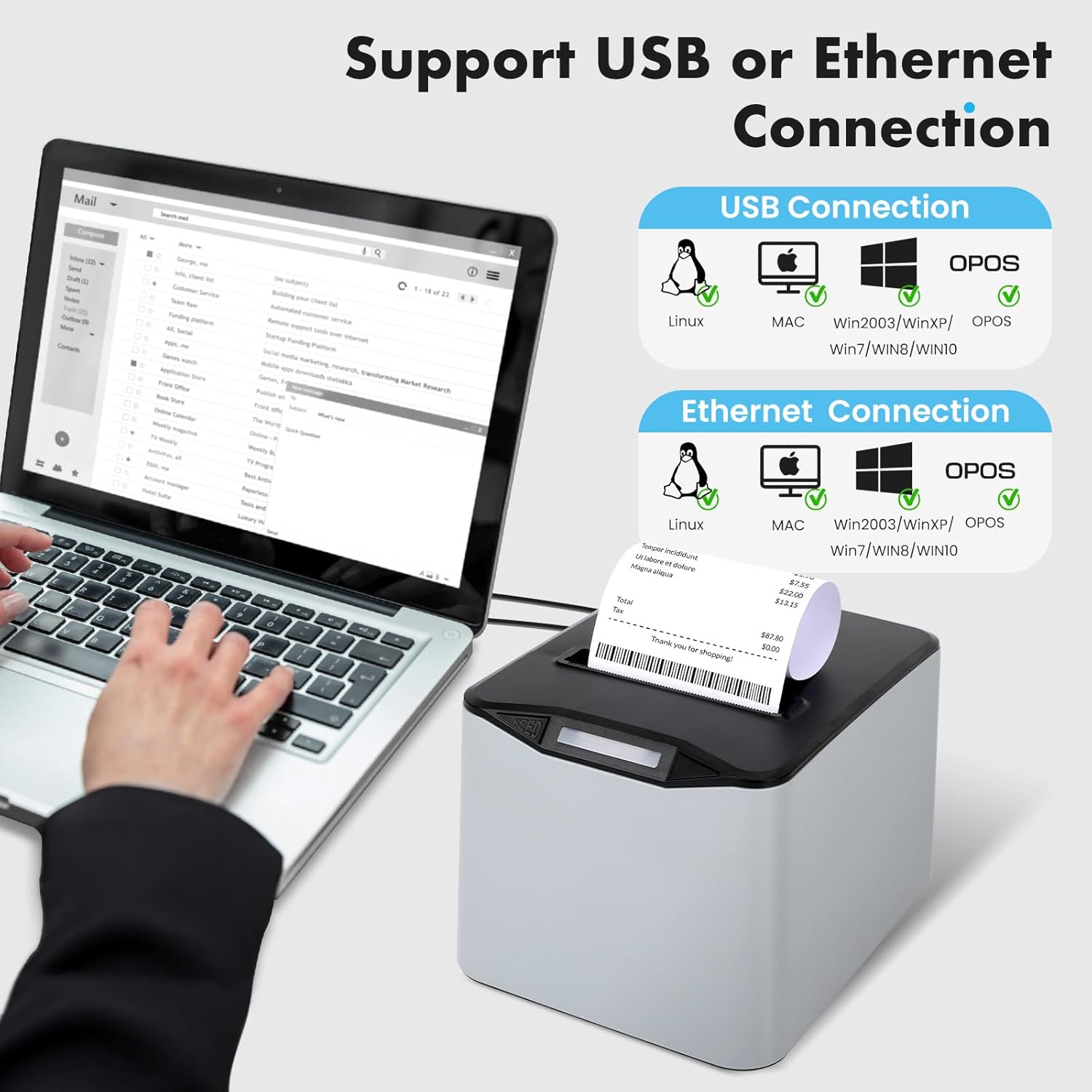
Image: Visual representation of USB and Ethernet connectivity options and supported operating systems.
6. Ntuziaka ọrụ
6.1. Ịgbanye / gbanyụọ
- To power on, press the "Switch Button". The indicator light will illuminate.
- To power off, press the "Switch Button" again. The indicator light will turn off.
6.2. Mbipụta Isi
Once the printer is connected and drivers are installed, you can print receipts from your POS software or application. The printer will automatically cut the receipt after printing.

Image: The printer in operation, demonstrating its fast and clear printing of receipts.
6.3. Nri akwụkwọ ntuziaka
Press the "Feed Button" to manually advance the paper roll by a small increment.
6.4. Sistemụ mkpu
The printer is equipped with a sound and light alarm system to notify users of printing status:
- A blue light flash indicates the printer is powered on.
- A red light flash indicates active printing or a potential error, ensuring no receipts are missed.
7. Ndakọrịta
The NUCOUN VCP-8370 Thermal Receipt Printer offers broad compatibility:
- Sistemu eji arụ ọrụ: Windows (Win2003, WinXP, Win7, Win8, Win10, Win11), Mac, and Linux.
- Ntọala Iwu: ESC/POS compatible.
- Ọnụ ụzọ: USB, LAN (Ethernet), and RJ11 for cash drawers.
Important Note: This printer does NOT support Wi-Fi, Bluetooth, Square, or PayPal systems.
8. Nlekọta
Regular maintenance ensures optimal performance and extends the lifespan of your thermal receipt printer.
8.1. Na-ehicha isi mbipụta
- Turn off the printer and disconnect the power cord.
- Open the printer cover and remove the paper roll.
- Gently wipe the thermal print head (the ceramic strip) with a cotton swab lightly dampened with isopropyl alcohol. Allow it to dry completely before closing the cover and reconnecting power.
8.2. Cleaning the Roller
- With the printer off, use a soft, lint-free cloth dampened with isopropyl alcohol to clean the rubber roller.
- Rotate the roller manually to clean its entire surface.
8.3. Nchacha izugbe
- Wipe the exterior of the printer with a soft, dry cloth. Do not use abrasive cleaners or solvents.
- Ensure no dust or debris accumulates in the paper exit slot or around the auto-cutter mechanism.
9. Nchọpụta nsogbu
Akụkụ a na-ekwu maka nsogbu ndị na-ahụkarị ị nwere ike izute na ngwa nbipute gị.
| Nsogbu | Ihe nwere ike ime | Ngwọta |
|---|---|---|
| Ngwa nbipute anaghị agbanwu ọkụ. | Ejikọghị eriri ọkụ eletrik; ebe a na-esi ike nwere nsogbu. | Ensure power cord is securely connected. Test the power outlet with another device. |
| No printing output. | No paper; paper loaded incorrectly; driver not installed; printer not selected. | Check paper roll and reload if necessary. Verify driver installation and printer selection in your software. |
| Poor print quality (faint, blank lines). | Low quality thermal paper; dirty print head; print head damage. | Use high-quality thermal paper. Clean the print head as described in the Maintenance section. If problem persists, contact support. |
| Mpempe akwụkwọ. | Paper loaded incorrectly; foreign object in paper path. | Turn off printer, open cover, carefully remove jammed paper. Ensure paper is loaded correctly. |
| Cash drawer does not open. | Incorrect connection; cash drawer not compatible; software command issue. | Verify RJ11 cable connection. Ensure cash drawer is DC 24V/2.5A compatible. Check POS software settings. |
| Driver installation issues. | Incorrect driver version; corrupted download. | Budata ndị ọkwọ ụgbọala kacha ọhụrụ site na www.nucoun.com (Support section) and ensure it matches your OS. |
10. Nka na ụzụ nkọwa
| Njirimara | Nkọwapụta |
|---|---|
| Aha Nlereanya | VCP-8370 |
| Ụdị | NUCOUN |
| Teknụzụ obibi akwụkwọ | Thermal |
| Mkpebi Mbipụta | 203 DPI |
| Ọsọ mbipụta kacha | 220 mm / s |
| Ogologo akwụkwọ | 80 mm (3 1/8 sentimita) |
| Ogo mgbasa ozi kacha | 80mm x 230mm (supports larger 230' rolls) |
| Njikọta | USB, Ethernet (LAN) |
| Port Drawer Cash | RJ11 (DC 24V/2.5A compatible) |
| Auto Cutter Life | 1 nde mbe |
| Ndakọrịta sistemụ arụmọrụ | Windows (2003/XP/7/8/10/11), Mac, Linux, OPOS |
| Akụkụ ngwaahịa | 8 x 7.52 x 5.47 sentimita (20.32 x 19.10 x 13.89 cm) |
| Ibu Ibu | 2.7 pound (1.22 n'arọ) |
| Njirimara Pụrụ Iche | Auto Cutter, Sound and Light Alarm |
11. Akwụkwọ ikike na nkwado
11.1. Akwụkwọ ikike Ozi
The NUCOUN VCP-8370 Thermal Receipt Printer comes with a ikike ikike. Please refer to the warranty card included in your package or visit the official NUCOUN websaịtị maka nkọwa zuru ezu usoro na ọnọdụ.
11.2. Nkwado ndị ahịa
For technical assistance, troubleshooting, or any inquiries regarding your NUCOUN product, please contact our professional after-sales support team. You can find contact information on the official NUCOUN websaịtị ma ọ bụ na akwụkwọ agụnyere.
Websaịtị: www.nucoun.com