
1. Ngwaahịa gafereview
The OSALO 82MS II is a scientific calculator designed for a wide range of mathematical and scientific computations. It features a 2-line display and 240 functions, making it suitable for students and professionals in various fields including mathematics, science, algebra, trigonometry, and statistics.
Atụmatụ gụnyere:
- 240 functions for comprehensive calculations.
- 2-line large LCD display for simultaneous viewing of input and results.
- Support for basic, scientific, memory, and statistical calculations.
- Solar and battery dual power supply for reliable operation.
- Sensitive keys and an ergonomically designed hard sliding cover for protection.

Figure 1: OSALO 82MS II Scientific Calculator
2. Ntọlite na mbido ojiji
2.1. Ike inye
The OSALO 82MS II calculator operates on a dual power system: solar energy and an LR44 battery. The solar panel provides power in well-lit environments, while the LR44 battery ensures continuous operation in low-light conditions or when solar power is insufficient. The battery is pre-installed.
2.2. Na-agbanye ma gbanyụọ
- To turn on the calculator, press the ON igodo.
- To turn off the calculator, press SHIFT sochiri ya AC igodo.
2.3. Keypad Layout
Familiarize yourself with the calculator's keypad layout. The main keys include numerical inputs, basic arithmetic operations, scientific functions, and mode selection keys.
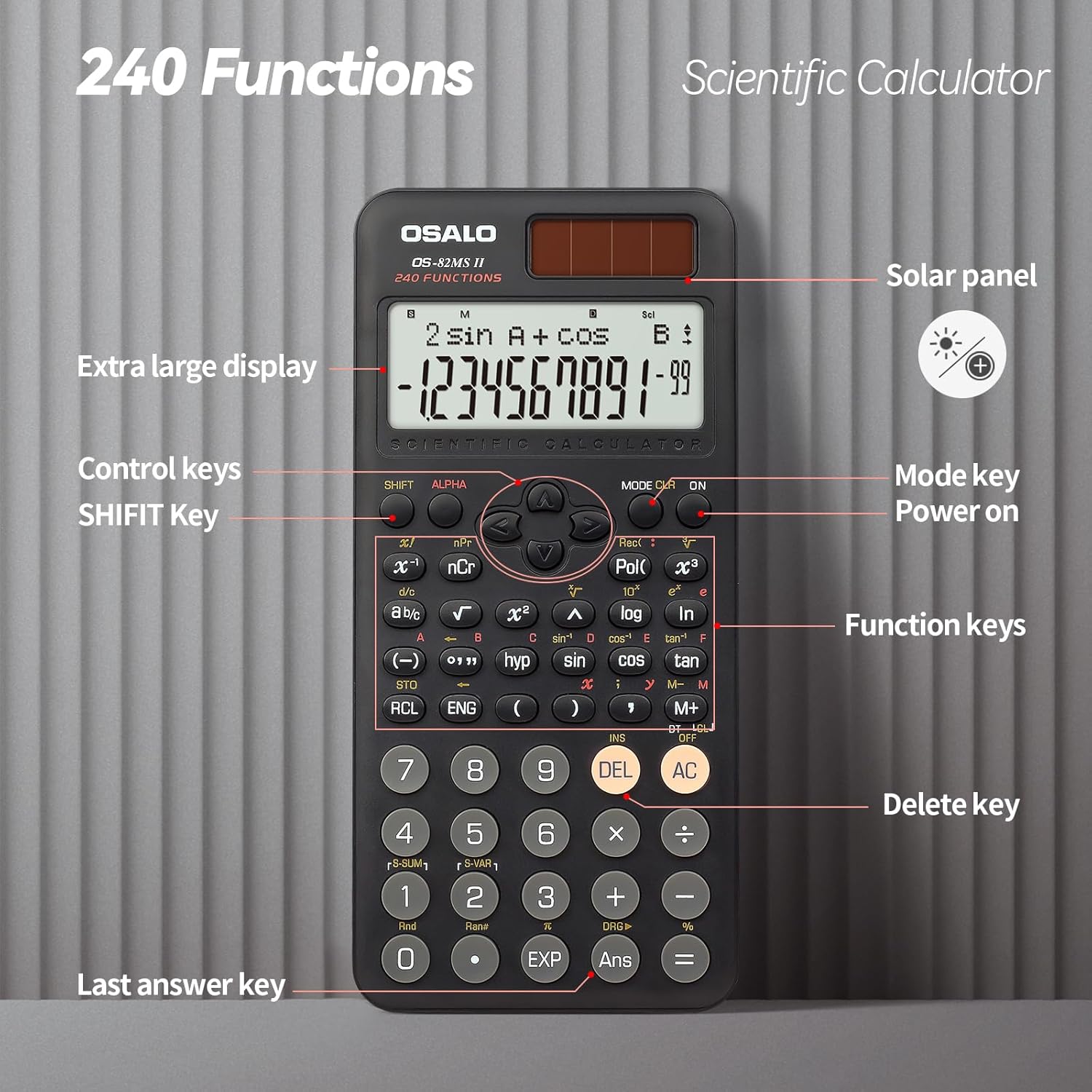
Figure 2: Keypad Layout and Components
3. Ntuziaka ọrụ
3.1. Basic Calculations
To perform basic arithmetic operations, simply input the numbers and operators in sequence. Press = to get the result.
- Mgbakwunye: [Number] + [Number] =
- Mwepụ: [Number] - [Number] =
- Mmụba: [Number] × [Number] =
- Nkewa: [Number] ÷ [Number] =
3.2. Scientific Functions
The calculator supports 240 scientific functions. Many functions are accessed by pressing the SHIFT key before the desired function key (indicated by text above the key).
- Ọrụ Trigonometric: Jiri mmehie, cos, tan. For inverse functions, press SHIFT then the respective key (e.g., SHIFT + mmehie for sin-1).
- Logarithmic Functions: Jiri ndekọ (isi 10) na ln (logarithm eke).
- Powers and Roots: Jiri x², x³, √ (square root). For other roots or powers, use SHIFT with relevant keys.
- Angle Units: Pịa MODE multiple times to cycle through angle units (Degrees, Radians, Gradians).

Figure 3: Displaying Input and Output
3.3. Memory Calculations
The calculator includes 9 variable memories (A-F, X, Y, M) for storing and recalling values.
- Ụlọ ahịa: Input a value, then press STO followed by the desired memory key (e.g., A).
- Cheta: Pịa RCL followed by the desired memory key to recall the stored value.
- Memory Plus/Minus: Jiri M+ to add the displayed value to memory M, and SHIFT + M+ (M-) to subtract.
3.4. Statistical Calculations
To enter statistical mode, press MODE and select the STAT option. Follow the on-screen prompts to input data and perform calculations such as standard deviation and regression analysis.
3.5. Ngosipụta mmezi ihie
The calculator features a brightness adjustment function to optimize visibility in different lighting conditions and reduce eye strain.

Figure 4: Brightness Adjustment Function
Refer to the full instruction manual for specific key combinations to adjust display brightness.
4. Nlekọta
4.1. Nhicha
To clean the calculator, wipe it gently with a soft, dry cloth. Do not use abrasive cleaners, solvents, or spray directly onto the calculator, as this may damage the surface or internal components.
4.2. Nchekwa
Store the calculator in a cool, dry place away from direct sunlight and extreme temperatures. Always use the provided hard sliding cover to protect the display and keys from scratches and impacts when not in use.

Figure 5: Calculator with Protective Cover
4.3. Ngbanwe batrị
When the display becomes dim or the calculator functions erratically, it may be time to replace the LR44 battery. Carefully open the battery compartment on the back of the calculator, replace the old battery with a new LR44 battery, ensuring correct polarity, and close the compartment securely.
5. Nchọpụta nsogbu
- Calculator does not turn on:
- Ensure there is sufficient light for the solar panel.
- Check if the LR44 battery needs replacement.
- Pịa ON key firmly.
- Ngosipụta adịchaghị ma ọ bụ oghere:
- Increase ambient light for solar power.
- Replace the LR44 battery.
- Adjust display brightness settings (refer to section 3.5).
- Incorrect calculation results:
- Verify the input values and operators.
- Check the current calculation mode (e.g., DEG/RAD/GRA for angles).
- Clear all memory and reset the calculator by pressing SHIFT + CLR (Ụdị 3).
- Keys are unresponsive:
- Gbaa mbọ hụ na ọnweghị ihe mkpofu etinyere n'okpuru igodo.
- Clean the calculator surface.
6. Nkọwapụta
| Ụdị | OSALO |
| Nlereanya | OS-82MS II |
| Ọrụ | 240 |
| Ụdị ngosi | 2-akara LCD |
| Nha ihuenyo | 6 sentimita asatọ |
| Isi Iyi Ike | Solar & Battery Supply (LR44) |
| Ihe onwunwe | Plastic |
| Akụkụ ngwaahịa | 16.4 x 8 x 0.1 cm |
| Ibu Ibu | 190 g |
7. Akwụkwọ ikike na nkwado
For information regarding warranty coverage, technical support, or service, please contact OSALO customer service or refer to the official OSALO websaịtị. Debe nnata nzụta gị ka ihe akaebe nke ịzụrụ.