
Docooler 14 Inch 2-in-1 Touchscreen Laptop
Docooler 14 Inch 2-in-1 Touchscreen Laptop User Manual
Model: 14 Inch 2-in-1 Touchscreen Laptop
1. Ngwaahịa gafereview
The Docooler 14 Inch 2-in-1 Touchscreen Laptop is a versatile computing device designed for both productivity and entertainment. Featuring a 4K UHD IPS display and a 360-degree convertible design, it adapts to various usage scenarios, from traditional laptop mode to tablet mode. Powered by an Intel N95 processor, it offers efficient performance for daily tasks.

Image: The Docooler 14 Inch 2-in-1 Touchscreen Laptop in its tent configuration, showcasing its flexible design and vibrant display.
2. Ihe ngwugwu
Biko chọpụta na ihe niile dị na ngwugwu:
- Docooler 14 Inch 2-in-1 Touchscreen Laptop
- Ịchaji eriri
- Akwụkwọ ntuziaka onye ọrụ
3. Mmalite
3.1 Ntọala mbụ
- Charge the Laptop: Before first use, connect the charging cable to the laptop's USB-C port and plug it into a power outlet. Allow the battery to charge fully.
- Ike Na: Press and hold the power button located on the side of the laptop until the screen illuminates.
- Ntọala Windows: Soro na-egosi na ihuenyo ka ịmechaa Windows 11 nhazi mbụ, gụnyere nhọrọ asụsụ, njikọ netwọk, na ịmepụta akaụntụ onye ọrụ.
4. Understanding Your Laptop
4.1 Atụmatụ
- Ngosipụta: 14-inch 4K UHD (3840x2160) IPS touchscreen with 500 Nits brightness for a clear visual experience.
- Ihe nhazi: Equipped with the 12th Gen Intel N95 CPU (4-core, 4-thread, up to 3.4GHz) for efficient performance.
- Ebe nchekwa & Nchekwa: 12GB LPDDR5 4800MHz high-frequency memory and 512GB/1TB NVMe SSD for fast operation and ample nchekwa.
- Ntughari Ntughari: 360-degree flip-and-fold design allows for multiple modes of use.
- Ihuenyo mmetụ aka: 10-level multi-touch screen with gravity sensing for intuitive interaction.
- Nchekwa: Fingerprint unlock for quick and secure access.
- Ahụigodo: Backlit keyboard for comfortable typing in various lighting conditions.
- Njikọta: Dual-band Wi-Fi (2.4G/5.0G Hz 802.11ac) and Bluetooth for stable wireless connections.

Image: Visual representation of the laptop's 4K UHD display capabilities, highlighting its high resolution and brightness.

Image: Illustration of the Intel N95 12th Generation processor, emphasizing its role in the laptop's performance.
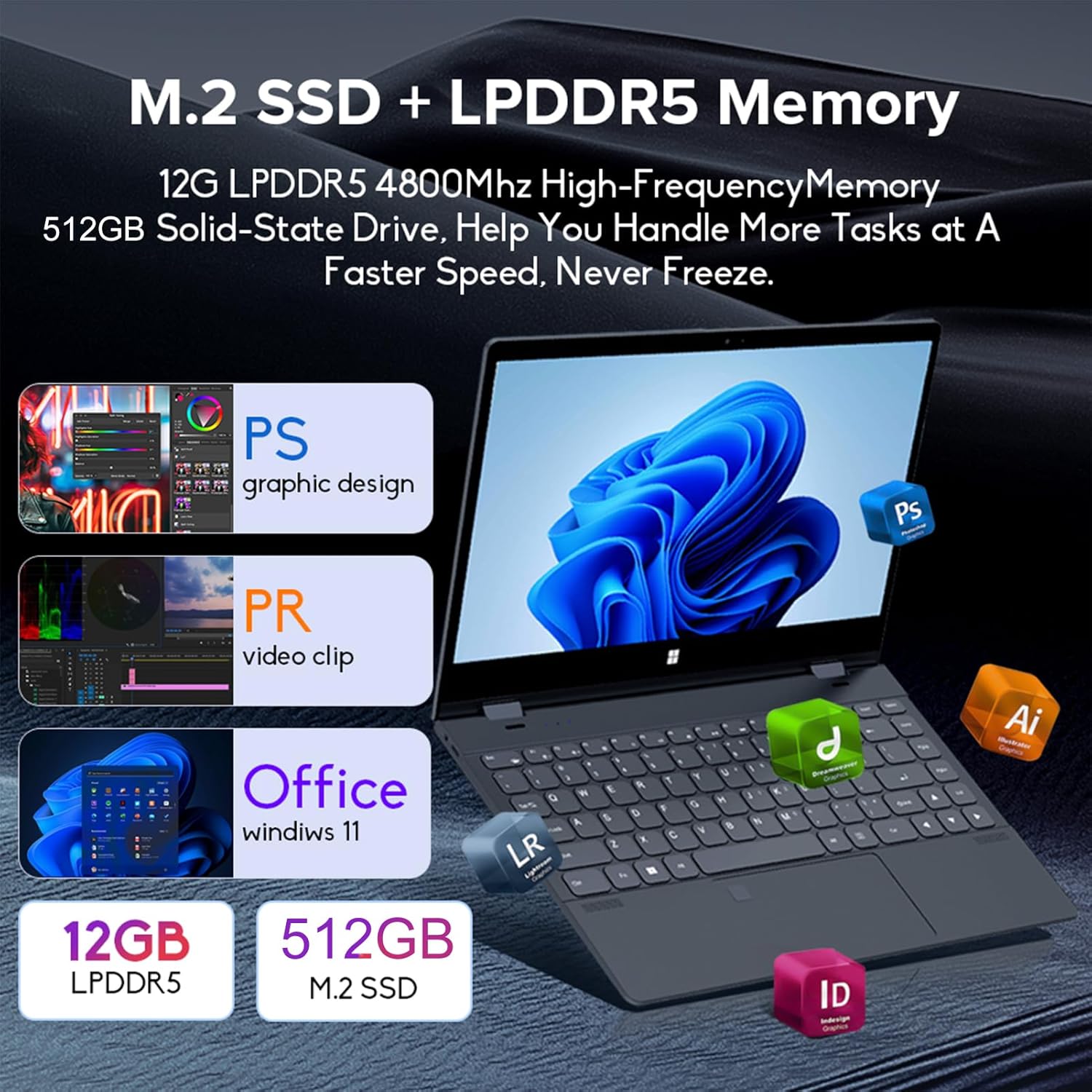
Image: Depiction of the laptop's memory and storage, showing 12GB LPDDR5 RAM and 512GB/1TB M.2 SSD, suitable for various applications.
4.2 ọdụ ụgbọ mmiri na njikọ
Familiarize yourself with the available ports on your laptop:
- USB-C (Full-featured): Supports audio, video, data transmission, and PD2.0 fast charging.
- USB 3.0: Maka ijikọ ngwaọrụ USB.
- Audio Na: Maka ekweisi ma ọ bụ ọkà okwu mpụga.
- DC na: Power input (if applicable, though USB-C is primary charging).
- Onye na-agụ kaadị TF: Maka kaadị ebe nchekwa.

Foto: nkọwa zuru ezu view of the laptop's side ports, including USB-C, USB 3.0, audio jack, and TF card slot.
4.3 Ụdị mgbanwe
The 360-degree hinge allows the laptop to transform into four distinct modes:
- Notebook Mode: Traditional laptop experience for typing and productivity.
- Ụdị mbadamba: Fold the screen back completely for a tablet experience, ideal for touch-based applications and gaming.
- Viewing Mode (Tent Mode): Stand the laptop in a tent shape for watching videos or presentations.
- Conference Mode (Stand Mode): Flip the keyboard under the screen to share content easily in a group setting.

Image: Visual guide demonstrating the four convertible modes of the laptop: Notebook, Tablet, Viewing, and Conference.
5. Ọrụ
5.1 Iji ihuenyo mmetụ ahụ
The 10-point multi-touch screen allows for intuitive navigation. Use gestures similar to a smartphone or tablet. The gravity sensing feature enhances the experience, especially in tablet mode.

Image: Demonstrates the ease of touchscreen operation and the benefit of gravity sensing for gaming.
5.2 Using the Backlit Keyboard and Fingerprint Unlock
- Ahụigodo azụ azụ: Press the Function (Fn) key combined with the appropriate F-key (usually F3 or F4, check keyboard icons) to toggle the keyboard backlight on/off or adjust its brightness.
- Mkpọghe mkpịsị aka: Set up your fingerprint in Windows Settings > Accounts > Sign-in options. Once configured, you can unlock your laptop quickly by placing your registered finger on the fingerprint sensor.
5.3 Ijikọ na Wi-Fi na Bluetooth
The laptop supports dual-band Wi-Fi (2.4G/5.0G Hz 802.11ac) and Bluetooth for wireless connectivity.
- Wi-Fi: Click the Wi-Fi icon in the taskbar, select your desired network, enter the password if prompted, and click Connect.
- Bluetooth: Go to Windows Settings > Bluetooth & devices. Ensure Bluetooth is turned on, then click 'Add device' to pair with Bluetooth peripherals like headphones or mice.

Image: Visual representation of the laptop's dual-band Wi-Fi and Bluetooth connectivity features.
6. Nlekọta na nlekọta
- Nhicha: Jiri akwa dị nro na-enweghị ntụpọ dampejiri mmiri ma ọ bụ ihe nhicha ihuenyo hichaa ihe ngosi ahụ. Maka kiiboodu na chassis, jiri ákwà kpọrọ nkụ ma dị nro. Zere kemịkalụ siri ike.
- Nlekọta batrị: To prolong battery life, avoid fully discharging the battery frequently. Store the laptop in a cool, dry place when not in use for extended periods.
- Igwe ikuku: Gbaa mbọ hụ na anaghị egbochi oghere ikuku ikuku nke laptọọpụ iji gbochie ikpo oke ọkụ. Jiri laptọọpụ n'elu ala siri ike ma dị larịị.
- Mmelite ngwanrọ: Na-emelite sistemụ arụmọrụ gị na draịva gị mgbe niile iji hụ na arụmọrụ na nchekwa kacha mma.
7. Nchọpụta nsogbu
| Nsogbu | Ngwọta enwere ike |
|---|---|
| Laptọọpụ anaghị agba ọkụ. | Ensure the charging cable is securely connected and the power outlet is functional. Allow the laptop to charge for at least 30 minutes before attempting to power on again. |
| Nsogbu njikọ Wi-Fi. | Restart your router and modem. On the laptop, disable and re-enable Wi-Fi. Ensure you are within range of the Wi-Fi signal. |
| Touchscreen is unresponsive. | Restart the laptop. Check for any physical obstructions on the screen. Ensure Windows updates are current. |
| Ìhè azụ kiiboodu anaghị arụ ọrụ. | Press Fn + F-key (check keyboard icon) to toggle or adjust backlight brightness. Ensure drivers are up to date. |
| Laptọọpụ na-agba ọsọ nwayọ. | Close unnecessary applications. Check for background processes. Ensure sufficient free storage space. Run a system scan for malware. |
8. Nka na ụzụ nkọwa
| Njirimara | Nkọwapụta |
|---|---|
| Nha ihuenyo | 14 sentimita asatọ |
| Mkpebi | 3840 x 2160 pikselụ (4K UHD) |
| Nhazi | Intel N95 (up to 3.4GHz) |
| Ogo etinyere ebe nchekwa RAM | 12 GB LPDDR5 |
| Nkọwa diski ike | 512GB/1TB NVMe SSD |
| Sistemụ nrụọrụ | Windows 11 Ụlọ |
| Ihe eserese eserese | Ihe osise Intel UHD (Agbakwunyere) |
| Njikọ ikuku | 2.4G/5.0G Hz 802.11ac Wi-Fi, Bluetooth |
| Mgbakọta ọdụ ụgbọ mmiri USB | 2 (including 1 full-featured USB-C) |
| Agba | Silver agba ntụ |
| Ibu Ibu | 3.46 pound (gram 1570) |
| Akụkụ ngwugwu | 15.35 x 9.84 x 3.35 sentimita asatọ |
| Mba onye si | China |
9. Akwụkwọ ikike na nkwado
For warranty information and technical support, please refer to the documentation provided with your purchase or visit the official Docooler websaịtị. Debe ihe akaebe nke ịzụrụ maka akwụkwọ ikike.
Docooler is committed to providing quality products and customer satisfaction. For further assistance, please contact Docooler customer service.
Note: Protection plans may be available for extended coverage. Please check with your retailer for details.
Ask a question about this manual
Ask about setup, troubleshooting, compatibility, parts, safety, or missing instructions. Manuals+ will review the question and use this page’s manual context to help answer it.