
Ebe 41074
Goobay 41074 USB-C Sync & Charge Cable Instruction Manual
Ụdị: 41074
1. Okwu mmalite
This manual provides instructions for the Goobay 41074 USB-C Sync & Charge Cable. This cable is designed for high-speed data transfer, fast charging, and video/audio transmission between compatible USB-C enabled devices.

Image 1.1: The Goobay 41074 USB-C Sync & Charge Cable, featuring a USB-A connector on one end and a USB-C connector on the other. The image also highlights key specifications such as USB-C compatibility, 1-meter length, 60W power delivery, and 20x faster speed than USB 2.0.
2. Akụrụngwa Ngwaahịa
- Nchaji ngwa ngwa: Supports power delivery up to 60 W (20 V / 3 A) for rapid charging of compatible USB-C devices.
- SuperSpeed+ Data Transfer: Achieves data transfer rates up to 10 Gbit/s, which is 20 times faster than USB 2.0.
- USB 3.2 Gen 2 Standard: Utilizes the latest USB 3.2 Gen 2x2 standard for efficient data handling.
- Njikọ USB-C a na-agbanwe agbanwe: The USB-C plug can be inserted in either orientation.
- Video & Audio Transmission: Capable of transmitting video and audio content to external displays with a USB-C input.
- Ojiji dị iche iche: Suitable for transferring movies, music, videos, and various files.

Foto 2.1: nkọwa zuru ezu view of the Goobay USB-C cable, highlighting its USB-A and USB-C connectors and indicating its 1-meter length, 60W power delivery, and 10 Gbps data transfer speed.
3. Ihe ngwugwu
The package contains the following item:
- 1x Goobay 41074 USB-C Sync & Charge Cable (1 meter)
4. Nhazi
To set up your Goobay 41074 USB-C cable, follow these general steps:
- Chọpụta ọdụ ụgbọ mmiri: Locate the appropriate USB-A and USB-C ports on your devices (e.g., computer, charger, smartphone, monitor).
- Jikọọ Ngwaọrụ: Insert the USB-A end of the cable into a compatible USB-A port on your host device (e.g., computer, wall charger).
- Connect USB-C Device: Insert the USB-C end of the cable into the USB-C port of your target device (e.g., smartphone, tablet, laptop, monitor). The USB-C connector is reversible, allowing for easy connection in either direction.
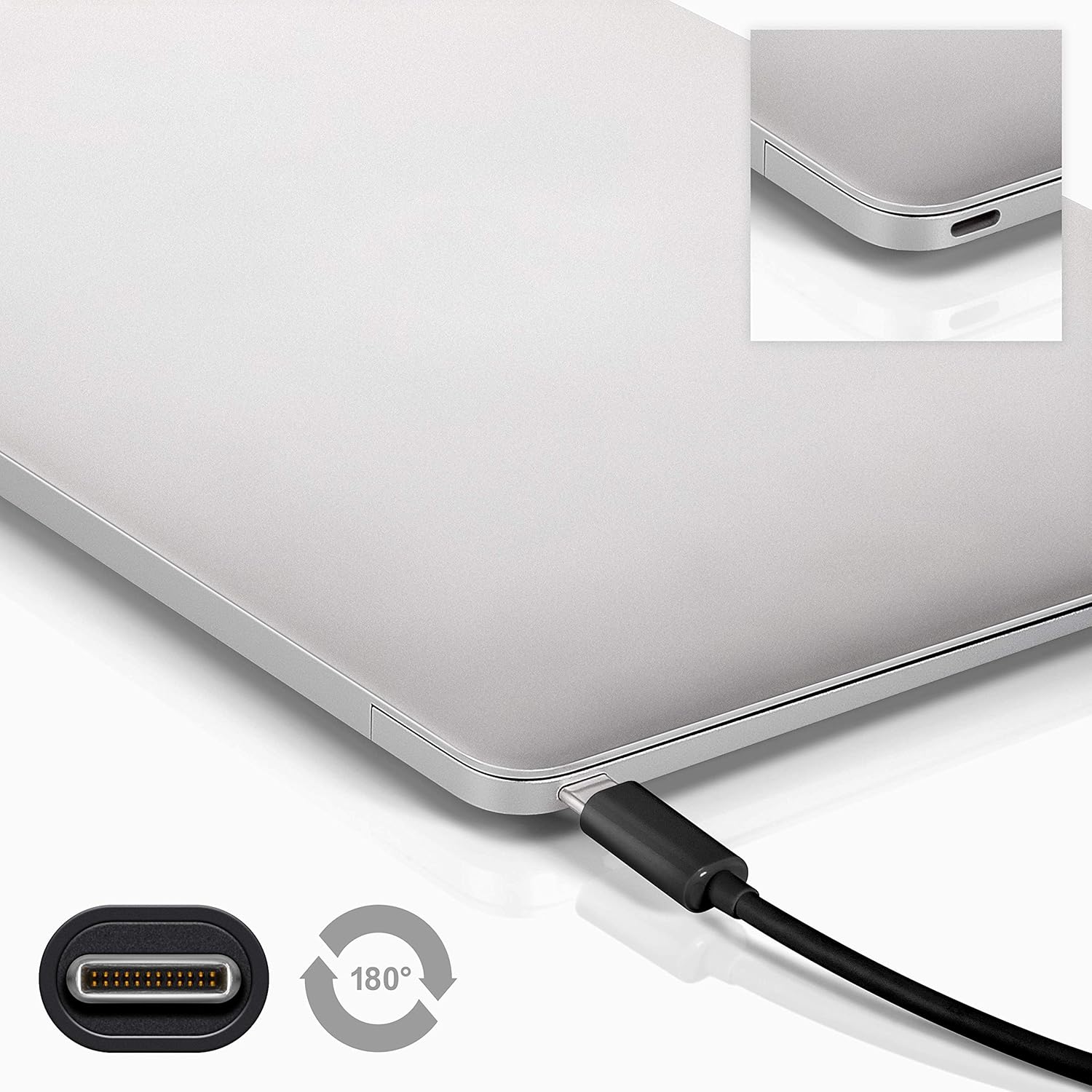
Image 4.1: A Goobay USB-C cable connected to a laptop, demonstrating the reversible nature of the USB-C connector and its ease of use. A close-up of the USB-C port is also shown.
5. Ntuziaka ọrụ
5.1. Ngwa ịchaji
To charge a USB-C enabled device:
- Connect the USB-A end of the cable to a compatible USB wall charger or power adapter.
- Connect the USB-C end of the cable to your USB-C device (e.g., smartphone, tablet, laptop).
- Ensure the power adapter is plugged into a working power outlet. Your device should begin charging.
5.2. Nyefee data
To transfer data between a computer and a USB-C device:
- Jikọọ njedebe USB-A nke eriri ahụ na ọdụ ụgbọ USB-A dị na kọmputa gị.
- Jikọọ njedebe USB-C na ngwaọrụ USB-C gị.
- Your computer should recognize the connected device. Follow the on-screen prompts on your computer and device to manage data transfer (e.g., select 'File Transfer' mode on your smartphone).

Image 5.1: A Goobay USB-C cable connecting a smartphone to a laptop, illustrating its use for data transfer between devices.
5.3. Video and Audio Output
To transmit video and audio to an external display:
- Connect the USB-A end of the cable to your source device (e.g., laptop with a USB-A port that supports video output via an adapter, or a docking station).
- Connect the USB-C end of the cable to a compatible monitor or television with a USB-C input that supports video.
- Ensure your source device and display are configured correctly for video output.
6. Nlekọta
- Nchekwa: Chekwaa eriri ahụ n'ebe dị jụụ, kpọrọ nkụ na-adịghị na ìhè anyanwụ kpọmkwem na oke okpomọkụ. Zere ịchikọta ma ọ bụ gbadaa eriri n'akụkụ dị nkọ iji gbochie mmebi nke ime.
- Nhicha: Disconnect the cable from all devices and power sources before cleaning. Use a soft, dry, lint-free cloth to gently wipe the cable and connectors. Avoid using liquid cleaners or abrasive materials.
- Ijikwa: Always grasp the connector head when plugging or unplugging the cable. Avoid pulling on the cable itself, as this can damage the internal wires or the connector.
- Nyocha: Na-enyocha eriri na njikọ ya mgbe niile maka ihe ịrịba ama ọ bụla nke mmebi, mmebi, ma ọ bụ mmebi. Ọ bụrụ na a hụ mmebi, kwụsị iji ya ma dochie eriri ahụ.
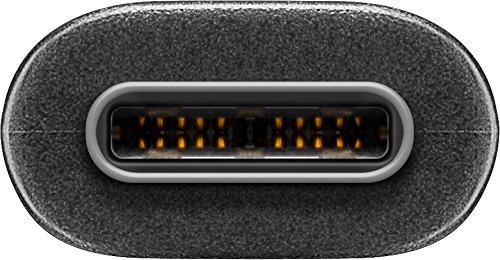
Foto 6.1: nso nso view of the USB-C connector, showing its internal pins. Regular inspection of connectors helps ensure proper function and longevity.
7. Nchọpụta nsogbu
7.1. Device Not Charging
- Lelee njikọ: Ensure both ends of the cable are securely plugged into the device and the power source.
- Nyochaa isi mmalite ike: Confirm that the wall outlet or power adapter is functioning correctly. Try another power source if available.
- Ndakọrịta ngwaọrụ: Ensure your device supports charging via USB-C and that the power adapter provides sufficient wattage.
- Try Another Cable/Port: If possible, test with a different USB-C cable or a different port on your power source/device to isolate the issue.
7.2. Enweghị nnyefe data
- Lelee njikọ: Ensure the cable is firmly connected to both the computer and the USB-C device.
- Ntọala ngwaọrụ: On your USB-C device (e.g., smartphone), check if it's set to 'File Transfer' or 'MTP' mode after connecting to the computer.
- Nghọta Kọmputa: Verify that your computer's operating system recognizes the connected device. You may need to install specific drivers for your device.
- Port Functionality: Test the USB-A port on your computer with another known working device/cable.
7.3. No Video/Audio Output
- ndakọrịta: Ensure both your source device (e.g., laptop) and the external display support video output over USB-C. Not all USB-C ports support this feature.
- Ntinye Ngosipụta: Select the correct input source on your monitor or television.
- Ntọala sistemụ: Check your computer's display settings to ensure the external monitor is detected and configured correctly (e.g., extended display, duplicate display).
8. Nkọwapụta
| Njirimara | Nkọwapụta |
|---|---|
| Ụdị | Ebe |
| Nọmba nlereanya | 41074 |
| Connector Type 1 | USB Type-A (Male) |
| Connector Type 2 | USB Ụdị-C (Nwoke) |
| Ụdị USB | USB |
| Ọkọlọtọ USB | USB 3.2 Gen 2 (SuperSpeed+) |
| Ọnụego mbufe data | Ruo 10 Gbit/s |
| Nnyefe ike | Up to 60 W (20 V / 3 A) |
| Ogologo eriri USB | 1 mita |
| Agba | Nwa |
| Ngwa dakọtara | Monitors, Televisions, USB-C enabled devices |
| Njirimara Pụrụ Iche | Fast Charging, Video & Audio Transmission |
9. Akwụkwọ ikike na nkwado
For warranty information and technical support, please refer to the documentation provided with your purchase or visit the official Goobay websaịtị. Debe ihe akaebe nke ịzụrụ maka akwụkwọ ikike.
Ask a question about this manual
Ask about setup, troubleshooting, compatibility, parts, safety, or missing instructions. Manuals+ will review the question and use this page’s manual context to help answer it.