
Okwu mmalite
Thank you for choosing the Hecate G3m Pro Wireless Bluetooth Gaming Mouse. This manual provides detailed instructions for setting up, operating, and maintaining your new gaming mouse. Designed for performance and versatility, the G3m Pro offers three-mode connectivity, a high-precision sensor, and a lightweight, silent design to enhance your gaming experience.
Ngwaahịa gafereview
The Hecate G3m Pro features a robust design with multiple buttons and connectivity options. Familiarize yourself with the mouse components before use.
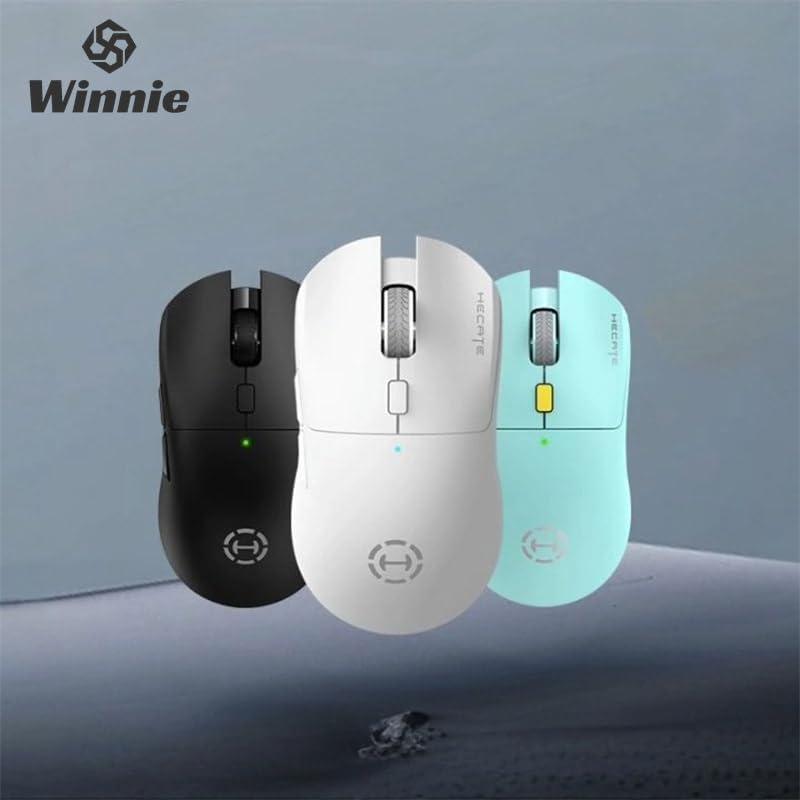
Figure 1: Hecate G3m Pro Wireless Gaming Mouse (Black)
- Pịa bọtịnụ aka ekpe/aka nri: Ọrụ òké nkịtị.
- Mpempe akwụkwọ mpịakọta: For scrolling and middle-click functionality.
- Bọtịnụ okirikiri DPI: Adjusts the mouse sensitivity (DPI) on the fly.
- Bọtịnụ akụkụ: Programmable for various in-game actions or navigation.
- Connectivity Mode Switch: Located on the underside, allows switching between 2.4GHz, Bluetooth, and Wired modes.
- Ọdụ USB-C: Maka njikọ wired na ịchaji.
Melite
Follow these steps to set up your Hecate G3m Pro mouse.
1. Ịchaji òké
Before first use, ensure the mouse is fully charged. Connect the provided USB-C cable to the mouse's USB-C port and the other end to a USB power source (e.g., computer, wall adapter). The LED indicator will show charging status.
2. Connecting via 2.4GHz Wireless (USB Dongle)
- Locate the USB 2.4GHz receiver (dongle) usually stored in a compartment on the underside of the mouse.
- Tinye eriri USB n'ọdụ ụgbọ mmiri dị na kọmputa gị.
- Switch the connectivity mode selector on the mouse to the '2.4G' position.
- The mouse should automatically connect to your computer. The LED indicator may flash briefly and then become solid to indicate a successful connection.
3. Ijikọ site na Bluetooth
- Switch the connectivity mode selector on the mouse to the 'BT' (Bluetooth) position.
- Na kọmputa ma ọ bụ ngwaọrụ gị, gaa na ntọala Bluetooth wee mee ka Bluetooth nwee ike.
- The mouse LED indicator will start flashing, indicating it is in pairing mode.
- Select 'Hecate G3m Pro' from the list of available Bluetooth devices on your computer/device to pair.
- Once paired, the LED indicator will become solid.
4. Connecting via Wired Mode
- Connect the provided USB-C cable to the mouse's USB-C port.
- Jikọọ nsọtụ nke ọzọ nke eriri USB-C na ọdụ USB dị na kọmputa gị.
- Switch the connectivity mode selector on the mouse to the 'Wired' position.
- Òké ahụ ga-arụ ọrụ dị ka òké ejiri waya rụọ ma ọ ga-ejikwa batrị dị n'ime ya chajịa.
Ntuziaka ọrụ
Understand the functions of your mouse for optimal use.
Mmezi DPI
Press the DPI cycle button (usually located behind the scroll wheel) to cycle through different DPI settings. Each press will change the sensitivity, often indicated by a change in the LED color or a specific number of flashes. The mouse supports up to 26000 DPI.
Ngbanwe ọnọdụ
Use the switch on the underside of the mouse to select your preferred connection mode: 2.4GHz, Bluetooth, or Wired. Switch modes according to your device and usage scenario.
Bọtịnụ hazie
For advanced customization of buttons and macros, it is recommended to download the official Hecate software (if available) from the manufacturer's website. This software allows you to reassign button functions, create profiles, and fine-tune performance settings.
Nlekọta
Proper maintenance ensures the longevity and performance of your mouse.
Nhicha
- Jiri akwa dị nro, kpọrọ nkụ hichapụ elu òké ahụ.
- Maka unyi isi ike, ntakịrị dampen akwa na mmiri ma ọ bụ a nwayọọ ihicha ngwọta. Zere kemịkalụ siri ike.
- Do not allow liquids to enter the mouse's internal components.
- Clean the optical sensor on the underside periodically with a cotton swab to ensure accurate tracking.
Nlekọta batrị
- Zere ịchaji batrị ugboro ugboro.
- Chaji òké ahụ mgbe ihe ngosi batrị na-egosi na ike adịghị ala.
- Ọ bụrụ na ị na-echekwa òké ahụ ruo ogologo oge, kwụọ ya ihe dị ka 50% ma chekwaa ya n'ebe dị jụụ na nkụ.
Nchekwa
Store the mouse in a clean, dry environment away from extreme temperatures and direct sunlight. Keep it away from dust and moisture.
Nchọpụta nsogbu
If you encounter issues with your Hecate G3m Pro mouse, refer to the following common solutions.
Òké Anaghị aza
- Lelee batrị: Ensure the mouse is charged. Connect it via USB-C cable to charge.
- Lelee Ụdị Njikọ: Verify that the mode switch on the underside of the mouse is set to the correct mode (2.4G, BT, or Wired) for your connection type.
- Njikọ 2.4GHz: Gbaa mbọ hụ na etinyere eriri USB n'ọdụ ụgbọ mmiri USB na-arụ ọrụ nke ọma. Gbalịa ọdụ ụgbọ USB dị iche.
- Njikọ Bluetooth: Re-pair the mouse with your device. Go to Bluetooth settings, remove the mouse, and then add it again. Ensure your device's Bluetooth is enabled.
- Njikọ waya: Ensure the USB-C cable is securely connected to both the mouse and the computer. Try a different USB port or cable.
Inconsistent Tracking or Cursor Movement
- Ihe mmetụta dị ọcha: Hichaa ihe mmetụta anya dị n'okpuru òké ahụ.
- Mpempe òké: Use the mouse on a clean, uniform surface or a high-quality mouse pad. Avoid reflective or glass surfaces.
- Ntọala DPI: Adjust the DPI setting using the DPI cycle button to find a comfortable sensitivity.
Bọtịnụ anaghị arụ ọrụ
- Ntinye aka na ngwanrọ: If using custom software, try resetting button assignments to default.
- Nwalee na ngwaọrụ ọzọ: Connect the mouse to another computer to determine if the issue is with the mouse or the original device's settings.
Nkọwapụta
Detailed technical specifications for the Hecate G3m Pro Wireless Bluetooth Gaming Mouse.
| Njirimara | Nkọwa |
|---|---|
| Nlereanya | G3m Pro |
| Ụdị | Hecate |
| Teknụzụ Njikọta | 2.4GHz Wireless, Bluetooth, Wired (USB-C) |
| Nchọpụta mmegharị | Optical (Paw3395 Sensor) |
| DPI (ntụpọ kwa inch) | Ruo 26000 DPI |
| Osooso | 50G |
| IPS (Inchi kwa Sekọnd) | 600 |
| Ọnụọgụ bọtịnụ | 6 |
| Ọnụọgụ nke Rollers | 1 (Scroll Wheel) |
| Ntuzi aka | Ambidextrous |
| Njirimara Pụrụ Iche | Lightweight (Approx. 63g) |
| Ụdị Ike | Batrị enwere ike ịchaji |
| Akwadoro ojiji | Ịgba egwu |
| Ngwa dakọtara | Personal Computer, Laptop, Game Console |
| Sistemu eji arụ ọrụ | Linux, Windows XP (na ụdị ọhụrụ) |
Akwụkwọ ikike na nkwado
Your Hecate G3m Pro Wireless Bluetooth Gaming Mouse comes with a warranty and dedicated support.
Ozi akwụkwọ ikike
All products are covered by a Akwụkwọ ikike nke ọnwa 12 site na ụbọchị ịzụrụ. Akwụkwọ ikike a na-ekpuchi ntụpọ nrụpụta yana nsogbu na-esite na iji nkịtị.
Nkwado ndị ahịa
If you encounter any problems with your product, such as defective or incorrect items, please do not hesitate to contact us. We are committed to providing prompt assistance and will respond to your inquiries within 24 hours. Please refer to your purchase documentation for specific contact details or visit the official Hecate support websaịtị.