
1. Okwu mmalite na gafereview
Welcome to the world of aerial photography and exploration with your new Holy Stone HS360S GPS Drone. This special edition drone, celebrating Holy Stone's 10th Anniversary, features a vibrant dark green paint scheme and is designed for both beginners and experienced pilots. Weighing under 249g, it is FAA compliant, meaning no registration is needed, allowing you to focus on the joy of flight.
The HS360S is equipped with a 4K UHD camera, offering high-resolution photos (3840x2160P) and videos, an 85° FOV lens, and a 90° adjustable camera for capturing breathtaking aerial footage. Its superior 5G transmission technology provides a reliable connection up to 10,000 feet. Advanced GPS functions ensure stable flight and safe return, while intelligent flight modes like Follow Me, Tap Fly, Point of Interest, and Hand Gesture Shots enhance your flying experience.
Video: Holy Stone 10th Anniversary Special Edition Drone. This video showcases the drone's design and some of its key features in action.
Video: Holy Stone HS360S Special Edition. A detailed look at the special edition HS360S drone and its capabilities.
2. Ntọala na Mgbakọ
2.1 Kedu ihe dị na igbe ahụ
- Holy Stone HS360S Drone
- Onye njikwa anya
- Intelligent Flight Batteries (2 included in this version)
- USB Charging Cables (for drone and controller)
- Mapụtara propeller
- Screwdriver
- Buru Akpa
- Akwụkwọ ntuziaka (akwụkwọ a)

Image: All components included with the Holy Stone HS360S drone, neatly arranged in its carry case.
2.2 Ntọala mbụ
- chaja batrị: Fully charge both the drone's flight batteries and the remote controller's internal battery using the provided USB cables.
- Unfold Drone: Gently unfold the drone's arms until they click into place.
- Fanye batrị: Insert a fully charged intelligent flight battery into the drone's battery compartment until it is securely latched.
- Prepare Remote Controller: Extend the phone holder on the remote controller. Attach your smartphone to the holder and connect it using the appropriate data cable (USB-C, Lightning, or Micro USB).
- Budata ngwa: Download and install the 'HS Fly' app from your smartphone's app store.
3. Ntuziaka ọrụ
3.1 Onye njikwa anya gafereview
The remote controller is your primary interface for controlling the HS360S drone. Familiarize yourself with its layout and functions:
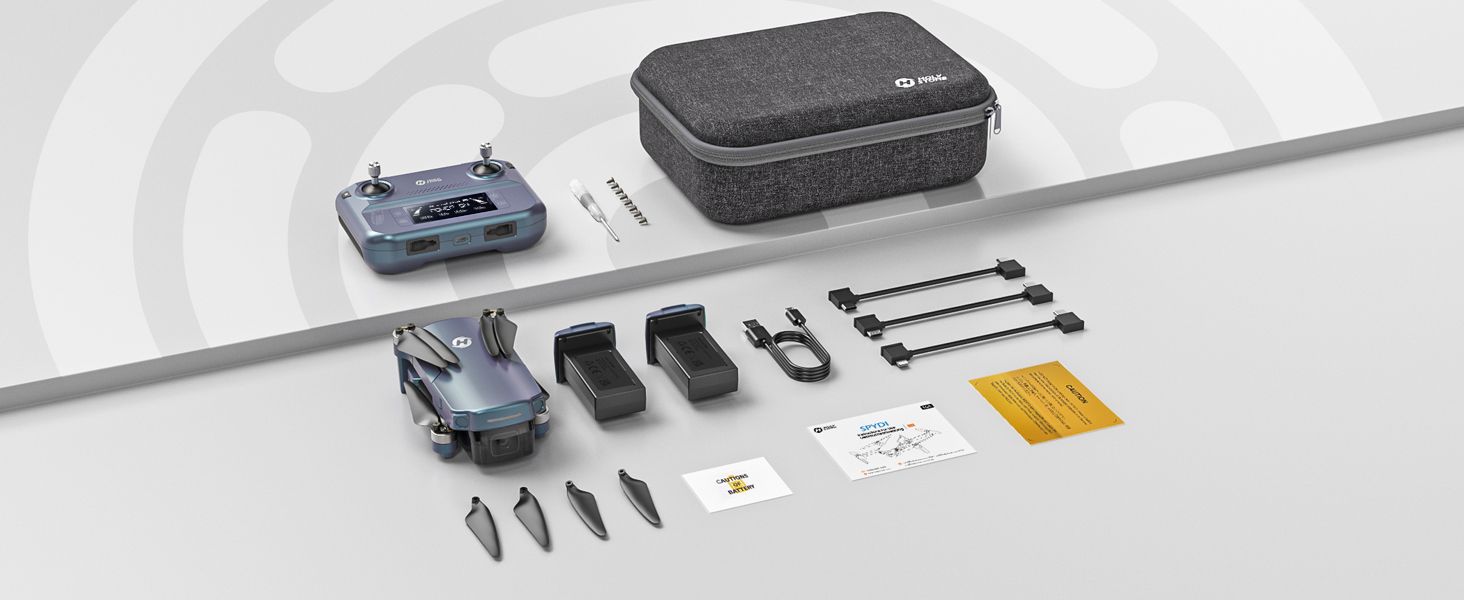
Image: Detailed diagram of the Holy Stone HS360S remote controller, highlighting all buttons and ports.
- Joystick akaekpe: Controls altitude (up/down) and rotation (yaw left/right).
- Joystick aka nri: Na-achịkwa mmegharị ihu/azụ na aka ekpe/nri.
- Takeoff/Landing Button: Short press for automatic takeoff/landing.
- Nkwụsị ihe mberede: Long press to immediately stop motors (use only in emergencies).
- Mgbanwe Ọsọ: Short press to cycle through speed modes (Beginner, Normal, Sport).
- Ngbanwe GPS: Long press to toggle GPS mode.
- Nlaghachi n'ụlọ (RTH): Initiates automatic return to the takeoff point.
- Were bọtịnụ foto: Captures a still image.
- Record Video Button: Na-amalite/kwụsị ndekọ vidiyo.
- Ọkpụkpọ mbugharị: Adjusts camera zoom.
- Camera Adjustment Dial: Tilts the camera up or down.
- Ihuenyo LCD: Displays flight information and battery status.
- Port Njikọ: For connecting your smartphone.
3.2 Ọrụ ụgbọ elu bụ isi
- Ike Na: Turn on the drone first, then the remote controller. Wait for them to connect (indicated by solid lights and a beep).
- Mgbama GPS: Ensure the drone has acquired sufficient GPS satellites before takeoff for stable flight and RTH functionality.
- Gbapụ: Place the drone on a flat, open surface. Short press the Takeoff/Landing button. The drone will automatically ascend and hover.
- Ụgbọ elu na-achịkwa: Use the joysticks to control the drone's movement. Start with slow, gentle movements, especially in Beginner Mode.
- Ọdịda: Short press the Takeoff/Landing button. The drone will automatically descend and land. Alternatively, you can manually land using the left joystick.
3.3 Ụdị ụgbọ elu nwere ọgụgụ isi
The HS360S offers several intelligent flight modes to enhance your aerial photography and videography:
- Soro m ọnọdụ: The drone will automatically follow the remote controller (and your connected smartphone) at a set distance and altitude.
- Tap Fly: Tap a point on the map in the HS Fly app, and the drone will fly to that location.
- Point of Interest: Select a central point, and the drone will circle around it, capturing footage.
- Hand Gesture Shots: Use specific hand gestures to trigger photo or video capture.
- Auto Return (RTH): The drone will return to its takeoff point if the battery is low, connection is lost, or the RTH button is pressed.

Image: Visual representation of the drone performing various intelligent flight functions like Follow Me, Point of Interest, Trajectory Flight, and Waypoint Flight.

Image: Diagram illustrating the Smart Return Home feature, showing the drone returning to its home point due to low voltage, smart RTH activation, or failsafe RTH.
3.4 Igwefoto arụ ọrụ
The integrated 4K UHD camera allows you to capture stunning visuals:
- Foto/Ihe onyonyo: Use the dedicated buttons on the remote controller or the HS Fly app to take photos or start/stop video recording.
- Ndozi akụkụ igwefoto: Use the camera adjustment dial on the remote to tilt the camera for different perspectives.
- Mkpebi: Photos are captured at 3840x2160P, and videos are recorded in 4K.

Foto: nso nso view of the Holy Stone HS360S drone's 4K UHD camera, highlighting its 90° remotely adjustable feature and 85° FOV.
Video: Holy Stone HS360S Green GPS 4K Drone with Camera for Adults. This video demonstrates the drone's camera capabilities and flight stability.
4. Nlekọta
- Nyocha igwe ihe Regularly check propellers for any damage (cracks, bends). Replace damaged propellers immediately using the provided spare parts and screwdriver.
- Nhicha: Keep the drone and camera lens clean from dust and debris. Use a soft, dry cloth.
- Nlekọta batrị: Debe batrị n'ebe dị jụụ ma kpọọ nkụ. Ejila ya oke chaji ma ọ bụ ewepụ ya n'ime mmiri.
- Nchekwa: When not in use, fold the drone and store it in its carry case to protect it from damage.
5. Nchọpụta nsogbu
If you encounter any issues, please refer to the following common troubleshooting tips:
- Drone Not Responding: Ensure both the drone and controller are fully charged and properly paired. Re-calibrate the drone if necessary.
- Ụgbọelu Na-adịghị Akwụsi Ike: Ensure GPS signal is strong. Calibrate the gyroscope and compass as per the app instructions. Avoid flying in strong winds.
- No Camera Feed: Check the smartphone connection cable and ensure the HS Fly app is running correctly.
- Oge Njem Dị Mkpirikpi: Ensure batteries are fully charged. Flight time can be affected by aggressive flying or strong winds.
For more detailed troubleshooting or persistent issues, please contact Holy Stone Customer Support.
6. Nkọwapụta
| Njirimara | Nkọwapụta |
|---|---|
| Aha Nlereanya | HS Gradient Color Edition |
| Ibu Ibu | 8.7 ounce (249g) |
| Mkpebi ịse vidiyo | 4K UHD (3840x2160P) |
| Oke kacha | 10,000 Feet (Transmission) |
| Teknụzụ Njikọta | 5G WiFi Repeater |
| Atụmatụ pụrụ iche | 4K UHD Camera, Time-lapse Photography, FPV, GPS Follow Me, Auto Return, Lightweight, No Need FAA/Remote ID |
| Ngwakọta cell batrị | Lithium polymer |
| Ụdị njikwa | Njikwa anya |
| Ihe onwunwe | Plastic |
| Akụkụ ihe (L x W x H) | 11.6"L x 8.4"W x 2.2"H |
7. Akwụkwọ ikike na nkwado
Holy Stone is committed to providing excellent customer service. If you have any questions, concerns, or require assistance with your HS360S drone, please do not hesitate to contact our support team.
Our HS Fly App also ensures continuous improvements and updates to the drone's functions, offering an ever-improving flight experience. For further guidance, you can refer to in-app tutorials and official YouTube guidance videos.
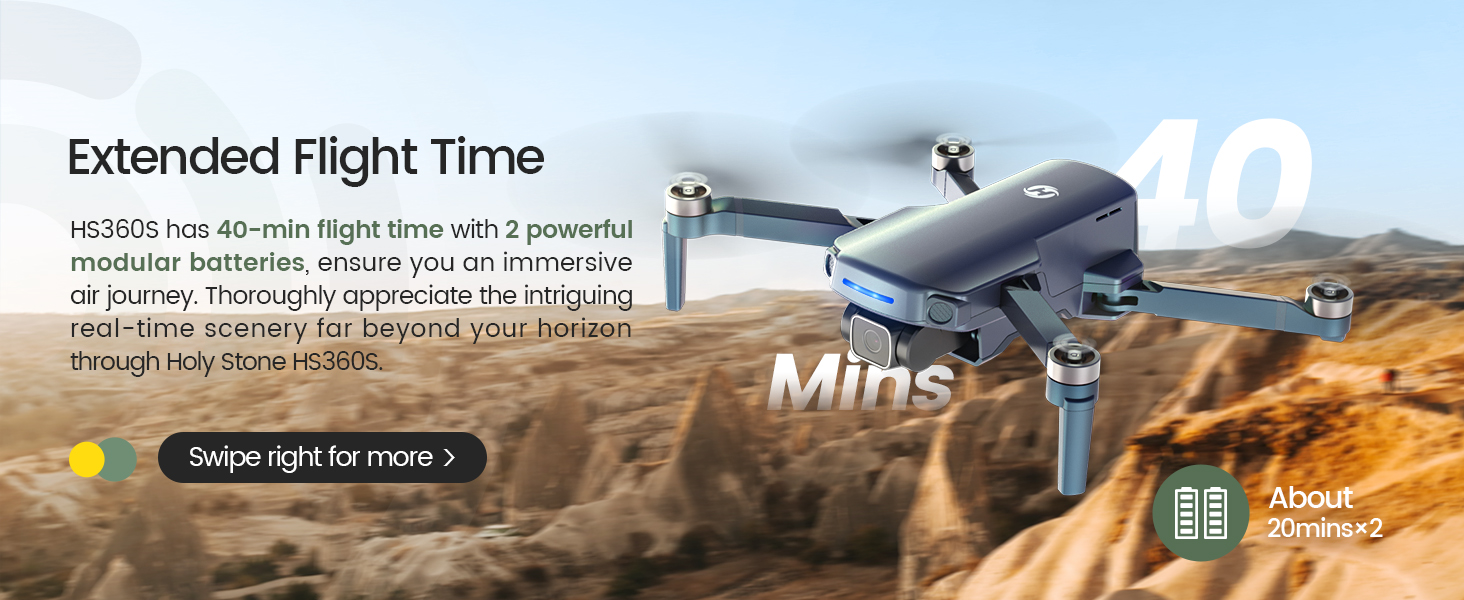
Image: A customer support representative ready to assist, symbolizing Holy Stone's commitment to flight guidance and after-sales support.
Ozi mkpọtụrụ: Please refer to your product packaging or the official Holy Stone websaịtị maka nkọwa kọntaktị kachasị ọhụrụ maka nkwado ndị ahịa.