Okwu mmalite
Thank you for choosing the Aula H530 Dual Mode Wireless Gaming Mouse. This manual provides detailed instructions for setting up, operating, and maintaining your mouse to ensure optimal performance and longevity. Please read this manual thoroughly before using the product.
Ngwaahịa gafereview
Atụmatụ igodo
- Dual Mode Connectivity: 2.4GHz Wireless and Bluetooth.
- RGB Lighting: 16.8 million color RGB dazzle with streamed breathing light and 15 light effect modes.
- Ergonomic Design: Comfortable feel for extended use.
- Multi-functional: Includes e.4G mode, Bluetooth mode, Decompression mode, and Entertainment mode.
- Suspended UFO Design: Unique aesthetic and functional element.
- Fingertip Top: Instant rotation feature for decompression.
Ngwa
The Aula H530 mouse package typically includes:
- Aula H530 Dual Mode Wireless Gaming Mouse
- USB Receiver (for 2.4GHz wireless mode)
- Charging Cable (if rechargeable)
- Akwụkwọ ntuziaka (akwụkwọ a)

Image: The Aula H530 Dual Mode Wireless Gaming Mouse in white, showcasing its sleek design and illuminated scroll wheel.
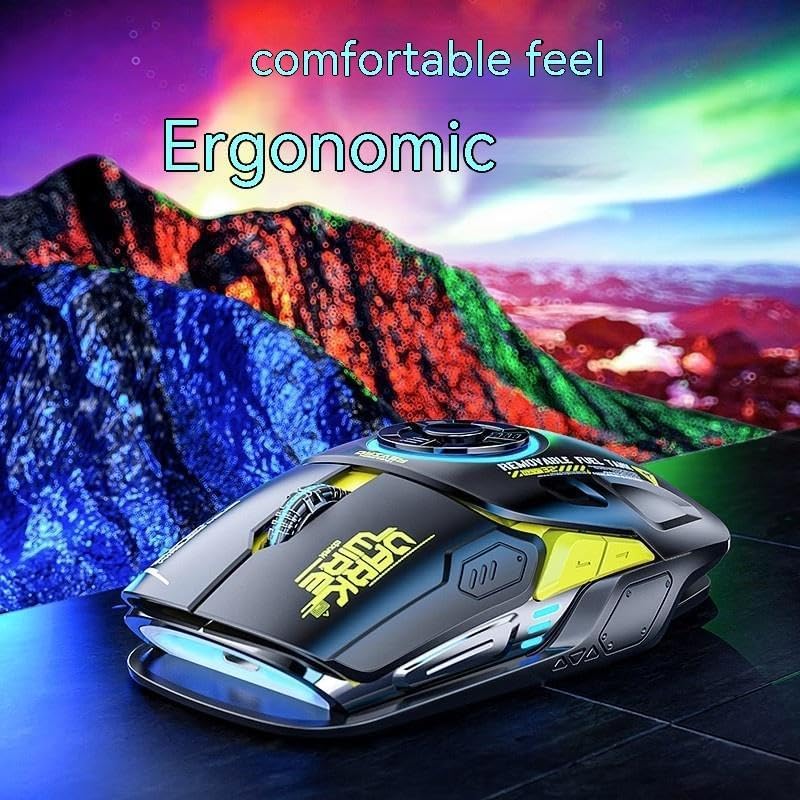
Image: The Aula H530 mouse in black, illustrating its ergonomic design for comfortable long-term use.
Melite
Ịchaji òké
Before first use, ensure the mouse is fully charged. Connect the charging cable to the mouse's charging port and the other end to a USB power source (e.g., computer USB port, USB wall adapter). The charging indicator light will show the charging status.
Njikọ ikuku 2.4GHz
- Chọta ebe nnata USB, nke a na-echekwakarị n'ime akụkụ dị n'okpuru òké.
- Tinye eriri USB n'ọdụ ụgbọ mmiri dị na kọmputa gị.
- Gbanye òké ahụ site na iji ihe mgba ọkụ eletrik dị n'okpuru ya.
- The mouse should automatically connect to your computer. If not, press the pairing button (if available) or refer to the operating system's Bluetooth settings for manual pairing.
Njikọ Bluetooth
- Ensure your computer's Bluetooth is enabled.
- Switch the mouse to Bluetooth mode using the mode switch on the mouse (if applicable).
- Press and hold the Bluetooth pairing button on the mouse (refer to the mouse's underside or side buttons for location) until the indicator light flashes, indicating it's in pairing mode.
- Na kọmputa gị, gaa na ntọala Bluetooth wee chọọ ngwaọrụ ọhụrụ.
- Select "Aula H530" or a similar name from the list of available devices and click "Connect" or "Pair".
- Once connected, the indicator light on the mouse will become solid.

Image: Illustration of the Aula H530 mouse highlighting its four wireless modes: 2.4G, Bluetooth, Decompression, and Entertainment.
Ntuziaka ọrụ
Ụdị mgbanwe
The Aula H530 supports multiple operating modes. Use the dedicated mode switch or button on the mouse to cycle between 2.4G, Bluetooth, Decompression, and Entertainment modes. Each mode may have specific functionalities or lighting effects.
Njikwa ọkụ RGB
The mouse features customizable RGB lighting. Specific buttons or software (if available for download from the manufacturer's website) can be used to change lighting effects, colors, and brightness. Refer to the product's online resources for advanced customization.

Image: Display of the Aula H530 mouse showcasing its vibrant RGB lighting with multiple color options and breathing effects.
Decompression and Entertainment Features
The mouse incorporates unique "Decompression" and "Entertainment" modes. These modes may activate specific tactile feedback, sound effects, or visual cues designed for stress relief or interactive play. Experiment with these modes to discover their full capabilities.

Image: The Aula H530 mouse demonstrating its "Suspended UFO" feature, where a part of the mouse can be pressed for decompression.

Image: Close-up of the Aula H530 mouse highlighting the "Fingertip Top" feature, which allows for instant rotation and decompression.
Nlekọta
Nhicha
Iji hichaa òké gị, jiri ákwà dị nro ma kpọọ nkụ. Maka unyi siri ike, jiri obere d hichaa òké gị.ampen the cloth with water or a mild, non-abrasive cleaner. Avoid using harsh chemicals or abrasive materials, as they can damage the mouse's surface.
Nchekwa
When not in use for extended periods, store the mouse in a cool, dry place away from direct sunlight and extreme temperatures. Ensure the mouse is turned off to conserve battery life.
Nchọpụta nsogbu
| Nsogbu | Ihe nwere ike ime | Ngwọta |
|---|---|---|
| Òké anaghị aza | Low battery; USB receiver disconnected; Incorrect mode selected; Driver issue. | Charge the mouse; Reconnect USB receiver; Switch to correct mode (2.4G/Bluetooth); Restart computer; Update/reinstall mouse drivers. |
| Nsogbu njikọ Bluetooth | Mouse not in pairing mode; Bluetooth disabled on computer; Interference. | Ensure mouse is in Bluetooth pairing mode; Enable Bluetooth on computer; Move closer to computer; Remove other wireless devices. |
| Mmegharị na-aga n'ihu ma ọ bụ na-adịghị arụ ọrụ nke ọma | Dirty sensor; Weak signal; Surface issues. | Clean the optical sensor; Ensure clear line of sight to receiver; Use on a suitable mouse pad. |
| Igwe ọkụ RGB anaghị arụ ọrụ | Lighting feature turned off; Software glitch. | Check mouse buttons for lighting control; Restart mouse; Check for firmware updates. |
Nkọwapụta
| Njirimara | Nkọwa |
|---|---|
| Nlereanya | H530 |
| Ụdị | N'ozuzu |
| Teknụzụ Njikọta | Ikuku 2.4GHz, Bluetooth |
| Atụmatụ pụrụ iche | Wireless, RGB Lighting, Dual Mode, Decompression Mode, Entertainment Mode |
| Ntuzi aka | Right |
| Akwadoro ojiji | Ịgba egwu |
| Ngwa dakọtara | Kọmputa nkeonwe |
| Ndakọrịta sistemụ arụmọrụ | Linux, Windows XP (and likely newer Windows versions) |
| Agba | White (for this specific variant) |
| Ntuziaka onye nrụpụta | MO-1005005833196944-002 |
| ASIN | B0CP39F85Y |
Akwụkwọ ikike na nkwado
Ngwaahịa a na-abịa na a Akwụkwọ ikike nke ọnwa 12 site na ụbọchị ịzụrụ. Akwụkwọ ikike a na-ekpuchi ntụpọ nrụpụta na adịghị arụ ọrụ n'okpuru ojiji nkịtị.
If you encounter any issues with your product, such as receiving a damaged item or incorrect product, please contact the seller or manufacturer directly. They aim to reply to inquiries within 24 hours to assist with your concerns.
For further assistance or to report a problem, please refer to the contact information provided by your retailer or on the product packaging.


