
1. Okwu mmalite
This manual provides essential information for the safe and efficient operation of your Skyworth 50SUE9500 50-Inch UHD QLED Google TV. Please read it thoroughly before using the television and retain it for future reference. This television features a 50-inch 4K UHD QLED display, integrated Google TV platform, and advanced audio technologies.
2. Ozi nchekwa
Always observe the following safety precautions to prevent electric shock, fire, or damage to the television:
- Ewepụla igwe onyonyo na mmiri ozuzo ma ọ bụ mmiri.
- Do not open the television casing; zigara ndị ọrụ ruru eru ọrụ niile.
- Ensure proper ventilation around the television.
- Use only the power cord supplied with the television.
- Keep the television away from direct sunlight, heat sources, and strong magnetic fields.
- Kwụpụ igwe onyonyo n'oge oke mmiri ozuzo ma ọ bụ mgbe ejighi ya ogologo oge.
3. Ihe ngwugwu
Chọpụta na ihe niile dị na ngwugwu:
- 1 x Skyworth 50SUE9500 50-Inch UHD QLED Google TV
- Njikwa anya
- Ụdọ ọkụ
- Ngwa ihe nkwụnye TV
- Akwụkwọ ntuziaka (akwụkwọ a)
4. Nhazi
4.1. Guzosie nwụnye
Carefully place the television face down on a soft, clean surface. Attach the stand components to the designated slots on the bottom of the television using the provided screws. Ensure the stand is securely fastened before placing the TV upright.

Foto: Akụkụ view of the Skyworth 50SUE9500 TV, illustrating the slim profile and stand attachment points.
4.2. Ijikọ Mpụga Devices
Connect your external devices such as set-top boxes, gaming consoles, or sound systems to the appropriate ports on the television. The TV features multiple interfaces to meet various connectivity needs.

Image: Diagram illustrating the various input and output ports available on the Skyworth TV, including USB 2.0 (x2), RF, AV IN, HDMI 2.0 (x3), LAN, and SPDIF.
- ọdụ ụgbọ mmiri HDMI: Connect high-definition devices like Blu-ray players or gaming consoles. This model includes 3 HDMI 2.0 ports.
- ọdụ ụgbọ mmiri USB: Maka ijikọ ngwaọrụ nchekwa USB ka ọ kpọọ mgbasa ozi files. This model includes 2 USB 2.0 ports.
- Ọdụ ụgbọ mmiri LAN: Maka njikọ ịntanetị ejikọrọ.
- Ntinye RF: Maka ijikọ antenna ma ọ bụ TV USB.
- AV n'ime: For connecting older devices with composite video and stereo audio outputs.
- SPDIF: For digital audio output to a sound system.
4.3. Initial Power-On and Google TV Setup
After connecting all cables and the power cord, press the power button on the remote control or the TV. Follow the on-screen instructions to complete the initial setup, including network connection, Google account login, and channel scanning. This will personalize your Google TV experience.
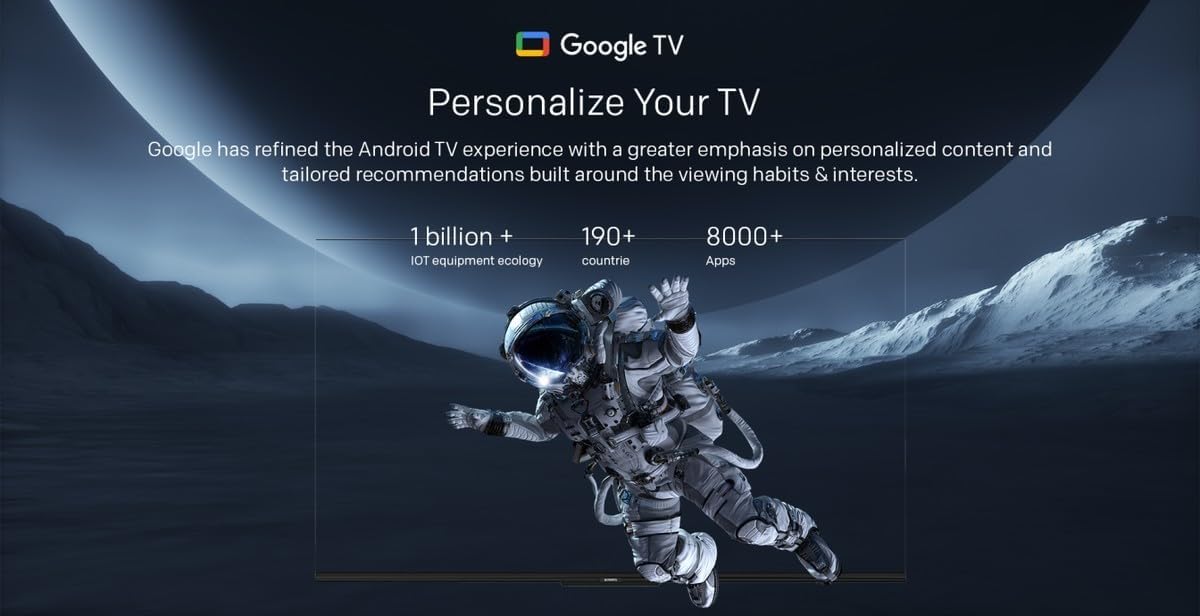
Image: A visual representation of the Google TV interface, highlighting personalized content and tailored recommendations based on viewing habits and interests.
5. Operating the Television
5.1. Ọrụ ndị bụ isi
- Gbanyụọ/ Gbanyụọ: Jiri bọtịnụ ike dị na ime ime ma ọ bụ TV.
- Nhọrọ ntinye: Press the 'Input' button on the remote to switch between HDMI, AV, and other sources.
- Njikwa olu: Jiri bọtịnụ 'Mpịakọta Elu/Mpịakọta'.
- Nhọrọ ọwa: Use the 'Channel Up/Down' buttons or number pad.
5.2. Atụmatụ Google TV
Your Skyworth TV integrates Google TV, offering a smart and personalized viewAhụmịhe dị mkpa gụnyere:

Image: A collection of icons representing key features: Google TV, Flicker Free, Low Blue Light, Filmmaker Mode, Dolby Audio, DTS Studio Sound, and Bidirectional Bluetooth.
- Njikwa olu: Use the built-in 'Hey Google' voice assistant to search for content, control smart home devices, and manage TV functions.
- Nweta ngwa: Download and stream from a wide variety of applications available on the Google Play Store.
- Ndụmọdụ ahaziri iche: Google TV learns your preferences to suggest movies, shows, and live TV.
- Daily Family Features: Access daily shortcuts, manage apps, and use daily key functions for simplified operation.

Image: A composite image demonstrating Google TV's 'Daily Family' features, including 'Daily Shortcuts' for common settings, 'Daily Manage' for app organization, and 'Daily Key' for direct access via remote, alongside 'Hey Google' voice control functionality.
5.3. Atụmatụ Pụrụ Iche
- Bidirectional Bluetooth: Connect mobile phones or Bluetooth audio products to the TV, or use the TV as a soundbar for external devices.
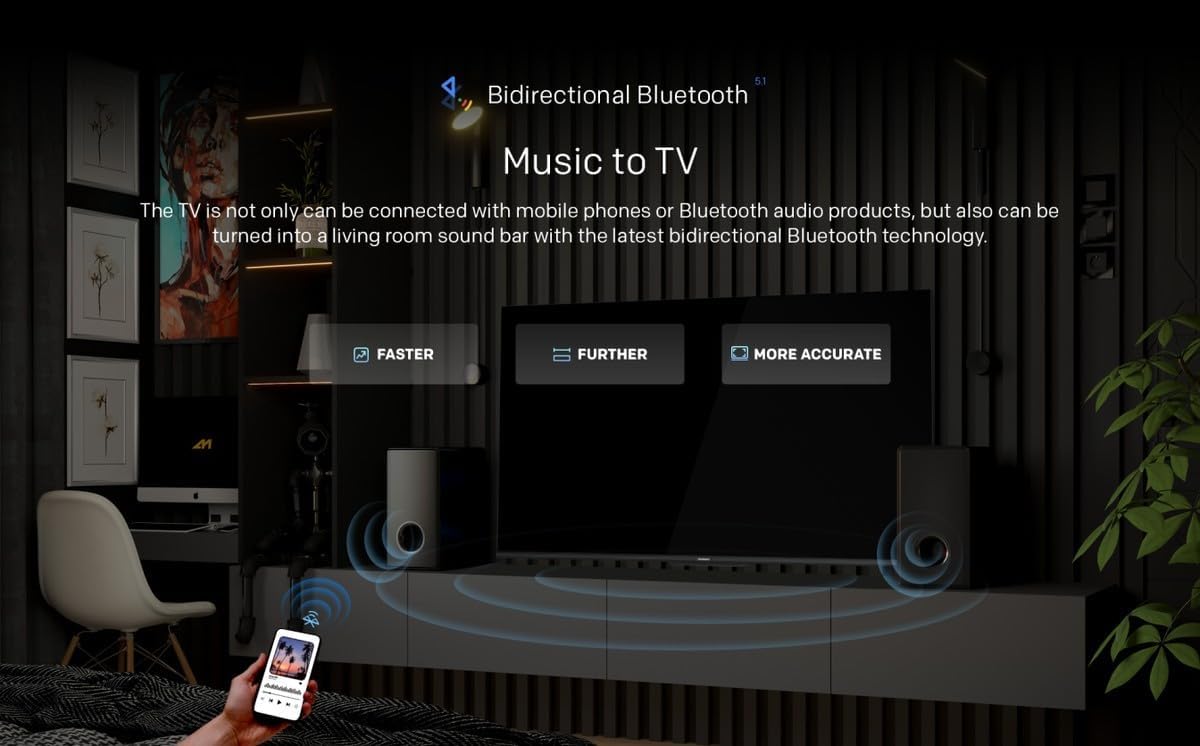
Image: A diagram showing how Bidirectional Bluetooth allows connecting mobile phones or Bluetooth audio products to the TV, or using the TV as a soundbar, emphasizing faster, further, and more accurate connections.
- Flicker Free & Low Blue Light: Designed to reduce eye strain during extended viewing.
- Ụdị ihe nkiri: Preserves the original aspect ratio, colors, and frame rates of content as intended by the filmmaker.
- Swaiot Smart Home: Voice control connected home devices directly from your TV to adjust room temperature, lighting, and play music.
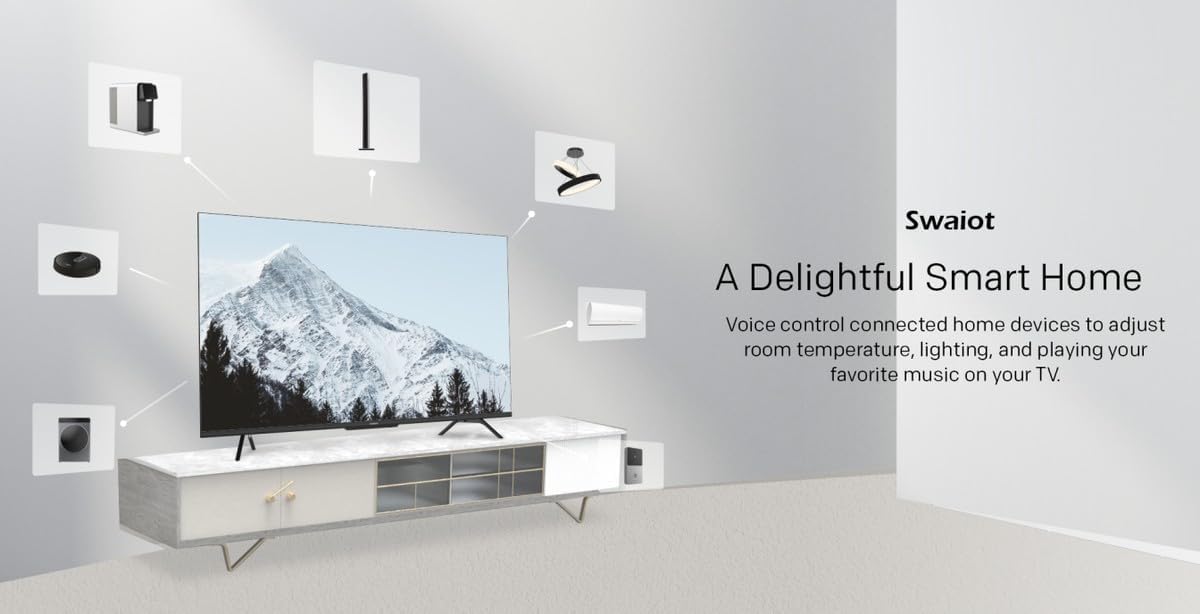
Image: An illustration of the Swaiot smart home ecosystem, showing various smart devices connected and controllable via the Skyworth TV.
6. Foto na Ntọala ụda
Your QLED TV offers advanced picture and sound customization. Navigate to the 'Settings' menu to adjust:
- Ụdị foto: Select from standard, vivid, movie, game, or custom settings.
- Brightness, Contrast, Color: Fine-tune display characteristics.
- Ọnọdụ ụda: Choose from standard, music, movie, or custom audio profiles.
- Dolby Audio & DTS Studio Sound: Enhance your audio experience with these integrated technologies.
Skyworth has over 30 years of experience in picture quality adjustment, ensuring optimal visual performance.
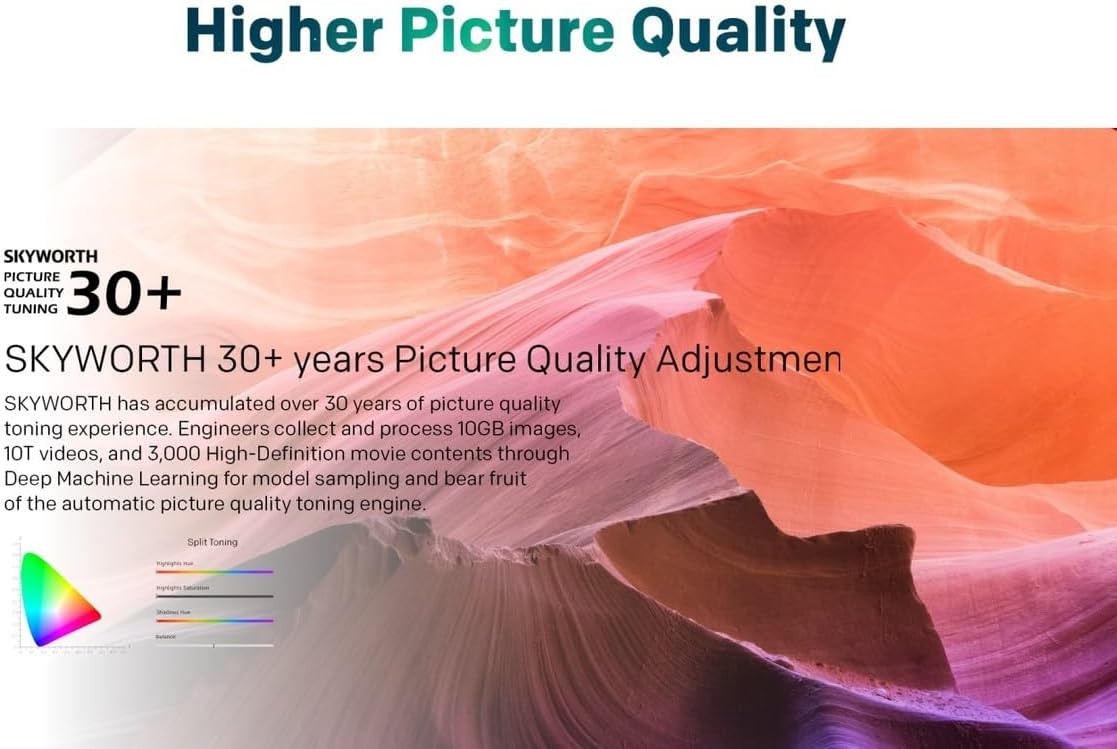
Image: A graphic highlighting Skyworth's 30+ years of picture quality adjustment experience, showcasing advanced color tuning and processing capabilities.
7. Nlekọta
7.1. Na-ehicha ihuenyo
Jiri nwayọ hichaa ihuenyo ahụ site na iji akwa dị nro na-enweghị lint. Maka akara ndị isi ike, dị obere dampen akwa na mmiri ma ọ bụ pụrụ iche ihuenyo Cleaner. Afesala mmiri mmiri ozugbo na ihuenyo.
7.2. Ichacha Casing
Use a soft, dry cloth to clean the television casing. Zere iji ihe nhicha ma ọ bụ ihe mgbaze.
8. Nchọpụta nsogbu
If you encounter issues with your television, refer to the following common problems and solutions:
- Enweghị ike: Ensure the power cord is securely plugged into both the TV and a working electrical outlet. Check the power indicator light.
- Enweghị foto, mana ụda: Nyochaa isi mmalite ntinye ziri ezi ahọpụtara. Lelee njikọ eriri na ngwaọrụ mpụga.
- Enweghị ụda, mana foto: Check the volume level and mute settings. Ensure external audio systems are properly connected and powered on.
- Njikwa anya anaghị arụ ọrụ: Dochie batrị. Gbaa mbọ hụ na onweghị ihe mgbochi n'etiti ime ime na ihe mmetụta IR nke TV.
- Ogo Foto adịghị mma: Check antenna or cable connections. Adjust picture settings in the menu. For streaming content, check your internet connection speed.
- Nsogbu Njikọ Ịntanetị: For Wi-Fi, ensure the password is correct and the router is working. For wired connection, check the LAN cable. Try restarting your router.
Ọ bụrụ na nsogbu ahụ dịgidere, kpọtụrụ nkwado ndị ahịa.
9. Nkọwapụta
| Njirimara | Nkọwapụta |
|---|---|
| Ụdị | Skyworth |
| Nọmba nlereanya | 50SUE9500 QLED |
| Nha ihuenyo | 50 sentimita asatọ |
| Ngosipụta teknụzụ | QLED |
| Mkpebi | 4K (3840 x 2160) |
| Ọnụego ume ọhụrụ | 60 Hz |
| Akụkụ akụkụ | 16:9 |
| Teknụzụ Njikọta | HDMI, USB |
| Ọnụọgụ niile nke ọdụ ụgbọ mmiri HDMI | 3 |
| ọdụ ụgbọ mmiri USB | 2 (USB 2.0) |
| Atụmatụ pụrụ iche | Browser, Google TV, Bidirectional Bluetooth, Flicker Free, Low Blue Light, Filmmaker Mode, Swaiot |
| Akụkụ ngwaahịa (D x W x H) | 4.8D x 120W x 65.9H centimita |
| Agba | Nwa |
| Afọ Nlereanya | 2023 |
10. Akwụkwọ ikike
This Skyworth 50SUE9500 50-Inch UHD QLED Google TV comes with a Akwụkwọ ikike afọ 3. Please retain your proof of purchase for warranty claims. The warranty covers manufacturing defects under normal use. It does not cover damage caused by misuse, accidents, unauthorized repairs, or acts of nature.
11. Nkwado
For technical assistance, troubleshooting beyond this manual, or warranty inquiries, please contact Skyworth customer support. Refer to the official Skyworth websaịtị ma ọ bụ akwụkwọ ịzụrụ ihe maka ozi kọntaktị kacha ugbu a.
Nkwado n'ịntanetị: Visit the official Skyworth support websaịtị maka FAQs na enyemaka ndị ọzọ.
Nkwado ekwentị: Check your product packaging or Skyworth's official websaịtị maka nọmba kọntaktị mpaghara.