
1. Okwu mmalite
The Moxa UPort 1610-8-G2 is a high-performance USB to 8-port RS-232 serial converter designed for industrial applications. It provides reliable serial communication by converting a single USB port into eight RS-232 serial ports, enabling connectivity for various serial devices to a host computer. This device features USB 3.2 SuperSpeed capability and includes a 512-byte on-chip FIFO cache with flow control for enhanced data transfer performance. It supports a wide operating temperature range of 0 to 60°C, making it suitable for diverse environments.
Atụmatụ gụnyere:
- USB 3.2 SuperSpeed capability for high-speed data transfer.
- 512-byte on-chip FIFO cache and flow control for optimized performance.
- Broad operating system driver support, including Windows and Linux.
- Configurable baud rates from 50 bps to 921.6 kbps, with support for nonstandard baud rates.
- Double-sided LEDs indicating power, transmit (TX), and receive (RX) statuses.
2. Ihe ngwugwu
Before proceeding with installation, verify that your package contains the following items:
- Moxa UPort 1610-8-G2 unit
- eriri USB
- Ihe nkwụnye ọkụ (ọ bụrụ na ọdabara)
- Documentation CD or link to driver download
- Ntuziaka nwụnye ngwa ngwa
If any items are missing or damaged, please contact your vendor or Moxa customer service.
3. Nhazi
3.1 Ntinye ngwaike
- Jikọọ eriri USB: Connect one end of the provided USB cable to the USB port on the UPort 1610-8-G2 and the other end to an available USB port on your host computer.
- Connect Serial Devices: Connect your RS-232 serial devices to the 8 serial ports on the UPort 1610-8-G2 using appropriate serial cables. Ensure secure connections for all devices.
- Njikọ ike: If an external power adapter is included or required, connect it to the UPort 1610-8-G2 and then to a power outlet. The device may draw power directly from the USB port, but external power might be necessary for certain configurations or to ensure stable operation with all 8 ports active.
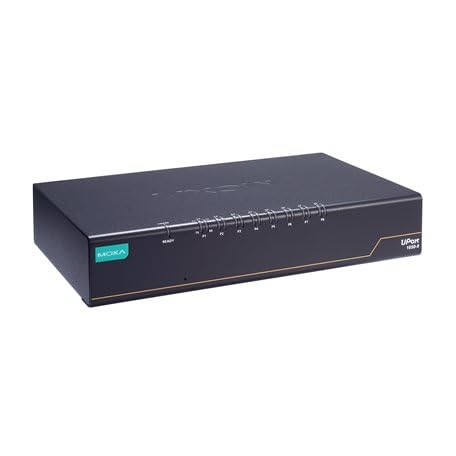
Image: The Moxa UPort 1610-8-G2 USB to 8-Port RS-232 Serial Converter, showing its compact design and multiple serial ports. The USB input port is visible, along with the array of RS-232 connectors for various devices.
3.2 Nwụnye ọkwọ ụgbọala
The UPort 1610-8-G2 requires specific drivers to function correctly with your operating system. Drivers are provided for a broad selection of operating systems, including Windows and Linux.
- Obtain Drivers: Download the latest drivers from the official Moxa websaịtị (www.madue.com) by searching for 'UPort 1610-8-G2'. Alternatively, use the provided documentation CD if available.
- Wụnye ndị ọkwọ ụgbọala: Follow the on-screen instructions to install the drivers. For Windows, this typically involves running an executable file. For Linux, consult the provided installation guide for specific commands and procedures.
- Nyochaa nwụnye: After installation, check your operating system's Device Manager (Windows) or equivalent system information tool (Linux) to ensure that the UPort 1610-8-G2 and its virtual COM ports are recognized correctly.
4. .rụ ọrụ
4.1 Basic Arụmọrụ
Once the hardware is connected and drivers are installed, the UPort 1610-8-G2 will create virtual COM ports on your host computer. These virtual COM ports can be accessed by your serial communication software as if they were native serial ports.
- Nhazi ngwanrọ: Configure your serial communication software (e.g., terminal emulator, SCADA system) to use the assigned virtual COM port numbers.
- Baud Rate Settings: Set the baud rate, data bits, parity, and stop bits in your software to match the settings of your connected serial devices. The UPort 1610-8-G2 supports baud rates from 50 bps to 921.6 kbps.
- Mbufe data: Initiate data transmission or reception through your software. The UPort 1610-8-G2 will handle the conversion between USB and RS-232 signals.
4.2 LED egosi
The UPort 1610-8-G2 features double-sided LEDs located at the corners, providing visual status indications:
- Igwe ọkụ ọkụ: Indicates that the device is receiving power.
- TX (Transmit) LED: Flashes when data is being transmitted from the host computer through the serial port.
- RX (Receive) LED: Flashes when data is being received by the serial port from a connected device.
Monitoring these LEDs can help in diagnosing communication issues.
5. Nlekọta
To ensure the longevity and optimal performance of your Moxa UPort 1610-8-G2, follow these maintenance guidelines:
- Nhicha: Keep the device clean and free from dust. Use a soft, dry cloth for cleaning. Avoid liquid cleaners or solvents.
- Ọnọdụ gburugburu: Operate the device within its specified temperature range of 0 to 60°C. Avoid exposing it to extreme temperatures, high humidity, or direct sunlight.
- Njikwa USB: Ensure all cables are securely connected and not under strain. Avoid bending cables sharply.
- Mmelite femụwe: Na-elele Moxa mgbe niile website for any available firmware updates for your device. Firmware updates can improve performance, add features, or fix bugs.
6. Nchọpụta nsogbu
If you encounter issues with your UPort 1610-8-G2, consider the following troubleshooting steps:
6.1 No Device Recognition
- Lelee njikọ USB: Ensure the USB cable is securely connected to both the UPort and the host computer. Try a different USB port or cable.
- Ịnye ọkụ: Verify that the device is receiving power. Check the Power LED. If using an external adapter, ensure it is properly connected and functional.
- Nwụnye ọkwọ ụgbọala: Confirm that the correct drivers are installed. Reinstall drivers if necessary. Check Device Manager (Windows) for any error indicators.
- Malitegharịa kọmputa: A system restart can sometimes resolve recognition issues.
6.2 Njehie Nkwurịta Okwu
- Ntọala Port Serial: Double-check that the baud rate, data bits, parity, and stop bits in your software match those of the connected serial device.
- Ịdị n'ezi nke eriri USB: Inspect the serial cables for damage. Try a different serial cable.
- Ọrụ akụrụngwa: Ensure the connected serial device is powered on and functioning correctly.
- LED Activity: Observe the TX/RX LEDs. If they are not flashing during data transmission, there might be an issue with the software configuration or the connected device.
6.3 Nsogbu Arụmọrụ
- Ụdị ọdụ ụgbọ mmiri USB: Ensure the UPort 1610-8-G2 is connected to a USB 3.0/3.1/3.2 port on your host computer to utilize its SuperSpeed capabilities. Connecting to a USB 2.0 port will result in lower speeds.
- Akụrụngwa sistemụ: Close unnecessary applications on your host computer to free up system resources.
7. Nkọwapụta
| Njirimara | Nkọwapụta |
|---|---|
| Nlereanya | Ọdụ ụgbọ mmiri 1610-8-G2 |
| USB Interface | USB 3.2 SuperSpeed |
| Ọdụ ụgbọ mmiri Serial | 8 x RS-232 |
| Ọnụego Baud | 50 bps to 921.6 kbps (nonstandard baudrates supported) |
| FIFO Cache | 512-byte on-chip |
| Njikwa usoro | Akwadoro |
| Okpomọkụ na-arụ ọrụ | 0 ruo 60 Celsius |
| Akụkụ ngwaahịa | 8.5 x 4.79 x 1.63 sentimita asatọ |
| Ibu Ibu | 4 pound |
| OS akwadoro | Windows, Linux |
8. Akwụkwọ ikike Ozi
Moxa products are backed by a manufacturer's warranty. The specific terms and duration of the warranty may vary by region and product. Please refer to the warranty card included with your product or visit the official Moxa websaịtị maka ozi zuru ezu gbasara nkwa na usoro ndebanye aha.
Debe ihe akaebe nke ịzụrụ ihe maka akwụkwọ ikike.
9. Nkwado nka na ụzụ
For further assistance, technical support, or to report issues not covered in this manual, please contact Moxa's customer support team.
- Moxa Websaịtị: Gaa leta www.moxa.com/support for FAQs, driver downloads, documentation, and contact information.
- Nkwado n'ịntanetị: Utilize the online support portal for submitting tickets or accessing knowledge base articles.
When contacting support, please have your product model (UPort 1610-8-G2) and serial number ready.