
Okwu mmalite
The Manhattan 7-in-1 USB-C & USB-A Multi-Card Reader, Model 102605, is a versatile device designed for quick and efficient data transfer from various memory card formats to your computer or mobile device. Featuring both USB-C and USB-A connectors, this reader offers broad compatibility and high-speed data transfer rates, simplifying your workflow for photos, videos, and other files.
Njirimara ngwaahịa
- Seven dedicated slots for popular flash card formats: SD / MMC, microSD / TF, MS, xD, and CF.
- USB 3.2 Gen 1 compliant, supporting SuperSpeed transfer rates up to 5 Gbps.
- Integrated 3 ft (1m) 2-in-1 combo cable with nestable USB-C and USB-A plugs for universal connectivity.
- Plug-and-play functionality, requiring no additional drivers.
- Compatible with Windows, macOS, Linux, Chrome OS, iPadOS, and Android operating systems.
Melite
Setting up your Manhattan Multi-Card Reader is a straightforward process:
- Connect the Reader: Identify the appropriate USB port on your computer, laptop, tablet, or smartphone (USB-A or USB-C). Connect the reader's integrated cable to the port. The 2-in-1 connector allows you to switch between USB-A and USB-C by detaching the USB-C adapter from the USB-A plug.
- Ike Na: The card reader is bus-powered, meaning it draws power directly from the USB port. No external power adapter is required.
- Nwụnye ọkwọ ụgbọala: The device is plug-and-play. Your operating system will automatically detect and install any necessary drivers. No manual driver installation is typically needed.
- Ihe ngosi LED: A small LED indicator on the reader will illuminate when connected and active, indicating readiness for use.

Image: The Manhattan 7-in-1 Multi-Card Reader connected via its 3-foot USB-C and USB-A combo cable.
Ntuziaka ọrụ
To transfer data using your multi-card reader:
- Chọpụta oghere kaadị: Locate the correct slot on the reader for your specific memory card type. Refer to the labels next to each slot.
- Fanye kaadị ebe nchekwa: Gently insert your memory card into the corresponding slot. Ensure the card is oriented correctly; do not force it. The card should slide in smoothly and typically click into place.
- Nweta data: Once the card is inserted, your operating system will recognize it as a removable drive. Open your file explorer (e.g., File Explorer on Windows, Finder on macOS) to access the contents of the memory card.
- Nyefee Files: You can now copy, paste, or move files between your memory card and your connected device.
- Wepụ nke ọma: Before removing the memory card, always safely eject the drive from your operating system to prevent data corruption. After ejection, gently pull the memory card out of its slot.

Foto: Top view of the card reader highlighting the various card slots and their labels.

Image: Close-up of the card reader with an illuminated LED indicator, signifying active operation.
Mediadị Mgbasa Ozi Akwadoro
The Manhattan 7-in-1 Multi-Card Reader supports the following memory card formats:
- SD / MMC: SD, SDHC, SDXC, RS-MMC
- microSD / TF: microSD, microSDHC, microSDXC
- MS: Memory Stick, MS Pro Duo, MS Duo
- xD: xD Picture Card
- CF: CompactFlash

Image: A visual representation of the different memory card types compatible with the reader.
Ndakọrịta
This card reader offers wide compatibility with various devices and operating systems:
- Sistemu eji arụ ọrụ: Windows, macOS, Linux, Chrome OS, iPadOS, Android.
- Ngwa dakọtara: Computers, Laptops, Tablets, Smartphones.
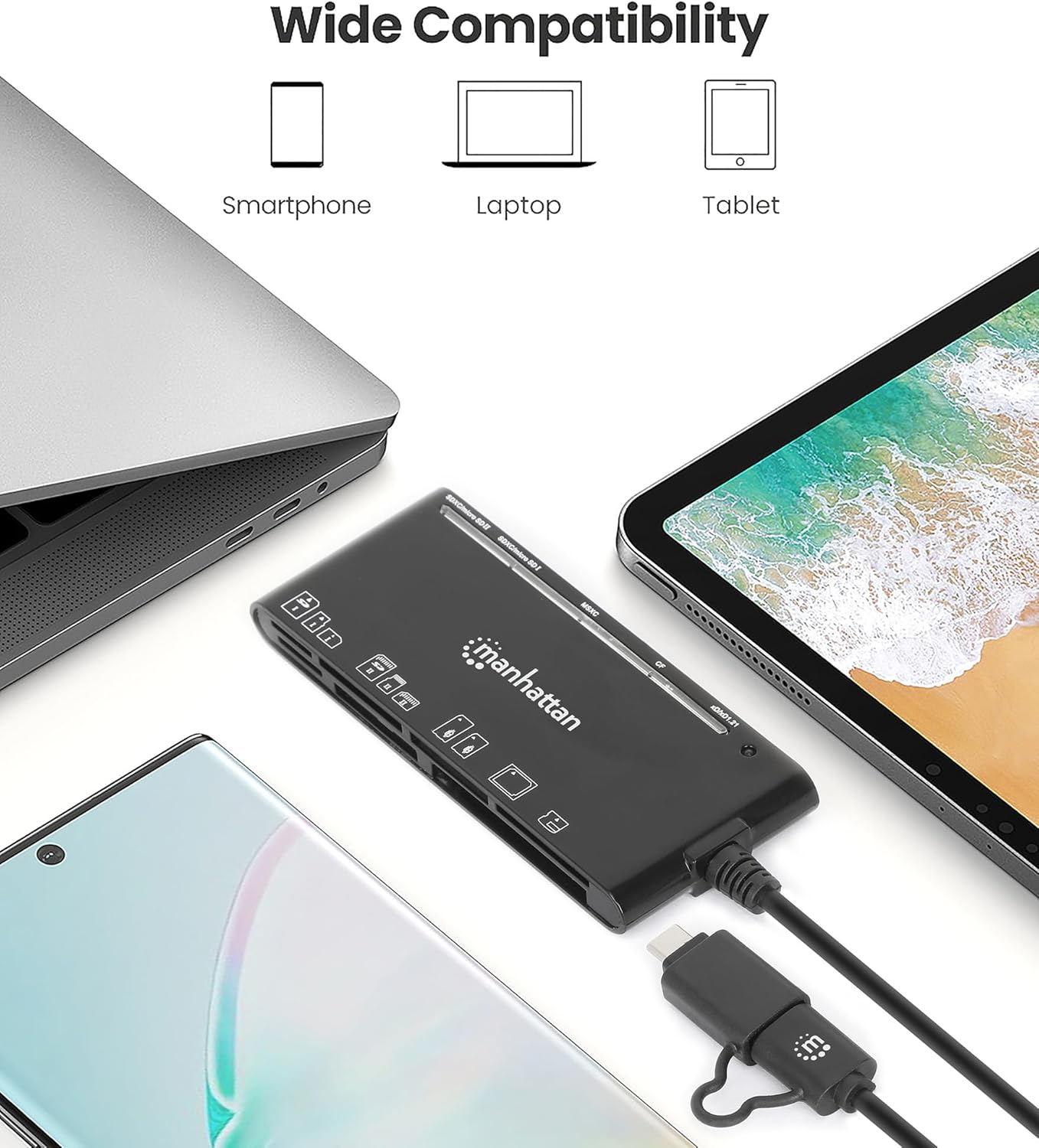
Image: The card reader shown with a laptop, tablet, and smartphone, demonstrating its broad device compatibility.

Image: The card reader connected to a smartphone, illustrating mobile device compatibility.
Nchọpụta nsogbu
If you encounter issues with your card reader, consider the following troubleshooting steps:
- Amataghị ngwaọrụ:
- Ensure the USB cable is fully and securely connected to both the reader and your device.
- Try connecting the reader to a different USB port on your device.
- If using a USB hub, try connecting the reader directly to your computer's USB port.
- Malitegharịa kọmputa gị ma ọ bụ ngwaọrụ mkpanaka gị.
- Kaadị Ebe Nchekwa Anaghị Agụ:
- Verify that the memory card is inserted correctly into the appropriate slot. Do not force the card.
- Test with a different memory card to determine if the issue is with the card or the reader.
- Check the memory card for any visible damage or dirt on the contacts.
- Ọsọ mbufe data dị nwayọ:
- Ensure the reader is connected to a USB 3.0 (or higher) port on your device to achieve SuperSpeed transfer rates. Connecting to a USB 2.0 port will result in slower speeds.
- The actual transfer speed also depends on the speed class of your memory card. Use high-speed cards for optimal performance.
- Zere ịnyefe ọtụtụ obere obere filen'otu oge ahụ, ebe nke a nwere ike ịdị nwayọ karịa ịnyefe obere obere files.
Nkọwapụta
| Ụdị | MANHATTAN |
| Nọmba nlereanya | 102605 |
| Teknụzụ Njikọta | USB Ụdị A, USB Ụdị C |
| Ọnụego mbufe data | Ruo 5 Gbps (USB 3.2 Gen 1) |
| Ụdị mgbasa ozi akwadoro | CompactFlash, MMC, Memory Stick, SD Card, microSD, xD Picture Card |
| Slot Count | 7 |
| Ndakọrịta sistemụ arụmọrụ | Chrome OS, Linux, Mac OS, Windows, iPadOS, Android |
| Ogologo eriri USB | 3 ft (1 m) |
| Agba | Nwa |
Nlekọta
To ensure the longevity and optimal performance of your card reader:
- Debe ngwaọrụ ahụ ọcha ma ghara ịta uzuzu na ihe ruru unyi. Jiri ákwà dị nro ma kpọọ nkụ hichaa ya.
- Avoid exposing the reader to extreme temperatures or humidity.
- Do not force memory cards into slots, as this can damage both the card and the reader.
- Store the reader in a safe place when not in use to prevent physical damage to the connectors or slots.
Akwụkwọ ikike na nkwado
This Manhattan 7-in-1 USB-C & USB-A Multi-Card Reader is backed by a 3-afọ emeputa akwụkwọ ikike.
For technical support, warranty claims, or further assistance, please visit the official Manhattan Products website or contact their customer service department. Refer to your product packaging or the manufacturer's websaịtị maka ozi kọntaktị nkwado kachasị ọhụrụ.