
Ngwaahịa gafereview
The PAPIFEED Pet Camera Indoor Security Cam (Model B0CLZQ75K8) is designed to monitor your pets, babies, or home with advanced features. It offers 1080 HD video, 2-way audio, night vision, motion tracking, and is compatible with Alexa and Google Assistant. The camera supports both 2.4GHz and 5GHz WiFi networks for flexible connectivity.
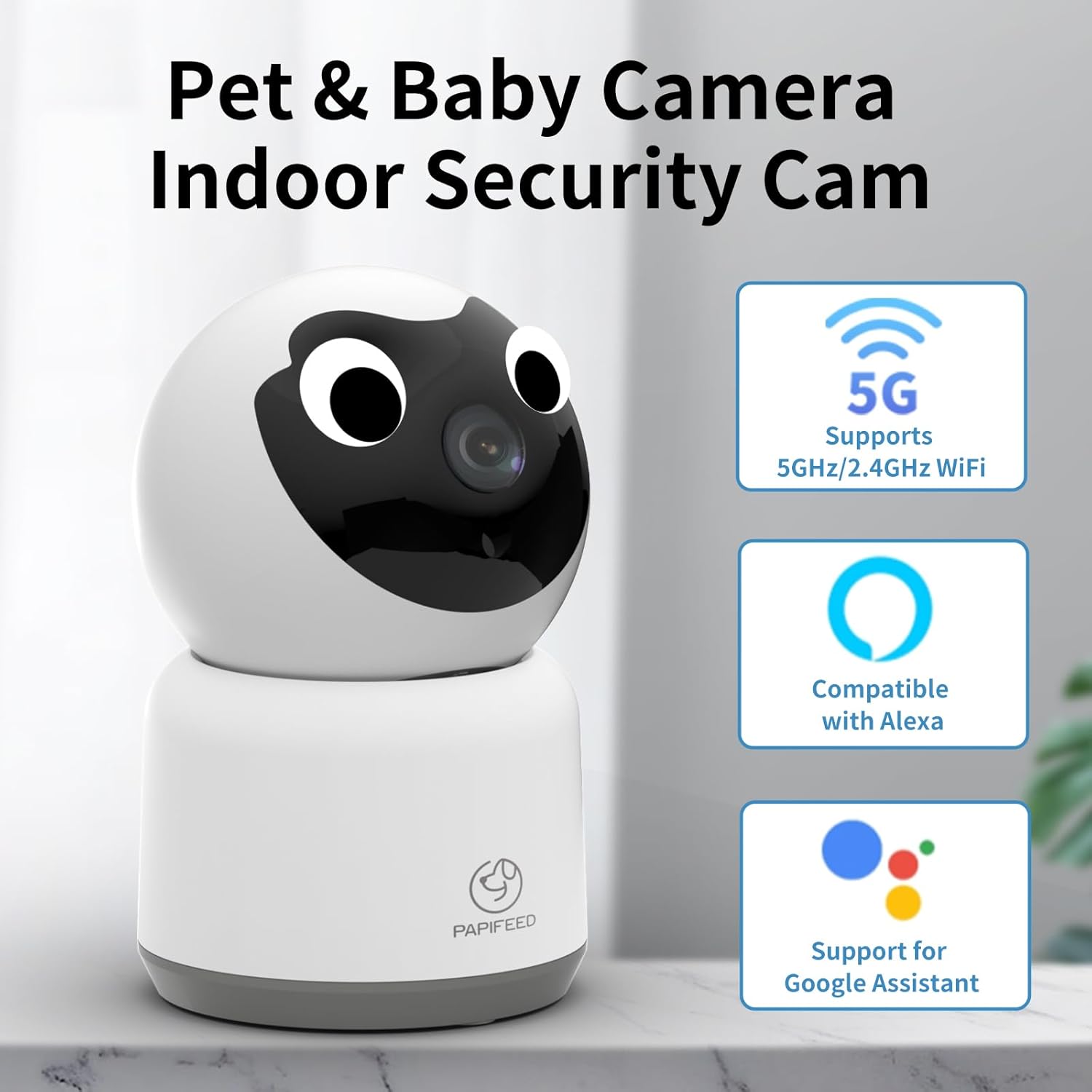
Image: PAPIFEED Pet Camera highlighting 5GHz/2.4GHz WiFi, Alexa, and Google Assistant compatibility.
Atụmatụ igodo
- Vidiyo 1080P HD: Provides clear and detailed video monitoring.
- Pan & Tilt Functionality: Offers 360° horizontal rotation and 110° vertical tilt for comprehensive coverage.
- Abụọ-Band WiFi: Supports both 2.4GHz and 5GHz networks for stable connection.
- Audio Ụzọ Abụọ: Enables real-time communication with pets or family members.
- Enhanced IR Night Vision: Ensures clear visibility in low-light conditions.
- Nchọpụta ngagharị & nsuso: Automatically detects and tracks movement, sending alerts to your phone.
- Nhọrọ nchekwa: Supports up to 128GB Micro SD card (not included) for local storage and offers cloud storage options.
- Ngwakọta Smart Home: Dakọtara na Amazon Alexa na Google Assistant.

Image: Visual representation of the PAPIFEED Pet Camera's key features.
Ntuziaka nhazi
1. Njikọ ike
Connect the camera to a power source using the provided power adapter. The indicator light will turn on. Wait approximately 15 seconds until you hear a prompt tone and the camera rotates, indicating it's ready for network connection.
Mara: When waiting for connection, the indicator light flashes quickly and makes a prompt tone. Once connected, the indicator light is always on, and no prompt tone is heard.
Video: PAPIFEED Camera WIFI Connection Guidance. This video demonstrates the power-on sequence and initial connection steps for the camera.
2. Ngwa nbudata na nwụnye
Download the "Smart Life" app from your mobile phone's app store. Ensure your phone's Bluetooth and WLAN are enabled.
3. Device Pairing (QR Code Method)
- Open the "Smart Life" app and tap "Add Device".
- Select "Camera & Lock" then "Smart Camera (Dual Band)".
- Check the box confirming the indicator light is flashing quickly and a prompt tone is heard, then click "Next".
- Tinye WiFi akaụntụ na paswọọdụ gị.
- A QR code will appear on your phone screen. Face your phone's QR code towards the camera lens, keeping a distance of 15-20cm. Move slowly from near to far until you hear a "drop" sound, indicating a successful scan.
- Confirm you heard the prompt. The camera will then connect. Connection is successful when the indicator light is always on and the prompt tone disappears.
4. Device Pairing (WiFi Mode Method)
- From the "Reset the device" screen in the app, click the button in the upper right corner and select "WiFi Mode".
- Select "AP Mode".
- Enter your WiFi account and password, then click "Next".
- Connect your mobile phone to the camera's hotspot, typically named "SmartLife-XXXX".
- Return to the app and select "Confirm hot spot connection, next".
- The camera will then connect. Connection is successful when the indicator light is always on and the prompt tone disappears.
Ntuziaka ọrụ
Dị ndụ View na Pan/Tilt Control
Once connected, access the live video feed through the Smart Life app. You can remotely control the camera's pan (horizontal) and tilt (vertical) movements to view different areas of the room. The camera offers 350° horizontal and 110° vertical vision.

Image: Multi-view live feed from the camera, illustrating its pan and tilt functionality.
Audio Ụzọ Abụọ
Use the two-way audio feature to speak through the camera and hear responses. This is ideal for comforting pets or communicating with family members remotely.

Image: Demonstrating the two-way audio communication feature.
Ọhụụ abalị
The camera is equipped with enhanced IR night vision, providing clear black and white video even in complete darkness.

Image: Comparison of day and night vision, highlighting the camera's night vision clarity.
Nchọpụta ngagharị na nsochi
Enable motion detection to receive real-time alerts on your phone when movement is detected. The camera can also track moving subjects within its field of view.

Image: Motion tracking and alert notification on a smartphone.
Nhọrọ nchekwa
The camera supports local storage via a Micro SD card (up to 128GB, not included) for continuous 24/7 recording. Cloud storage is also available as an option, providing encrypted video storage.

Image: Storage options for the camera, including cloud and SD card.
Nhọrọ nwụnye
The PAPIFEED Pet Camera offers versatile installation options to suit your needs:
- Na-eguzo: Tinye igwefoto n'elu larịị dị ka tebụl ma ọ bụ shelf.
- Ịkwanye mgbidi: Securely mount the camera to a wall for an elevated view.
- Ịkwanye elu ụlọ: Install the camera on the ceiling for a wide, overhead perspective.

Image: Various installation methods for the camera.
Nkọwapụta
| Njirimara | Nkọwa |
|---|---|
| Ụdị | PAPIFEED |
| Nlereanya | B0CLZQ75K8 |
| Mkpebi ịse vidiyo | 1080p, 2k |
| Teknụzụ Njikọta | Ikuku (Wi-Fi) |
| Teknụzụ nzikọrịta ozi ikuku | Wi-Fi (2.4GHz & 5GHz dual-band) |
| Njirimara Pụrụ Iche | Phone App Control, 2-Way Audio, Night Vision, Motion Sensor, Works with Alexa & Google Assistant, HD Resolution |
| Ojiji ime ime/n'èzí | Ime ụlọ |
| Isi Iyi Ike | Igwe ọkụ eletrik |
| Ụdị njikwa | Android (and iOS via Smart Life app) |
| Ụdị Ihe | Dome |
| Akụkụ akụkụ L x W x H | 3 x 3 x 5 sentimita asatọ |
| Ibu Ibu | 11.7 ounces |
| Nkwado Kaadị SD Kachasị Elu | 128GB |
Nlekọta
To ensure optimal performance and longevity of your PAPIFEED Pet Camera, follow these maintenance guidelines:
- Nhicha: Jiri ákwà dị nro ma kpọọ nkụ hichaa anya igwefoto na mpụta ya nwayọ. Zere iji kemịkalụ siri ike ma ọ bụ ihe ndị na-emebi ihe.
- Nkwanye: Ensure the camera is placed in a stable location, away from direct sunlight, extreme temperatures, and moisture.
- Mmelite ngwanrọ: Regularly check the Smart Life app for firmware updates to ensure your camera has the latest features and security enhancements.
Nchọpụta nsogbu
If you encounter issues with your PAPIFEED Pet Camera, refer to the following common troubleshooting steps:
- Okwu njikọ:
- Ensure your WiFi network is stable and within range.
- Verify that you have entered the correct WiFi password.
- Check if the camera's indicator light is flashing quickly (waiting for connection) or solid (connected).
- Try restarting the camera and your router.
- Confirm your phone's Bluetooth and WLAN are enabled during setup.
- No Video/Poor Quality:
- Lelee ọsọ njikọ ịntanetị gị.
- Gbaa mbọ hụ na oghere igwefoto dị ọcha yana enweghị mgbochi.
- Hụ na igwefoto ahụ agbanyere ma jikọọ na netwọk ahụ.
- Nsogbu Ọdịyo Abụọ:
- Lelee ntọala olu na ekwentị gị yana n'ime ngwa.
- Ensure there is no interference near the camera's microphone or speaker.
- Nchọpụta ngagharị anaghị arụ ọrụ:
- Verify motion detection settings are enabled in the Smart Life app.
- Hazie ntọala mmetụta uche ma ọ bụrụ na ọ dị mkpa.
- Ịtọgharịa igwefoto: If issues persist, locate the reset button (often near the SD card slot) and press and hold it for several seconds until the camera resets. Then, attempt to re-pair the device.
Akwụkwọ ikike na nkwado
PAPIFEED provides a professional after-sales team and customer service. If you have any questions or encounter issues with your product, please contact PAPIFEED customer support directly. The store offers free product replacement or returns/refunds as part of its quality assurance.
For further assistance, please refer to the contact information provided with your product packaging or visit the official PAPIFEED websaịtị.