
1. Okwu mmalite
The PhoFuta M832 is an ultra-portable wireless thermal printer designed for convenience and efficiency. Weighing approximately 1.5 pounds and compact in size, it is ideal for use in various settings including business trips, vehicles, offices, homes, and schools. This printer utilizes thermal technology, eliminating the need for ink cartridges and simplifying your printing experience.

2. Ozi nchekwa
Biko gụọ ntuziaka nchekwa niile nke ọma tupu iji ngwaọrụ ahụ iji hụ na arụ ọrụ dị mma yana nke ọma.
- Do not expose the printer to extreme temperatures, direct sunlight, or high humidity.
- Keep the printer away from water or other liquids to prevent electric shock or damage.
- Jiri naanị eriri chaja na ihe nkwụnye ọkụ enyere.
- Agbalịla ịkwatu ma ọ bụ rụzie igwe nbipute ahụ n'onwe gị. Kpọtụrụ ndị ọrụ nkwado maka enyemaka.
- Gbaa mbọ hụ na ikuku ikuku dị mma mgbe ị na-ebunye ngwaọrụ ahụ.
3. Kedu ihe dị na Igbe ahụ
Chọpụta na akụrụngwa niile dị na ngwugwu:
- 1 x PhoFuta M832 Portable A4 Printer
- 1 x USB Cable and Type-C Converter
- 1 x A4 Thermal Paper Roll
- 1 x Akwụkwọ ntuziaka onye ọrụ
4. Nhazi
4.1 Ịchaji ngwaọrụ
Before first use, fully charge the printer. Connect the provided USB-C cable to the printer's charging port and the other end to a compatible power source (e.g., wall adapter, computer USB port). The indicator light will show charging status.

4.2 Na-ebunye akwụkwọ ọkụ
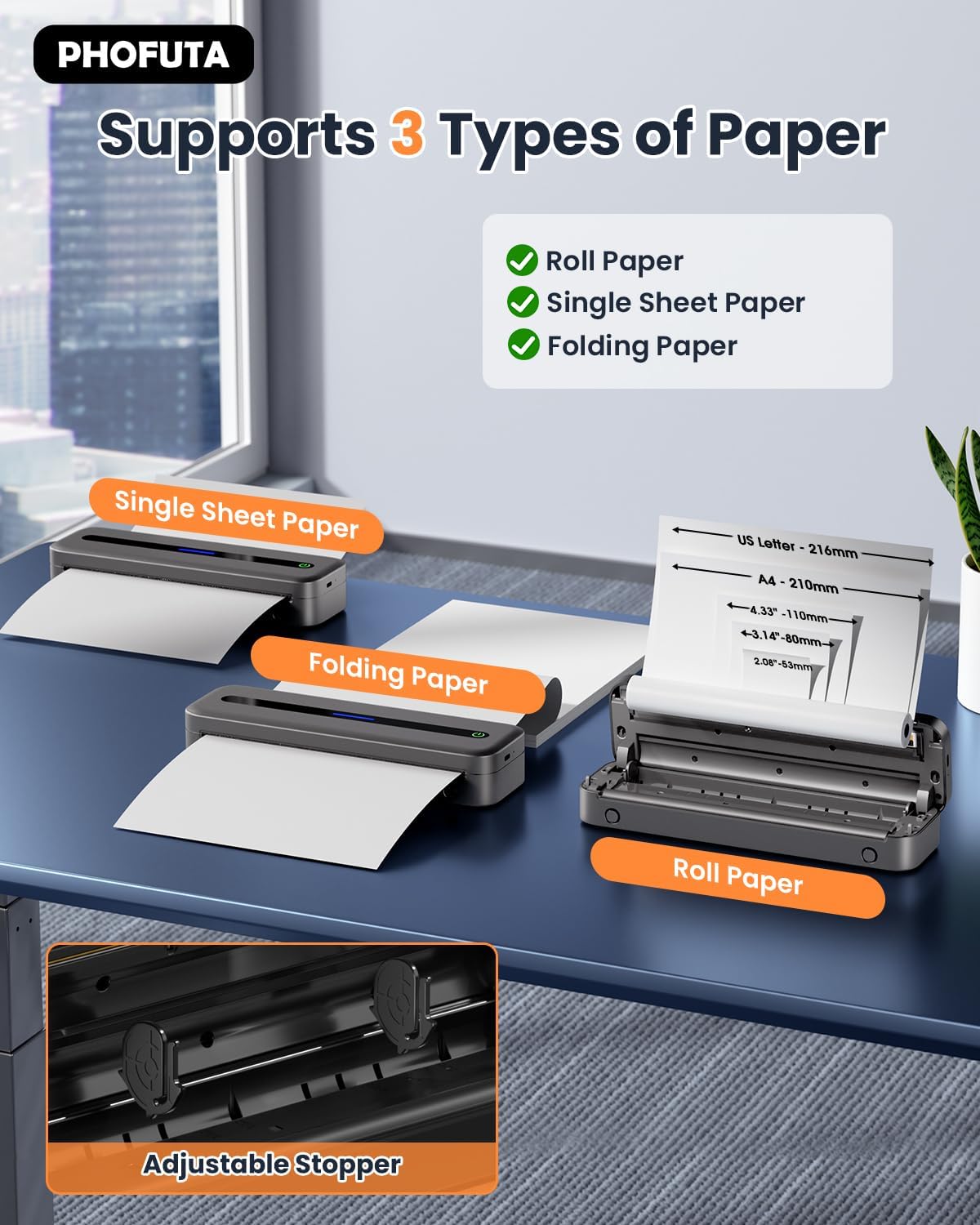
The PhoFuta M832 supports various thermal paper types, including roll paper, single sheets, and folding paper. Open the paper compartment cover, insert the thermal paper according to the diagram, ensuring the printable side faces the print head. Close the cover securely.
4.3 Jikọọ na ngwaọrụ gị
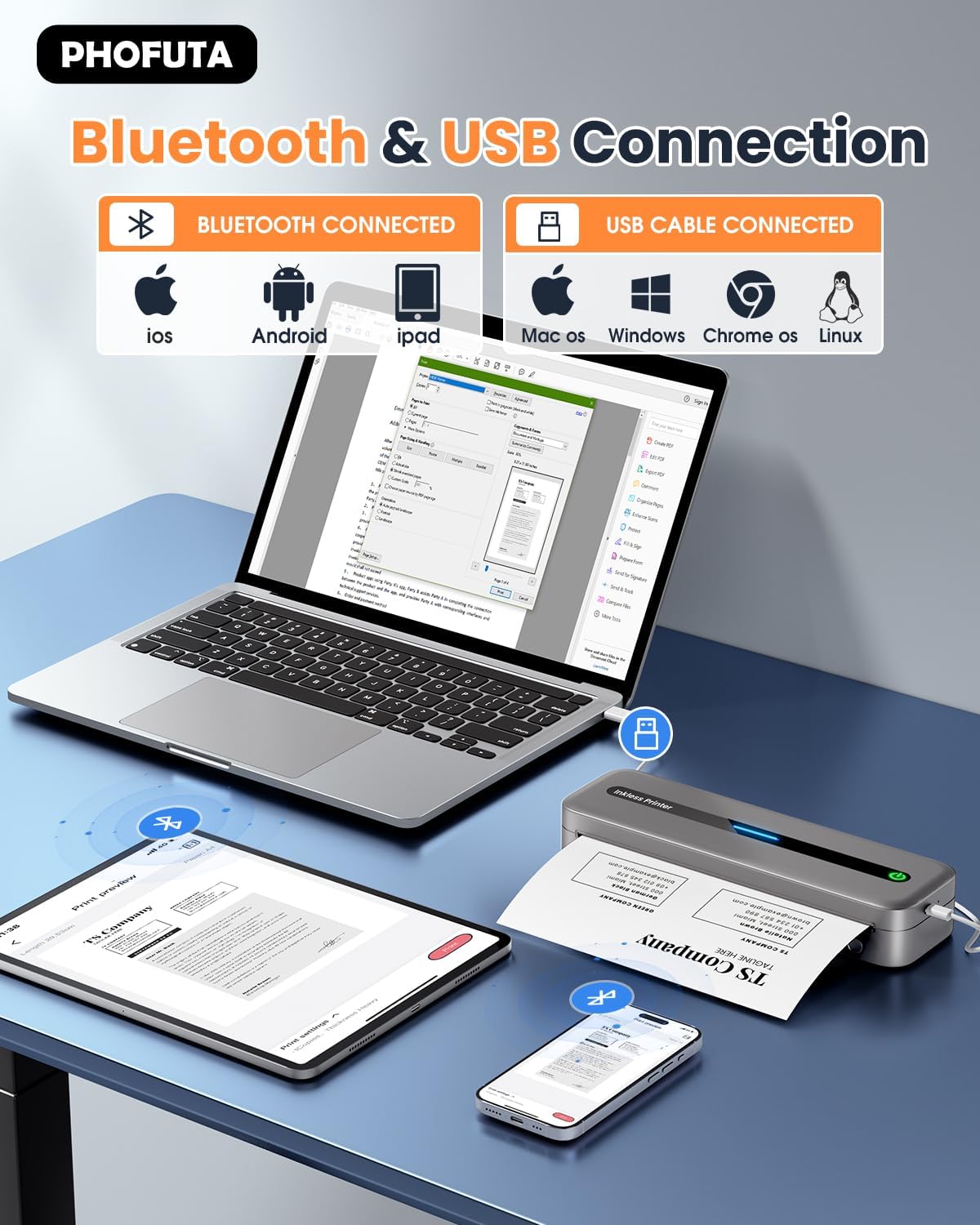
The printer offers both Bluetooth and USB connectivity options.
- Njikọ Bluetooth: Turn on the printer and enable Bluetooth on your smartphone or tablet. Download the Phomemo app (available for iOS and Android). Open the app, search for the printer, and pair.
- Njikọ USB: Connect the printer to your laptop or computer using the provided USB-C cable. Install the necessary drivers (usually available from the PhoFuta website or included on a small disk/QR code).
5. Ntuziaka ọrụ
5.1 Mbipụta bụ isi
Once connected, open the document or image you wish to print from your device. Select the PhoFuta M832 as your printer. Adjust print settings as needed (e.g., paper size, orientation) and initiate the print command. The printer will feed the thermal paper and produce the printout.
5.2 Print Quality
The PhoFuta M832 offers a maximum print resolution of 300 DPI (dots per inch) for black and white prints, ensuring clear and legible documents.

5.3 Supported Paper Sizes
The printer supports various paper sizes, including US Letter, A4, and smaller sizes like 4-inch, 3-inch, and 2-inch (216mm, 210mm, 110mm, 80mm, 53mm respectively). Ensure you use thermal paper compatible with these dimensions.
6. Nlekọta
6.1 Na-ehicha ngwa nbipute
Regularly clean the printer to maintain optimal performance. Use a soft, dry, lint-free cloth to wipe the exterior. For the print head, use a cotton swab lightly dampened with isopropyl alcohol, wiping gently. Ensure the printer is off and disconnected from power before cleaning.
6.2 Thermal Paper Considerations
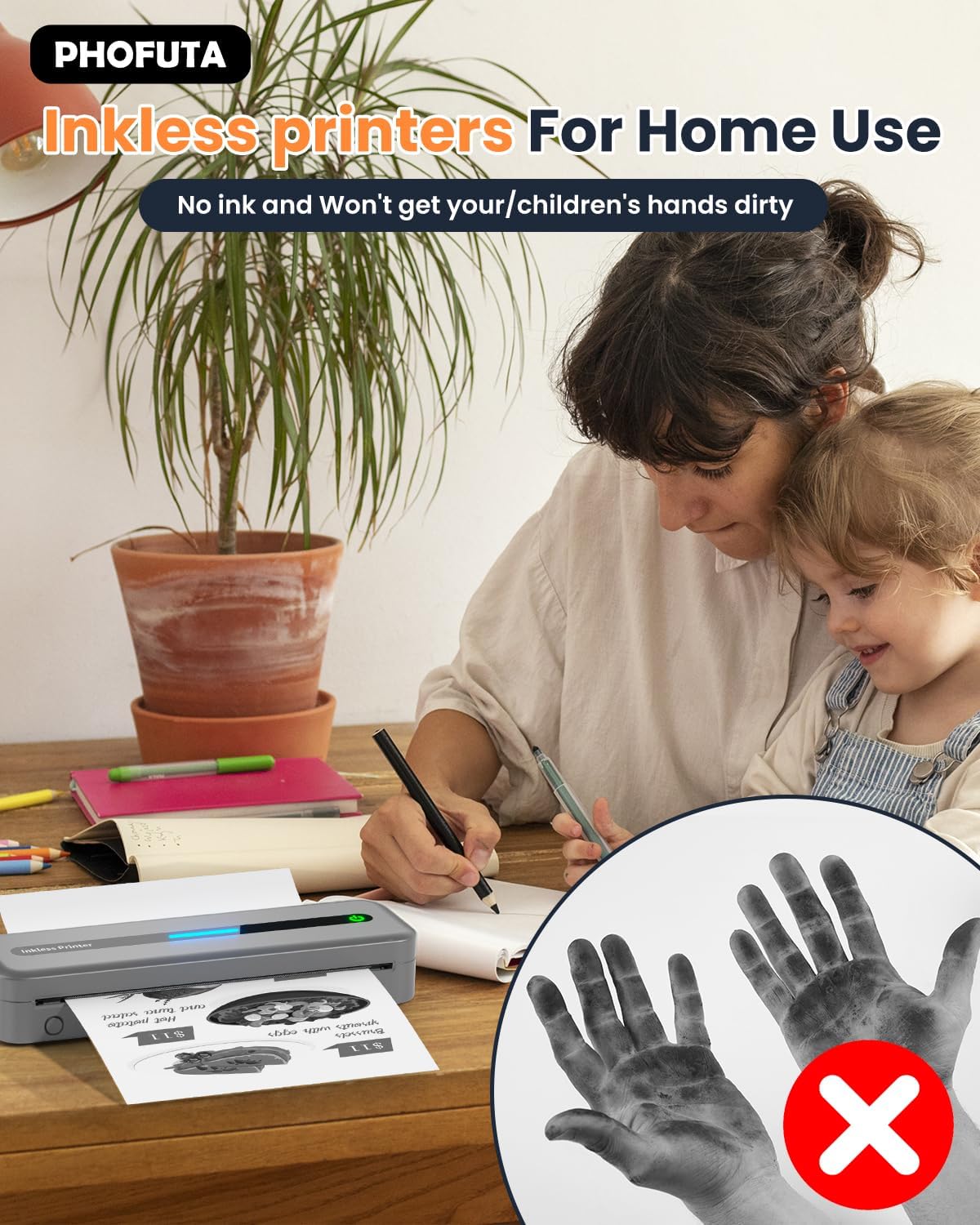
The PhoFuta M832 is an inkless printer, meaning it uses thermal paper that reacts to heat to create images. This eliminates the need for ink cartridges, preventing messy hands and reducing ongoing costs. However, it is crucial to use only thermal paper, as regular paper will not work. Thermal prints may fade over time if exposed to heat, light, or certain chemicals, so store important documents appropriately.

7. Nchọpụta nsogbu
If you encounter issues with your PhoFuta M832 printer, refer to the following common problems and solutions:
- Igwe nbipute anaghị agbanwu: Hụ na batrị ahụ chajị. Jikọọ igwe nbipute ahụ na isi iyi ike wee nwaa ọzọ.
- Enweghị ike ijikọ site na Bluetooth: Make sure Bluetooth is enabled on both devices. Restart the printer and your device. Ensure the Phomemo app is installed and updated.
- Ọdịmma mbipụta na-adịghị mma: Check if you are using thermal paper. Ensure the paper is loaded correctly. Clean the print head if smudges or lines appear.
- Mpempe akwụkwọ: Turn off the printer, open the paper compartment, and carefully remove any jammed paper. Ensure paper is loaded straight and not wrinkled.
- Printer not responding: Try restarting the printer. If the issue persists, perform a factory reset (refer to the Phomemo app or detailed user manual for instructions).
8. Nkọwapụta
| Njirimara | Nkọwapụta |
|---|---|
| Ụdị | PhoFuta |
| Nlereanya | M832 |
| Nọmba ngwaahịa | PH-M832-GY |
| Agba | Agba ntụ |
| Teknụzụ obibi akwụkwọ | Thermal |
| Mmepụta ngwa nbipute | Monochrome |
| Mkpebi Mbipụta kacha (B&W) | 300 DPI |
| Ọsọ mbipụta kacha (Monochrome) | Peeji 5 kwa nkeji |
| Oke ntinye akwụkwọ ikike | Ibé akwụkwọ 300 |
| Ụdị mgbasa ozi akwadoro | Plain Paper (Thermal Paper) |
| Nha mpempe akwụkwọ | US Letter/A4/4"/3"/2" (216mm/210mm/110mm/80mm/53mm) |
| Duplex Printing | Mba |
| Teknụzụ Njikọta | Bluetooth |
| Ngwaọrụ Akụrụngwa | USB-C |
| Ngwa dakọtara | Smartphones, Tablets, Laptops, Computers |
| Ụdị nyocha | Enwere ike ibugharị |
| Mkpebi nyocha | 203 x 203 DPI |
| Akụkụ ngwaahịa | 31 x 11.4 x 9.2 cm |
| Ibu ngwaahịa | 992 g |
| Batrị | 1 Lithium ion (gụnyere) |
| Ngwakọta batrị | Lithium |
| Ekwadoro mmelite ngwanrọ ruo | Amaghi ama |
9. Akwụkwọ ikike na nkwado
9.1 Ozi akwụkwọ ikike
The PhoFuta M832 Portable Thermal Printer comes with a Akwụkwọ ikike ndụ. This warranty covers manufacturing defects and ensures the long-term reliability of your device. Please retain your proof of purchase for warranty claims.
9.2 Nkwado ndị ahịa
For technical assistance, troubleshooting, or warranty inquiries, please contact PhoFuta customer support. Refer to the official PhoFuta website or the contact information provided with your purchase for the most up-to-date support channels.