
AVMTON wireless mouse
AVMTON Wireless Gaming Mouse
Akwụkwọ ntuziaka
Model: wireless mouse | Brand: AVMTON
1. Okwu mmalite
The AVMTON Wireless Gaming Mouse is designed for comfortable and efficient use with personal computers, laptops, and other compatible devices. Featuring a honeycomb shell for lightweight design, RGB backlighting, and a rechargeable battery, this mouse offers a responsive and ergonomic experience. It connects wirelessly via a 2.4GHz USB receiver, providing a stable connection for both office tasks and light gaming.

Image 1.1: The AVMTON Wireless Gaming Mouse shown alongside its 2.4GHz USB receiver. The mouse features a black honeycomb shell design and vibrant RGB lighting.
2. Nhazi
2.1 Unboxing na akụrụngwa
Mgbe ị na-emepe igbe ahụ, hụ na ihe niile dị na ya dị:
- AVMTON Wireless Gaming Mouse
- 2.4GHz USB Receiver (typically stored in the mouse's bottom compartment)
- USB Type-C Nchaji USB
2.2 Ijikọ òké
- Chọta ihe nnata USB echekwara n'ime oghere dị n'ala òké ahụ.
- Wepu eriri USB na òké.
- Tinye eriri USB n'ọdụ ụgbọ mmiri dị na kọmputa gị ma ọ bụ laptọọpụ gị.
- Turn on the mouse using the power switch located on the bottom of the mouse. The mouse should automatically connect to the receiver.
2.3 Nchaji izizi
The mouse comes with a built-in rechargeable battery. For optimal performance, it is recommended to fully charge the mouse before its first use. The mouse can be used while it is charging.

Image 2.1: The AVMTON Wireless Gaming Mouse connected to a laptop via its Type-C charging cable. The image highlights the convenience of charging while using the mouse.
3. Ntuziaka ọrụ
3.1 Mouse Button Functions
The AVMTON Wireless Gaming Mouse features several buttons for enhanced functionality:
- Bọtịnụ aka ekpe: Ọrụ pịa ọkọlọtọ.
- Bọtịnụ aka nri: Ọrụ pịa nri ọkọlọtọ.
- Mpempe akwụkwọ mpịakọta: Scrolls content up or down. Can also be pressed for middle-click functionality.
- Bọtịnụ DPI: Na-agbanwe mmetụta òké (DPI).
- Bọtịnụ mbugharị: Na-aga n'ihu web ihe nchọgharị ma ọ bụ file ndị na-eme nchọpụta.
- Bọtịnụ azụ: Na-agagharị azụ n'ime web ihe nchọgharị ma ọ bụ file ndị na-eme nchọpụta.
- Ike mgba ọkụ: Na-agbanye ma ọ bụ gbanyụọ òké.
- Mgbanwe ọkụ: Controls the RGB lighting.

Image 3.1: A detailed diagram illustrating the various buttons and components of the AVMTON Wireless Gaming Mouse, including the DPI button, scroll wheel, forward/backward buttons, and power/light switches.
3.2 DPI mmezi
The mouse offers three adjustable DPI (Dots Per Inch) levels to control cursor speed and sensitivity. Press the DPI button (located behind the scroll wheel) to cycle through the settings: 800 DPI, 1200 DPI (default), and 1600 DPI. Choose the sensitivity that best suits your task, whether for precise work or faster movements in games.
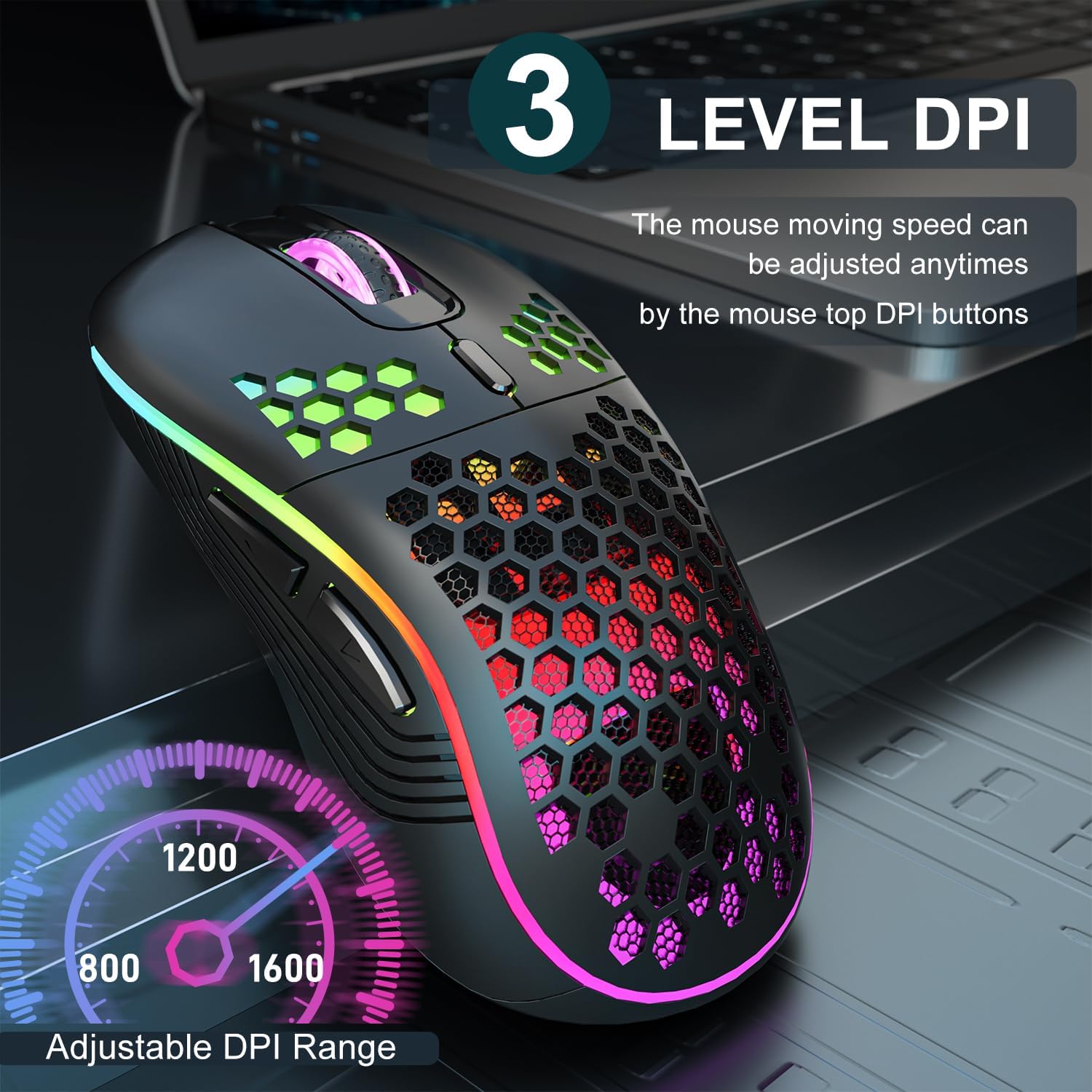
Image 3.2: The AVMTON Wireless Gaming Mouse with an overlay indicating the three adjustable DPI levels: 800, 1200, and 1600. This allows users to easily switch mouse sensitivity.
3.3 RGB njikwa ọkụ azụ
The mouse features customizable RGB lighting. Use the dedicated light switch on the bottom of the mouse to turn the RGB lighting on or off. Turning off the RGB lighting can help conserve battery life.
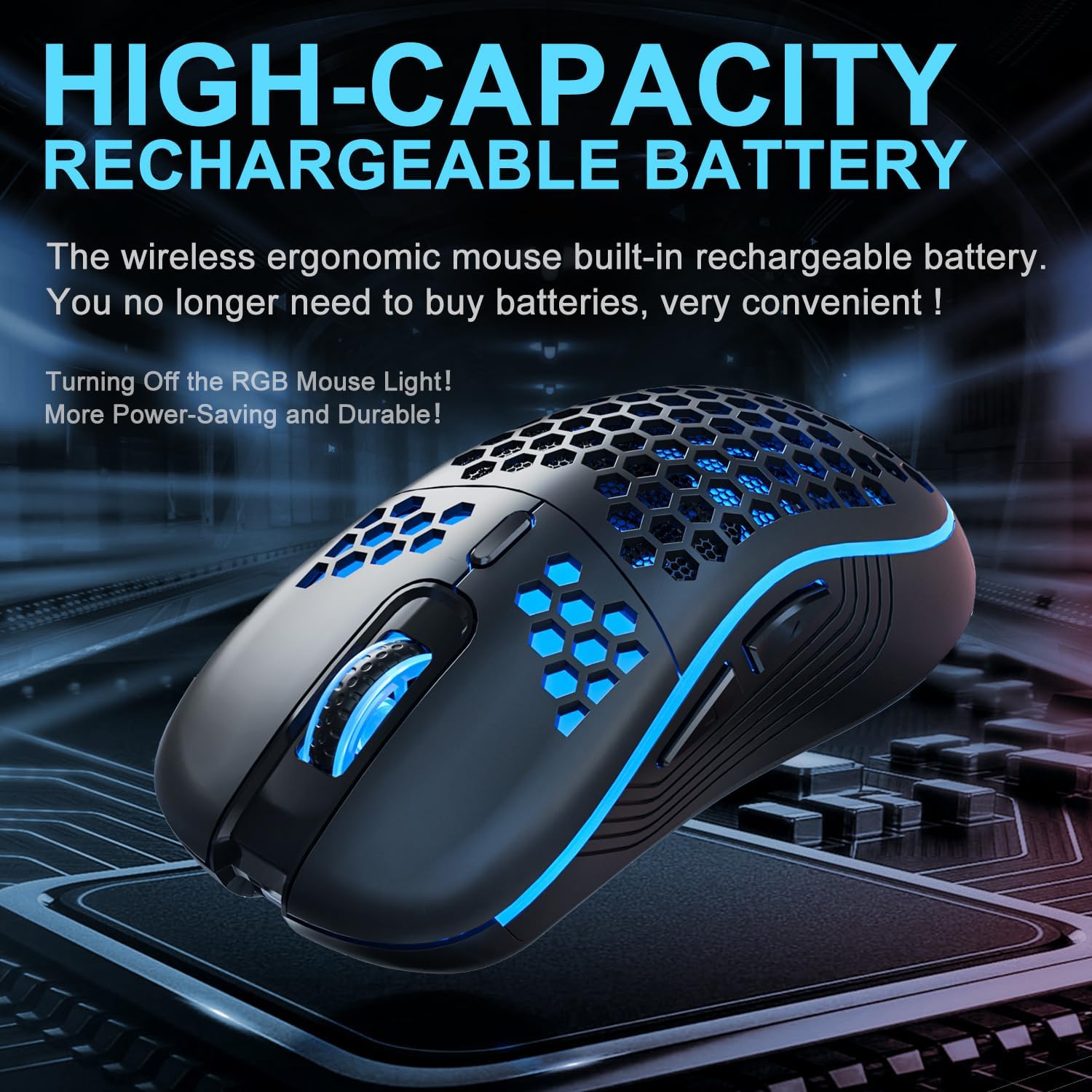
Image 3.3: The AVMTON Wireless Gaming Mouse illuminated with blue RGB lighting, highlighting its aesthetic features and rechargeable battery capacity.
3.4 Ọnọdụ nchekwa ike
To conserve battery, the mouse automatically enters a power-saving mode after a period of inactivity. To reactivate the mouse, simply move it or click any button.
3.5 ndakọrịta
The AVMTON Wireless Gaming Mouse is widely compatible with various operating systems, including Windows 2000, XP, Vista, 7, 8, 10, 11, Linux, and Mac OS. It is designed for use with personal computers and laptops.

Image 3.4: Visual representation of the mouse's wide compatibility with Windows, Linux, and Mac OS operating systems.
4. Nlekọta
4.1 Ịchaji batrị
When the mouse battery is low, connect the provided USB Type-C charging cable to the mouse's charging port and the other end to a USB power source (e.g., computer USB port, USB wall adapter). The mouse can be used normally while charging.
4.2 Na-ehicha òké
To maintain optimal performance and appearance, clean the mouse regularly. Use a soft, dry cloth to wipe the surface. For stubborn dirt, a slightly damp cloth can be used, ensuring no liquid enters the mouse. Avoid using harsh chemicals or abrasive materials.
5. Nchọpụta nsogbu
- Òké anaghị aza:
- Hụ na e tinyere ihe nnata USB n'ime ọdụ ụgbọ USB na-arụ ọrụ nke ọma.
- Verify that the mouse's power switch is in the 'ON' position.
- Check the battery level and charge the mouse if necessary. - Mmegharị cursor adịghị agbanwe agbanwe ma ọ bụ dị nwayọ:
- Adjust the DPI setting using the DPI button.
- Ensure the mouse is used on a clean, non-reflective surface. A mouse pad is recommended.
- Tinyeghachi òké ahụ ma ọ bụrụ na batrị ahụ dị ala. - RGB ọkụ anaghị arụ ọrụ:
- Ensure the light switch on the bottom of the mouse is in the 'ON' position.
- The mouse may be in power-saving mode; move or click to wake it up. - Latency during large games:
- This mouse is primarily designed for office scenarios and small games. Large, graphically intensive games may experience some latency due to the wireless connection and mouse specifications.
6. Nkọwapụta
| Ụdị | AVMTON |
| Aha Nlereanya | ikuku ikuku |
| Teknụzụ Njikọta | USB (2.4GHz Wireless) |
| Teknụzụ nchọpụta ngagharị | Ngwa anya |
| Ọkwa DPI | 800 / 1200 (Default) / 1600 |
| Ụdị batrị | Rechargeable Lithium Polymer (included) |
| Nkezi Ndụ batrị | 6 months (approx.) |
| Nchaji ọdụ ụgbọ mmiri | USB Ụdị-C |
| Atụmatụ pụrụ iche | Honeycomb Design, RGB Backlight, Lightweight, 6 programmable Buttons |
| Ntuzi aka | Ambidextrous |
| Ihe onwunwe | Plastic |
| OS dakọtara | Windows 2000 / XP / Vista / 7 / 8 / 10 / 11, Linux, Mac OS |
| Akụkụ akụkụ | 13.7 x 8.7 x 4.9 cm |
| Ibu Ibu | 140 g |
7. Akwụkwọ ikike na nkwado
Specific warranty details are not provided within this manual. For warranty information, technical support, or any inquiries regarding your AVMTON Wireless Gaming Mouse, please refer to the product packaging or contact AVMTON customer service directly through their official websaịtị ma ọ bụ onye na-ere ahịa ebe a zụrụ ngwaahịa ahụ.
Ask a question about this manual
Ask about setup, troubleshooting, compatibility, parts, safety, or missing instructions. Manuals+ will review the question and use this page’s manual context to help answer it.