
1. Ngwaahịa gafereview
The Roku 40" Select Series 1080p Full HD Smart RokuTV offers a seamless entertainment experience with its integrated Roku platform. Enjoy bright, full HD picture quality and clear audio. The customizable home screen provides quick access to streaming apps, inputs, and free live TV. This model features a bezel-less design and comes with a voice remote for easy navigation.
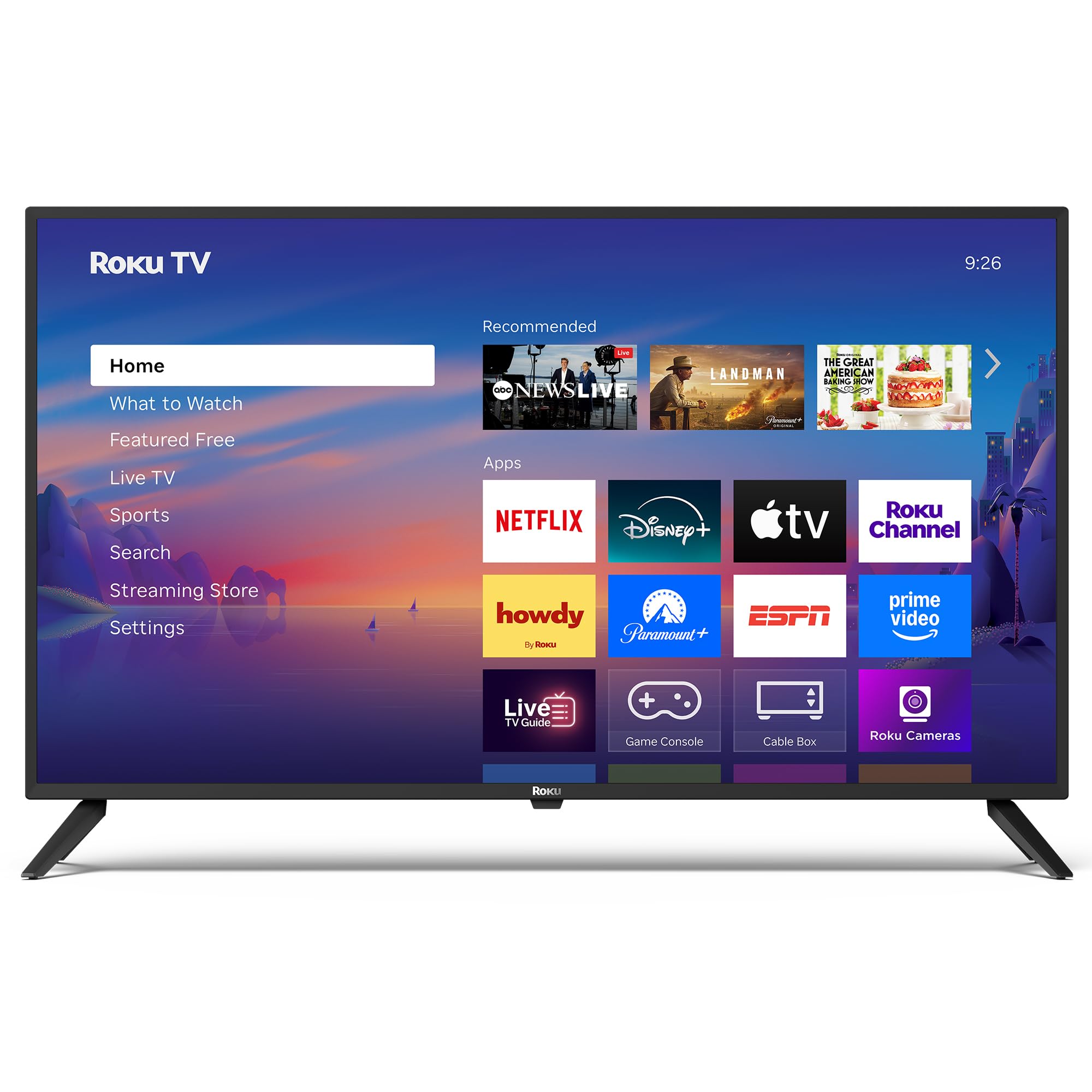
Foto: N'ihu view of the Roku 40" Select Series Full HD Smart TV.
2. Kedu ihe dị na Igbe ahụ
- Roku 40” Select Series Full HD Smart TV
- Roku voice remote with batteries
- Ihe nkiri TV (2)
- Stand screws (4)
- Akwụkwọ ntuziaka (akwụkwọ a)

Image: Diagram illustrating the components included in the Roku TV package.
3. Ntuziaka Nhazi
3.1 Ịgbakwunye ihe nkwụnye TV
- Jiri nlezianya dobe ihuenyo TV n'elu ala dị nro ma dị ọcha iji gbochie ncha.
- Kwado ihe nkwụnye TV ọ bụla na oghere mkpọda kwekọrọ na ala TV.
- Insert the provided screws into the holes and tighten them securely with a screwdriver.
- Ensure both stands are firmly attached before proceeding.
3.2 Ike Njikọta na Ntọala Mmalite
- Connect the power cord to the TV and then to a standard electrical outlet (100-240 VAC, 50-60 Hz).
- Insert the AAA batteries into the Roku voice remote.
- Pịa bọtịnụ ike dị na remote iji gbanye TV.
- Follow the on-screen instructions to select your language, connect to your Wi-Fi network, and activate your Roku account.
- The TV will guide you through adding your preferred streaming apps and setting up any connected devices.

Foto: nso nso view of the TV's side panel, showing various input ports like HDMI, USB, and antenna connection.
4. Na-arụ ọrụ na Roku TV gị
4.1 Ntugharị ihuenyo ụlọ
The Roku home screen provides a centralized hub for all your entertainment. Easily access streaming apps, connected devices (like game consoles or cable boxes), and free live TV channels. The interface is designed for quick and intuitive navigation using your Roku voice remote.

Image: The Roku TV home screen, showing a grid of streaming applications and input selections.
4.2 Using the Voice Remote
The included voice remote simplifies your TV experience. Use voice commands to search for movies, shows, or songs across thousands of streaming apps. Dedicated shortcut buttons provide instant access to popular services like Netflix, Disney+, and Apple TV. Volume controls are conveniently located on the side of the remote.

Image: Close-up of the Roku voice remote, highlighting the voice command button and dedicated app shortcuts.
4.3 Ntọala foto na ụda
The Roku TV delivers a bright, full HD picture with exceptional clarity. It features direct LED backlighting for better brightness and uniformity. Enhanced audio output is provided by built-in speakers. You can adjust picture modes, screen brightness, and other advanced settings through the TV's menu to optimize your viewahụmahụ.
4.4 Ngwakọta ụlọ Smart
The Roku TV is compatible with various smart home ecosystems, including Apple AirPlay 2, Apple Home, Alexa, and Google Home. This allows for integrated control and seamless interaction with your existing smart devices.

Image: Icons representing compatibility with various smart home platforms.
5. Nlekọta
To ensure the longevity and optimal performance of your Roku TV, follow these maintenance guidelines:
- Na-ehicha ihuenyo: Use a soft, lint-free cloth specifically designed for electronics. Gently wipe the screen to remove dust and smudges. Avoid harsh chemicals or abrasive materials.
- Na-ehicha Mpụga: Wipe the TV's exterior with a soft, dry cloth. Do not use liquid cleaners directly on the TV.
- Igwe ikuku: Hụ na oghere ikuku dị na TV anaghị emechi iji gbochie oke okpomọkụ. Debe oghere zuru oke gburugburu TV maka ikuku na-agagharị.
- Njikwa Ike: Wepụ TV na oghere ọkụ n'oge oké ifufe eletrik ma ọ bụ mgbe a ga-ahapụ ya n'echeghị ya ruo ogologo oge.
6. Nchọpụta nsogbu
If you encounter issues with your Roku TV, try the following basic troubleshooting steps:
- Enweghị ike: Ensure the power cord is securely plugged into both the TV and the electrical outlet. Check if the outlet is functioning by plugging in another device.
- Enweghị foto/ụda: Verify that the correct input source is selected on the TV. Check all cable connections (HDMI, AV, etc.) for looseness.
- Remote anaghị aza: Replace the batteries in the remote. Ensure there are no obstructions between the remote and the TV. Re-pair the remote if necessary (refer to the on-screen instructions during initial setup or the Roku support site).
- Okwu njikọ netwọkụ: Restart your Wi-Fi router and modem. Go to the TV's network settings to reconnect to your Wi-Fi network.
- App Freezing/Crashing: Restart the specific app. If the issue persists, restart the TV by unplugging it from the power outlet for 30 seconds and then plugging it back in.
For more detailed troubleshooting or persistent issues, visit the official Roku support websaịtị.
7. Nkọwapụta
| Njirimara | Nkọwa |
|---|---|
| Nha ihuenyo | 40 sentimita asatọ |
| Ụdị | Roku |
| Nọmba nlereanya | 40R2A5R |
| Ngosipụta teknụzụ | Ikanam |
| Mkpebi | 1080p zuru oke |
| Ọnụego ume ọhụrụ | 60 Hz |
| Sistemụ nrụọrụ | Roku OS |
| Atụmatụ pụrụ iche | Bezel-Less Design, Voice Remote |
| Teknụzụ Njikọta | HDMI, USB, Wi-Fi |
| Mgbakọta ọdụ ụgbọ mmiri HDMI | 3 |
| Total USB 3.0 Ports | 1 |
| Ọnọdụ mmepụta ọdịyo | Emelitere |
| Usoro njikwa | Njikwa Ngwa, Njikwa Ime Ime, Njikwa Olu |
| Screen Mirroring Technology | AirPlay 2, Miracast |
| Akụkụ ngwaahịa (D x W x H) | 8.7"D x 35.5"W x 22.6"H |
| Item Weight Without Stand | 11.2 pound |
| VESA Mount Standard | 200 x 100 mm |
8. Akwụkwọ ikike na nkwado
8.1 Akwụkwọ ikike nwere oke
Roku warrants the hardware of this device against defects in materials and workmanship under normal use for a period of one (1) year from the date of purchase ("Warranty Period"), provided it is used in accordance with the provided documentation. If a hardware defect is determined during the Warranty Period, Roku's sole obligation and your exclusive remedy will be to either repair or replace the unit with a new or rebuilt device, at Roku's option.
Important information about warranty returns and replacements is available on the Roku support site.
8.2 Product Returns
You may return a device for any reason, subject to the terms of the applicable return policy:
- Within thirty (30) days from the date of purchase from Roku.
- Within the applicable return period if purchased from an authorized reseller or distributor.
Additional details regarding product returns can be found on the Roku support site.