
1. Okwu mmalite
Thank you for choosing the Zenwire External CD/DVD Drive. This device is a versatile and portable solution for both reading and writing optical discs, designed for use with laptops and desktop computers. It features modern USB 3.0 and USB-C 3.1 interfaces, ensuring rapid data transfer speeds up to 5 Gb/s. Its durable aluminum casing provides efficient heat dissipation and a sleek design. This drive is compatible with various operating systems, including Windows, Mac OS, and Linux, offering broad utility for a wide range of users.
Atụmatụ gụnyere:
- USB 3.0 and USB-C 3.1 Support: Offers very high data transfer speeds up to 5 Gb/s, enhancing efficiency for large files and multimedia.
- Aluminom Casing: Durable and elegant, effectively dissipates heat for long-lasting and safe use.
- Ndakọrịta sistemụ arụmọrụ: Seamless operation across multiple platforms, including Windows, Mac OS, and Linux.
- Enwere ike ibugharị: Slim design and low weight allow for easy transport, ideal for users on the go.
- Nkwụnye ma kpọọ: Simple installation without the need for additional drivers, enabling quick use immediately after connection.
2. Ozi nchekwa
Please read and follow these safety guidelines to ensure proper operation and prevent damage to the device or injury:
- Ewepụla ngwaọrụ ahụ na mmiri, mmiri, ma ọ bụ oke okpomọkụ.
- Zere idobe ma ọ bụ idobe ngwaọrụ ahụ na mmetụta siri ike.
- Anwala ịkwasa ma ọ bụ rụkwaa ngwaọrụ n'onwe gị. Rụtụ aka na ndị ọrụ ruru eru.
- Use only compatible discs and cables.
- Debe ngwaọrụ ahụ pụọ na oghere magnetik siri ike.
3. Ihe ngwugwu
Chọpụta na ihe niile dị na ngwugwu gị:
- Zenwire External CD/DVD Drive
- Integrated USB 3.0 / USB-C 3.1 Cable
- Akwụkwọ ntuziaka (akwụkwọ a)
4. Ngwaahịa gafereview
Familiarize yourself with the components and dimensions of your Zenwire External CD/DVD Drive.

Foto: Agara nso views of the Zenwire External CD/DVD Drive, highlighting the integrated USB cable, the disc eject button, and the anti-slip feet on the bottom. These details illustrate the device's connectivity and stable design.

Foto: The Zenwire External CD/DVD Drive displayed with its approximate dimensions: 5.9 inches (148mm) in length, 5.9 inches (149mm) in width, and 0.6 inches in thickness. This illustrates the compact and slim profile nke ngwaọrụ.
5. Nhazi
The Zenwire External CD/DVD Drive is designed for simple plug-and-play operation. No additional drivers are typically required for most operating systems.
- Locate an available USB 3.0 or USB-C port on your computer (laptop or desktop).
- Connect the integrated USB cable from the Zenwire drive directly into the chosen port on your computer.
- The operating system should automatically detect and install the necessary drivers. This process may take a few moments.
- Once installed, the drive will appear as a removable storage device in your computer's file Explorer ma ọ bụ desktọpụ.
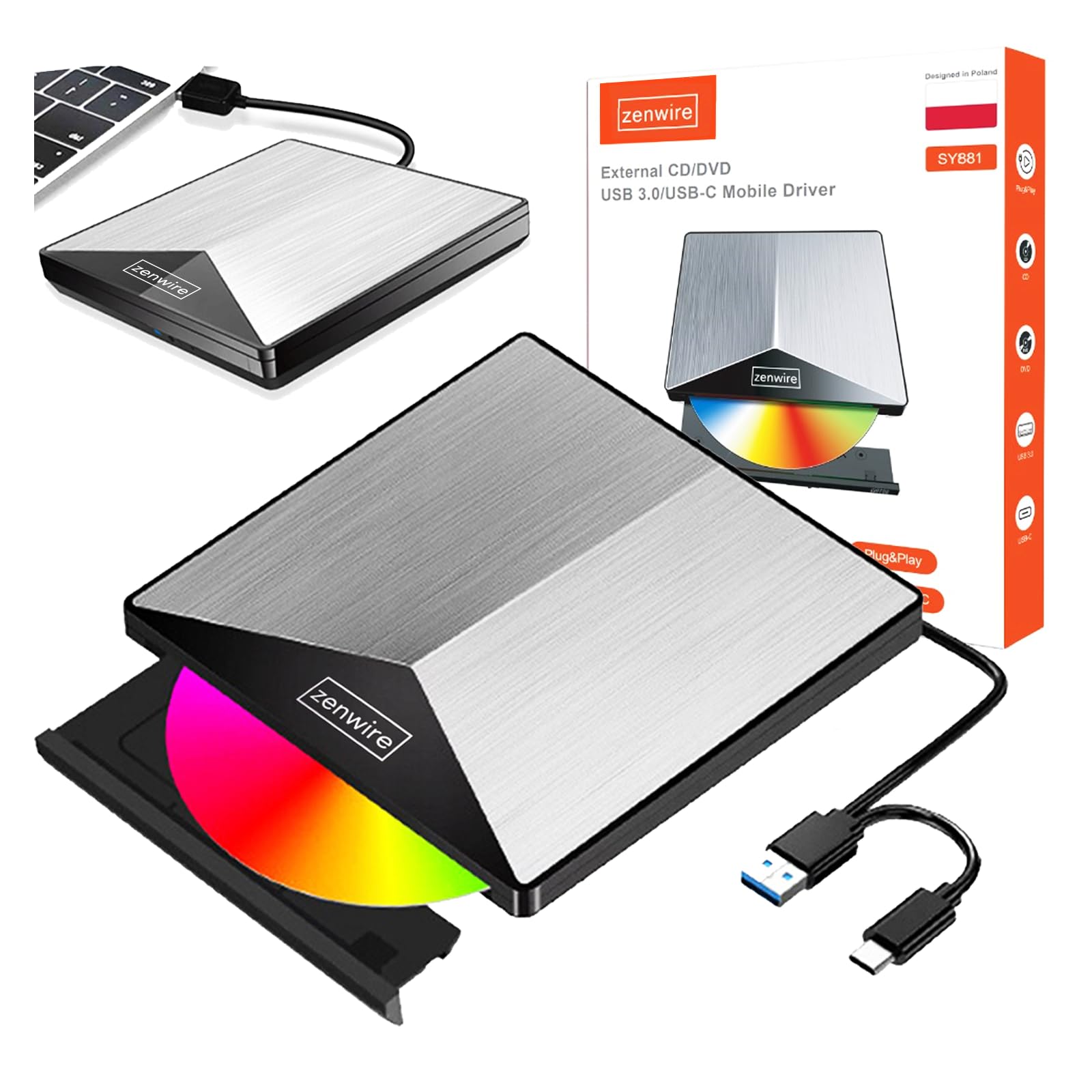
Foto: The Zenwire External CD/DVD Drive shown connected to a laptop via its integrated USB cable. This illustrates the simple plug-and-play connection process.
6. Ntuziaka ọrụ
6.1 Itinye diski
- Press the eject button located on the front of the drive. The disc tray will slide out.
- Carefully place the disc onto the tray with the label side facing up. Ensure the disc is seated correctly in the center.
- Gently push the tray back into the drive until it clicks into place. Do not force the tray.

Foto: A hand carefully inserting a CD into the open disc tray of the Zenwire External CD/DVD Drive. This demonstrates the correct method for disc placement.
6.2 Reading and Writing Discs
Once a disc is inserted and recognized by your computer, you can perform various operations:
- Ọgụgụ: For data discs, open 'This PC' or 'My Computer' (Windows) or 'Finder' (Mac) and click on the drive icon to access its contents. For movie DVDs or audio CDs, your operating system may prompt you to open a media player.
- Writing (Burning): To burn data to a blank CD or DVD, insert a blank disc. Your operating system or third-party burning software will guide you through the process of selecting files and initiating the burn.
6.3 Ụdị Diski Akwadoro
The drive supports a variety of optical disc formats:
- CD-ROM, CD-R, CD-RW
- DVD-ROM, DVD-R, DVD+R, DVD-RW, DVD+RW
- VCD

Foto: The Zenwire External CD/DVD Drive displayed alongside icons representing VCD, CD, and DVD, clearly indicating the range of optical disc formats supported by the device.
6.4 Ndakọrịta sistemụ arụmọrụ
The drive is compatible with the following operating systems:
- Windows (XP, Vista, 7, 8, 10, 11)
- Mac OS
- Linux

Foto: The Zenwire External CD/DVD Drive depicted in a setup demonstrating its compatibility with multiple operating systems, including various versions of Windows, Mac OS, and Linux. This highlights its universal usability.
7. Nlekọta
Mmezi kwesịrị ekwesị na-eme ka draịvụ gị dị ogologo ma nwee ike ịrụ ọrụ nke ọma.
- Nhicha draịvụ ahụ: Use a soft, dry, lint-free cloth to wipe the exterior of the drive. Do not use liquid cleaners or abrasive materials. For the optical lens, use a specialized CD/DVD lens cleaning kit if necessary, following its instructions carefully.
- Igwe nhicha nhicha: Always handle discs by their edges. If a disc is dirty, gently wipe it from the center outwards with a soft, lint-free cloth.
- Nchekwa: Store the drive in a cool, dry place away from direct sunlight and extreme temperatures when not in use. Keep discs in their cases to prevent scratches and dust accumulation.
- Ihe nkiri nchekwa: Upon first use, you may need to remove any protective film from the device's surface.

Foto: A hand demonstrating the removal of a protective film from the surface of the Zenwire External CD/DVD Drive. This step is often performed during the initial setup or maintenance to ensure optimal appearance and function.
8. Nchọpụta nsogbu
If you encounter issues with your Zenwire External CD/DVD Drive, refer to the following common problems and solutions:
- Drive not recognized by the computer:
- Hụ na eriri USB ahụ jikọtara nke ọma na draịvụ ahụ na kọmputa ahụ.
- Gbalịa ijikọ draịvụ ahụ na ọdụ ụgbọ USB dị iche na kọmputa gị.
- Test the drive on another computer to rule out a computer-specific issue.
- Malitegharịa ekwentị gị na kọmputa.
- Disc not reading or writing:
- Check the disc for scratches, dirt, or damage. Try a different disc.
- Gbaa mbọ hụ na etinyere diski ahụ nke ọma ka akụkụ akara chere ihu n'elu.
- For writing, ensure you are using a blank, compatible disc (CD-R/RW, DVD-R/RW, DVD+R/RW).
- Clean the drive's optical lens using a specialized cleaning disc.
- Ọsọ mbufe data dị nwayọ:
- Ensure the drive is connected to a USB 3.0 or USB-C 3.1 port on your computer for optimal speed. USB 2.0 ports will result in slower performance.
- Avoid using USB hubs if possible, or ensure the hub is powered and supports USB 3.0/USB-C speeds.
- Drive makes unusual noises:
- This can sometimes occur with unbalanced or damaged discs. Try a different disc.
- Hụ na draịva ahụ dị n'elu ebe kwụsiri ike ma dị larịị.
9. Nkọwapụta
| Njirimara | Nkọwa |
|---|---|
| Ụdị | Zenwire |
| Nọmba nlereanya | 5904507529123 |
| Interface | USB 3.0, USB Type C |
| Ọsọ mbufe data | Up to 5 Gb/s (via USB 3.0 / USB-C 3.1) |
| Optical Write Speed | 10x |
| Sistemu eji arụ ọrụ akwadoro | Windows, Mac OS, Linux |
| Njirimara Pụrụ Iche | Nkwụnye & Gwuo |
| Ihe onwunwe | Aluminom Casing |
| Akụkụ (ihe dị ka.) | 148mm (L) x 149mm (W) x 15mm (H) / 5.9in (L) x 5.9in (W) x 0.6in (H) |
10. Akwụkwọ ikike Ozi
Warranty terms and conditions are typically provided with your purchase documentation. Please refer to the specific warranty information included with your product or contact the retailer/manufacturer for details regarding warranty coverage and claims.
11. Nkwado
If you require further assistance or have questions not covered in this manual, please contact Zenwire customer support or your product retailer. Please have your model number (5904507529123) and purchase details ready when contacting support.