
1. Okwu mmalite
This user manual provides detailed instructions for the Tuwei TDL401 Thermal Label Printer. It covers the setup, operation, maintenance, and troubleshooting of your device. Please read this manual thoroughly before using the printer to ensure proper function and to maximize its lifespan.
The Tuwei TDL401 is a high-speed thermal label printer designed for efficient and clear printing. It features a 203dpi resolution, a print speed of 180mm/s, and supports thermal adhesive label paper with widths ranging from 40mm to 80mm. Connectivity options include USB and Bluetooth, allowing for flexible integration with various devices.
2. Ihe ngwugwu
Biko chọpụta na agụnyere ihe niile edepụtara n'okpuru na ngwugwu gị:
- 1 x Tuwei TDL401 Thermal Label Printer
- Akwụkwọ ntuziaka onye ọrụ 1 x (akwụkwọ a)
- 1 x Power Adapter (US plug 100-240V)
- 1 x eriri USB
3. Ngwaahịa gafereview
Familiarize yourself with the main components and interfaces of your Tuwei TDL401 printer.

Foto 3.1: N'ihu view of the Tuwei TDL401 Thermal Label Printer, showing the sleek white casing and paper output slot.

Foto 3.2: N'azụ view of the printer indicating the cover opening button, power interface, and data interface (USB/Bluetooth). Dimensions are also shown: 149mm (length), 79mm (width), 72mm (height).
4. Nhazi
4.1 Mwepu na ntinye
- Jiri nlezianya wepụ ihe nbipute na ngwa niile na nkwakọ ngwaahịa.
- Debe igwe nbipute ahụ n'elu ebe kwụsiri ike, dị larịị, nke nwere ikuku zuru oke.
- Ensure there is enough space around the printer for paper loading and operation.
4.2 Njikọ ike
- Connect the power adapter to the printer's power interface (refer to Figure 3.2).
- Plug the power adapter into a suitable electrical outlet (100-240V).
- The printer will typically power on automatically or indicate readiness with an LED light.
4.3 Loading Label Paper
The printer supports thermal adhesive label paper with a roll width of 40mm to 80mm.
- Pịa bọtịnụ mmeghe mkpuchi ka imepe mkpuchi ngwa nbipute.
- Insert the label roll into the paper compartment, ensuring the printable side of the labels faces upwards.
- Adjust the paper guides to fit the width of your label roll snugly, allowing for free movement but preventing excessive side-to-side play.
- Pull a small length of labels out past the print head and close the printer cover firmly until it latches.

Foto 4.1: Printer with the top cover open, revealing the paper compartment and internal mechanisms for loading labels.
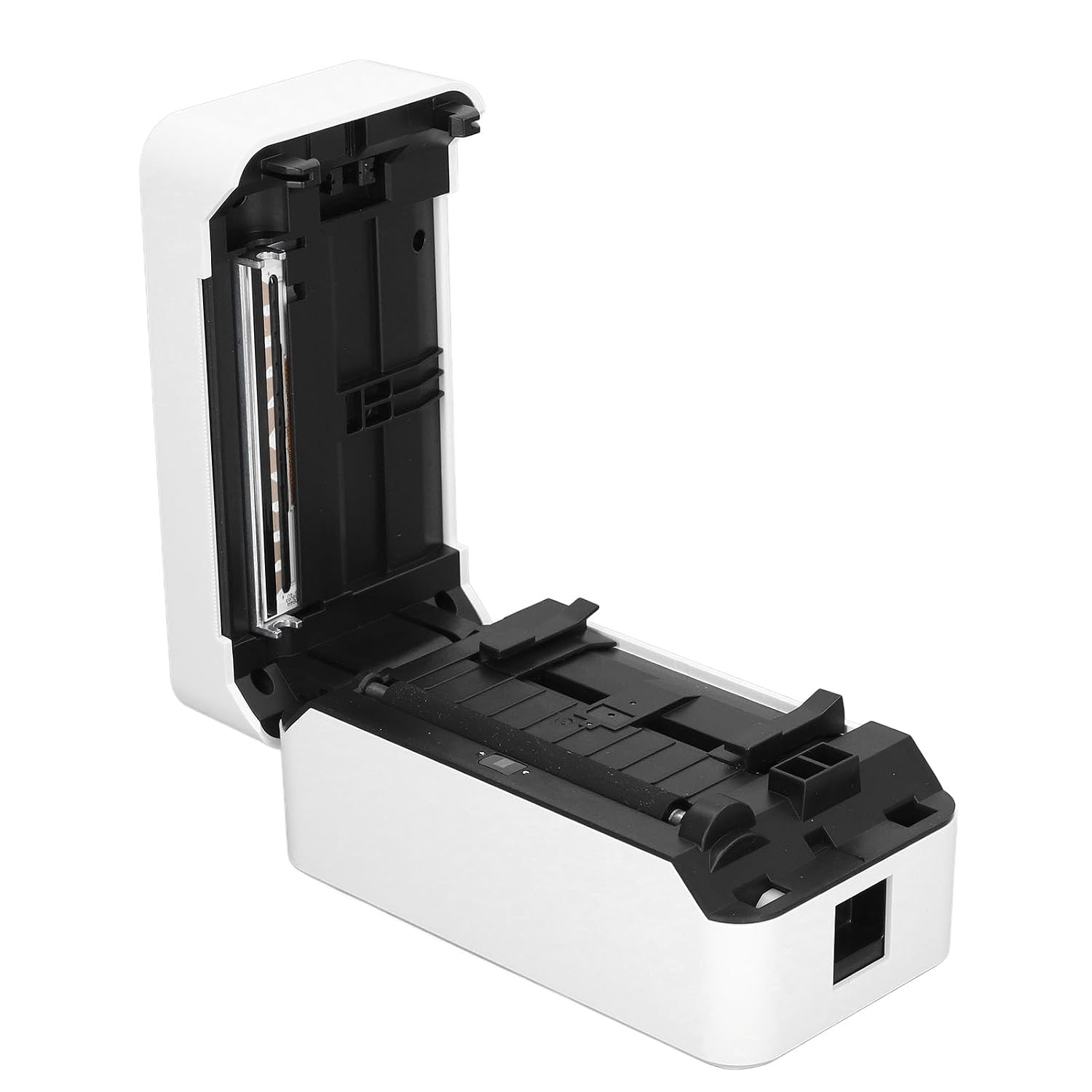
Foto 4.2: Zuru ezu view of the incisive paper cutting edge and the adjustable guides for setting the printing width.
4.4 Connecting to a Device (USB/Bluetooth)
4.4.1 USB njikọ
- Connect one end of the provided USB cable to the printer's USB port and the other end to your computer.
- Your operating system may automatically detect the printer and install basic drivers. For full functionality, it is recommended to install the official drivers from the manufacturer's websaịtị (ọ bụrụ na ọ dị).
4.4.2 Njikọ Bluetooth
- Ensure Bluetooth is enabled on your mobile device or computer.
- Turn on the printer. The Bluetooth indicator light (if present) should be blinking or solid, indicating it's ready for pairing.
- On your device, search for available Bluetooth devices and select 'TDL401' or a similar name.
- Follow any on-screen prompts to complete the pairing process. A PIN (e.g., 0000 or 1234) may be required.
- Once paired, you can print directly from compatible applications on your device.
5. Ntuziaka ọrụ
5.1 Mbipụta bụ isi
- Ensure the printer is powered on and connected to your device via USB or Bluetooth.
- Open the document or label design software on your computer or mobile device.
- Select the print option within your application.
- Choose the 'Tuwei TDL401' printer from the list of available printers.
- Adjust print settings such as label size, orientation, and number of copies as needed.
- Click 'Print' to send the job to the printer.
5.2 Print Speed and Quality
- The TDL401 printer offers a high print speed of 180mm / s, allowing for rapid completion of printing tasks.
- With a print resolution of 203dpi, the printer produces clear images and fine text, ensuring excellent label quality.
5.3 Mgbasa ozi akwadoro
The printer is designed for use with thermosensitive adhesive label paper. It supports roll widths from 40mm to 80mm, with a maximum paper width of 80 ± 0.5 mm.
6. Nlekọta
Ndozi mgbe niile na-eme ka arụ ọrụ kacha mma ma gbasaa ndụ nke ngwa nbipute gị.
6.1 Na-ehicha isi mbipụta
The print head is a critical component and should be cleaned regularly, especially if print quality degrades.
- Gbanyụọ igwe nbipute ahụ wee gbanyụọ eriri ike ahụ.
- Mepee mkpuchi ngwa nbipute.
- Jiri ákwà owu mee obere ihe.ampened with isopropyl alcohol (70% or higher) to gently wipe the print head surface. Avoid touching the print head with bare hands.
- Hapụ isi mbipụta ahụ ka ọ kpọọ nkụ kpamkpam tupu e mechie mkpuchi ahụ ma jikọọ ike ọzọ.

Foto 6.1: Agara nso view of the thermal print head, which requires careful cleaning to maintain print quality.
6.2 Nhicha izugbe
- Jiri nwayọ hichaa mpụta nke ngwa nbipute, damp akwa . Ejila kemịkalụ siri ike ma ọ bụ ihe mkpocha abrasive.
- Remove any dust or paper debris from the paper compartment using a soft brush or compressed air.
7. Nchọpụta nsogbu
This section addresses common issues you might encounter with your Tuwei TDL401 printer.
| Nsogbu | Ihe nwere ike ime | Ngwọta |
|---|---|---|
| Printer does not power on | No power supply; Faulty power adapter/cable | Ensure power cable is securely connected to printer and outlet. Test outlet with another device. Check power adapter for damage. |
| Poor print quality (faint, blank lines) | Dirty print head; Incorrect paper type; Low quality labels | Clean the print head as described in Section 6.1. Ensure you are using high-quality thermal adhesive label paper. |
| Printer not detected via USB | Loose USB cable; Driver not installed; Faulty USB port | Ensure USB cable is securely connected. Install the correct printer drivers. Try a different USB port on your computer. |
| Enweghị ike ijikọ site na Bluetooth | Bluetooth off on device; Printer not in pairing mode; Incorrect PIN | Ensure Bluetooth is enabled on your device. Restart the printer. Re-attempt pairing and ensure the correct PIN (e.g., 0000 or 1234) is entered. |
| Mpempe akwụkwọ | Improper paper loading; Damaged labels | Turn off the printer and open the cover. Carefully remove any jammed paper. Reload paper correctly, ensuring it's aligned and not wrinkled. |
8. Nkọwapụta
Detailed technical specifications for the Tuwei TDL401 Thermal Label Printer.
| Njirimara | Nkọwapụta |
|---|---|
| Nlereanya | TDL401 |
| Ụdị | Tuwei |
| Teknụzụ obibi akwụkwọ | Thermal |
| Mkpebi Mbipụta | 203 dpi (203 x 203 DPI) |
| Ọsọ Bipụta | 180 mm / s |
| Obosara Bipụta | Approx. 72mm / 2.83 inches |
| Obosara Mpịakọta Akwụkwọ | 40 ruo 80 mm / 1.57 ruo 3.15 inch |
| Obosara akwụkwọ kacha | 80 ± 0.5 mm |
| Printing Medium | Thermosensitive Adhesive Label Paper |
| Njikọta | USB, Bluetooth (BT) |
| Ntọala ntụziaka | TSPL |
| Ihe onwunwe | ABS |
| Ntinye ike | 100-240V (US plug specification) |
| Mmepụta ngwa nbipute | Monochrome |
| Ngwa dakọtara | Computers, Smartphones |
| Mba onye si | USA |
9. Akwụkwọ ikike na nkwado
For warranty information and technical support, please refer to the documentation provided with your purchase or contact your retailer. Keep your purchase receipt as proof of purchase for warranty claims.