
1. Ngwaahịa gafereview
The Pulido Fingerprint Door Knob offers a modern and secure keyless entry solution for your home or office. This smart door knob provides two primary methods of unlocking: fingerprint recognition and mobile application control. It is designed for ease of use and enhanced security, storing all user data locally on the device.

Image: The Pulido Fingerprint Door Knob highlighting its fingerprint sensor, app management capability, and power interface.
2. Ihe ngwugwu
Biko chọpụta na akụrụngwa niile dị tupu ịmalite nrụnye:
- Fingerprint Door Knob (Interior and Exterior Handles)
- Latch Mechanism
- Efere efere
- Ịkwanye kposara
- Template nwụnye
- Akwụkwọ ntuziaka onye ọrụ
3. Ihe njirimara
Familiarize yourself with the different parts of your Pulido Fingerprint Door Knob:
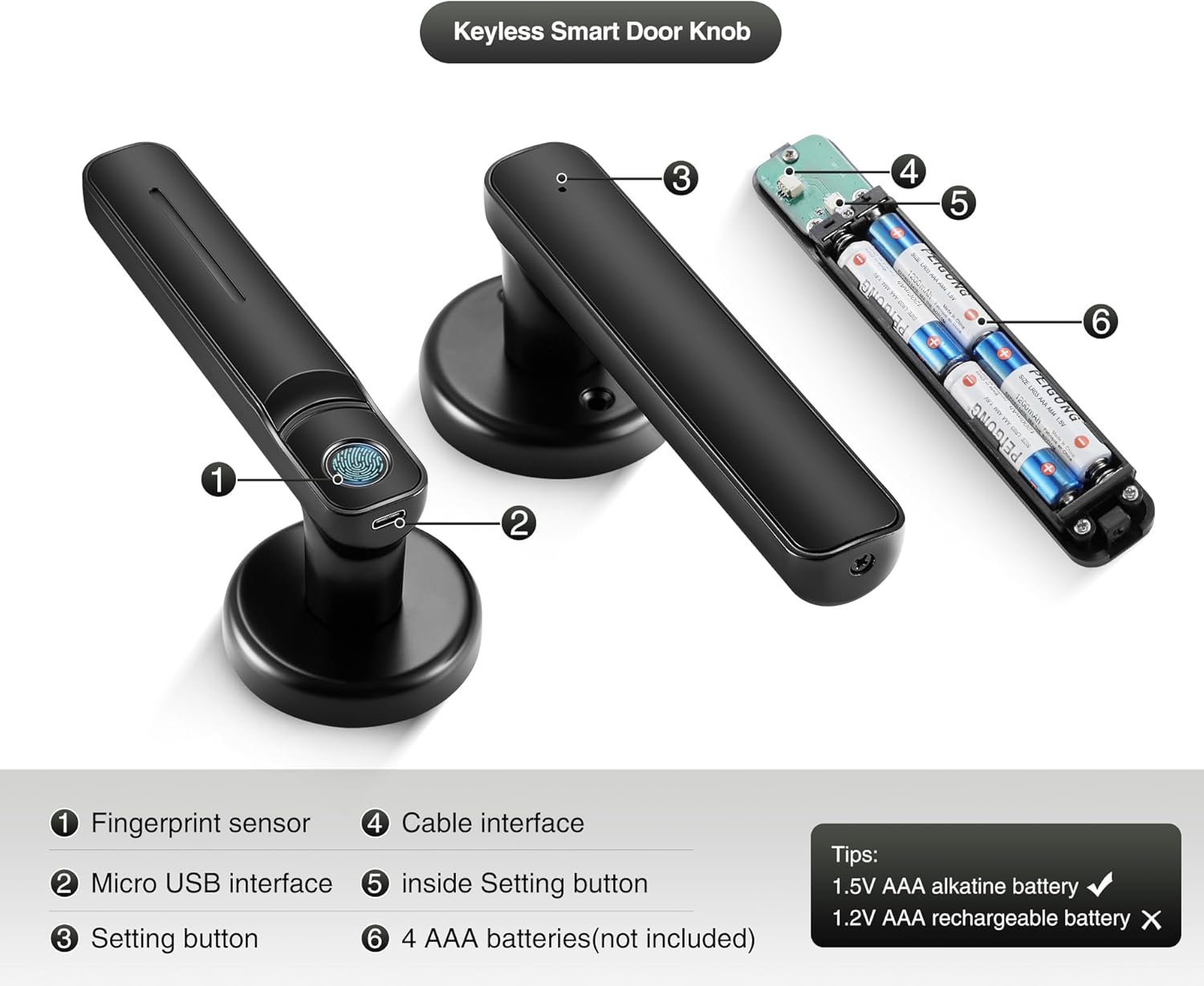
Foto: Zuru ezu view of the door knob's internal and external components.
- Mkpisiaka mmetụta: Used for biometric unlocking.
- Obere eriri USB: For emergency power supply.
- Setting Button (Exterior): Used for initial setup and pairing.
- Interface USB: Connects the exterior and interior components.
- Inside Setting Button: Used for internal settings and resets.
- AAA Batteries Compartment: Holds 4 AAA batteries (not included).
4. Ntuziaka nwụnye
This section provides instructions for installing your new Pulido Fingerprint Door Knob. It is designed to replace standard mechanical door knobs.

Image: Visual representation of replacing a mechanical lock with the smart door knob.
4.1 Nkwadebe
- Ensure your door thickness is compatible with the lock.
- Wepụ ihe ọ bụla dị na ọnụ ụzọ.
- Verify the door bore hole and backset dimensions match the installation template.
4.2 Nzọụkwụ nwụnye
- Wụnye Latch: Tinye ihe mkpuchi ahụ n'ọnụ ụzọ ma jiri skru jidesie ya ike. Hụ na ihe mkpuchi ahụ chere ihu n'ụzọ kwesịrị ekwesị maka mwụgharị ọnụ ụzọ gị.
- Wụnye efere Strike: Mount the strike plate on the door frame, aligning it with the latch bolt.
- Install the Exterior Handle: Feed the cable and spindle through the door bore hole from the exterior side.
- Install the Interior Handle: Connect the cable from the exterior handle to the interior handle. Align the interior handle with the spindle and mounting posts.
- Secure the Handles: Use the provided screws to firmly attach the interior handle to the exterior handle, ensuring the lock is flush with the door surface.
- Fanye batrị: Open the battery compartment on the interior handle and insert 4 new AAA alkaline batteries.
- Ọrụ nnwale: After installation, test the mechanical function of the knob to ensure smooth rotation and latch engagement.
5. Initial Setup & App Configuration
To fully utilize your smart door knob, you will need to set it up with the mobile application and register fingerprints.
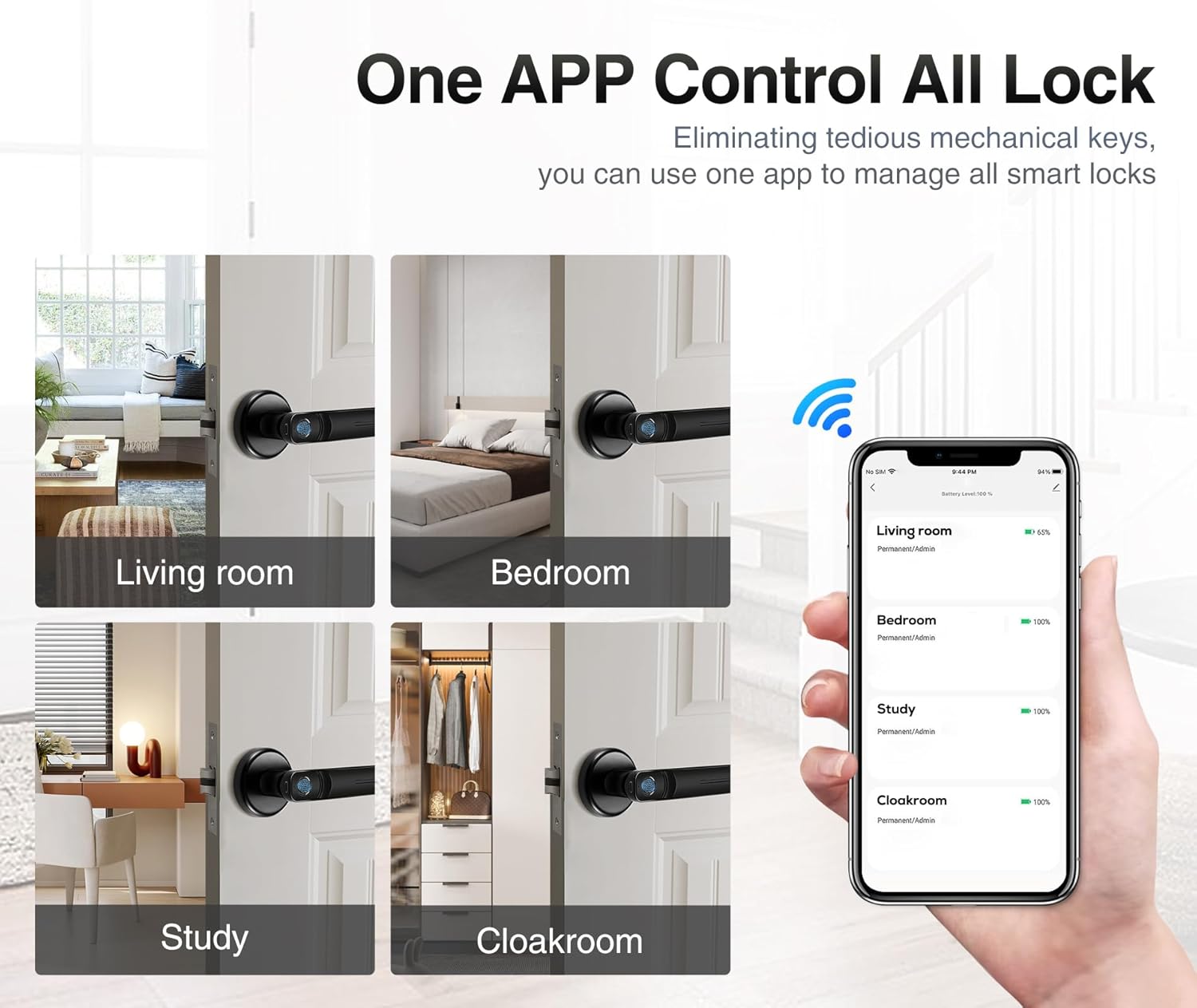
Image: The mobile application interface demonstrating control over multiple locks.
5.1 Ngwa nbudata na ijikọ
- Budata ngwa: Chọọ maka the 'Tuya Smart' or 'Smart Life' app in your smartphone's app store (iOS or Android) and install it.
- Mepụta akaụntụ: Mepee ngwa ahụ wee debanye aha maka akaụntụ ọhụrụ ma ọ bụ banye ma ọ bụrụ na ịnweelarị otu.
- Tinye ngwaọrụ: In the app, tap '+' to add a new device. Select 'Door Lock' or 'Smart Lock' from the device categories.
- Jikọọ mkpọchi ahụ: Follow the in-app instructions to put the door knob into pairing mode (usually by pressing and holding the setting button on the exterior handle until an indicator light flashes). The app will detect and connect to the lock via Bluetooth.
5.2 Fingerprint Registration
The lock supports up to 100 user fingerprints. Fingerprint information is stored locally on the lock for security.
- Access Fingerprint Management: In the app, navigate to the settings for your connected door lock and find the 'Fingerprint Management' section.
- Tinye akara mkpịsị aka: Select 'Add Fingerprint' and follow the on-screen prompts.
- Scan Fingerprint: Place your finger on the fingerprint sensor multiple times, adjusting the position slightly with each scan, until the app confirms successful registration.
- Repeat for Additional Users: Repeat the process for any other users who require fingerprint access.
6. Ọrụ
Your Pulido Fingerprint Door Knob offers convenient and secure unlocking methods.
6.1 Jiri akara mkpịsị aka meghee

Image: Demonstrating the quick fingerprint unlock feature.
- Place your registered finger firmly on the fingerprint sensor.
- The lock will unlock within 0.5 seconds if the fingerprint is recognized.
- Rotate the door knob to open the door.
6.2 Unlocking with the App
- Open the 'Tuya Smart' or 'Smart Life' app on your smartphone.
- Select the desired door lock from your device list.
- Tap the 'Unlock' button within the app interface.
- Ngwa ahụ na-enyekwa gị ohere view unlocking records and manage user access.
Ọnọdụ ngafe 6.3

Image: The door knob in a hallway, illustrating the Passage Mode feature.
- Passage Mode allows the door to remain unlocked for continuous access without requiring fingerprint or app authentication.
- To activate Passage Mode, open the app, select your door lock, and find the 'Passage Mode' setting.
- Enable Passage Mode as needed. Remember to disable it when you require the door to be locked.
7. Njikwa batrị
The Pulido Fingerprint Door Knob is powered by 4 AAA batteries.
7.1 Nwụnye/Ndochi batrị
- Locate the battery compartment on the interior handle (refer to Section 3, Component 6).
- Mepee mkpuchi ụlọ.
- Insert 4 new 1.5V AAA alkaline batteries, ensuring correct polarity. Do not use 1.2V rechargeable batteries.
- Mechie mkpuchi nke batrị batrị nke ọma.
7.2 Ịdọ aka ná ntị batrị dị ala
- The lock will provide an audible or visual indicator when battery power is low.
- Replace batteries promptly to ensure continuous operation.
7.3 Ike mberede
- In case of complete battery depletion, the lock can be temporarily powered via the Micro USB interface (refer to Section 3, Component 2) using a standard power bank or USB charger.
- This allows you to unlock the door and replace the batteries.
8. Nchọpụta nsogbu
This section addresses common issues you might encounter with your Pulido Fingerprint Door Knob.
8.1 Fingerprint Not Recognized
- Ihe mmetụta dị ọcha: Ensure the fingerprint sensor is clean and free of dirt or moisture.
- Ndokwa kwesịrị ekwesị: Place your finger firmly and completely on the sensor. Try different angles if necessary.
- Re-register Fingerprint: If issues persist, delete the existing fingerprint in the app and re-register it, ensuring a thorough scanning process.
- Multiple Attempts: The lock allows multiple attempts. If still unsuccessful, use the app to unlock.
8.2 Okwu Njikọta Ngwa
- Agbanyere Bluetooth: Gbaa mbọ hụ na agbanyere Bluetooth na ekwentị gị.
- nso: Be within Bluetooth range of the door knob.
- App Restart: Mechie wee mepee ngwa ahụ.
- Jikọọgharịa Ngwaọrụ: If the app consistently fails to connect, try removing the device from the app and re-pairing it.
- Lelee batrị: Low batteries can affect Bluetooth connectivity.
8.3 Lock Does Not Engage/Disengage
- Lelee batrị: Ensure batteries are not depleted. Replace if necessary.
- Lelee nwụnye: Verify that the lock was installed correctly and that the spindle and latch mechanism are properly aligned.
- Ihe mgbochi: Check for any physical obstructions preventing the latch from extending or retracting fully.
9. Nkọwapụta
| Njirimara | Nkọwapụta |
|---|---|
| Nọmba nlereanya | door konb 140 |
| Ihe onwunwe | Aluminom, igwe anaghị agba nchara |
| Akụkụ ngwaahịa | 5.7"L x 2.5"W |
| Ibu Ibu | 1.61 pound |
| Mepee ụzọ | Fingerprint, Mobile App |
| Fingerprint Recognition Rate | Ruo 99% |
| Mepee ọsọ | N'ime sekọnd 0.5 |
| Ike onye ọrụ | Ruo akara mkpịsị aka 100 |
| Ịnye ọkụ | 4 x 1.5V AAA Alkaline batrị (anaghị etinye ya) |
| Ike mberede | Micro USB |
10. Akwụkwọ ikike na nkwado
Pulido is committed to providing reliable products and customer satisfaction.
10.1 Ozi akwụkwọ ikike
This product includes a free replacement service for Ọnwa 12 from the date of purchase for non-human caused damage. Please retain your proof of purchase for warranty claims.
10.2 Nkwado nka na ụzụ
Lifelong technical support is provided for the Pulido Fingerprint Door Knob. If you have any questions, require assistance with installation, setup, or troubleshooting, please contact our customer service team.
For support, please refer to the contact information provided on the product packaging or our official websaịtị.