
Topwise G1-B
Topwise G1-B 1D 2D Wireless Barcode Scanner User Manual
Model: G1-B | Brand: Topwise
Okwu mmalite
This manual provides comprehensive instructions for the setup, operation, and maintenance of your Topwise G1-B 1D 2D Wireless Barcode Scanner. Designed for versatility and efficiency, this scanner offers multiple connectivity options and robust barcode compatibility for various applications, including retail, logistics, and inventory management.
Ihe ngwugwu
Upon opening the package, verify that all components are present and in good condition. The standard package includes:
- Topwise G1-B Barcode Scanner
- Adjustable Holder/Stand
- Igwe nchaji USB
- USB Wireless Dongle (2.4G receiver)
- Akwụkwọ ntuziaka
Vidiyo: Topwise G1-B Barcode Scanner Unboxing. This video demonstrates the contents of the product package, including the scanner, holder, cables, and manual.

Foto: The Topwise G1-B barcode scanner, its adjustable holder, USB charging cable, and USB wireless dongle, laid out on a white surface.
Ntọala na Njikọta
1. Assembling the Holder
The included holder is flexible and can be adjusted for optimal scanning angles. Ensure the screws are tightened for stability after adjusting the position.
Vidiyo: Installation of G1-B Barcode Scanner Stand. This video demonstrates how to assemble and adjust the flexible holder for the barcode scanner.
2. Ijikọ ihe nyocha
The Topwise G1-B scanner offers three versatile connection methods:
- Njikọ ikuku 2.4G: Insert the USB wireless dongle into your computer's USB port. The scanner will automatically connect, offering up to 100 meters (330 feet) of open-air transmission range.
- Njikọ ikuku Bluetooth: Enable Bluetooth on your device (laptop, PC, smartphone, tablet). Pair with "BARCODE SCANNER" or "topwise0001". This mode provides up to 50 meters (164 feet) indoors.
- Njikọ eriri USB: Connect the scanner directly to your computer using the provided USB cable. This is a plug-and-play connection, requiring no additional software or driver installations. The scanner can also be charged via this connection.
Vidiyo: Topwise G1-B Bar Code Scanner 3 IN 1 Connection Way. This video illustrates the three connection methods: 2.4G wireless, Bluetooth, and USB wired, and how to set them up.

Foto: Visual representation of the scanner's 3-in-1 connectivity options and broad operating system compatibility.
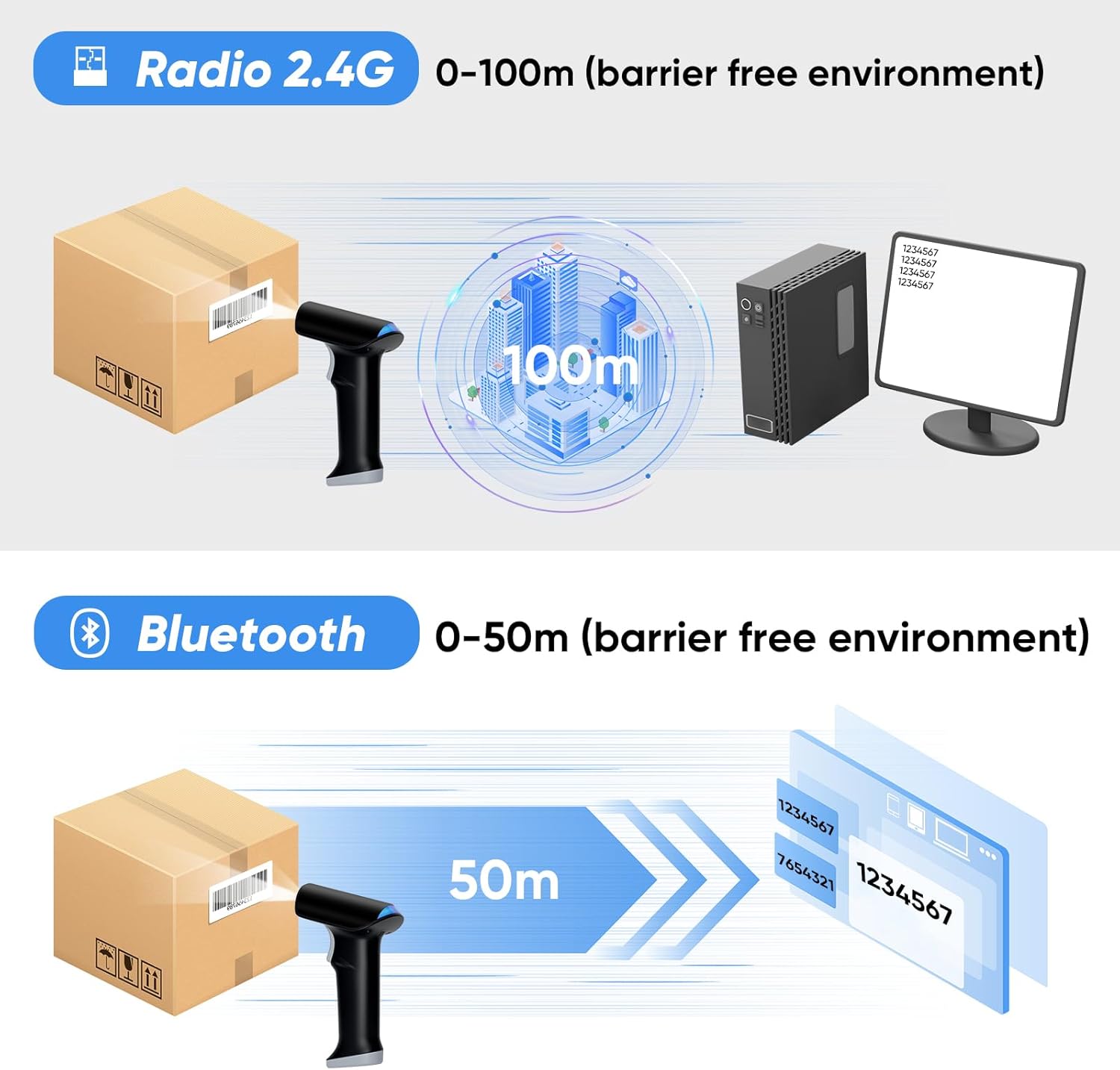
Foto: Illustration of the wireless transmission ranges for 2.4G and Bluetooth connections.
Ụdị arụ ọrụ
The Topwise G1-B scanner supports various operating and pairing modes to suit different working environments:
- Ụdị nbudata ngwa ngwa: Scanned data is immediately transmitted to the connected device. Ideal for real-time inventory updates or point-of-sale systems.
- Ụdị Nchekwa: Scanned data is stored internally in the scanner's memory and can be uploaded later. Useful for batch scanning or when out of range of the connected device.
- One-to-One Pairing: A single scanner is paired with a single receiver/device.
- More-to-One Pairing: Multiple scanners can be paired to a single receiver/device, allowing for collaborative scanning.
Ụdị nyocha
The scanner offers three distinct scanning activation modes:
- Auto-sensing Scanning Mode: The scanner automatically detects a barcode within its field of view and scans it without requiring a trigger press.
- Ụdị nyocha na-aga n'ihu: The scanner continuously emits its scanning beam, allowing for rapid, successive scans without individual trigger presses.
- Ụdị ihe mkpali: The scanning beam is activated only when the trigger button on the scanner is pressed.
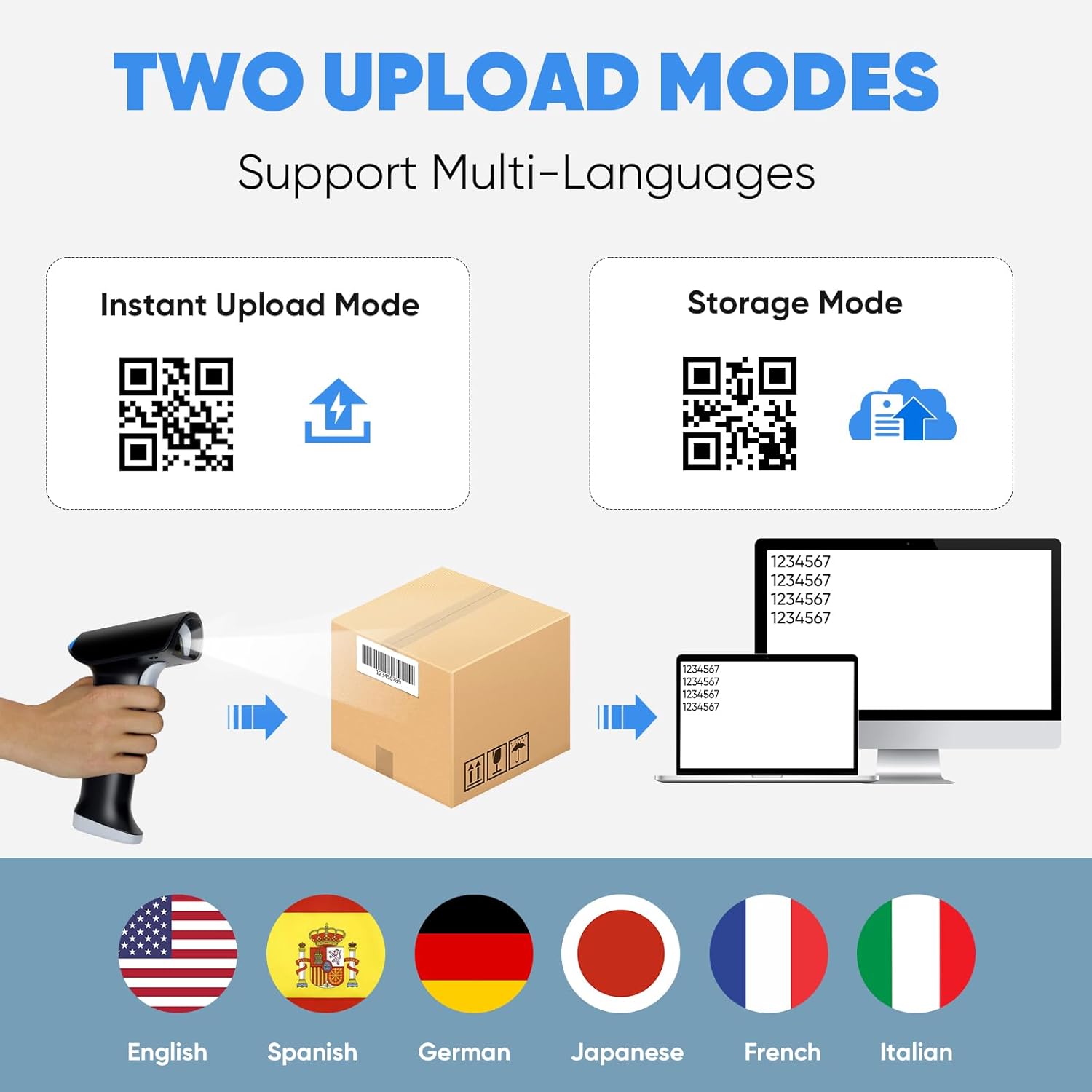
Foto: Visual explanation of the Instant Upload and Storage modes, demonstrating how scanned data is handled.

Foto: Visual guide to the three available scanning modes for the device.
Ndakọrịta barcode
The Topwise G1-B scanner is designed to read a broad range of 1D and 2D barcodes, including those on paper and digital screens. It supports mainstream barcode types such as EAN, QR Code, Data Matrix, and PDF 417. The advanced CMOS scanning technology allows it to read various conditions of barcodes, including:
- Damaged barcodes
- Fuzzy barcodes
- Colorful barcodes
- Reflective barcodes
- Barcodes displayed on screens (e.g., mobile phones, monitors)
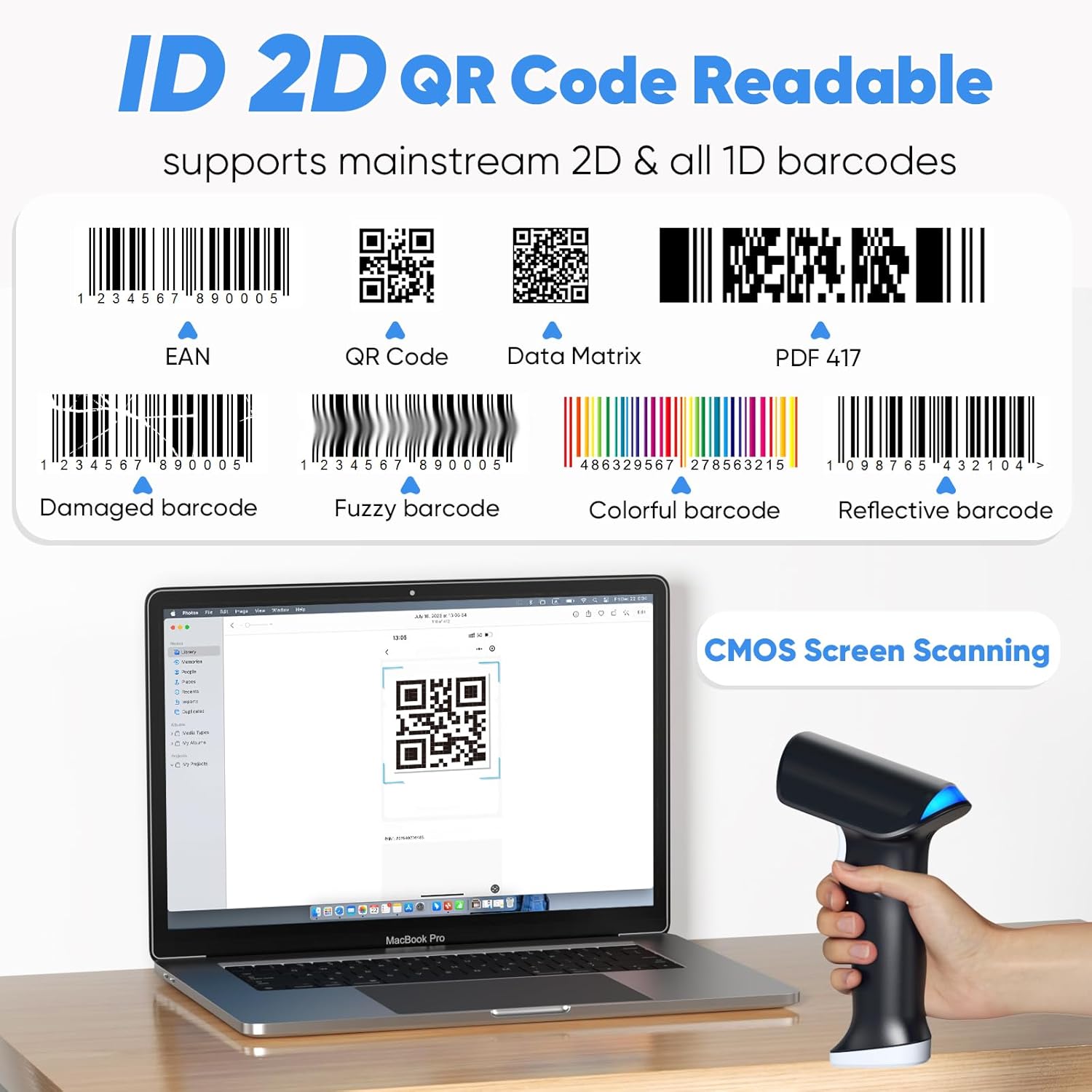
Foto: Examples of different barcode types and conditions that the scanner can read, highlighting its versatility.
Ndụ batrị na Nchaji
The Topwise G1-B is equipped with a powerful 2000mAh Lithium Ion battery, designed for extended use. A full charge typically takes 3-4 hours and allows for several days of continuous operation, significantly enhancing work efficiency.
- Oge ọrụ: Approximately 24 hours of continuous scanning.
- Oge nchaji: 3-4 hours for a full charge.
- Oge njikere: Ruo ụbọchị 150.
The scanner can be charged via the USB cable connected to a computer or a compatible USB power adapter.

Foto: Information on the scanner's battery capacity and estimated usage times.
Programmable Atụmatụ
The Topwise G1-B barcode scanner offers several programmable features to customize its operation according to your needs. These settings are typically configured by scanning specific QR codes found in the detailed instruction manual (not included in this summary).
- Support Prefix & Suffix: Add custom characters before or after scanned barcode data.
- Turn on/off the Buzzer: Control the audible feedback for successful scans.
- Turn on/off the Vibration: Control the haptic feedback for successful scans.
- Hide Front / End Characters: Configure the scanner to omit a specified number of characters from the beginning or end of the scanned data.

Foto: Visual representation of the scanner's customizable features, including adding prefixes/suffixes and controlling feedback.
Nchọpụta nsogbu
If you encounter issues with your Topwise G1-B barcode scanner, consider the following general troubleshooting steps:
- No Scan/No Data Output:
- Gbaa mbọ hụ na akwụchara nyocha nke ọma.
- Verify the connection method (2.4G dongle, Bluetooth, or USB cable) is properly established. For 2.4G, ensure the dongle is securely plugged in. For Bluetooth, confirm it's paired and connected in your device's settings.
- Check if the scanner is in the correct operating mode (e.g., Instant Upload Mode).
- Ensure the barcode is clear, undamaged, and within the scanner's optimal reading range and angle.
- Beeping na-aga n'ihu:
- A continuous beep might indicate a low battery, a connection issue, or an error state. Try recharging the scanner.
- Attempt to re-establish the connection (unplug/replug dongle, re-pair Bluetooth).
- Refer to the full instruction manual for specific error codes or beeping patterns.
- Settings Not Applying (QR Codes):
- Ensure you are scanning the QR codes accurately and completely.
- Some settings may require a specific sequence of scans or a restart of the scanner to take effect.
- If scanning from a screen, ensure the screen brightness is adequate and there is no glare.
- Mmepụta data ezighi ezi:
- Check the programmable features (prefix/suffix, character hiding) to ensure they are not altering the data unintentionally.
- Verify the barcode type is fully supported and the scanner is configured for it if necessary.
For more detailed troubleshooting or advanced configurations, please consult the complete instruction manual provided with your product or contact Topwise customer support.
Nkọwapụta
| Njirimara | Nkọwa |
|---|---|
| Nlereanya | G1-B |
| Ụdị | Topwise |
| Teknụzụ Njikọta | Wireless (2.4G, Bluetooth), Wired (USB) |
| Ndakọrịta barcode | 1D and 2D barcodes (paper and screen) |
| Wireless Range (2.4G) | Up to 100 meters (330 feet) in open air |
| Oke ikuku (Bluetooth) | Up to 50 meters (164 feet) indoors |
| Ụdị batrị | 1 batrị lithium ion (gụnyere) |
| Ike batrị | 2000mAh |
| Oge Nchaji | 3-4 awa |
| Oge ọrụ | Approx. 24 hours (continuous scanning) |
| Oge Njikere | Ruo ụbọchị 150 |
| Ngwa dakọtara | Laptop, Desktop (Windows, Linux, Mac OS, Android, iOS) |
| Ibu Ibu | 1.06 pound |
| Akụkụ ngwugwu | 7.68 x 4.29 x 3.7 sentimita asatọ |
| Onye nrụpụta | Topwise |
| Mba onye si | China |
Ask a question about this manual
Ask about setup, troubleshooting, compatibility, parts, safety, or missing instructions. Manuals+ will review the question and use this page’s manual context to help answer it.