
OSALO OS 991ES PLUS II
Akwụkwọ ntuziaka onye ọrụ OSALO Scientific Calculator OS 991ES PLUS II
Model: OS 991ES PLUS II
Okwu mmalite
This manual provides detailed instructions for the proper use and maintenance of your OSALO Scientific Calculator OS 991ES PLUS II. This calculator is designed for efficient and accurate calculations, featuring 417 essential functions and a textbook-like written display. It is suitable for students and professionals across various academic disciplines.

Foto: N'ihu view of the OSALO Scientific Calculator OS 991ES PLUS II, displaying a complex integral calculation.
Parts of the Calculator
Familiarize yourself with the various components and keys of your calculator for optimal use.

Image: Diagram illustrating the key components of the OSALO Scientific Calculator, including the solar panel, extra large display, control keys, SHIFT key, Mode key, Power on/off, function keys, Delete key, and Last answer key.
- Ogwe anyanwụ: Provides power in well-lit environments.
- Ngosipụta buru ibu: Shows calculations and results in a clear, textbook-like format.
- Igodo njikwa: Navigation and selection buttons.
- Igodo SHIFT: Accesses secondary functions printed above keys.
- ALPHA Key: Accesses alpha characters and variables.
- MODE/SETUP Key: Changes calculator modes and settings.
- ON Key: Na-agbanye mgbako.
- Igodo ọrụ: Dedicated keys for mathematical operations (e.g., sin, cos, tan, log, ln, square root, power).
- DEL Key: Deletes the last entered character.
- AC Key: Clears all calculations and resets the display.
- ANS Key: Recalls the last answer.
Melite
Battery Installation and Power Source
The OSALO Scientific Calculator OS 991ES PLUS II operates on both solar power and a single LR44 battery (included). The solar panel provides power in sufficient light, while the battery ensures operation in low-light conditions or when solar power is insufficient.
- Ensure the calculator is turned off.
- Locate the battery compartment on the back of the calculator.
- Open the battery cover using a small screwdriver if necessary.
- Insert the LR44 battery, ensuring the correct polarity (+/-).
- Mechie mkpuchi batrị nke ọma.
The calculator will automatically switch between solar and battery power as needed. For optimal performance, use the calculator in a well-lit environment.
Ntuziaka ọrụ
This section details the various functions and modes of your OSALO Scientific Calculator.
Gbanyụọ/ Gbanyụọ
- Iji gbanye: Pịa ON igodo.
- To turn off: Press SHIFT mgbe ahụ AC (Gbanyụọ)
Basic Calculations (COMP Mode)
The default mode for general arithmetic operations. To enter COMP mode, press MODE/SETUP and select 1:COMP.
- Addition, Subtraction, Multiplication, Division: Enter numbers and operators as you would write them. Press = for the result.
- Mpekere: Jiri ihe ab/c key to input fractions. To convert between fractions and decimals, press S<=>D.
- Powers and Roots: Jiri x², x³, x^, √, ³√ igodo.
Textbook-Like Written Display
The calculator features a natural input and output display, mimicking how expressions appear in textbooks. This enhances readability and simplifies complex equation entry.

Image: The calculator's display showing mathematical expressions in a natural, textbook-like format, including fractions and square roots.
Ndozi ihe dị iche
Adjust the screen contrast to relieve visual fatigue and ensure clear visibility in various lighting conditions.
- Pịa SHIFT mgbe ahụ MODE/SETUP ịbanye na menu SETUP.
- Navigate to "Contrast" (usually option 8 or 9).
- Use the left and right arrow keys to adjust the display contrast.
- Pịa AC ka ịpụ na menu ntọala.
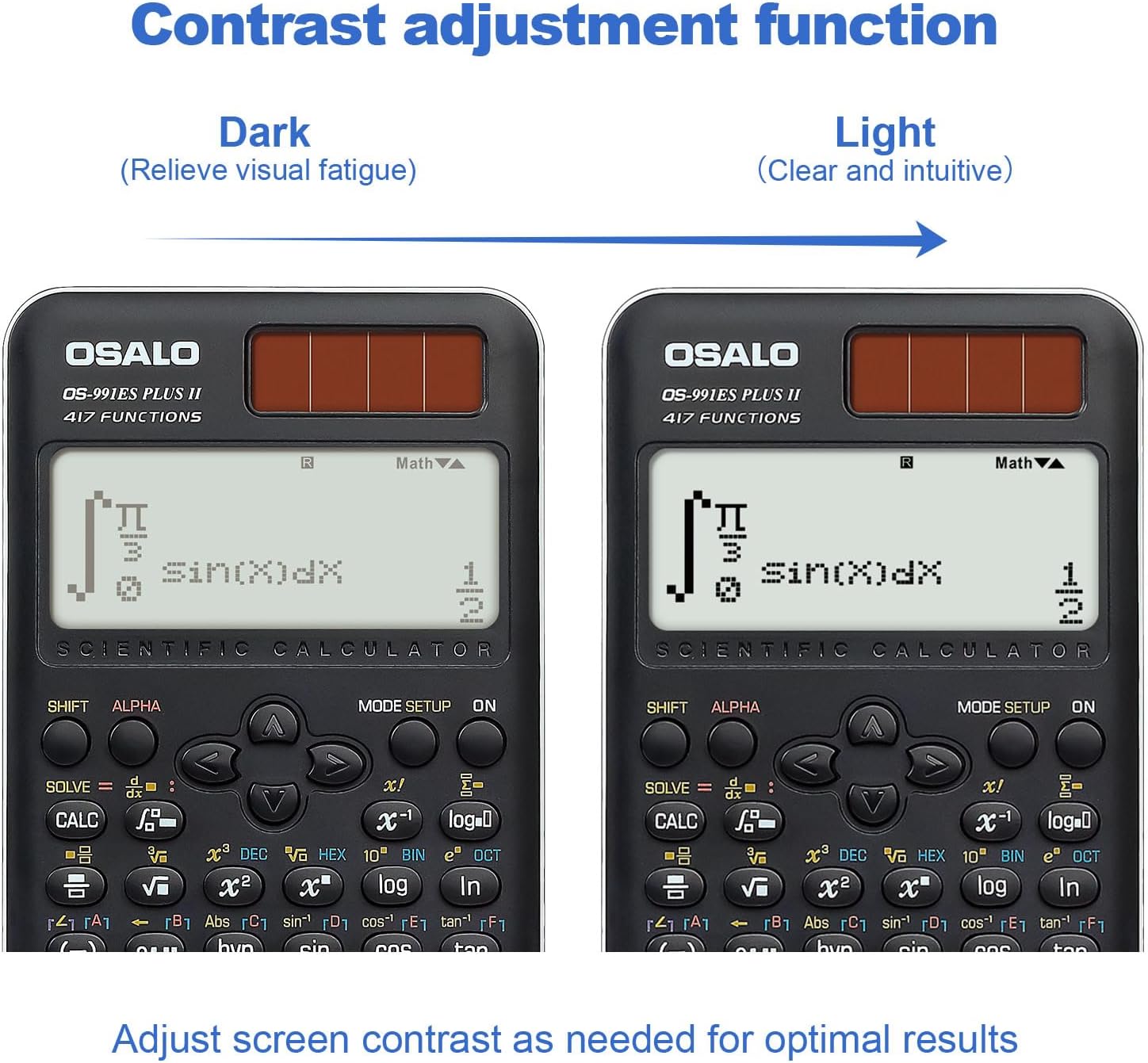
Foto: Abụọ views of the calculator display, demonstrating the contrast adjustment function from dark (to relieve visual fatigue) to light (clear and intuitive).
Advanced Functions and Modes (417 Functions)
The calculator offers 8 primary calculation modes and 417 functions to handle a wide range of mathematical problems.

Image: The calculator alongside a list of its 8 calculation modes: COMP (General calculations), CMPLX (Complex numbers), STAT (Statistics), BASE-N, Equation solution, Matrix Calculations, TABLE, and VECTOR.
- COMP (Mgbakọ mkpokọta): Standard arithmetic, fractions, powers, roots, logarithms, trigonometric functions.
- CMPLX (Ngbakọ ọnụọgụ ọnụọgụgụ): Perform operations with complex numbers. Press MODE/SETUP and select 2:CMPLX.
- STAT (Statistics): Calculate mean, standard deviation, regression analysis. Press MODE/SETUP and select 3:STAT.
- BASE-N: Convert and calculate in different number bases (binary, octal, decimal, hexadecimal). Press MODE/SETUP and select 4:BASE-N.
- Equation Solving: Solve linear equations, quadratic equations, and cubic equations. Press MODE/SETUP and select 5:EQN.
- Matrix Operations: Perform matrix addition, subtraction, multiplication, determinants, and transpositions. Press MODE/SETUP and select 6:MATRIX.
- TABLE: Generate a table of values for a given function. Press MODE/SETUP and select 7:TABLE.
- VECTOR: Perform vector calculations. Press MODE/SETUP and select 8:VECTOR.
- Trigonometry: Sine, Cosine, Tangent, and their inverses. Ensure correct angle unit (Degrees, Radians, Gradians) is set via SHIFT MODE/SETUP (DRG).
- Integration and Differentiation: Use the dedicated integral (∫dx) and differential (d/dx) keys for calculus operations.
- Function Analysis: Advanced functions for analyzing mathematical expressions.
Smart History and Quick Recall
The calculator stores previous calculations, allowing for quick retrieval, reuse, or editing of formulas. Use the v na ▼ arrow keys to scroll through calculation history.
Nlekọta
- Nhicha: Wipe the calculator with a soft, dry cloth. Do not use abrasive cleaners or solvents.
- Nchekwa: Debe ihe mgbakọ na mwepụ ahụ n'ebe dị jụụ ma kpọọ nkụ, ebe anwụ na-anaghị anwụ kpọmkwem na oke okpomọkụ dị oke njọ.
- Ngbanwe batrị: If the display becomes dim or the calculator functions erratically, replace the LR44 battery.
- Zere mbelata: Protect the calculator from impacts and drops, which can damage internal components or the display.
Nchọpụta nsogbu
| Nsogbu | Ihe nwere ike ime | Ngwọta |
|---|---|---|
| Igwe mgbako anaghị agba. | Insufficient light for solar power, dead battery, or internal issue. | Move to a brighter area. Replace the LR44 battery. If problem persists, contact support. |
| Ngosipụta adịchaghị njọ ma ọ bụ enweghị ọgụgụ. | Low battery, insufficient light, or contrast setting. | Replace battery. Ensure adequate lighting. Adjust display contrast (see Operating Instructions). |
| Nsonaazụ ngụkọ na-ezighi ezi. | Incorrect mode selected, syntax error, or input error. | Verify the correct mode (e.g., COMP, STAT). Check your input for syntax errors. Refer to the specific function section in this manual. |
| Igodo anaghị anabata ozi. | Dust/debris under keys, or internal malfunction. | Gently clean around the keys. If problem persists, contact support. |
Nkọwapụta
- Ụdị: OS 991ES PLUS II
- Ọrụ: 417
- Ngosipụta: 2-line, 10+2 digits, Textbook-Like Written Display
- Isi mmalite ike: Solar and Battery (1 x LR44 included)
- Akụkụ: 6.4 x 3.15 x 0.1 sentimita (164 x 80 x 17 mm)
- Ibu ihe: 5.3 ounces (145g)
- Agba: Nwa
- Ụdị mgbako: Injinia/Sayensị
- ASIN: B0CJJ15LVC
- Onye nrụpụta: OSALO
- Mba onye si: China

Image: Diagram showing the dimensions (length, width, thickness) and net weight of the OSALO Scientific Calculator.
Akwụkwọ ikike na nkwado
OSALO products are manufactured to high-quality standards. For warranty information or technical support, please refer to the warranty card included with your product or visit the official OSALO websaịtị. Debe nnata nzụta gị ka ihe akaebe nke ịzụrụ.
Maka enyemaka ọzọ, ị nwere ike ịkpọtụrụ onye na-ere ahịa ozugbo site na ikpo okwu ebe azụrụ ngwaahịa ahụ.
Ask a question about this manual
Ask about setup, troubleshooting, compatibility, parts, safety, or missing instructions. Manuals+ will review the question and use this page’s manual context to help answer it.