
Xprinter XP-Q801K
Xprinter XP-Q801K Thermal Receipt Printer User Manual
Model: XP-Q801K
1. Okwu mmalite
This manual provides comprehensive instructions for the setup, operation, and maintenance of your Xprinter XP-Q801K Thermal Receipt Printer. This printer is designed for efficient and reliable receipt printing in various business environments, featuring high-speed direct thermal printing and a USB interface for easy connectivity.

Foto 1: N'ihu view of the Xprinter XP-Q801K Thermal Receipt Printer, showing the paper output slot and control buttons.
2. Nhazi
2.1 Nwepu
Carefully remove the printer and all accessories from the packaging. Verify that all components are present:
- Xprinter XP-Q801K Thermal Receipt Printer
- Ihe nkwụnye ọkụ
- eriri USB
- Paper Roll (starter)
- Akwụkwọ ntuziaka (akwụkwọ a)
2.2 Ijikọ ngwa nbipute
Before connecting, ensure the printer is powered off. Locate the ports on the rear of the printer.
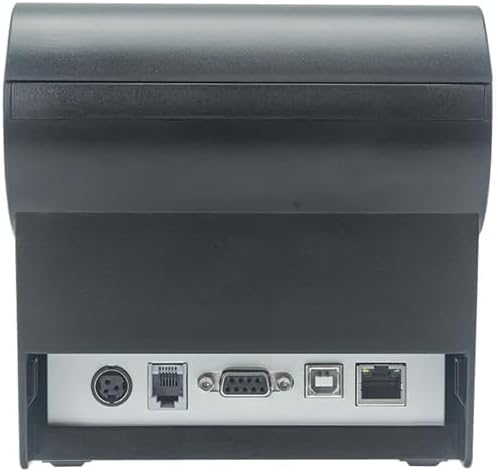
Ọgụgụ 2: N'azụ view of the printer, highlighting the power, USB, and other interface ports.
- Njikọ Ike: Insert the power adapter cable into the printer's power input port (DC 24V/2.5A) and plug the adapter into a suitable electrical outlet (AC 100-240V, 50-60Hz).
- Jikọọ USB: Connect one end of the provided USB cable to the USB port on the printer and the other end to an available USB port on your computer.
- Cash Drawer (Optional): If using a cash drawer, connect its cable to the cash drawer port (DC 24V/1A) on the printer.
2.3 Loading the Paper Roll
The printer uses 80mm wide thermal paper rolls.
- Open the paper cover by pushing the cover open button (usually located on the side or front).
- Insert the thermal paper roll with the printing surface facing the print head. Ensure the roll is seated correctly in the paper compartment.
- Were obere mpempe akwụkwọ gafere n'obe ahụ.
- Mechie mkpuchi akwụkwọ ahụ nke ọma ruo mgbe ọ batara n'ime ya.
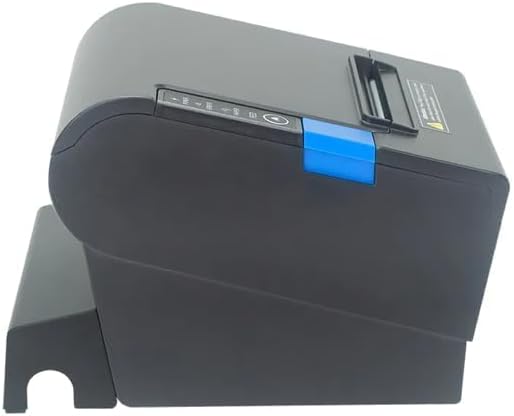
Foto 3: Akụkụ view of the printer, illustrating the paper cover mechanism.
2.4 Nwụnye ọkwọ ụgbọala
The printer requires a driver to communicate with your computer. Drivers are typically available for Windows, Linux, Android, and Mac operating systems.
- For Windows users, the printer often supports plug-and-play installation or requires a specific Windows driver.
- For Linux, Android, and Mac, SDKs (Software Development Kits) are usually provided for integration.
Rụtụ aka na ndị nrụpụta website or the included driver CD/USB drive for the latest drivers and installation instructions specific to your operating system.
3. Na-arụ ọrụ na ngwa nbipute
3.1 Gbanyụọ/ gbanyụọ
Locate the power switch on the side or rear of the printer. Flip the switch to the 'ON' position to power on the printer. The 'POWER' indicator light will illuminate. Flip to 'OFF' to power down.
3.2 Indicator Lights and Buttons
The front panel typically features several indicator lights and buttons:
- IKE: Na-egosi na ngwa nbipute ahụ na-agba ọkụ.
- ERROR: Illuminates or flashes to indicate an error condition (e.g., paper out, print head overheating, cutter error).
- AKWỤKWỌ: Indicates that the paper roll is low or out.
- Bọtịnụ Nri: Press to manually feed paper. Hold to perform a self-test print (if supported by model).
3.3 Mbipụta bụ isi
Once the printer is connected and drivers are installed, you can print receipts from your POS software or application. Ensure the printer is selected as the default or active printer in your system settings.
The printer supports various print speeds up to 300 mm/s and automatic paper cutting after each print job.
4. Nlekọta
Ndozi mgbe niile na-eme ka arụ ọrụ kacha mma ma gbasaa ndụ nke ngwa nbipute gị.
4.1 Na-ehicha isi mbipụta
The print head should be cleaned regularly, especially if print quality degrades.
- Gbanyụọ igwe nbipute ahụ wee gbanyụọ eriri ike ahụ.
- Mepee mkpuchi akwụkwọ.
- Jiri ákwà owu mee obere ihe.ampened with isopropyl alcohol (ethanol) to gently wipe the thermal elements of the print head.
- Hapụ isi mbipụta ahụ ka ọ kpọọ nkụ kpamkpam tupu e mechie mkpuchi ahụ ma jikọọ ike ọzọ.
4.2 Cleaning the Cutter
Paper dust can accumulate around the cutter blade, affecting its performance.
- Gbanyụọ igwe nbipute ahụ wee gbanyụọ eriri ike ahụ.
- Carefully remove any visible paper dust or debris from around the cutter blade using a soft brush or compressed air.
- Do not use liquids on the cutter.
4.3 Nhicha izugbe
Jiri nwayọ hichaa mpụta nke ngwa nbipute, damp akwa . Zere iji kemịkalụ siri ike ma ọ bụ ihe nchacha.
5. Nchọpụta nsogbu
Akụkụ a na-ekwu maka nsogbu ndị na-ahụkarị ị nwere ike izute na ngwa nbipute gị.
| Nsogbu | Ihe nwere ike ime | Ngwọta |
|---|---|---|
| Ngwa nbipute anaghị agbanwu ọkụ. | Power cable not connected; Power outlet faulty; Power switch off. | Ensure power cable is securely connected. Test power outlet. Turn power switch to 'ON'. |
| No printing. | Paper out; Paper loaded incorrectly; Driver not installed or incorrect; USB cable loose; Printer not selected. | Load new paper roll. Re-load paper correctly. Install/reinstall correct driver. Check USB connection. Select printer in software. |
| ERROR light is on/flashing. | Paper out; Paper jam; Print head overheating; Cutter error. | Load paper. Clear paper jam. Allow printer to cool down. Check cutter for obstructions. |
| Ọdịmma ebipụta na-adịghị mma. | Dirty print head; Low quality paper; Old paper roll. | Clean the print head (see Section 4.1). Use high-quality thermal paper. Replace old paper rolls. |
Ọ bụrụ na nsogbu ahụ dịgidere mgbe ị nwara azịza ndị a, biko kpọtụrụ nkwado ndị ahịa.
6. Nkọwapụta
| Njirimara | Nkọwa |
|---|---|
| Ụzọ obibi akwụkwọ | Direct Thermal |
| Ogologo akwụkwọ | 80 mm |
| Ọsọ Bipụta | 230 mm/s, 260 mm/s, 300 mm/s |
| Interface | USB |
| Ogologo ahịrị | 3.75 mm (adjustable by commands) |
| Character Size (ANK) | Font A: 1.5 × 3.0 mm (12 × 24 dots) Font B: 1.1 × 2.1 mm (9 × 17 dots) |
| Character Size (Chinese/Traditional Chinese) | 3.0 × 3.0 mm (24 × 24 dots) |
| Ụdị Barcode | UPC-A / UPC-E / JAN13 (EAN13) / JAN8 (EAN8) / CODE39 / ITF / CODABAR / CODE93 / CODE128 |
| 2D Barcode | QR Code / PDF417 |
| NV Flash Memory | 256 KB |
| Ike ntinye | AC 100-240V, 50-60Hz |
| Ike mmepụta | DC 24V/2.5A |
| Cash Drawer Output | DC 24V/1A |
| Ibu | 1.0 n'arọ |
| Akụkụ (D × W × H) | 194.5 × 145 × 146.4 mm |
| Okpomọkụ na-arụ ọrụ | 0 ~ 45 Celsius |
| Iru mmiri na-arụ ọrụ | 10-80% RH |
| Ndụ Cutter | 1.5 nde mbe |
| Bipụta Isi Ndụ | 150 km |
| Ndakọrịta OS | Windows, Linux, Android, Mac |
Ask a question about this manual
Ask about setup, troubleshooting, compatibility, parts, safety, or missing instructions. Manuals+ will review the question and use this page’s manual context to help answer it.