
1. Okwu mmalite
This manual provides detailed instructions for the setup, operation, and maintenance of your SINGCALL Tuya WiFi SOS Wireless Caregiver Pager System. This system is designed to provide a reliable calling alert for patients, seniors, elderly, and disabled individuals, ensuring timely assistance. It includes one plugin receiver and one smart emergency call button, supporting 2.4GHz Wi-Fi networks.

Nyocha 1: N'eluview of the SINGCALL Caregiver Pager System components.
2. Kedu ihe dị na Igbe ahụ
- 1 x Plugin Receiver
- 1 x Smart Emergency SOS Call Button
- 1 x Lanyard for SOS Button
- 1 x Micro USB Charging Cable for SOS Button
- Mounting Accessories (e.g., double-sided adhesive, screws)
- Akwụkwọ ntuziaka onye ọrụ
3. Ngwaahịa gafereview
The SINGCALL Caregiver Pager System consists of two main units: the plug-in receiver and the portable SOS button. The receiver plugs into a standard wall outlet and emits an audible alert when the SOS button is pressed. The SOS button is designed for easy access and portability.
3.1 Ngwa ndị nnata

Figure 2: Receiver components including AC Power Plug, Speaker, Music Select Button, and Volume Control.
- AC Power Plug: For connecting to a standard electrical outlet.
- Ọkà okwu: Emits the alert sound.
- Music Select Button: Used to cycle through 32 available ringtones.
- Njikwa olu: Adjusts the alert volume across 5 levels (0-110dB), including mute.
- Ihe ngosi LED: Provides visual feedback for status and alerts.
3.2 SOS Button Components

Figure 3: The SOS button with its prominent call button and lanyard attachment.
- Bọtịnụ SOS: The main button to press for emergency alerts.
- Mkpuchi mkpuchi mmiri: Protects the charging port and internal components.
- Ogige Lanyard: For wearing the button around the neck or attaching it to a convenient location.
- Ọdụ USB Nchaji Port: Maka ịchaji batrị dị n'ime.
- Tọgharịa bọtịnụ: Used for pairing and resetting the device.
4. Nhazi
4.1 Initial Charging of SOS Button
Before first use, ensure the SOS button is fully charged. Remove the waterproof cover to access the Micro USB charging port and connect the provided cable to a power source. The LED indicator will show charging status.
4.2 Receiver Placement
Plug the receiver into a standard electrical outlet in a central location where the alert can be easily heard by caregivers. The receiver has a wireless range of up to 100m (328ft) in an open environment, though actual range may vary due to obstructions.
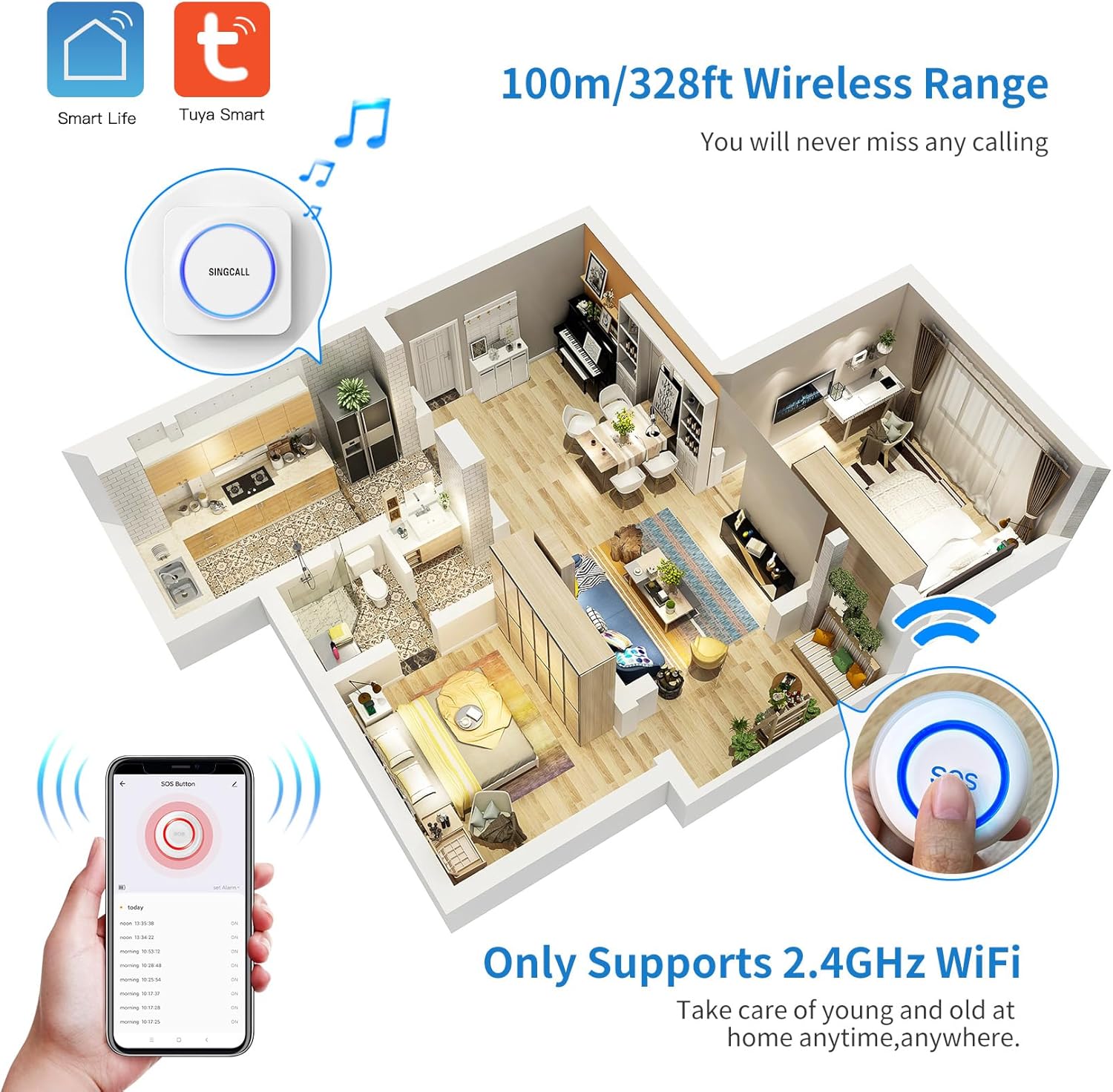
Figure 4: Illustration of the wireless range within a typical home environment.
4.3 Connecting the SOS Button to the Receiver
The SOS button is pre-paired with the receiver from the factory. If re-pairing is needed:
- Long press the Music Select Button on the receiver until the LED indicator blinks.
- Press the SOS button once. The receiver's LED will stop blinking, indicating successful pairing.
Video 1: Demonstrates how to connect the caregiver call button to the receiver.
4.4 App Connection (Tuya Smart)
To receive remote notifications on your smartphone, connect the SOS button to the Tuya Smart app. This requires a 2.4GHz Wi-Fi network.
- Budata ma wụnye ya Tuya Smart app from your device's app store (iOS or Android).
- Register or log in to your Tuya Smart account.
- Jide n'aka na ekwentị gị ejikọrọ na netwọk Wi-Fi 2.4GHz.
- Reset the SOS Button: Long press the [RESET] button on the back of the SOS button using a phone SIM card needle. The LED indicator will rapidly blink, signifying it's in Wi-Fi configuration status.
- In the Tuya Smart app, tap 'Add Device' or the '+' icon. The app should automatically discover the SOS button. If not, select 'Add Manually' and choose the appropriate device type (e.g., 'SOS Button').
- Follow the on-screen prompts to enter your Wi-Fi network details and complete the pairing process.
Video 2: Guide on how to connect the caregiver call button to your phone via the Tuya Smart app.
4.5 Enabling App Notifications
To ensure you receive timely alerts, enable notifications for the Tuya Smart app on your smartphone:
- Go to your phone's Ntọala.
- Gaa na Amamọkwa (iOS) ma ọ bụ Ngwa & Amamọkwa (Android).
- Chọta na họrọ Tuya Smart ngwa.
- Gbaa mbọ hụ Kwe ka amamọkwa (or similar) is toggled ON.
- Enable all relevant notification types, such as Nti mkpu, Ụda, na Akara, for optimal alert visibility.
Video 3: Instructions on how to open all notifications for the Tuya Smart app on your smartphone.
5. Ntuziaka ọrụ
5.1 Using the SOS Button
When assistance is needed, simply press the large SOS button. This will trigger the receiver to sound an alarm and send a notification to all connected smartphones via the Tuya Smart app.

Figure 5: The SOS button provides immediate alerts to caregivers.
5.2 Adjusting Ringtone
The receiver offers 32 different music tones. To change the ringtone:
- Pịa Music Select Button on the side of the receiver to cycle through the available tones.
- Once you find your preferred tone, it will be saved automatically.
Video 4: Demonstrates how to change the ringtone on the receiver.
5.3 na-agbanwe olu
The receiver has 5 levels of volume adjustment, from mute (0dB) to a maximum of 110dB. To adjust the volume:
- Pịa Bọtịnụ njikwa olu on the side of the receiver to cycle through the volume levels.
- The selected volume level will be saved automatically.
Video 5: Instructions on how to adjust the volume of the receiver.
6. Sharing Function
The Tuya Smart app allows you to share the SOS button's alerts with multiple family members or caregivers. This ensures that everyone who needs to be notified receives alerts when the button is pressed.
Video 6: Demonstrates how to share the call button's alerts with other users.
6.1 Method 1: Share Button
- Open the Tuya Smart app and select the SOS Button device.
- Tap the pencil icon (or settings icon) in the top right corner.
- Select 'Share Device'.
- Choose 'Add Sharing' and select the method to share (e.g., message, email).
- The recipient will receive an invitation to accept the shared device in their Tuya Smart app.
6.2 Method 2: Create Group (Home Management)
- Open the Tuya Smart app and go to 'Home Management'.
- Select 'Add Member' and choose a sharing method (e.g., message, email) to send an invitation code.
- The recipient uses this code to join your home group in their Tuya Smart app, gaining access to all devices, including the SOS button.
7. Nlekọta
7.1 SOS Button Battery
The SOS button is powered by a CR2 battery (included). When the battery is low, the LED indicator may show a specific pattern or the app may notify you. Replace the battery as needed.
7.2 Nhicha
Wipe the receiver and SOS button with a soft, dry cloth. Do not use abrasive cleaners or immerse the devices in water.
8. Nchọpụta nsogbu
- No Alert from Receiver: Ensure the receiver is plugged in and powered on. Check the volume setting (it might be muted). Re-pair the SOS button with the receiver if necessary.
- Enweghị ọkwa ọkwa: Verify your smartphone is connected to a 2.4GHz Wi-Fi network. Check app notification settings on your phone and within the Tuya Smart app. Ensure the SOS button is successfully paired with the app.
- SOS Button Not Responding: Check the battery level of the SOS button and replace if necessary. Ensure the button is within the wireless range of the receiver.
- Difficulty with Wi-Fi Connection: Confirm your Wi-Fi network is 2.4GHz. 5GHz networks are not supported. Ensure your phone is close to the SOS button and router during pairing.
9. Nkọwapụta
| Njirimara | Nkọwapụta |
|---|---|
| Nọmba nlereanya | SC-T190 SC-E57 1-1 |
| Ụdị | Oku egwu |
| Ọnụọgụ nke batrị | 1 CR2 batrị achọrọ (gụnyere) |
| Voltage | 3 volts (DC) |
| Usoro njikwa | Ngwa, metụ |
| Ọkwa mkpọtụ | 100 decibel |
| Ụdị nkwụnye | Ugwu mgbidi |
| Oke kacha | 100 mita |
| Ihe Nchịkwa Ihe Nchịkwa | Mgbama ikuku ikuku |
| Ibu Ibu | 6.7 ounces |
| Akụkụ ngwaahịa | 4.53 x 3.54 x 2.87 sentimita asatọ |
| Isi Iyi Ike | Akwanyere batrị |
| Ngwa dakọtara | Ekwentị mkpanaaka |
10. Ozi nchekwa
- Keep devices away from extreme temperatures and direct sunlight.
- Do not attempt to disassemble or repair the devices yourself. Contact customer support for assistance.
- Ensure the waterproof cover on the SOS button is securely closed to maintain water resistance.
- Tụfuo batrị dịka iwu mpaghara siri dị.
11. Akwụkwọ ikike na nkwado
For warranty information and customer support, please refer to the official SINGCALL website or contact the seller directly. Keep your purchase receipt for warranty claims.