
ATOMSTACK ATOMSTACK A5 PRO BK US
Akwụkwọ ntuziaka ATOMSTACK A5 Pro Laser Engraver
Model: ATOMSTACK A5 PRO BK US
1. Ngwaahịa gafereview
The ATOMSTACK A5 Pro is a versatile commercial-grade laser engraver and cutter designed for precision work on a wide range of materials. Featuring a 5W output power laser module and a 32-bit MCU motherboard, it offers efficient and stable performance for both engraving and cutting tasks. Its robust aluminum alloy construction ensures durability and a longer service life, making it suitable for continuous 7x24H operation in commercial and DIY environments.

Figure 1.1: The ATOMSTACK A5 Pro Laser Engraver, a robust machine designed for commercial and DIY engraving and cutting.
Akụkụ ndị bụ isi:
- Ịrụ Ọrụ Ọkwa Azụmahịa: Supports 7x24H continuous engraving, ideal for mass production and commercial DIY needs.
- Ihe owuwu na-adịgide adịgide: Made of aluminum alloy with a black anti-oxidation and anti-rust coating for enhanced stability and longevity.
- Upgraded Laser Technology: Equipped with a 5-5.5W powerful laser module and a 0.08mm x 0.08mm compressed spot for precise engraving and clear patterns.
- Ndakọrịta ihe sara mbara: Capable of engraving and cutting metal, wood, stainless steel, cylinder, rubber, leather, glass (requires blackening), PCB boards, acrylic, and more.
- Advanced Motherboard: 32-bit MCU motherboard ensures faster data processing and smoother operation.
- Ndakọrịta Software: Compatible with LaserGRBL (Windows XP/7/8/10) and LightBurn (Windows/Mac OS).
- Eye Protection Design: Features an eye protection cover to reduce laser exposure.
- Onye ofufe jụrụ oyi arụnyere: Ensures optimal performance during extended use.
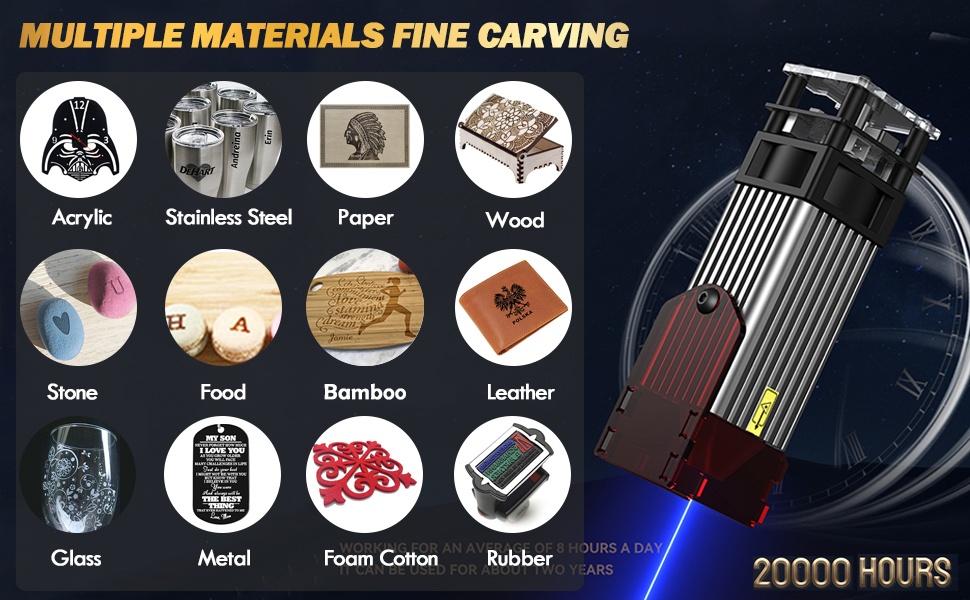
Nyocha 1.2: N'eluview of the ATOMSTACK A5 Pro's key features, including its durable aluminum alloy body, 32-bit MCU, eye protection, and continuous engraving capability.
2. Ozi nchekwa
Operating a laser engraver involves inherent risks. It is crucial to read and understand all safety warnings and instructions before using the ATOMSTACK A5 Pro. Failure to follow these guidelines may result in serious injury, fire, or damage to the equipment.
Akpachara anya nchekwa izugbe:
- Nchedo anya: Always wear the provided protective glasses or equivalent laser safety goggles (OD4+) when the laser is active. Never look directly at the laser beam.
- Igwe ikuku: Operate the engraver in a well-ventilated area to dissipate fumes and smoke produced during engraving and cutting. Consider using an exhaust fan or air purifier.
- Ihe ize ndụ ọkụ: Laser engraving and cutting can ignite flammable materials. Keep a fire extinguisher nearby and never leave the machine unattended during operation.
- Nchekwa ihe: Only engrave or cut materials that are safe for laser processing. Avoid materials that produce toxic fumes (e.g., PVC, vinyl) or are highly reflective.
- Ụmụaka na anụ ụlọ: Keep children and pets away from the laser engraver at all times.
- Elu nke kwụsiri ike: Place the engraver on a stable, level, and non-flammable surface.
- Nkwụsị ihe mberede: Familiarize yourself with the location of the power switch and be prepared to turn off the machine immediately in case of an emergency.
- Nchekwa Eletriki: Ensure the power supply is correctly rated for your region and the machine. Do not operate with damaged cables or plugs.
- Klas Laser: This product is a Class 4 laser device. Exercise extreme caution.
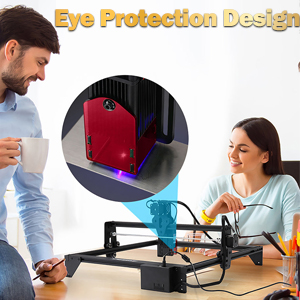
Figure 2.1: The ATOMSTACK A5 Pro features an eye protection cover, but users must still wear protective glasses during operation.
3. Ihe ngwugwu
Before beginning assembly, please verify that all components listed below are present in your package. If any parts are missing or damaged, contact ATOMSTACK customer service immediately.

Figure 3.1: Visual representation of the ATOMSTACK A5 Pro package contents.
Ndepụta akụrụngwa:
- Support Beam (Top)
- Igbe njikwa
- Foot Bracket (x3)
- Isi Laser
- Ngwa Ngwa
- Y-axis Left Slide Rail
- Support Beam (Bottom)
- Y-axis Right Slide Rail
- X-axis Rail
- Mpempe akwụkwọ acrylic
- Focusing Sheet
- Waya kee
- Ahịhịa
- Belt mmekọrịta
- Test Wooden Board
- Ugogbe nchekwa
- Igwe ọkụ ọkụ
- Ihe nkwụnye
- Data Line (USB Cable)
- Ịkwanye kposara
- Akwụkwọ ntuziaka ngwaahịa
4. Ntọala na Mgbakọ
The ATOMSTACK A5 Pro is designed for easy assembly. Follow these steps to set up your laser engraver.
4.1 Mechanical Assembly:
Refer to the included product manual for detailed step-by-step assembly instructions and diagrams. The machine features an all-metal structure for stability.
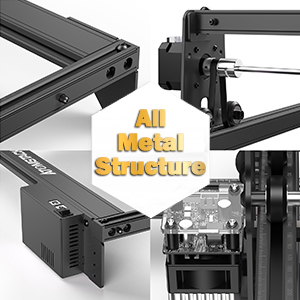
Figure 4.1: The ATOMSTACK A5 Pro boasts an all-metal structure for enhanced durability and precision.
4.2 Software Installation and Connection:
The ATOMSTACK A5 Pro is compatible with popular laser control software. It is recommended to use the latest versions of the software for optimal performance.
- LaserGRBL: A free, open-source software suitable for new laser users. Supports Windows XP/7/8/10. Download from the official LaserGRBL websaịtị.
- LightBurn: A paid, professional laser control software offering advanced features. Supports Windows/Mac OS/Linux. Download from the official LightBurn websaịtị.
Connect the engraver to your computer using the provided Data Line (USB Cable). Ensure the power adapter is connected and the machine is powered on before launching the software.
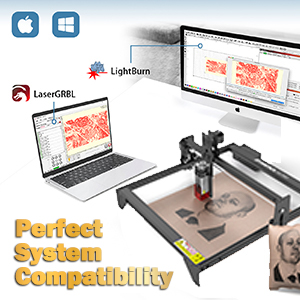
Figure 4.2: The ATOMSTACK A5 Pro offers perfect system compatibility with LaserGRBL and LightBurn software.
4.3 Focusing the Laser:
Proper focusing is critical for achieving precise engraving and cutting results. Use the provided focusing sheet to set the correct focal length for the laser module. The laser module features a quick-release design for easy height adjustment.
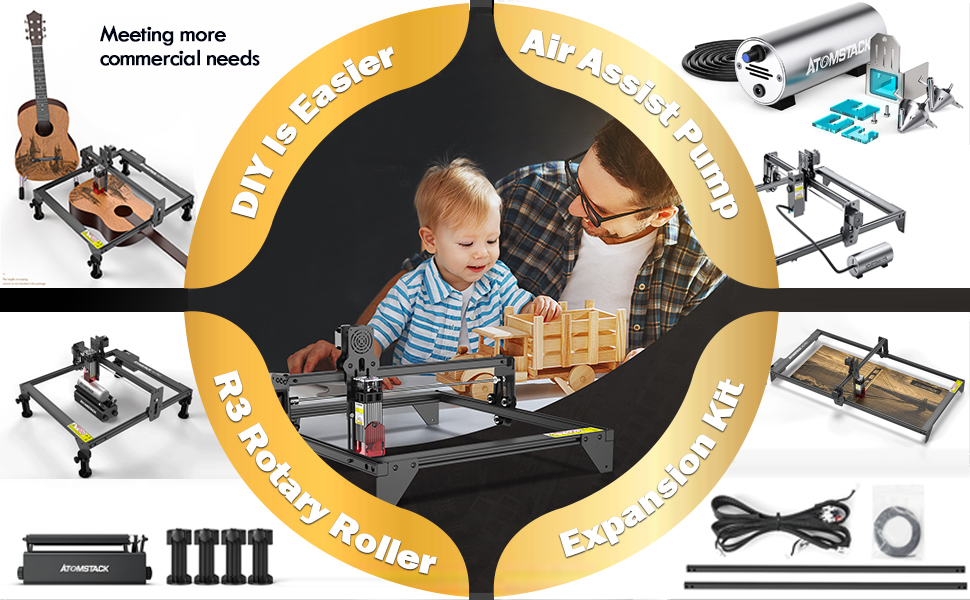
Figure 4.3: The laser module utilizes quadruple lens compression technology for a fine, compressed spot, requiring accurate focusing for optimal performance.
5. Ntuziaka ọrụ
This section provides guidance on operating your ATOMSTACK A5 Pro for various engraving and cutting tasks.
5.1 Preparing Your Design:
Use your chosen software (LaserGRBL or LightBurn) to import or create your design. The engraver supports various file formats including NC, DXF, BMP, JPG, PNG, etc.
5.2 Material Selection and Parameter Settings:
The ATOMSTACK A5 Pro is capable of working with a wide array of materials. Optimal results depend on selecting the correct laser power, speed, and number of passes for each material. Refer to the material parameter settings table for recommended values. For materials like glass and ceramics, blackening the surface may be required for effective engraving.

Ọgụgụ 5.1: Ọpụample of material parameter settings for various materials, crucial for achieving desired engraving and cutting quality.

Figure 5.2: The ATOMSTACK A5 Pro supports fine carving on multiple materials including acrylic, stainless steel, paper, wood, leather, glass, and more.
5.3 Starting an Engraving/Cutting Job:
- Place your material securely on the working area.
- Adjust the laser focus according to the material thickness.
- Bujuo imewe gị file banye software.
- Set the appropriate laser parameters (power, speed, passes) based on your material and desired outcome.
- Perform a frame test to ensure the design fits within your material.
- Initiate the engraving/cutting process from the software.
- Monitor the process closely and ensure proper ventilation.
5.4 Commercial Use and Accessories:
The ATOMSTACK A5 Pro is built for commercial use, supporting continuous operation. For enhanced capabilities, consider compatible accessories:
- Air Assist Pump: Improves cutting performance by blowing away smoke and debris, resulting in cleaner cuts and reduced charring.
- R3 Rotary Roller: Enables engraving on cylindrical objects like tumblers and bottles.
- Ngwa Mgbasawanye: Extends the working area for larger projects.
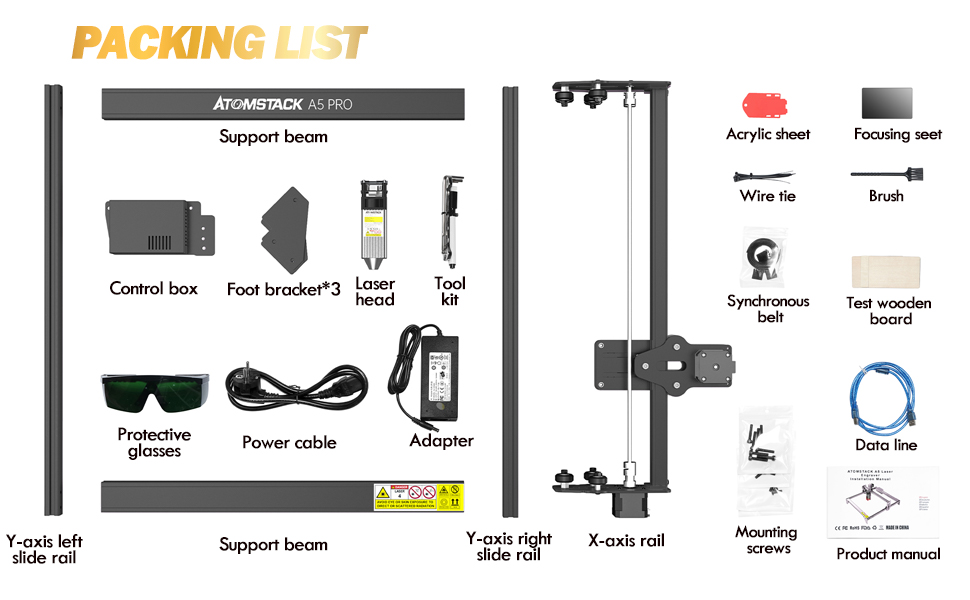
Figure 5.3: Various accessories like the Air Assist Pump, R3 Rotary Roller, and Expansion Kit can enhance the functionality of your ATOMSTACK A5 Pro.
5.5 Product Demonstration Video:
Video 5.1: A demonstration of the ATOMSTACK laser engraver's capabilities, showcasing the engraving of a motorcycle model. This video highlights the precision and detail achievable with the machine.
6. Nlekọta
Regular maintenance ensures the longevity and optimal performance of your ATOMSTACK A5 Pro.
6.1 Nhicha:
- Laser Lens: Gently clean the laser lens with a lint-free cloth and lens cleaning solution specifically designed for optics. A dirty lens can significantly reduce laser power and engraving quality.
- Rail na Belt: Periodically inspect and clean the guide rails and synchronous belts to remove dust and debris. This ensures smooth movement of the laser head.
- Nchacha izugbe: Wipe down the machine's frame and components with a soft, dry cloth. Avoid using abrasive cleaners or solvents.
6.2 mmanu:
Apply a small amount of machine lubricant to the guide rails and lead screws (if applicable) every few months, or as needed, to ensure smooth operation.
6.3 Firmware Updates:
Check the official ATOMSTACK website periodically for firmware updates. Keeping your firmware up-to-date can improve performance, add new features, and resolve potential issues. Follow the instructions provided with the firmware update carefully.
7. Nchọpụta nsogbu
Akụkụ a na-eleba anya n'okwu ndị a na-ahụkarị ị nwere ike izute ma nye azịza ndị nwere ike.
| Nsogbu | Ihe nwere ike ime | Ngwọta |
|---|---|---|
| Laser not firing or weak output. |
|
|
| Machine not connecting to software. |
|
|
| Engraving quality is poor (blurry, inconsistent). |
|
|
| Air assist not working (if applicable). |
|
|
8. Nka na ụzụ nkọwa
| Njirimara | Nkọwa |
|---|---|
| Nọmba nlereanya | ATOMSTACK A5 PRO BK US |
| Ike mmepụta laser | 5W - 5.5W |
| Laser Engraving Power | 40W (Machine Power) |
| Nha Abua | 0.08mm x 0.08mm (Ebe agbakọrọ agbakọ) |
| Motherboard | 32-bit MCU |
| Akụkụ ngwaahịa | 23.23 x 13.39 x 4.8 sentimita asatọ |
| Ibu Ibu | 11.77 pound |
| Ngwanrọ akwadoro | LaserGRBL, LightBurn |
| Akwadoro File Ụdị | NC, DXF, BMP, JPG, PNG, etc. |
| Klas laser | Klas 4 |
| Ọrụ na-aga n'ihu | 7x24H |
9. Akwụkwọ ikike na nkwado ndị ahịa
ATOMSTACK is committed to providing excellent customer service and support for your A5 Pro laser engraver.
9.1 Ozi Akwụkwọ ikike:
Anyị na-enye Ọnwa 12 of free parts replacement from the date of purchase. This warranty covers manufacturing defects and malfunctions under normal use conditions.
9.2 Technical Support:
ATOMSTACK offers NA-adịgide adịgide professional technical customer service. If you encounter any issues, have questions about operation, or require assistance with your engraver, please do not hesitate to contact our support team.
Ozi mkpọtụrụ:
- Refer to the contact details provided in your product manual or on the official ATOMSTACK websaịtị.
- For Amazon purchases, you can also contact the seller "FKX-ATOMSTACK" through the Amazon platform.
Ask a question about this manual
Ask about setup, troubleshooting, compatibility, parts, safety, or missing instructions. Manuals+ will review the question and use this page’s manual context to help answer it.