
1. Okwu mmalite
This manual provides detailed instructions for the setup, operation, maintenance, and troubleshooting of your Xprinter XP-233B Thermal Barcode Printer. The XP-233B is designed for efficient thermal printing of barcodes and labels, utilizing heat-sensitive paper without the need for ink or ribbons.
2. Ntuziaka nchekwa
- Ensure the printer is connected to a power source with the correct voltage as specified on the power adapter.
- Ewepụla ihe nbipute na mmiri ma ọ bụ oke iru mmiri.
- Zere itinye igwe nbipute ahụ n'ebe anwụ na-acha kpọmkwem ma ọ bụ nso ebe okpomọkụ dị.
- Keep the printer away from dust and debris to prevent damage to internal components.
- Do not attempt to disassemble or repair the printer yourself. Contact qualified service personnel for assistance.
- Use only recommended thermal label rolls to ensure optimal print quality and printer longevity.
3. Ihe ngwugwu
Chọpụta na ihe niile dị na ngwugwu:
- Xprinter XP-233B Thermal Barcode Printer
- Ihe nkwụnye ọkụ
- eriri USB
- Ntuziaka mmalite ngwa ngwa (ọ bụrụ na etinyere ya)
- Driver CD (if included, drivers can also be downloaded online)
4. Ngwaahịa gafereview
Familiarize yourself with the main components of the XP-233B printer.

Foto 4.1: Akụkụ ihu view of the Xprinter XP-233B, showing the power switch, control panel, and label output slot.

Foto 4.2: N'azụ view of the Xprinter XP-233B, highlighting the USB, Ethernet, and power input ports.
Ọrụ Panel Control:
- Bọtịnụ Nri: Press to feed a blank label. Hold to perform a self-test print.
- Bọtịnụ Kwụsịtụ: Kwụsị ma ọ bụ maliteghachi mbipụta.
- Bọtịnụ kagbuo: Cancels the current print job.
- Ihe ngosi LED: Display printer status (e.g., Power, Error, Paper Out). Refer to troubleshooting for specific light patterns.
5. Nhazi
5.1 Ijikọ ngwa nbipute
- Connect the power adapter to the printer's power input port and then plug it into a wall outlet.
- Connect the USB cable from the printer to your computer. For Ethernet connectivity, connect an Ethernet cable from the printer to your network router or switch.
- Gbanwuo ngwa nbipute na-eji ọkụ ọkụ dị n'akụkụ.
5.2 Ndekọ Ibugo
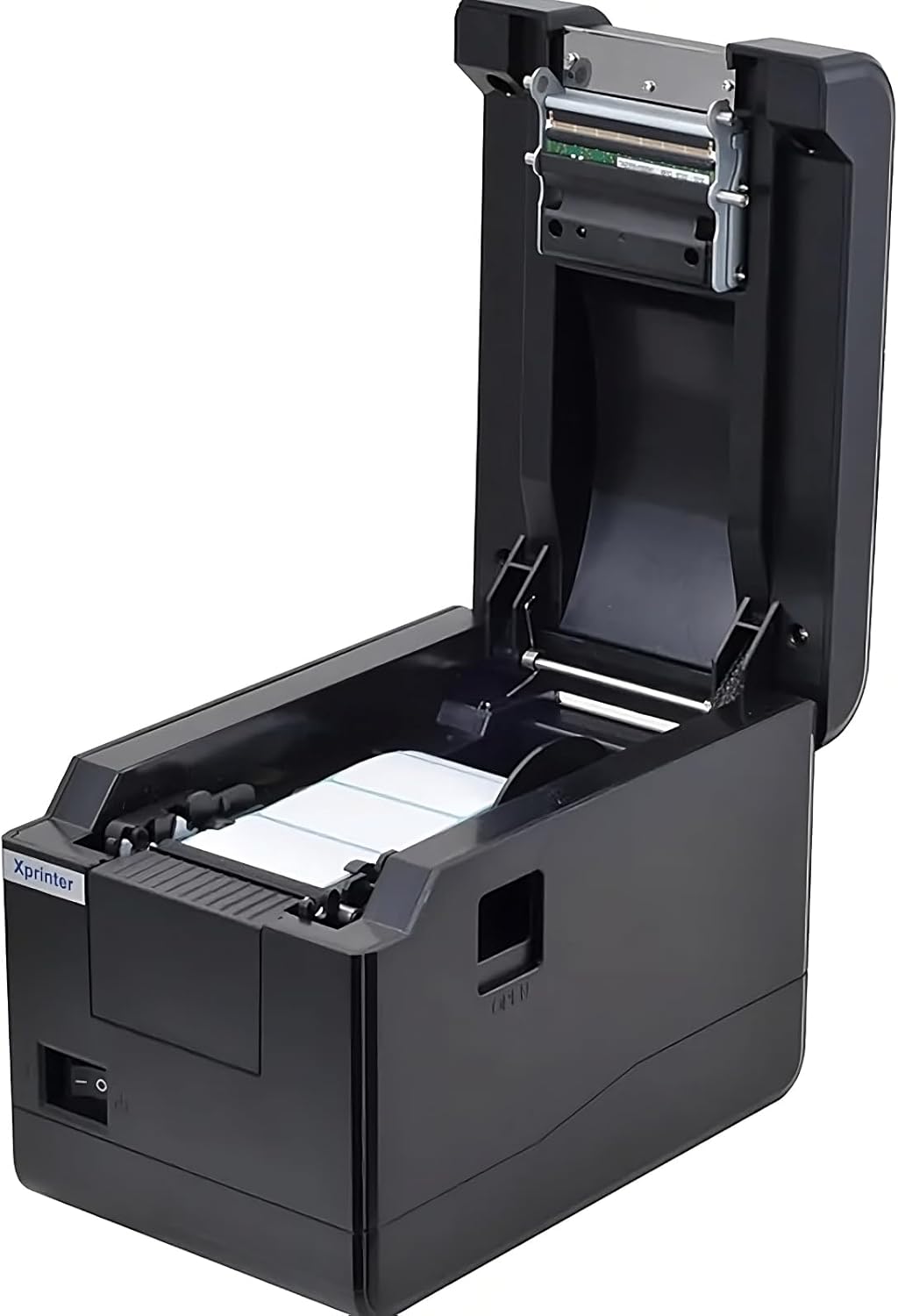
Foto 5.1: Si elu gbadata view of the Xprinter XP-233B with the cover open, illustrating the label loading area.
- Press the 'OPEN' button on the side of the printer to open the top cover.
- Place the thermal label roll into the label compartment, ensuring the labels feed from the bottom of the roll and the printable side faces upwards.
- Adjust the movable label guides to fit the width of your label roll snugly, without pinching the labels.
- Pull a few labels past the print head and out through the front slot.
- Mechie mkpuchi elu ahụ nke ọma ruo mgbe ọ pịnyere aka n'ebe ọ dị.
- The printer will automatically calibrate and feed a few labels to detect the label gap.
5.3 Nwụnye ọkwọ ụgbọala
Install the printer drivers on your computer. Drivers can typically be found on the included CD or downloaded from the official Xprinter websaịtị. Soro ntuziaka na ihuenyo maka nwụnye.
6. Na-arụ ọrụ na ngwa nbipute
6.1 Mbipụta bụ isi
Once the printer is set up and drivers are installed, you can print labels from your application (e.g., label design software, shipping software). Ensure the correct printer model (Xprinter XP-233B) is selected in your application's print settings.
6.2 Self-Test Print
To perform a self-test print:
- Ensure the printer is powered on and labels are loaded.
- Pịa ma jide Nri button for approximately 3-5 seconds until the printer starts printing.
- The self-test print will display printer information and a test pattern, confirming basic functionality.
7. Nlekọta
7.1 Na-ehicha isi mbipụta
Regular cleaning of the print head ensures optimal print quality and extends the printer's lifespan. Clean the print head when print quality degrades or after every few rolls of labels.
- Turn off the printer and disconnect the power cord.
- Mepee mkpuchi elu.
- Gently wipe the print head surface with a cotton swab lightly dampened with isopropyl alcohol (70% or higher).
- Allow the print head to dry completely (approximately 2-3 minutes) before closing the cover and turning on the printer.
7.2 Na-ehicha Mpụga
Jiri nwayọ hichaa mpụta nke ngwa nbipute, damp akwa . Ejila kemịkalụ siri ike ma ọ bụ ihe mkpocha abrasive.
8. Nchọpụta nsogbu
| Nsogbu | Ihe nwere ike ime | Ngwọta |
|---|---|---|
| Ngwa nbipute anaghị agba ọkụ | Power cord loose; power outlet faulty; power adapter damaged. | Check power connections; try a different outlet; replace power adapter if necessary. |
| No labels feeding | Labels incorrectly loaded; paper out; label guides too tight. | Reload labels correctly; replace label roll; adjust label guides. |
| Poor print quality (faded, lines) | Print head dirty; low-quality labels; print head damaged. | Clean print head (refer to Section 7.1); use recommended thermal labels; contact support if print head is damaged. |
| Printer not responding to print commands | Incorrect driver installed; USB/Ethernet cable loose; printer paused. | Reinstall drivers; check cable connections; press Kwụsịtụ bọtịnụ ịmaliteghachi. |
| Labels skipping or misaligning | Incorrect label sensor calibration; label guides not set correctly. | Perform a self-test print to recalibrate; adjust label guides. |
9. Nkọwapụta
| Njirimara | Nkọwapụta |
|---|---|
| Aha Nlereanya | Xprinter - Thermal barcode printer |
| Nọmba Nlereanya ihe | XP-233B |
| Teknụzụ ngwa nbipute | Thermal |
| Teknụzụ Njikọta | Ethernet, USB |
| Mmepụta ngwa nbipute | Monochrome |
| Mgbasa ozi bipute | Akara aha |
| Ikike mpempe akwụkwọ kacha | 100 (typical for roll capacity, actual sheet capacity depends on label size) |
| Akụkụ ngwaahịa (D x W x H) | 26.8 x 18 x 17.2 cm |
| Ibu Ibu | 1.2 n'arọ |
| Agba | Nwa |
10. Akwụkwọ ikike Ozi
Xprinter products typically come with a limited manufacturer's warranty. Please refer to the warranty card included with your product or visit the official Xprinter website for specific warranty terms and conditions, including coverage duration and service procedures. Keep your purchase receipt as proof of purchase for warranty claims.
11. Nkwado ndị ahịa
For technical assistance, driver downloads, or further inquiries regarding your Xprinter XP-233B, please visit the official Xprinter support website or contact their customer service department. Contact information can usually be found on the Xprinter website or in the documentation provided with your printer.