
docooler V8 Finder 2
docooler V8 Finder 2 TV Signal Finder Meter User Manual
Model: V8 Finder 2
1. Okwu mmalite
The docooler V8 Finder 2 is a professional digital satellite signal finder meter designed for efficient and accurate installation and adjustment of satellite dishes. It features a high-definition LCD display, supports various DVB standards, and includes advanced functions like spectrum analysis and automatic angle calculation. This manual provides comprehensive instructions for operating and maintaining your device.
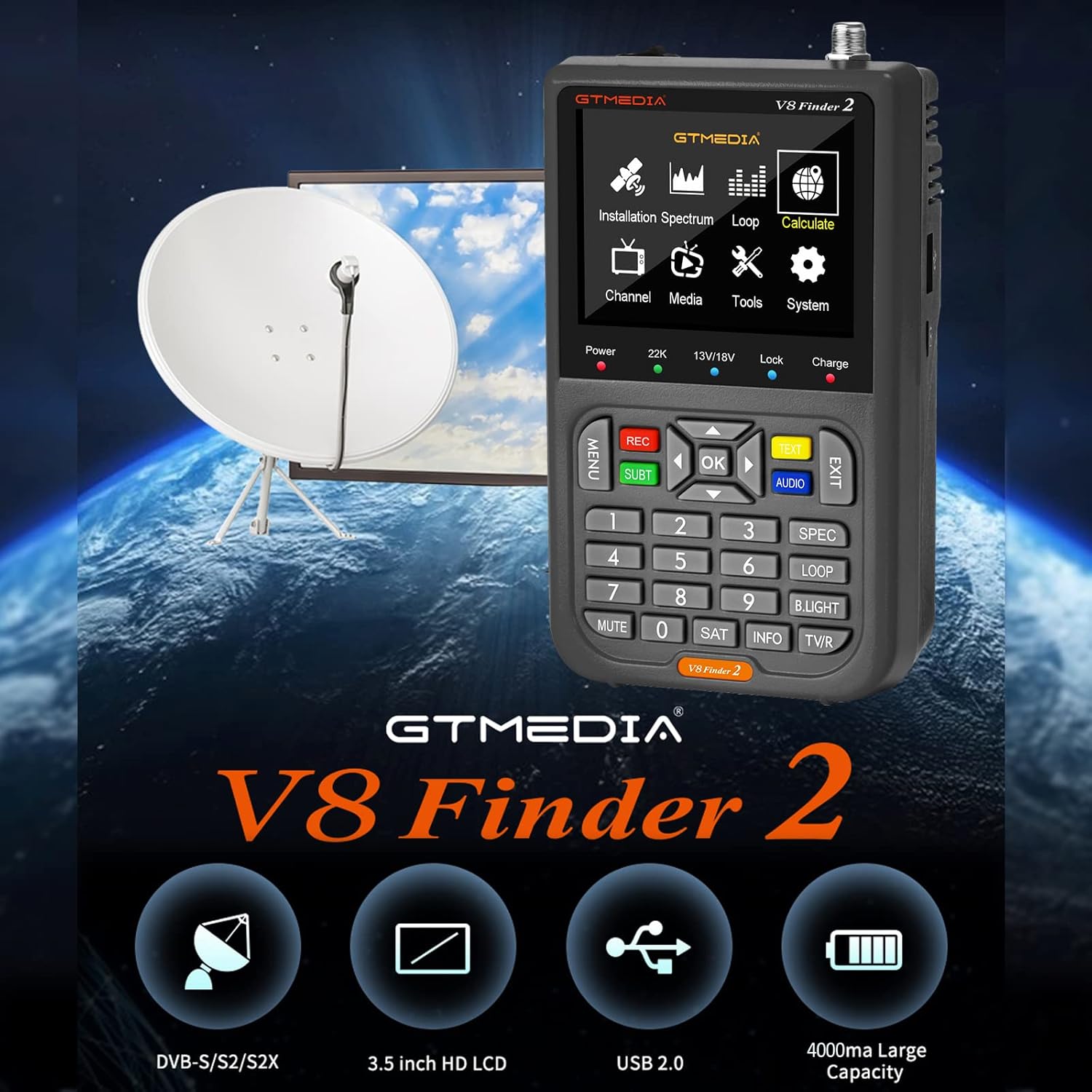
Figure 1: docooler V8 Finder 2 in use with a satellite dish, highlighting its core function.
2. Ozi nchekwa
Please read all safety warnings and instructions carefully before using this product to ensure safe operation and prevent damage.
- Ewepụla ngwaọrụ ahụ na mmiri ozuzo ma ọ bụ mmiri.
- Avoid extreme temperatures. Operate the device within recommended environmental conditions.
- Emela ka ngwaọrụ ahụ gbawaa ma ọ bụ gbalịa ịrụzi ya n'onwe gị. Nye ndị ọrụ ruru eru ọrụ niile.
- Use only the provided or recommended charging accessories.
- Gbaa mbọ hụ na ikuku ikuku dị mma mgbe ị na-arụ ọrụ ngwaọrụ.
- Debe ngwaọrụ ahụ pụọ na oghere magnetik siri ike.
3. Ngwaahịa gafereview
The V8 Finder 2 is a compact and powerful tool for satellite signal detection. Familiarize yourself with its components and features.
3.1 Nhazi ngwaọrụ

Foto 2: N'ihu view of the V8 Finder 2, showing the LCD display and control panel.
The front panel features a 3.5-inch high-definition LCD screen for displaying signal information, menus, and media. Below the screen are navigation buttons, numeric keypad, and function keys for various operations.
3.2 Ọdụ ụgbọ mmiri na njikọ
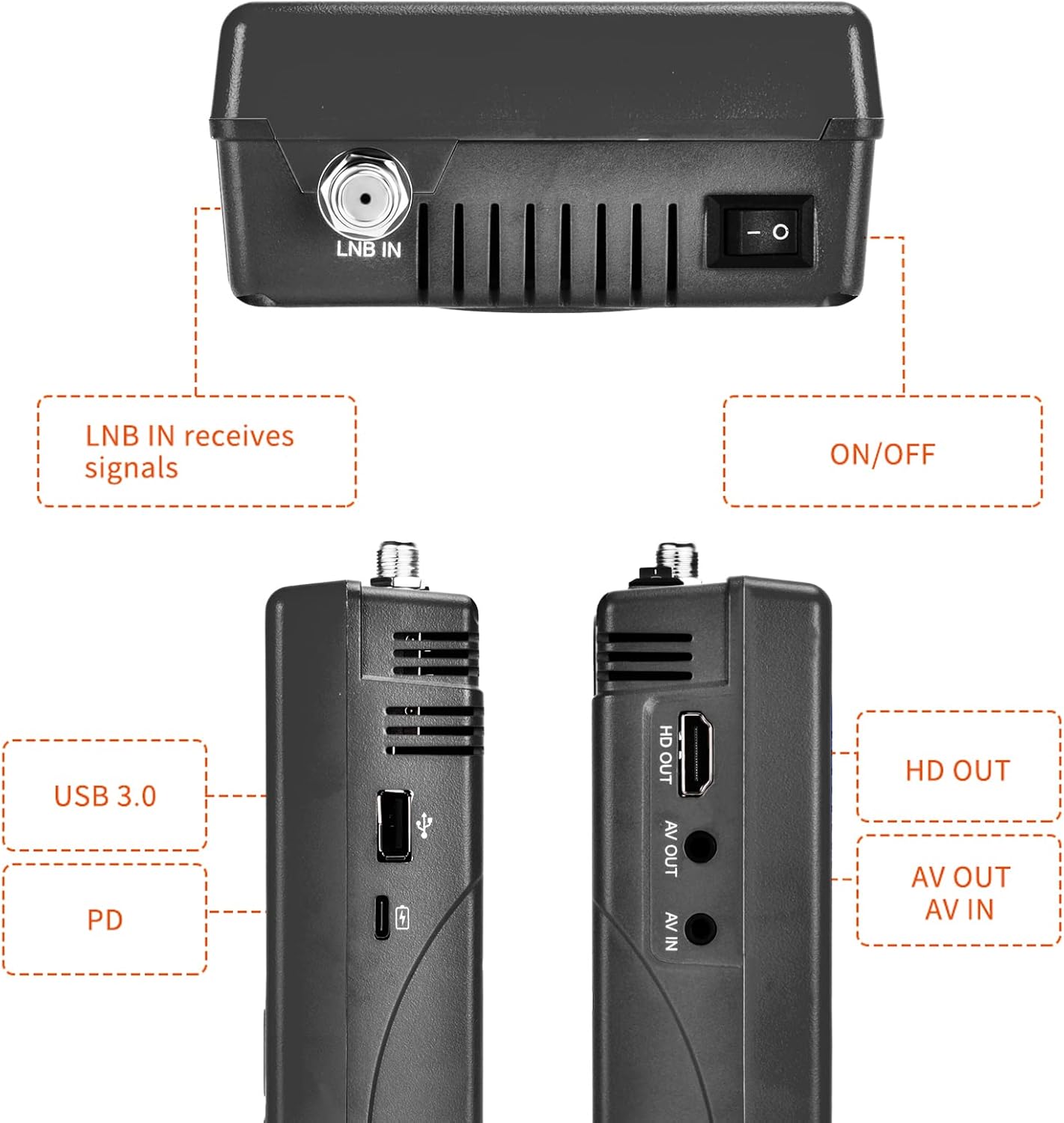
Foto 3: Akụkụ na elu views illustrating the various input and output ports.
- LNB N'ime: Connects to the LNB of your satellite dish for signal reception.
- Gbanyụọ/gbanyụọ Na-agbanye ngwaọrụ ahụ ma ọ bụ gbanyụọ.
- Ọdụ USB (USB 3.0): For software updates and connecting a 2.4G USB Wi-Fi dongle for YouTube functionality.
- PD (Power Delivery) / Type-C Charging Port: For charging the device and supports reverse charging.
- HD pụta: High-Definition Multimedia Interface output for connecting to an external display.
- AV: Analog Video output for connecting to older displays.
- AV n'ime: Analog Video input for connecting external video sources.
3.3 Atụmatụ
- 3.5-inch High-Definition LCD Display.
- Full compatibility with DVB-S2X/S2/S, MPEG-2/MPEG-4.
- H.264 (8-bit) hardware decoding support.
- Digital measurement for signal strength and quality.
- Spectrum Analyzer and Loop Search functions.
- Supports Auto, Blind, Manual, or NIT scanning.
- Audible tone for signal lock.
- Automatic calculation of AZ, EL angles.
- DISEQC 1.0/1.1/1.2, Unicable, 0/22kHz tone support.
- Ọkà okwu arụnyere n'ime ya.
- 7.4V/4000mAh Li-ion battery with Type-C fast charging and reverse charging.
- Software upgrade via USB port.

Figure 4: Visual representation of the V8 Finder 2's main features.
4. Nhazi
Before first use, ensure the device is fully charged and familiarize yourself with the package contents.
Ihe ngwugwu 4.1

Figure 5: Items included in the V8 Finder 2 product package.
Gbaa mbọ hụ na ihe niile dị ebe a:
- docooler V8 Finder 2 Device
- Akwụkwọ ntuziaka onye ọrụ
- eriri USB (ụdị-C)
- Power Adapter (if included, not explicitly listed in JSON but implied by charging)
- F-connector adapter (if included)
4.2 Ịchaji ngwaọrụ
The device is equipped with a 7.4V/4000mAh Li-ion battery. For optimal performance, fully charge the device before first use.
- Connect the provided USB Type-C cable to the PD/Type-C charging port on the device.
- Connect the other end of the USB cable to a compatible USB power adapter (not explicitly listed as included, but standard for Type-C charging) or a powered USB port.
- The charging indicator on the device will illuminate. Charging is complete when the indicator changes color or turns off (refer to device screen for battery status).
The device supports multi-protocol fast charging and Type-C reverse charging, allowing it to act as a power bank for other devices.
5. Ntuziaka ọrụ
This section details the steps for using the V8 Finder 2 to locate and optimize satellite signals.
5.1 Gbanyụọ/ gbanyụọ
- To power on, slide the ON/OFF switch located on the top of the device to the 'ON' position.
- Iji gbanyụọ ọkụ, mịgharịa mgba ọkụ ON/OFF ka ọ gaa n'ọnọdụ 'GBANYỤ'.
5.2 Connecting to a Satellite Dish
- Ensure the V8 Finder 2 is powered off.
- Connect the coaxial cable from your satellite dish's LNB (Low Noise Block) to the LNB n'ime port on the V8 Finder 2.
- If connecting to a receiver or TV, use the HD pụọ or AV pụọ ọdụ ụgbọ mmiri.
5.3 Signal Finding and Optimization
The V8 Finder 2 provides various modes for signal acquisition and analysis.
- Họrọ Satịlaịtị: From the main menu, navigate to the "Installation" or "Satellite Setup" section. Select the desired satellite from the pre-programmed list or add a new one.
- Adjust Dish: Slowly adjust the azimuth (horizontal) and elevation (vertical) of your satellite dish. Observe the signal strength and quality indicators on the V8 Finder 2's display. The device will emit an audible tone when a signal is locked.
- Spectrum Analyzer: Use the "Spectrum" function to visualize the signal spectrum, which can help identify interference or weak signals.
- Angle Calculation: The device can automatically calculate the AZ (Azimuth) and EL (Elevation) angles for your location, assisting in precise dish alignment.
- Nyocha ọwa: Once a strong signal is acquired, perform an "Auto Scan," "Blind Scan," "Manual Scan," or "NIT Scan" to find available channels.

Figure 6: The V8 Finder 2 display showing signal decoding capabilities.
5.4 Media Playback and Other Functions
- Mgbasa ozi: The device supports media playback. Connect a USB drive to the USB port to access compatible audio or video files.
- YouTube (via Wi-Fi): Connect a 2.4G USB Wi-Fi dongle to the USB port to enable YouTube functionality.
- AV IN/OUT: Use the AV IN port to display video from an external source on the V8 Finder 2 screen. Use AV OUT or HD OUT to display the V8 Finder 2's screen on an external monitor or TV.

Figure 7: Illustration of AV IN and AV OUT functionality, connecting the device to a television.
6. Nlekọta
Proper maintenance ensures the longevity and optimal performance of your V8 Finder 2.
- Nhicha: Jiri akwa dị nro dị nro hichaa ngwaọrụ ahụ. Ejila ihe nhicha mmiri ma ọ bụ ikuku ikuku.
- Nchekwa: Chekwaa ngwaọrụ ahụ n'ebe dị jụụ, kpọrọ nkụ na-adịghị na ìhè anyanwụ kpọmkwem na oke okpomọkụ.
- Nlekọta batrị: To preserve battery life, avoid fully discharging the battery frequently. If storing for extended periods, charge the battery to about 50% every few months.
- Mmelite ngwanrọ: Periodically check for software updates on the manufacturer's website. Updates can improve performance and add new features. Use the USB port for software upgrades.
7. Nchọpụta nsogbu
If you encounter issues with your V8 Finder 2, refer to the following common problems and solutions.
| Nsogbu | Ihe nwere ike ime | Ngwọta |
|---|---|---|
| Ngwaọrụ anaghị agbanwu ọkụ. | Batrị dị ala; Gbanyụọ ọkụ. | Charge the device fully. Ensure the ON/OFF switch is in the 'ON' position. |
| Ọnweghị mgbaama achọpụtara. | Incorrect LNB connection; Dish misalignment; Incorrect satellite selected. | Check LNB cable connection. Re-align the satellite dish. Verify the correct satellite is selected in the device settings. |
| Weak or unstable signal. | Fine-tuning needed; Obstruction; LNB issue. | Make small adjustments to the dish. Check for any physical obstructions. Inspect LNB for damage. |
| Enweghị ike ijikọ na Wi-Fi. | No 2.4G USB Wi-Fi dongle connected; Incorrect Wi-Fi settings. | Ensure a compatible 2.4G USB Wi-Fi dongle is inserted. Verify Wi-Fi network settings and password. |
| Display issues. | Software glitch; Hardware fault. | Restart the device. If the problem persists, consider a software update or contact support. |
8. Nkọwapụta
Technical specifications for the docooler V8 Finder 2.
- Ngosipụta: 3.5-inch High-Definition LCD
- ndakọrịta: DVB-S2X/S2/S, MPEG-2/MPEG-4
- Ndozi vidiyo: H.264 (8-bit)
- Batrị: 7.4V / 4000mAh Li-ion
- Nchaji ọdụ ụgbọ mmiri: Type-C (supports fast charging, reverse charging)
- Njikọta: USB (for software update, 2.4G Wi-Fi dongle), HD OUT, AV OUT, AV IN
- Akụkụ: Ihe dịka 155mm x 95mm x 45mm
- Arọ: 530g
- DISEQC Support: 1.0/1.1/1.2, Unicable
- Tone Support: 0/22kHz
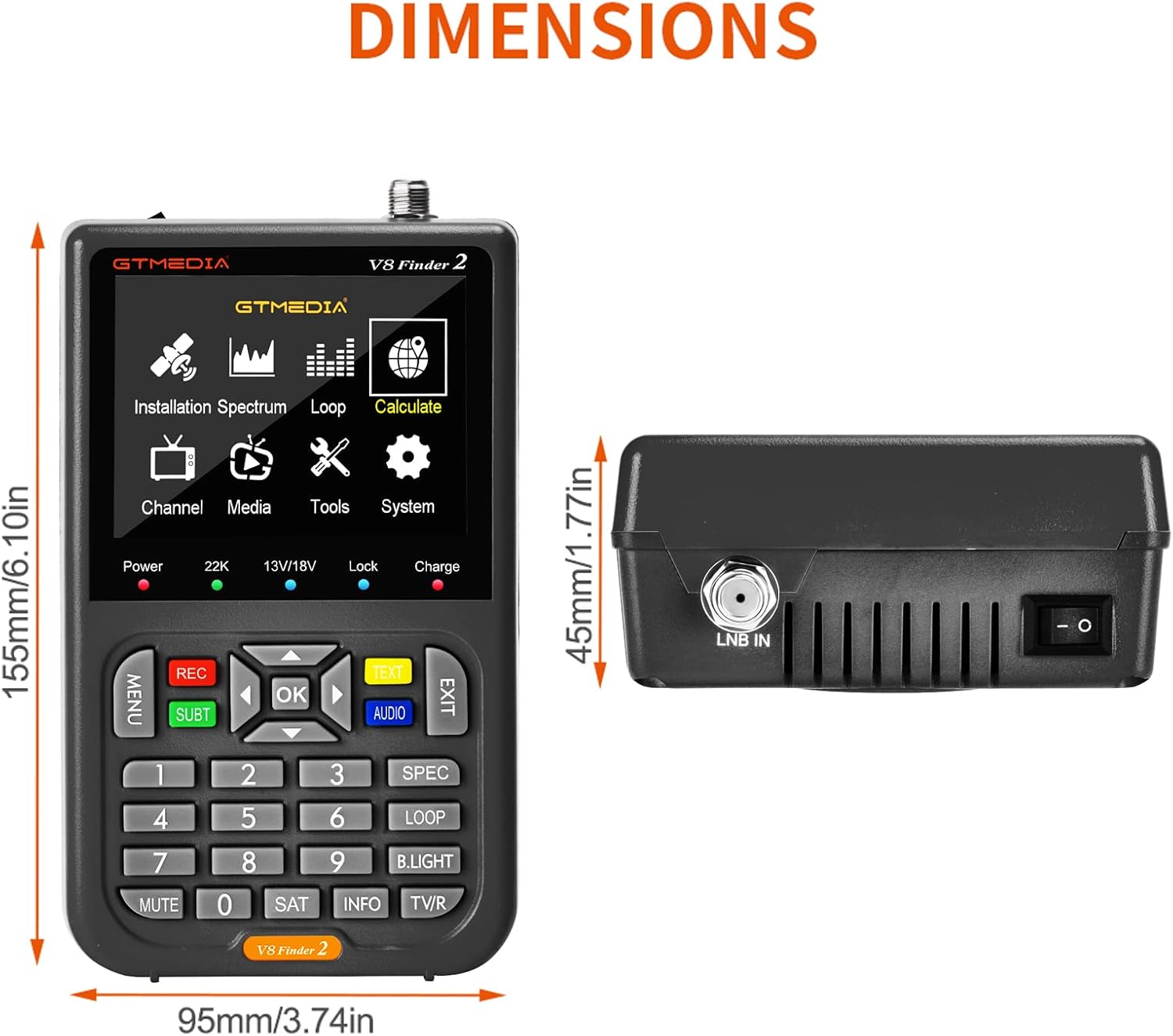
Figure 8: Physical dimensions of the V8 Finder 2.
9. Akwụkwọ ikike na nkwado
For warranty information and technical support, please refer to the product warranty card included in your package or visit the official docooler websaịtị. Debe nnata nzụta gị dị ka ihe akaebe nke ịzụrụ maka nkwupụta ikike.
Onye nrụpụta: Docooler
Akara: docooler
For further assistance, please contact docooler customer service.
Ask a question about this manual
Ask about setup, troubleshooting, compatibility, parts, safety, or missing instructions. Manuals+ will review the question and use this page’s manual context to help answer it.