
TouchWo TWHD75
TouchWo 75-inch 4K Interactive Touchscreen Smart Board User Manual
Model: TWHD75
1. Okwu mmalite
This manual provides comprehensive instructions for the setup, operation, and maintenance of your TouchWo 75-inch 4K Interactive Touchscreen Smart Board (Model TWHD75). This device integrates a 4K touchscreen monitor with dual Android 11 and Windows 10 Pro operating systems, designed for interactive use in office and classroom environments.
Ihe ngwugwu
- 1 x Electronic Whiteboard
- 1 x Power Line
- 1 x Akwụkwọ ntuziaka ngwaahịa (akwụkwọ a)
- 1 x Nkwado enwere ike ibugharị
- 1 x eriri WiFi
- 1 x Screen mirroring device
- 1 x Presenter and Stylus

Figure 1: Included Accessories and Mounting Options. The image displays the main unit, a mobile stand, a wall mounting bracket, a power line, a WiFi antenna, and a capacitive stylus. Note that the wall mounting bracket is an alternative to the mobile stand.
2. Nhazi
2.1 Mgbakọ Nguzo
The portable stand is included for easy mobility. Follow the instructions provided with the stand for proper assembly. Ensure all screws are securely tightened before mounting the smart board.
2.2 Mgbidi mgbidi (nhọrọ)
If wall mounting, use a compatible VESA wall mount bracket (not included) and ensure the wall structure can support the weight of the 75-inch smart board (approximately 114.4 pounds or 51.9 kg). Consult a professional for installation if unsure.
2.3 Njikọ Mbụ
- Njikọ ike: Connect the provided power line to the smart board and a grounded electrical outlet (110 Volts AC).
- Antenna WiFi: Attach the WiFi antenna to the designated port on the smart board for wireless network connectivity.
- Ngwa ndị dị n'akụkụ: Connect any desired peripheral devices such as external cameras, microphones, or additional storage via the available USB ports.

Figure 2: TouchWo 75-inch Smart Board on Portable Stand. This image shows the assembled unit ready for use.
3. Ntuziaka ọrụ
3.1 Gbanyụọ ma ọ bụ gbanyụọ
Press the power button located on the smart board to turn the device on or off. Allow a few moments for the system to boot up.
3.2 Dual OS Functionality (Android 11 & Windows 10 Pro)
The smart board features a dual operating system setup, allowing you to switch between Android 11 and Windows 10 Pro. The Android configuration includes RK3568, 4GB RAM + 32GB ROM. The Windows configuration includes Core i7, 16GB RAM + 512GB SSD. Refer to the on-screen prompts or system settings for switching between operating systems.
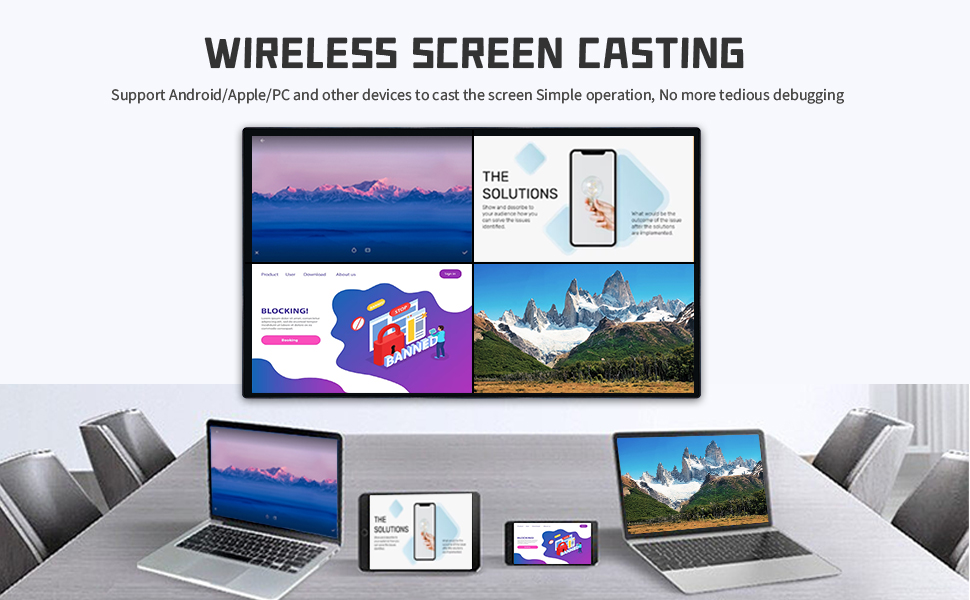
Figure 3: Dual OS Capability. This graphic visually represents the ability to switch between Windows 10 Pro and Android 11 operating systems, effectively providing three modes of operation: Windows, Android, and a standard touchscreen monitor.
3.3 Touchscreen Operation (40-Point Touch)
The 40-point touch screen allows for multiple users and gestures. Use your fingers or the provided stylus for interaction. The screen supports various gestures:
- Single Mgbata: Select items, open applications.
- Ugboro abụọ Mgbata: Execute actions, zoom.
- Pịa ma jide: Access context menus.
- Mkpọtụ Mkpịsị Aka Abụọ: Specific application functions.
- Two-Finger Double Tap: Specific application functions.
- Two-Finger Press: Specific application functions.
The touch response time is within 5ms, and the screen can be operated while wearing gloves.

Figure 4: 40-Point Touch Technology. This graphic illustrates different touch gestures and their corresponding actions on the interactive display.
3.4 Connectivity and Interfaces
The smart board offers multiple connectivity options:
- HDMI (In & Out): 2x ports for connecting external video sources and outputting display. HDMI IN and USB OTG enable screen casting from other devices with touch functionality.
- USB: Multiple USB ports (6 total) for peripherals.
- VGA: For legacy video connections.
- RJ45: Ọdụ ụgbọ mmiri Ethernet maka njikọ netwọk ikuku.
- Wi-Fi: Supports 2.4G and 5G wireless networks.
- Bluetooth Bluetooth: For wireless accessory connection.
- Ọkà okwu arụnyere n'ime ya: Maka mmepụta ọdịyo.
3.5 Screen Mirroring and Digital Signage
The device supports screen mirroring from smartphones, laptops, or tablets. Use the included screen mirroring device or compatible software for wireless casting. The smart board can also function as a digital signage display, supporting both horizontal and vertical placement.
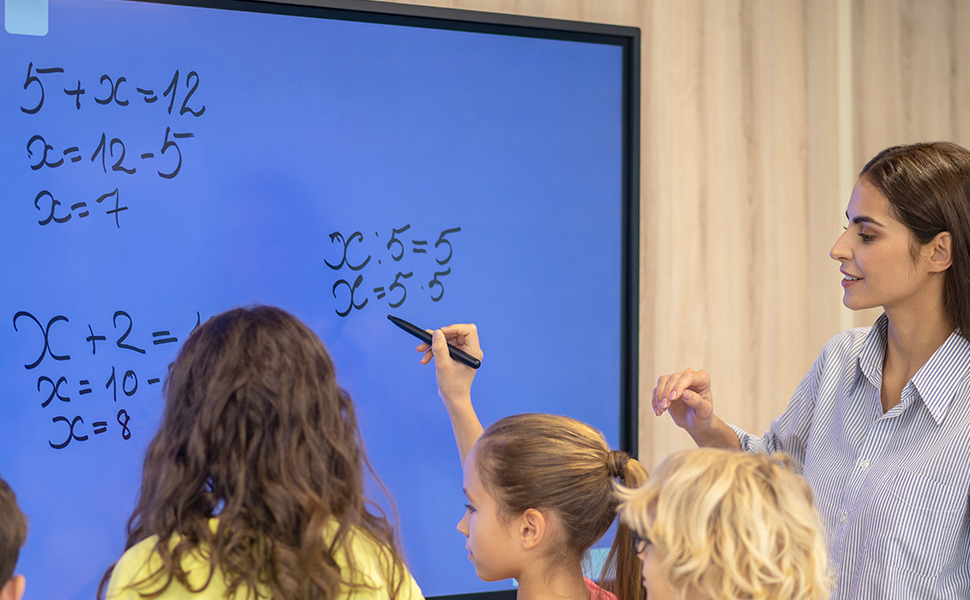
Figure 5: Wireless Screen Casting. This image illustrates how multiple devices can wirelessly cast their screens to the smart board.
3.6 Interactive Whiteboard Features
Utilize the included stylus to draw and annotate on an infinite canvas. This feature is suitable for presentations, brainstorming, and educational purposes.
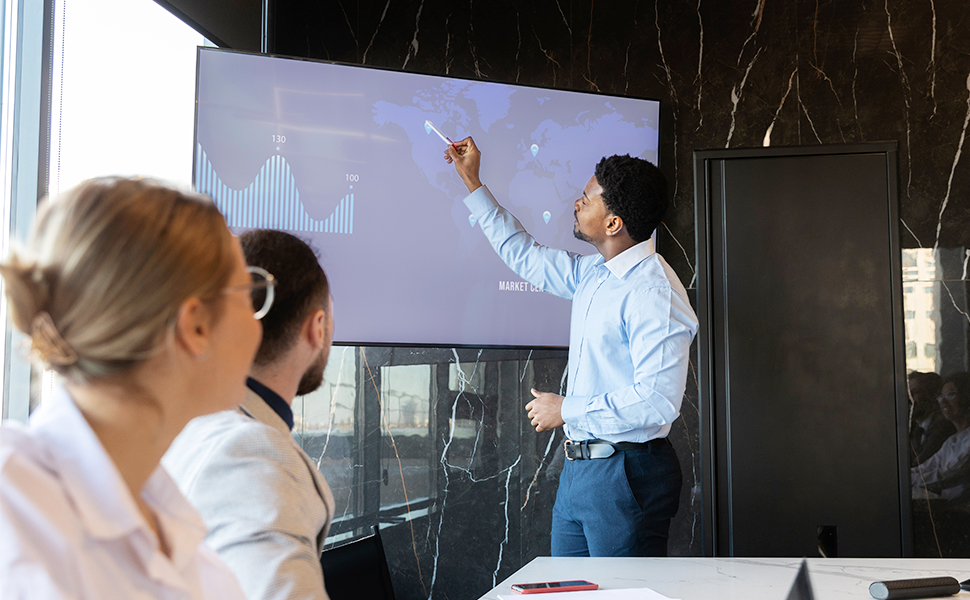
Figure 6: Interactive Whiteboard in Classroom. A teacher and students are using the smart board for an interactive lesson.
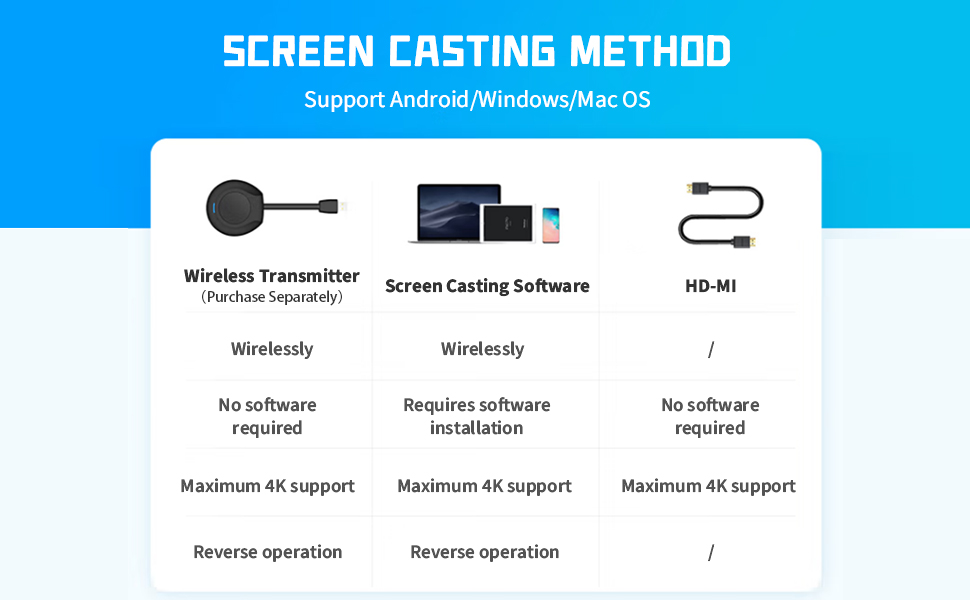
Figure 7: Smart Board for Meetings. A presenter is interacting with data displayed on the smart board during a business meeting.
4. Nlekọta
4.1 Na-ehicha ihuenyo ahụ
To clean the screen, power off the device and unplug it. Use a soft, lint-free cloth lightly dampened with a non-abrasive, screen-safe cleaning solution. Do not spray liquid directly onto the screen. Avoid using harsh chemicals or abrasive materials.
4.2 Nlekọta n'ozuzu
- Keep the smart board away from direct sunlight and heat sources.
- Gbaa mbọ hụ na ikuku ikuku dị na gburugburu ngwaọrụ ahụ.
- Avoid placing heavy objects on the smart board.
- Protect the screen from sharp objects to prevent scratches.
5. Nchọpụta nsogbu
5.1 Enweghị ike
- Check if the power cable is securely connected to both the smart board and the electrical outlet.
- Hụ na ebe ọkụ eletrik ahụ na-arụ ọrụ site na itinye ngwaọrụ ọzọ.
- Ensure the power button on the smart board has been pressed.
5.2 No Touch Response
- Restart the smart board.
- Ensure the screen is clean and free of obstructions.
- If using a stylus, ensure it is functioning correctly.
- Check if the touch functionality is enabled in the system settings of the active operating system (Android or Windows).
5.3 Screen Mirroring Issues
- Ensure both the smart board and the source device are connected to the same Wi-Fi network.
- Verify that the screen mirroring device is properly connected and configured.
- Check for any software updates for the screen mirroring application on your source device.
- For HDMI connections, ensure the cable is securely connected and the correct input source is selected on the smart board.
5.4 Operating System Switching Problems
- Ensure the system has fully booted into one OS before attempting to switch.
- Follow the specific instructions for OS switching within the device's interface.
- If persistent issues occur, a factory reset might be necessary (consult support before proceeding).
6. Nkọwapụta
| Njirimara | Nkọwa |
|---|---|
| Nọmba nlereanya | TWHD75 |
| Nha ihuenyo | 75 sentimita asatọ |
| Mkpebi | 3840 x 2160 Pixels (4K UHD 2160p) |
| Akụkụ akụkụ | 16:9 |
| Ihe onyonyo | 400 lm |
| Teknụzụ Aka | 40 Points Touch Screen, < 5ms response time |
| Sistemu eji arụ ọrụ | Android 11 (RK3568, 4G RAM + 32G ROM), Windows 10 Pro (Core i7, 16G RAM + 512G SSD) |
| Njikọta | 2x HDMI (In & Out), USB (6 total), VGA, RJ45, Wi-Fi (2.4G+5G), Bluetooth 5.0 |
| Audio | Ndị na-ekwu okwu arụrụ arụ |
| Ntinye ike | 110 volts (AC) |
| Akụkụ ngwaahịa | 3.2 x 67.2 x 40 sentimita (8.1 x 170.7 x 101.6 cm) |
| Ibu Ibu | 114.4 pound (51.9 n'arọ) |
| Onye nrụpụta | Guangzhou Touchwo Electronics Co., Ltd |
| Ụbọchị mbụ dị | Julaị 12, 2023 |
7. Akwụkwọ ikike na nkwado
For warranty information and technical support, please refer to the documentation provided with your purchase or contact TouchWo customer service. Details for contacting support are typically available on the manufacturer's official websaịtị ma ọ bụ site na onye na-ere ahịa gị.
Nkwado ndị ahịa: Maka enyemaka, biko gaa na TouchWo Store on Amazon or refer to the contact information provided in your purchase documentation.
Ask a question about this manual
Ask about setup, troubleshooting, compatibility, parts, safety, or missing instructions. Manuals+ will review the question and use this page’s manual context to help answer it.