
Okwu mmalite
Thank you for choosing the AVMTON Wireless Gaming Mouse. This manual provides detailed instructions on how to set up, operate, and maintain your new mouse, ensuring optimal performance and an enhanced gaming and work experience. Designed for comfort and precision, this ergonomic wireless mouse features adjustable DPI, customizable buttons, and vibrant RGB lighting.
Ngwaahịa gafereview
The AVMTON Wireless Gaming Mouse is engineered for both gaming and office use, offering a comfortable ergonomic design and responsive control. It features a honeycomb hollow design with RGB backlighting, providing both aesthetic appeal and lightweight performance.
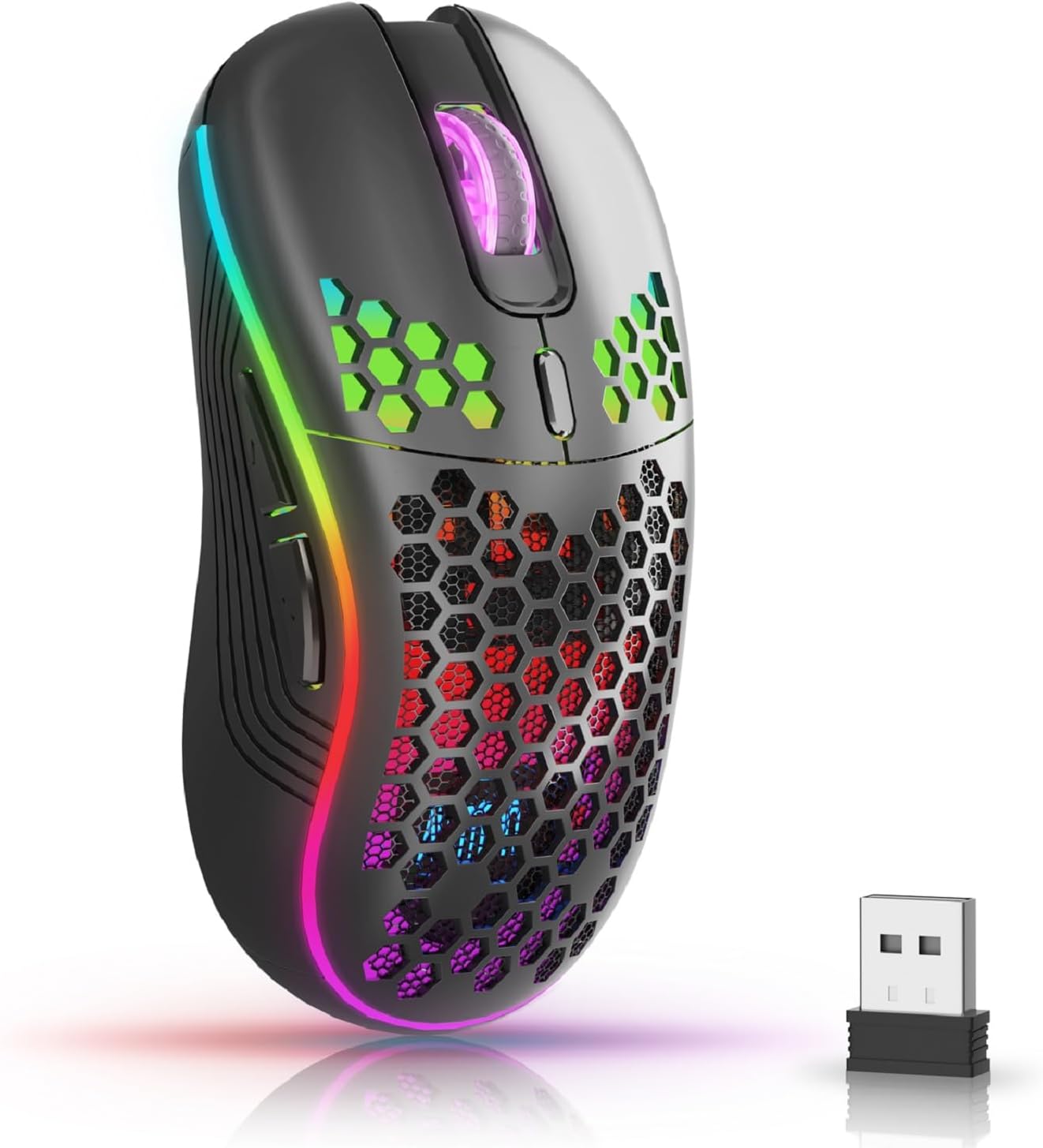
The AVMTON Wireless Gaming Mouse in black, featuring RGB lighting and a honeycomb design, shown alongside its compact USB receiver.

Illustration of the mouse's connectivity modes, including Type-C charging, 2.4G wireless receiver, and a 10m sensing range, suitable for home, gaming, and office environments.
Akụkụ ndị bụ isi:
- Nhazi Ergonomic: Shaped to fit the hand comfortably, reducing strain during extended use.
- DPI nwere ike imeghari: Easily switch between 800/1200/1600/2400/4800 DPI settings for precise control.
- 6 bọtịnụ mmemme: Includes forward/backward, left/right click, scroll wheel, and DPI adjustment button.
- Batrị enwere ike ịchaji: Built-in lithium battery with USB-C charging, offering 15-20 days of use on a single charge.
- Silent Click Design: Ideal for quiet environments like libraries or offices.
- Ndakọrịta sara mbara: Supports Windows 2000/ME/XP/7/8/10/Vista/98, Mac OS, Linux, and compatible with laptops, PCs, desktops, and Macbooks.
- Ihe owuwu na-adịgide adịgide: Tested for over 5 million clicks, ensuring long-lasting performance.
Ntuziaka nhazi
Follow these steps to set up your AVMTON Wireless Gaming Mouse:
- Chajịa òké: Before first use, fully charge the mouse using the provided USB-C charging cable. Connect the cable to the mouse's Type-C port and a USB power source (e.g., computer USB port, USB wall adapter). The charging indicator will show the charging status.
- Chọta onye nnata USB: The compact USB 2.4G wireless receiver is typically stored in a compartment on the underside of the mouse for safe keeping during transport.
- Jikọọ onye nnata: Insert the USB receiver into an available USB port on your computer (laptop, PC, desktop, Macbook).
- Ike Na: Turn on the mouse using the power switch located on the underside of the mouse.
- Njikọ akpaaka: The mouse should automatically connect to your computer. No additional drivers are usually required for basic functionality.
Ntuziaka ọrụ
Understanding the functions of your mouse buttons and settings will enhance your experience.
Ọrụ bọtịnụ:
- Bọtịnụ Pịa aka ekpe: Standard isi pịa ọrụ.
- Pịa aka nri bọtịnụ: Ọkọlọtọ nke abụọ pịa ọrụ.
- Mpempe akwụkwọ mpịakọta: Pịgharịa gaa na elu ma ọ bụ ala site na akwụkwọ na web ibe. Enwere ike pịa maka ịrụ ọrụ pịa etiti.
- Bọtịnụ mmezi DPI: Located near the scroll wheel. Press this button to cycle through available DPI settings (800/1200/1600/2400/4800). Each press changes the cursor speed and sensitivity.
- Bọtịnụ mbugharị: Typically located on the side of the mouse. Used for navigating forward in web ihe nchọgharị ma ọ bụ file ndị na-eme nchọpụta.
- Bọtịnụ azụ: Typically located on the side of the mouse. Used for navigating backward in web ihe nchọgharị ma ọ bụ file ndị na-eme nchọpụta.
Njikwa ọkụ azụ RGB:
The mouse features dynamic RGB backlighting. If you prefer to turn off the backlight, refer to the specific instructions provided with your mouse or check the manufacturer's website for software utilities, if available. Some models allow toggling RGB with a combination of buttons (e.g., DPI button + another button).
Nlekọta
Proper maintenance ensures the longevity and performance of your mouse.
- Ịchaji: Recharge the mouse when the battery indicator shows low power. A full charge provides approximately 15-20 days of use. It is recommended to fully charge the mouse before extensive use.
- Nhicha: Jiri ákwà dị nro ma kpọọ nkụ hichaa elu òké ahụ. Maka unyi siri ike, jiri ntakịrị d hichaa elu òké ahụ.amp Enwere ike iji akwa mee ihe, ma hụ na ọ dịghị mmiri na-abanye n'ime ihe ndị dị n'ime. Zere kemịkalụ siri ike ma ọ bụ ihe na-emebi emebi.
- Nchekwa: Mgbe a naghị eji ya ruo ogologo oge, gbanyụọ òké ahụ iji chekwaa ndụ batrị. Debe ya n'ebe dị jụụ ma kpọọ nkụ.
Nchọpụta nsogbu
If you encounter issues with your AVMTON Wireless Gaming Mouse, try the following solutions:
- Òké anaghị aza:
- Gbaa mbọ hụ na agbanyere òké ahụ.
- Lelee ma ọ bụrụ na e tinyere ihe nnata USB ahụ n'ime ọdụ ụgbọ USB na-arụ ọrụ nke ọma na kọmputa gị.
- Recharge the mouse. A low battery can cause unresponsiveness.
- Gbalịa itinye ihe nnata USB n'ọdụ ụgbọ mmiri USB dị iche.
- Malitegharịa ekwentị gị na kọmputa.
- Njikọ Lag ma ọ bụ Nkwụsị:
- Ensure the mouse is within the 10-meter sensing range of the USB receiver.
- Remove any large metallic objects or other wireless devices that might be causing interference between the mouse and the receiver.
- Gbalịa ibugharị ihe nnata USB gaa n'ọdụ ụgbọ mmiri dị nso na òké ahụ.
- Ndozi DPI anaghị arụ ọrụ:
- Ensure you are pressing the dedicated DPI adjustment button.
- Ọ bụrụ na nsogbu ahụ anọgide, gbalịa ịmalitegharịa òké ahụ na kọmputa gị.
- Igwe ọkụ RGB anaghị arụ ọrụ:
- Check if the RGB backlight has been intentionally turned off (refer to "RGB Backlight Control" in Operating Instructions).
- Hụ na òké ahụ nwere batrị zuru oke.
If these steps do not resolve the issue, please contact AVMTON customer support for further assistance.
Nkọwapụta
| Njirimara | Nkọwa |
|---|---|
| Ụdị | AVMTON |
| Nọmba nlereanya | AV-DDMB-1 |
| Agba | Nwa |
| Teknụzụ Njikọta | 2.4G ikuku (USB nnata) |
| Ntọala DPI | 800/1200/1600/2400/4800 |
| Ọnụọgụ bọtịnụ | 6 |
| Ntuzi aka | Right |
| Ndụ batrị | Approx. 15-20 days (on a single charge) |
| Nchaji ọdụ ụgbọ mmiri | USB Ụdị-C |
| Sistemu eji arụ ọrụ dakọtara | Windows 2000/ME/XP/7/8/10/Vista/98, Mac OS, Linux |
| Ngwa dakọtara | Kọmputa nkeonwe, Laptọọpụ |
| Atụmatụ pụrụ iche | Portable, Ergonomic, Rechargeable, RGB Backlight, Silent Click |
Akwụkwọ ikike na nkwado
AVMTON offers a 12-month worry-free after-sales service for this product. If you encounter any problems with your wireless mouse, please do not hesitate to contact us. Our customer support team is ready to assist you.
For support, please visit the official AVMTON websaịtị ma ọ bụ kpọtụrụ onye na-ere ahịa gị.