
SEMAITU 9" Autoradio(DAB)
SEMAITU TH0029DAB Car Radio User Manual
Model: TH0029DAB
Okwu mmalite
Welcome to the user manual for your SEMAITU TH0029DAB Car Radio. This advanced multimedia system is designed to enhance your driving experience with features such as DAB digital radio, Android 12 operating system, Wireless Apple CarPlay, Android Auto, GPS navigation, Bluetooth connectivity, and a reverse camera. This manual provides detailed instructions for installation, operation, maintenance, and troubleshooting to ensure optimal performance and longevity of your device.
Please read this manual thoroughly before using the product and keep it for future reference.
Ngwaahịa gafereview
The SEMAITU TH0029DAB Car Radio is a state-of-the-art in-car entertainment and navigation system. Key features include:
- Sistemụ nrụọrụ: Android 12.0
- Ngosipụta: 9-inch QLED Quantum Touchscreen (1280x720 resolution)
- Ebe nchekwa: 2GB RAM + 32GB Internal Storage
- Redio: DAB Digital Radio, FM/RDS Radio (NXP6856 chip)
- Njikọta: Wireless Apple CarPlay, Wireless Android Auto, GPS Navigation (Europe maps), WiFi, Bluetooth (with dual microphone), Dual USB ports
- Audio: DSP EQ for Hi-Fi sound
- Nkwado igwefoto: AHD Reverse Camera (170° wide angle, night vision, waterproof)
- ndakọrịta: Designed for VW, Seat, and Skoda models (specific models listed in compatibility section)
- Atụmatụ ndị ọzọ: Steering Wheel Control (SWC) function, Mirror Link for iOS and Android

Figure 1: SEMAITU TH0029DAB Car Radio main unit with included accessories (DAB antenna, USB cable, reverse camera).
Ndakọrịta
This car radio is specifically designed for certain VW, Seat, and Skoda models. Please verify your vehicle's compatibility before installation.
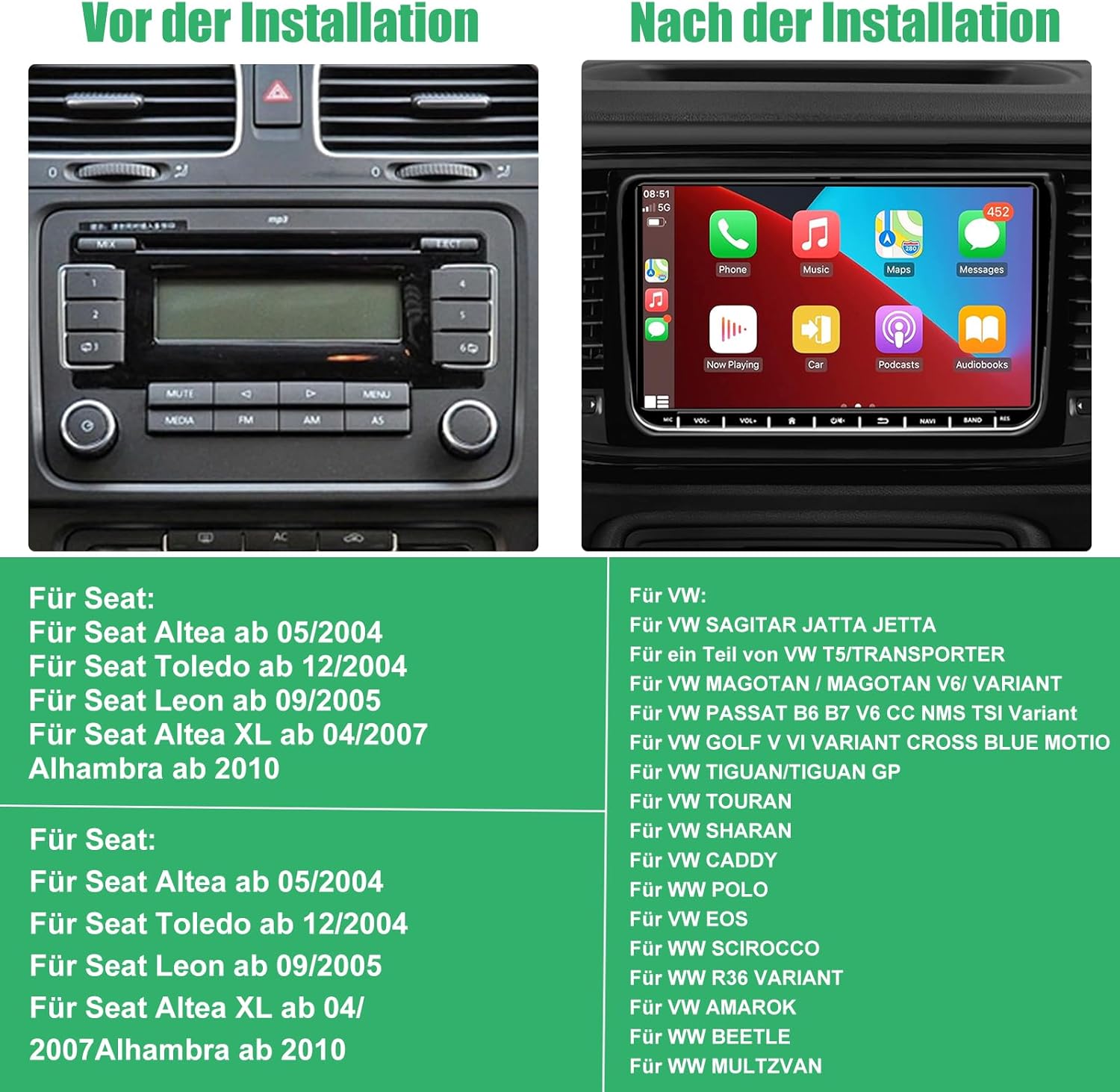
Figure 2: Visual comparison of a car dashboard before and after installation, alongside a list of compatible Seat and VW vehicle models.
Ụdị dakọtara:
For Seat:
- Seat Altea from 05/2004
- Seat Toledo from 12/2004
- Seat Leon from 09/2005
- Seat Altea XL from 04/2007
- Alhambra from 2010
For VW:
- VW SAGITAR JETTA
- VW T5/TRANSPORTER (partial models)
- VW MAGOTAN / MAGOTAN V6 / VARIANT
- VW PASSAT B6 B7 V6 CC NMS TSI VARIANT
- VW GOLF V VI VARIANT CROSS BLUE MOTIO
- VW TIGUAN/TIGUAN GP
- VW TOURAN
- VW SHARAN
- VW CADDY
- VW POLO
- VW EOS
- VW SCIROCCO
- VW R36 VARIANT
- VW AMAROK
- VW BEETLE
- VW MULTZVAN
Ihe ngwugwu
Before installation, please check that all components are present in the package:
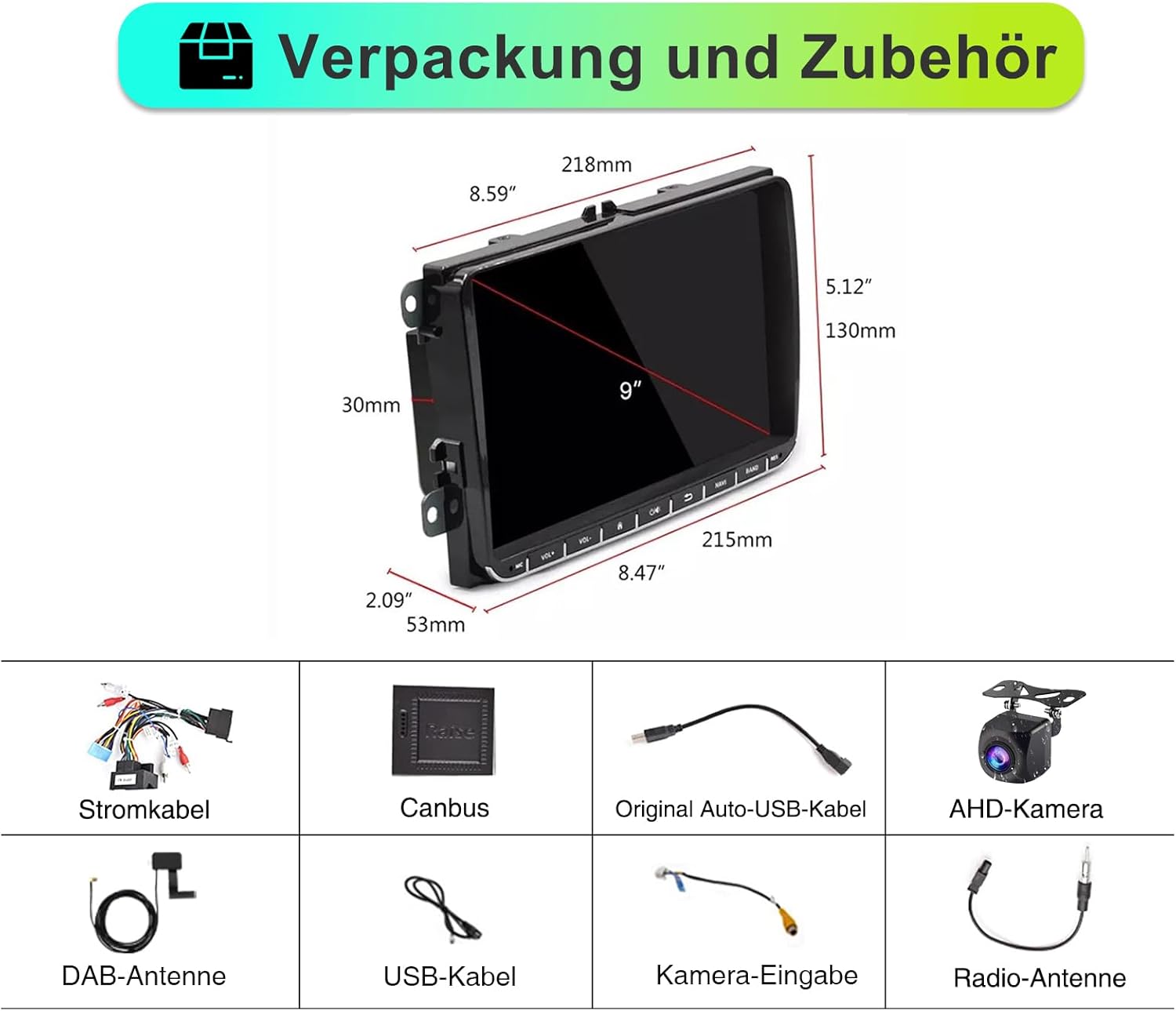
Nyocha 3: N'eluview of the car radio dimensions and all included accessories.
- SEMAITU TH0029DAB Car Radio Unit
- Igwe ọkụ ọkụ
- Canbus Decoder
- Original Auto USB Cable
- AHD Camera (Reverse Camera)
- Antenna DAB
- eriri USB
- USB ntinye igwefoto
- Antenna redio
Ntọala na nwụnye
Professional installation is recommended. Ensure the vehicle's battery is disconnected before beginning installation to prevent electrical damage.
Usoro ntinye n'ozuzu:
- Nkwadebe: Disconnect the negative terminal of the car battery. Remove the original car radio unit from the dashboard.
- Njikọ waya:
- Connect the main power cable harness from the new radio to the vehicle's wiring harness.
- Connect the Canbus decoder to ensure proper communication with the vehicle's systems (e.g., steering wheel controls, door status).
- Connect the radio antenna and DAB antenna.
- Connect the USB cables for external devices.
- If installing the reverse camera, route the camera cable from the rear of the vehicle to the radio unit and connect it to the camera input. Ensure the camera's power is connected to the reverse light circuit.
- Ịkwanye: Secure the new SEMAITU car radio into the dashboard opening. Ensure all cables are neatly tucked away and not pinched.
- Nnwale: Reconnect the car battery. Turn on the ignition and test the radio's basic functions: power on/off, radio reception, touchscreen responsiveness, and sound output.
- Mgbakọ ikpeazụ: Reassemble the dashboard trim panels.
For detailed wiring diagrams and specific vehicle instructions, please refer to the included installation guide or consult a professional installer.
Ntuziaka ọrụ
Nrụ ọrụ bụ isi:
- Gbanyụọ/ Gbanyụọ: Press the power button (usually located on the front panel or integrated with volume knob) to turn the unit on or off.
- Njikwa olu: Use the volume knob or touchscreen controls to adjust audio levels.
- Ihuenyo ụlọ: Tap the home icon on the touchscreen to return to the main menu.
- Ntugharị: Swipe left/right on the touchscreen to access different application pages.
Radio Functions (DAB/FM/RDS):

Figure 4: DAB Digital Radio interface showing station selection and signal strength.
- Ụdị mgbanwe: Select "Radio" from the main menu. Choose between FM or DAB mode.
- Ọdụ Nnyocha: In FM mode, use the "Scan" or "Seek" function to find available stations. In DAB mode, the unit will automatically scan for digital stations upon first use or when entering a new area.
- Ịchekwa atọrọ atọ: Tune to your desired station, then press and hold a preset button (P1-P6) on the screen to save it.
- RDS (Sistemụ data redio): When available, RDS will display station information, song titles, and traffic announcements on FM.
Ikuku Apple CarPlay na gam akporo Auto:
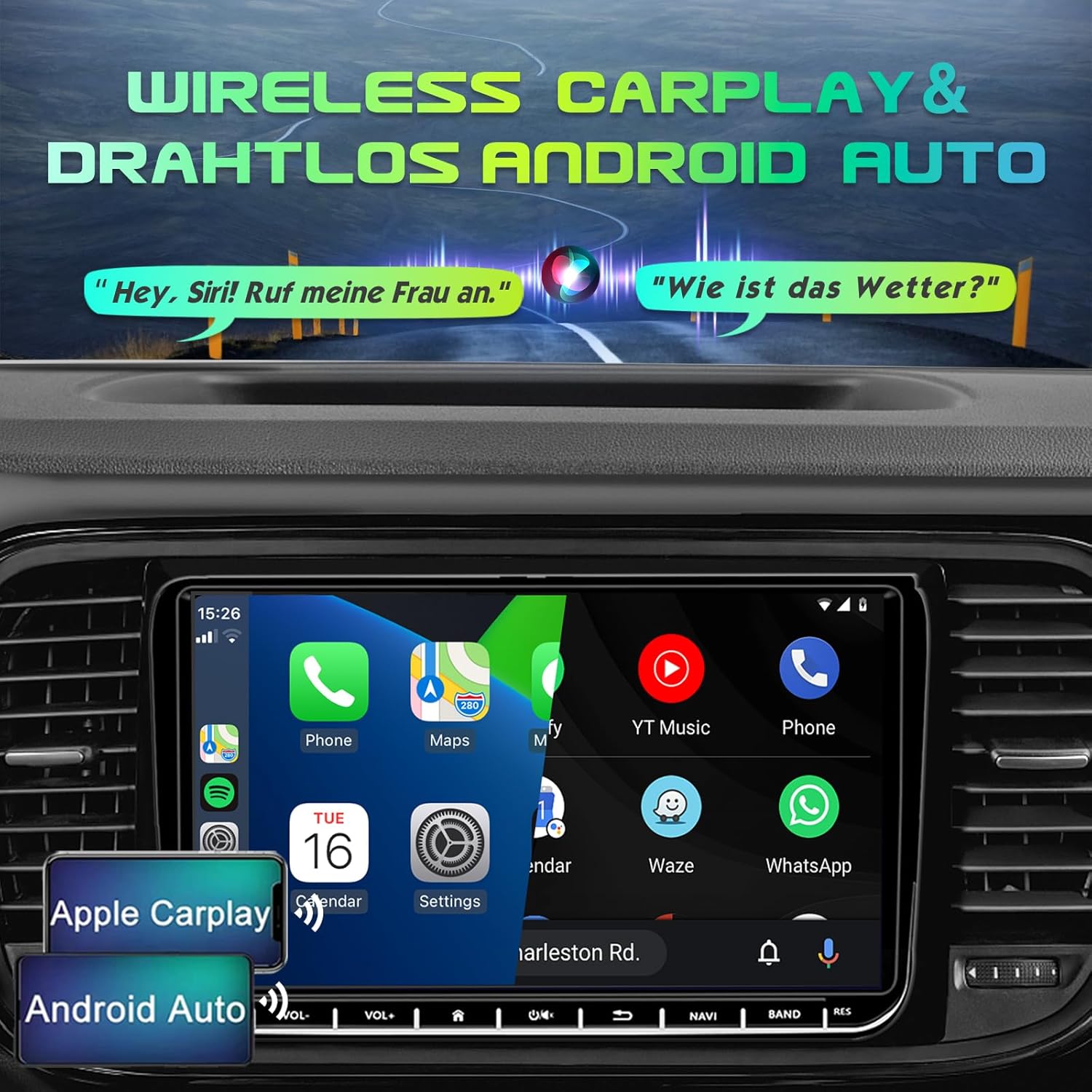
Figure 5: Display demonstrating Wireless Apple CarPlay and Android Auto functionality.
Connect your smartphone wirelessly to access navigation, music, calls, and messages directly on the car radio screen.
- Mee ka Bluetooth na Wi-Fi rụọ ọrụ: Gbaa mbọ hụ na agbanyere Bluetooth na Wi-Fi na ekwentị gị.
- Na-ejikọta: On the car radio, go to the Bluetooth settings and search for your phone. Pair the devices.
- Launch CarPlay/Android Auto: Once paired, the system should prompt you to launch Apple CarPlay or Android Auto. Follow the on-screen instructions.
- Njikwa olu: Use voice commands (e.g., "Hey Siri" for CarPlay, "Hey Google" for Android Auto) for hands-free operation.
Nsoro ụzọ GPS:

Figure 6: GPS Navigation interface displaying map, current location, and route details.
The unit comes with pre-installed Europe maps and supports online and offline navigation.
- Starting Navigation: Tap the "Navigation" icon on the main screen.
- Ịbanye Ebe A Na-aga: Use the on-screen keyboard to enter your destination address or select from recent destinations/points of interest.
- Mmelite map: Connect to Wi-Fi to download map updates or use online navigation services.
Njikọ Bluetooth:

Figure 7: Bluetooth interface for hands-free calling and audio streaming.
- Na-ejikọta: Go to "Bluetooth" settings, enable Bluetooth on your phone, and select the car radio from the list of available devices.
- Oku na-anaghị aka: Make and receive calls directly through the car radio. Your phonebook can be synchronized.
- Ngụgharị ọdịyo: Play music from your phone via Bluetooth audio streaming (A2DP).
Reverse Camera (AHD Camera):
When the vehicle is shifted into reverse gear, the display will automatically switch to the rear view camera feed, providing a wide 170° view with night vision capabilities.
Figure 8: AHD Reverse Camera display showing day and night vision modes.
DSP EQ (Digital Sound Processor Equalizer):
Customize your audio experience with the built-in DSP EQ. Adjust frequency bands to match your preferences and vehicle acoustics.
Figure 9: DSP EQ interface for advanced audio customization.
- Accessing EQ: Navigate to the "Sound Settings" or "DSP" menu.
- Ntọala nhazi: Use the sliders to adjust individual frequency bands. Select from preset sound modes (e.g., Pop, Rock, Jazz) or create custom profiles.
Njikwa wiilụ ịkwọ ụgbọala (SWC):
If your vehicle supports it and the Canbus is correctly connected, you can program the steering wheel buttons to control the car radio functions (e.g., volume, track skip, mode change).
Figure 10: Steering Wheel Control (SWC) setup interface.
- Melite: Go to "Settings" > "Steering Wheel Control" and follow the on-screen instructions to map your vehicle's steering wheel buttons to the radio functions.
Njikọ mirror:
Mirror Link allows you to display your smartphone's screen directly on the car radio, supporting both iOS and Android devices. This enables you to view content like navigation, videos, and messages from your phone on the larger display.
Figure 11: Mirror Link feature displaying a mirrored smartphone screen.
- Njikọ: Connect your smartphone via USB or Wi-Fi (depending on the specific Mirror Link app/protocol).
- Nkwalite: Launch the Mirror Link application on the car radio and follow the pairing instructions on both devices.
Nlekọta
- Nchacha ihuenyo: Jiri akwa dị nro, nke na-enweghị lint, jiri nwayọ hichaa ihuenyo mmetụ ahụ. Maka isi ike smudges, ntakịrị dampen akwa na mmiri ma ọ bụ ihe na-echebe ihuenyo. Zere ihe na-emebi emebi ma ọ bụ kemịkalụ siri ike.
- Nchacha izugbe: Debe unit ahụ pụọ na uzuzu na irighiri ihe. Jiri ahịhịa dị nro ma ọ bụ ikuku abịakọrọ ihicha gburugburu bọtịnụ na ọdụ ụgbọ mmiri.
- Mmelite ngwanrọ: Periodically check for software updates from the manufacturer (if available) to ensure optimal performance and access to new features. Updates can usually be performed via Wi-Fi.
- Zere oke okpomọkụ: Do not expose the unit to extreme heat or cold, as this can affect its performance and lifespan.
- Njikwa Ike: Ensure the vehicle's electrical system is stable. Avoid frequent power fluctuations.
Nchọpụta nsogbu
If you encounter issues with your SEMAITU TH0029DAB Car Radio, please refer to the following common problems and solutions:
| Nsogbu | Ihe nwere ike ime | Ngwọta |
|---|---|---|
| Unit anaghị agbanye ọkụ. | No power supply; Blown fuse; Incorrect wiring. | Check vehicle's fuse box and radio fuse. Verify power cable connections. Ensure battery is connected. |
| Enweghị mmepụta ụda. | Olu dị oke ala; Ogbi agbanyere; Okwu waya okwu; Isi iyi ọdịyo ezighi ezi. | Increase volume. Check if mute is on. Verify speaker connections. Select correct audio source (e.g., FM, Bluetooth). |
| Poor radio reception (FM/DAB). | Antenna not connected; Damaged antenna; Weak signal area. | Ensure radio and DAB antennas are securely connected. Check antenna for damage. Try scanning for stations in a different location. |
| CarPlay/Android Auto anaghị ejikọ. | Bluetooth/Wi-Fi off on phone; Incorrect pairing; Software glitch. | Ensure Bluetooth and Wi-Fi are enabled on your phone. Re-pair the devices. Restart both phone and car radio. Update phone OS. |
| Reverse camera not displaying. | Camera not powered; Incorrect camera input connection; Reverse trigger wire not connected. | Check camera power supply (usually from reverse light). Verify camera input cable is connected to the correct port. Ensure reverse trigger wire is connected. |
| Ihuenyo mmetụ anaghị anabata. | System freeze; Dirt on screen. | Restart the unit (press and hold power button). Clean the screen. If issue persists, a factory reset might be needed (consult support). |
| Steering Wheel Controls not working. | Canbus not connected; Incorrect SWC programming. | Ensure Canbus decoder is correctly installed. Re-program the steering wheel controls in the settings menu. |
Ọ bụrụ na nsogbu ahụ dịgidere mgbe ịnwale azịza ndị a, biko kpọtụrụ nkwado ndị ahịa.
Nkọwapụta
| Njirimara | Nkọwa |
|---|---|
| Aha Nlereanya | Autoradio Android 12.0 9" (DAB) |
| Onye nrụpụta | SEMAITU |
| Sistemụ nrụọrụ | Android 12.0 |
| Nha ihuenyo | 9 sentimita asatọ |
| Ụdị ngosi | QLED Quantum Touchscreen |
| Mkpebi | 1280 x 720 pikselụ |
| Ebe nchekwa (RAM + Nchekwa) | 2GB Ram + 32GB ROM |
| Redio Tuner | DAB, FM, RDS (NXP6856) |
| Njikọta | Bluetooth, Wi-Fi, USB (Dual ports) |
| Nsoro ụzọ | GPS (Europe maps included) |
| Ngwakọta ekwentị | Wireless Apple CarPlay, Wireless Android Auto, Mirror Link |
| Ọnọdụ mmepụta ọdịyo | Stereo with DSP EQ |
| Atụmatụ pụrụ iche | Touchscreen, AHD Reverse Camera Support, Steering Wheel Control (SWC) |
| Servicedị Ọrụ hicgbọ | Ụgbọ ala |
| Ụdị nkwụnye | Ugwu Dashboard |
| Akụkụ ngwugwu | 28 x 25.3 x 9 cm |
| Ibu Ibu | 1.4 kilogram |
Akwụkwọ ikike na nkwado
For warranty information and customer support, please refer to the documentation provided with your purchase or contact SEMAITU customer service directly. Keep your proof of purchase for warranty claims.
For technical assistance or further inquiries, please visit the official SEMAITU websaịtị ma ọ bụ kpọtụrụ ndị otu nkwado ha.
Ask a question about this manual
Ask about setup, troubleshooting, compatibility, parts, safety, or missing instructions. Manuals+ will review the question and use this page’s manual context to help answer it.