
1. Okwu mmalite
Thank you for choosing the Maxcom FW36 Aurum SE Smartwatch. This manual provides detailed instructions to help you set up, operate, and maintain your device, ensuring optimal performance and longevity. Please read this manual carefully before using your smartwatch.

Foto 1: N'ihu view of the Maxcom FW36 Aurum SE Smartwatch, displaying time and health metrics.
2. Nhazi
2.1 Unboxing na nlele mbụ
Upon opening the package, verify that all components are present: Maxcom FW36 Aurum SE Smartwatch, charging cable, and this user manual. Inspect the device for any visible damage.
2.2 Ịchaji elekere smart
Before first use, fully charge your smartwatch. Connect the charging cable to the charging port on the back of the watch and to a standard USB power adapter (not included). The battery icon on the screen will indicate charging status. A full charge typically takes approximately 2 hours.
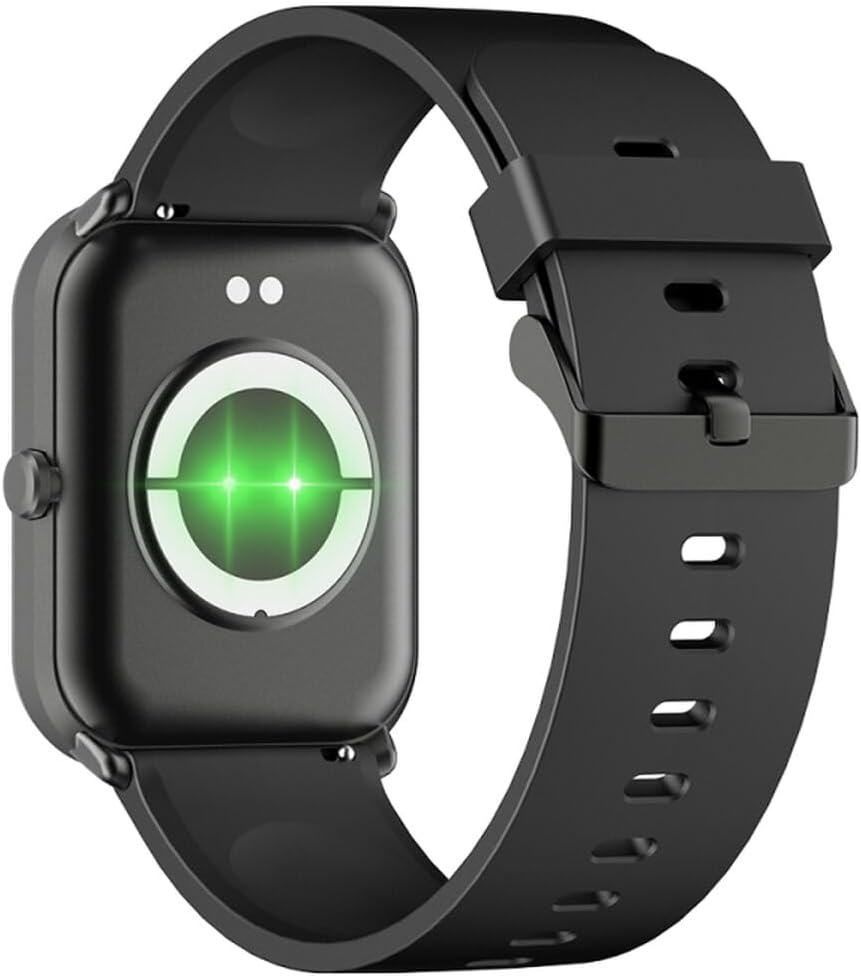
Ọgụgụ 2: N'azụ view of the smartwatch, highlighting the charging contacts and health sensors.
2.3 Gbanyụọ ma ọ bụ gbanyụọ
- Ike Na: Press and hold the side button for a few seconds until the screen lights up.
- Gbanyụọ: From the watch face, swipe down to access quick settings, then tap the power icon, or navigate to "Settings" > "System" > "Power Off". Confirm your selection.
2.4 Ngwa nwụnye na ijikọ
- Budata ngwa: Scan the QR code in the manual (if provided) or search for "GLORY FIT" in your smartphone's app store (Google Play Store for Android, Apple App Store for iOS).
- Debanye aha/Banye: Open the GLORY FIT app and follow the on-screen instructions to create an account or log in.
- Na-ejikọta:
- Gbaa mbọ hụ na agbanyere Bluetooth na ekwentị gị.
- Open the GLORY FIT app, go to "Device" or "My Device", and tap "Add Device".
- The app will search for nearby devices. Select "FW36 Aurum SE" from the list.
- Kwenye arịrịọ njikọta na ma ekwentị gị ma smartwatch.
Once paired, the smartwatch will synchronize data with your phone, including time and date settings.
3. Ntuziaka ọrụ
3.1 Nsoro ụzọ
- Ihuenyo mmetụ aka: Swipe left/right to navigate between main functions (e.g., activity, heart rate). Swipe up to view notifications. Swipe down to access quick settings.
- Bọtịnụ akụkụ: Press once to return to the watch face or wake the screen. Press and hold for power options.

Foto 3: Akụkụ view of the smartwatch, illustrating the physical button and strap design.
3.2 Nlekọta ahụike
The Maxcom FW36 Aurum SE Smartwatch features several health monitoring functions:
- Nyochaa Ọnụọgụgụ Obi: Swipe to the heart rate interface and wait for the measurement to complete. Ensure the watch is snug on your wrist.
- Sensọ Ọbara Ọbara: Similar to heart rate, navigate to the SpO2 interface for measurement.
- Nyochaa Ọbara Ọbara: Access this function from the main menu or by swiping to its dedicated screen.
- Nleba anya ogo ụra: The watch automatically tracks your sleep patterns when worn during sleep. View detailed reports in the GLORY FIT app.
- Ntughari: Tracks your daily steps, distance, and calories burned automatically.
Ihe dị mkpa: The health data provided by this device is for reference only and should not be used for medical diagnosis or treatment.
3.3 Multi-Sport mode
Access the multi-sport mode from the main menu to select various activities such as running, walking, cycling, etc. The watch will track specific metrics relevant to your chosen activity.
3.4 Amamọkwa
Once paired with your smartphone and notification permissions are granted in the GLORY FIT app, your smartwatch will display incoming calls, messages, and app notifications. Swipe up from the watch face to view your notification history.
4. Nlekọta
4.1 Nhicha
Regularly clean your smartwatch and strap with a soft, dry cloth. For stubborn dirt, use a slightly damp ákwà wee kpoo ya nke ọma. Zere iji kemịkalụ siri ike ma ọ bụ ihe ndị na-eme ka ọ dị nro.
4.2 Mgbochi mmiri na uzuzu
The Maxcom FW36 Aurum SE Smartwatch is designed to be dust resistant and water resistant. This means it can withstand splashes, rain, and brief immersion in shallow water. However, it is not suitable for hot showers, saunas, diving, or high-speed water sports. Avoid pressing buttons underwater.
4.3 Nlekọta batrị
To prolong battery life, avoid fully discharging the battery frequently. Charge the device regularly, even if not in use for extended periods. Store the device in a cool, dry place.
5. Nchọpụta nsogbu
- Smartwatch not turning on: Ensure the device is fully charged. Press and hold the side button for an extended period (10-15 seconds).
- Enweghị ike ijikọ na smartphone:
- Ensure Bluetooth is enabled on your phone and the smartwatch is within range.
- Malitegharịa ekwentị gị na smartwatch.
- Check if the GLORY FIT app has necessary permissions.
- Ọ bụrụ na ejikọtara ya na mbụ, gbalịa wepụ ma jikọọ ngwaọrụ ahụ ọzọ.
- Ọgụgụ ahụike na-ezighi ezi: Ensure the watch is worn snugly on your wrist, not too tight or too loose. Clean the sensors on the back of the watch. Avoid excessive movement during measurement.
- Anataghị ọkwa: Verify that notification permissions are enabled for the GLORY FIT app in your phone's settings. Ensure the app is running in the background.
6. Nkọwapụta
| Nlereanya | FW36 Aurum SE |
| Ụdị | Maxcom |
| Sistemụ nrụọrụ | Android |
| Ngosipụta | 1.69" (4.29 cm) Color Touchscreen, 240 x 280 pixels, Digital, Rounded Corners |
| Ike batrị | 220mAh lithium-ion |
| Njikọta | Bluetooth |
| Ihe mmetụta | Heart Rate Monitor, Blood Oxygen Sensor, Blood Pressure Monitor, Pedometer |
| Nchedo | Dust Resistant, Water Resistant |
| Ngwa dakọtara | GLORY FIT |
| Dimensions (W x T x D) | 44.6 mm x 1.04 cm x 35 mm |
| Arụ ọrụ GPS | Adịghị |
7. Akwụkwọ ikike na nkwado
The Maxcom FW36 Aurum SE Smartwatch comes with a akwụkwọ ikike afọ abụọ against factory defects. Please retain your proof of purchase for warranty claims.
For technical support, troubleshooting assistance, or warranty inquiries, please contact Maxcom customer service through their official websaịtị ma ọ bụ ozi kọntaktị enyere na akwụkwọ ịzụrụ ihe gị.